Patient Summary
Overview
The Patient Summary section gives you a clear and concise clinical snapshot of the patient at a glance.
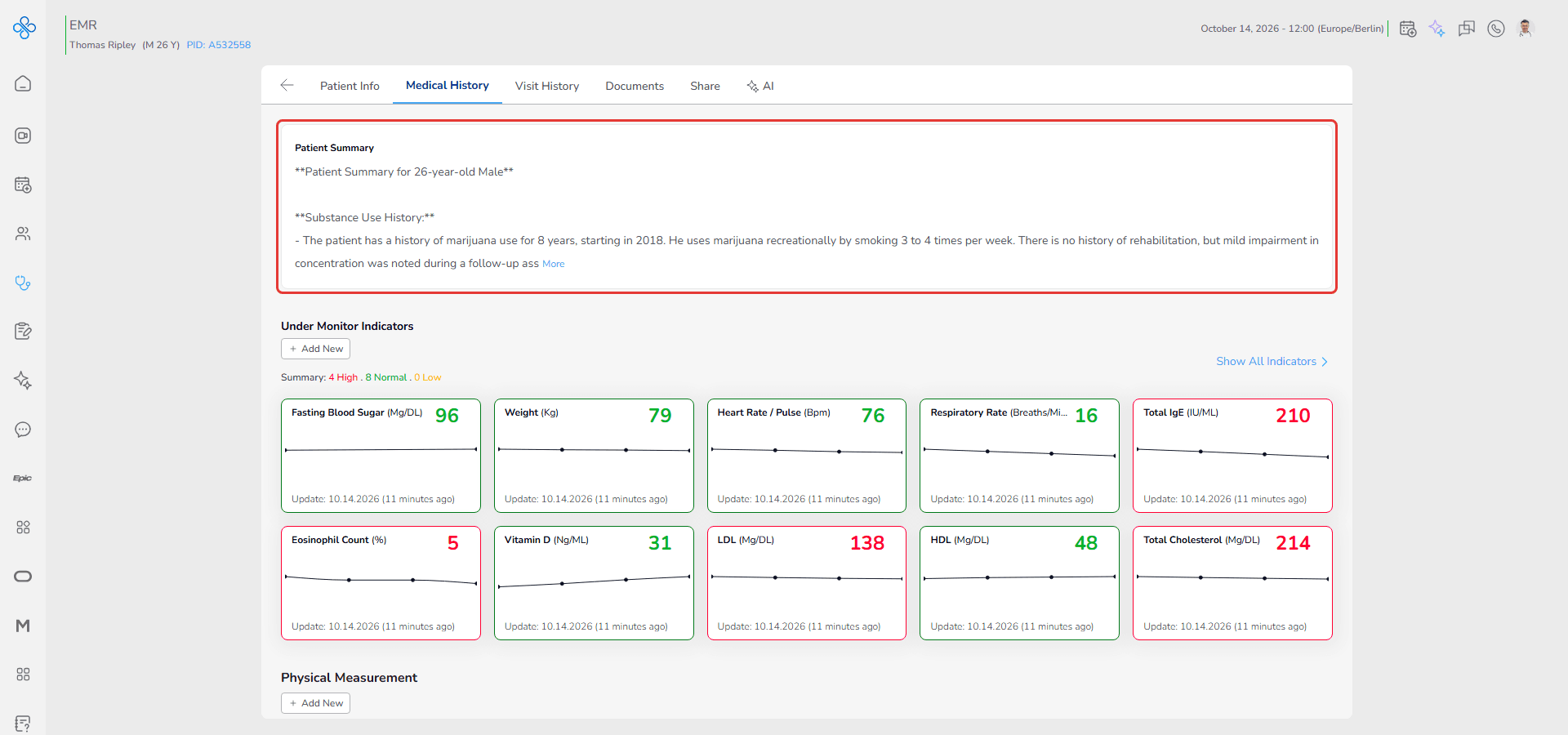
Before reviewing detailed records such as biomarkers, vital signs or past medical conditions, this section helps you quickly understand who the patient is and what is most clinically relevant.
It acts as a structured briefing area at the top of the Medical History tab.
The summary can include:
- General patient profile highlights
- Key diagnoses
- Chronic conditions
- Allergies
- Important medical alerts
- Relevant background notes
This section should always reflect the most current and clinically meaningful overview of the patient.
Access
To open the Patient Summary section:
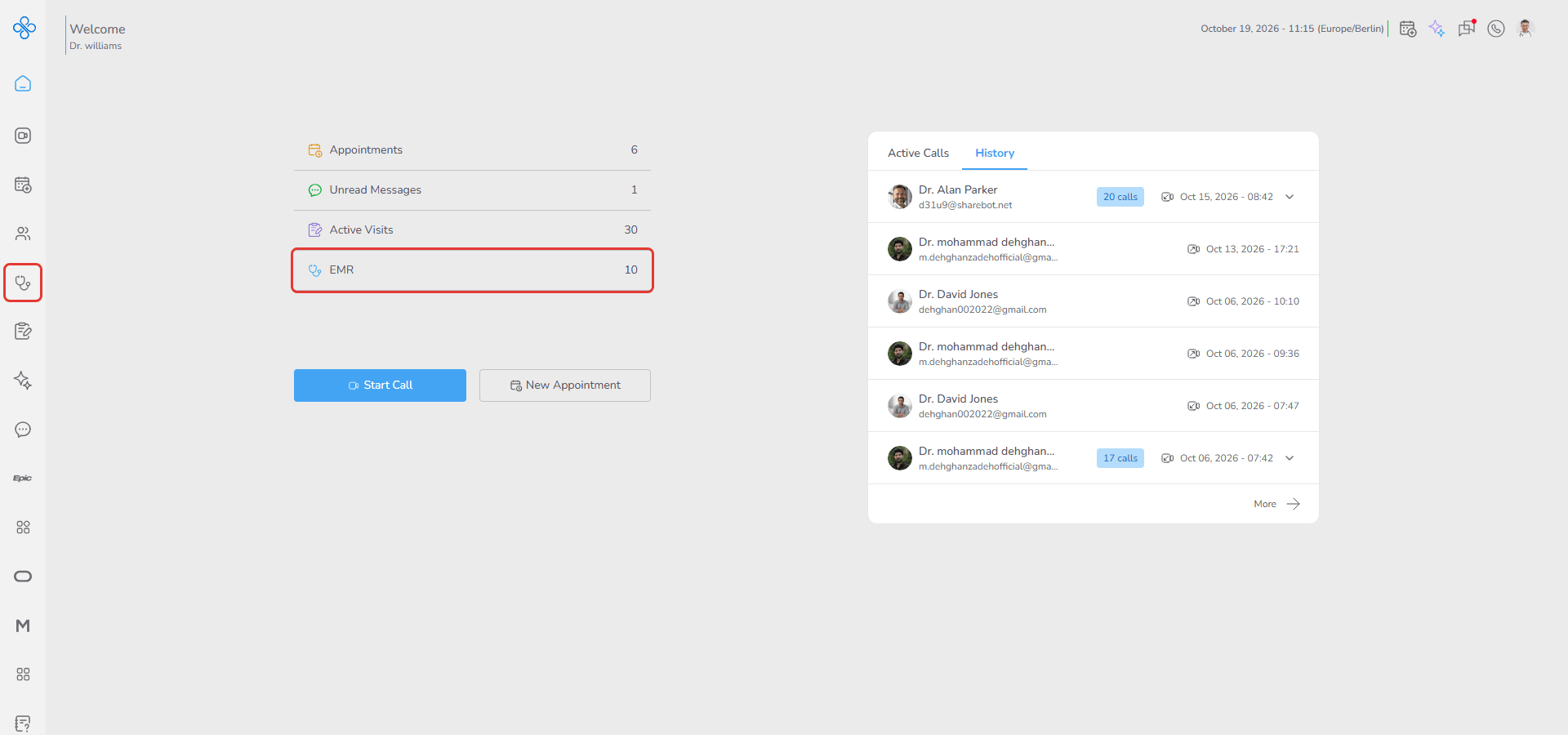
1. Go to EMR from the sidebar or Dashboard shortcut
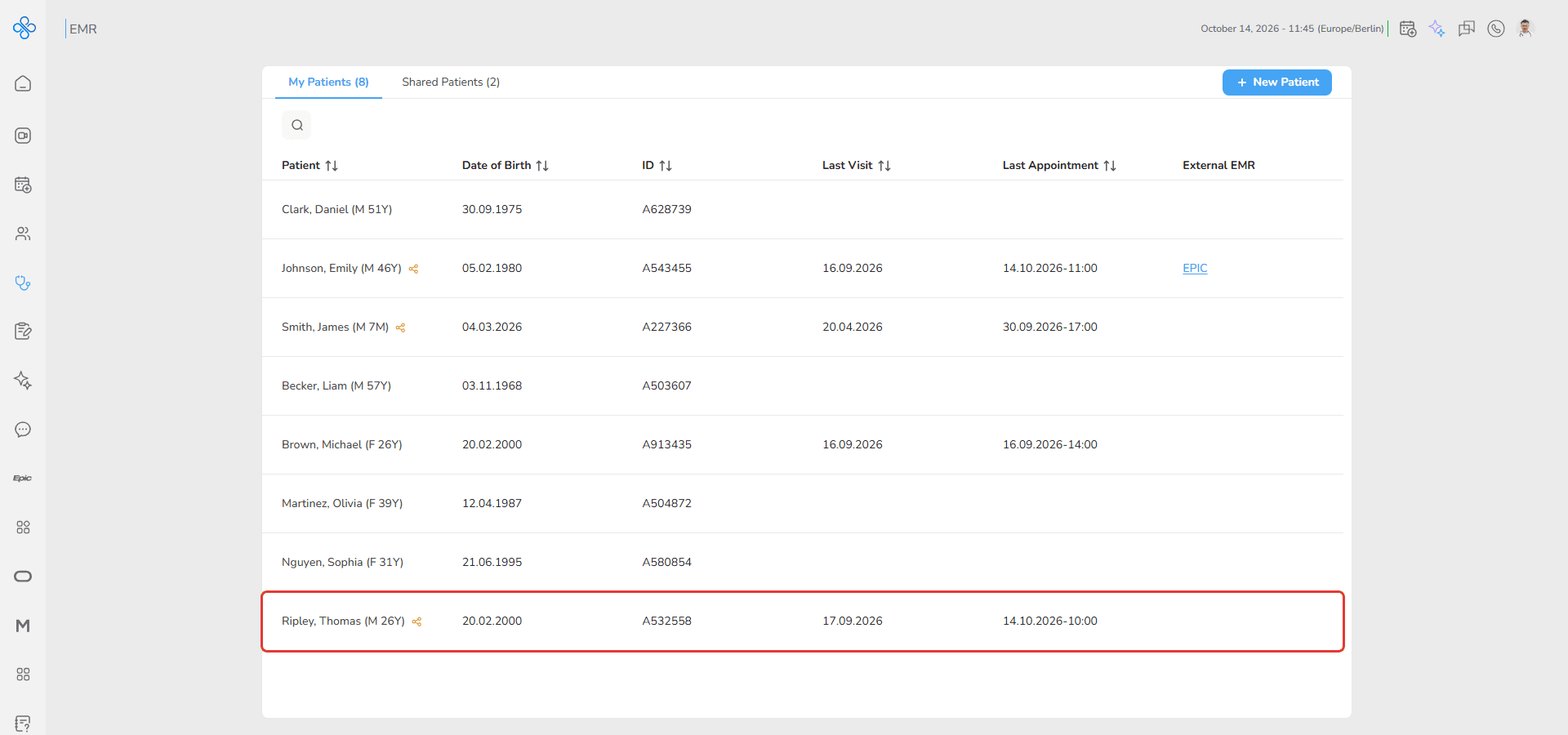
2. Open the patient file
3. Navigate to the Medical History tab
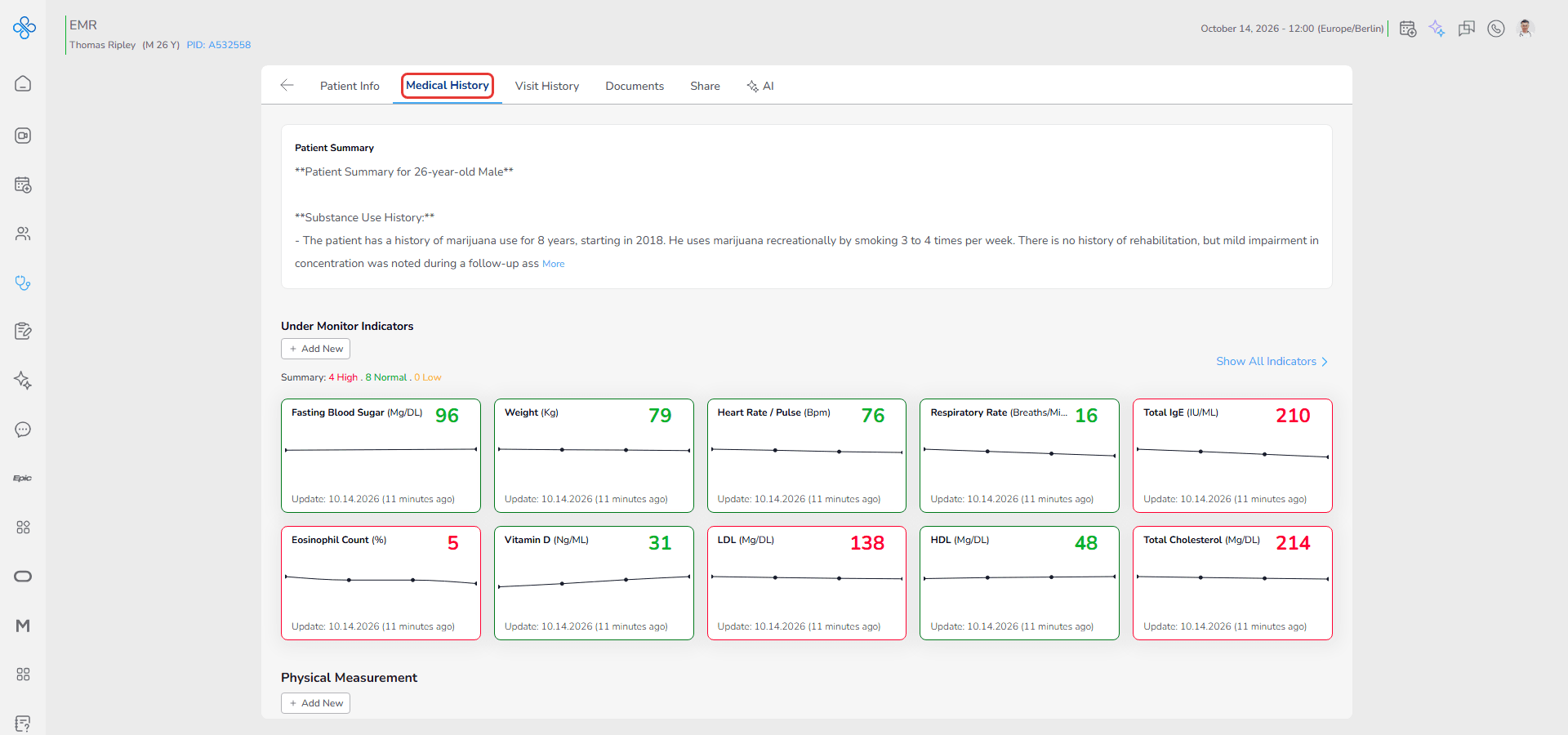
4. Locate Patient Summary at the top of the page
Steps to Create or Manage the Patient Summary
Step 1: Open the Patient Summary Editor
- Hover over the Patient Summary section and click the Edit (pencil) icon that appears
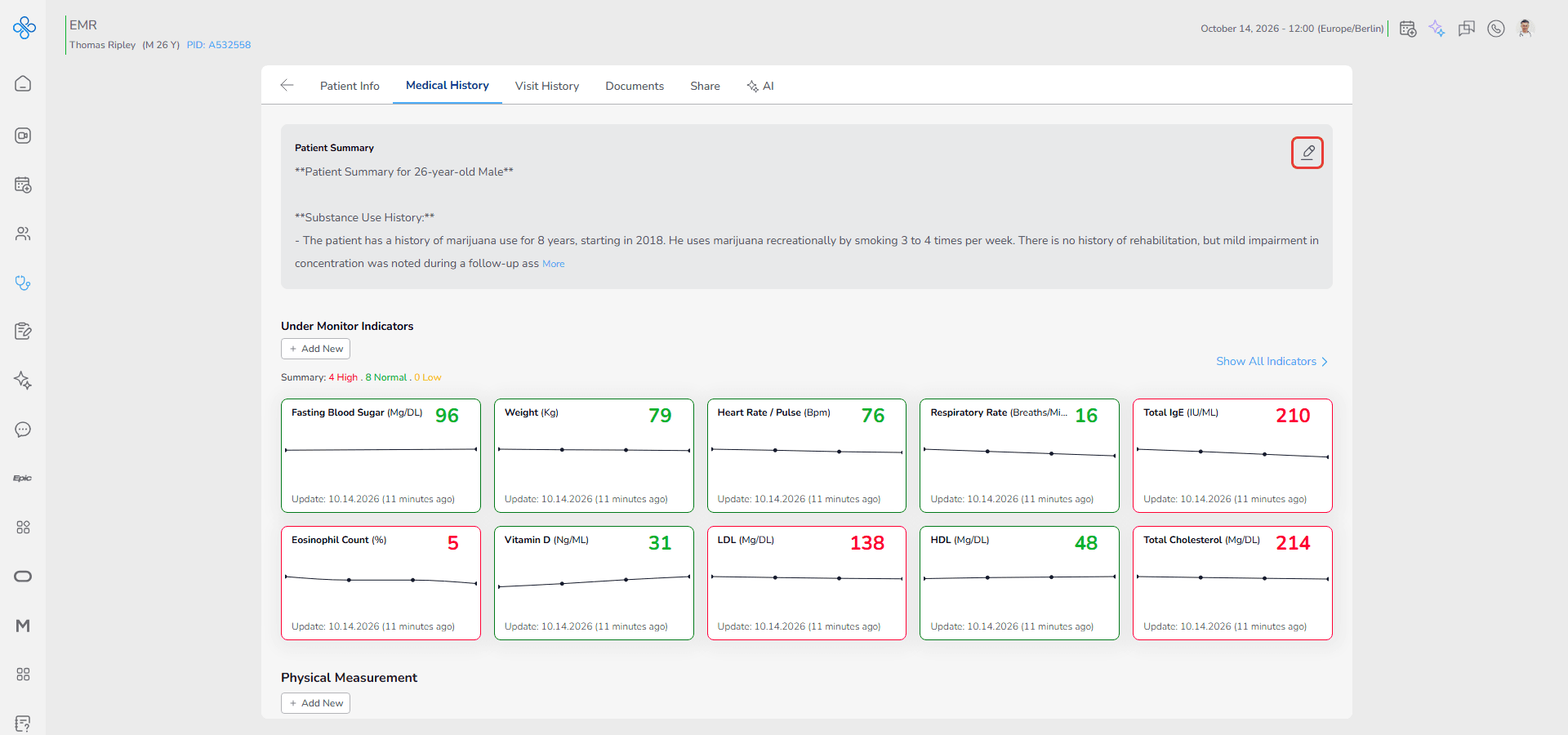
This opens the summary editor and allows you to create or modify the content.
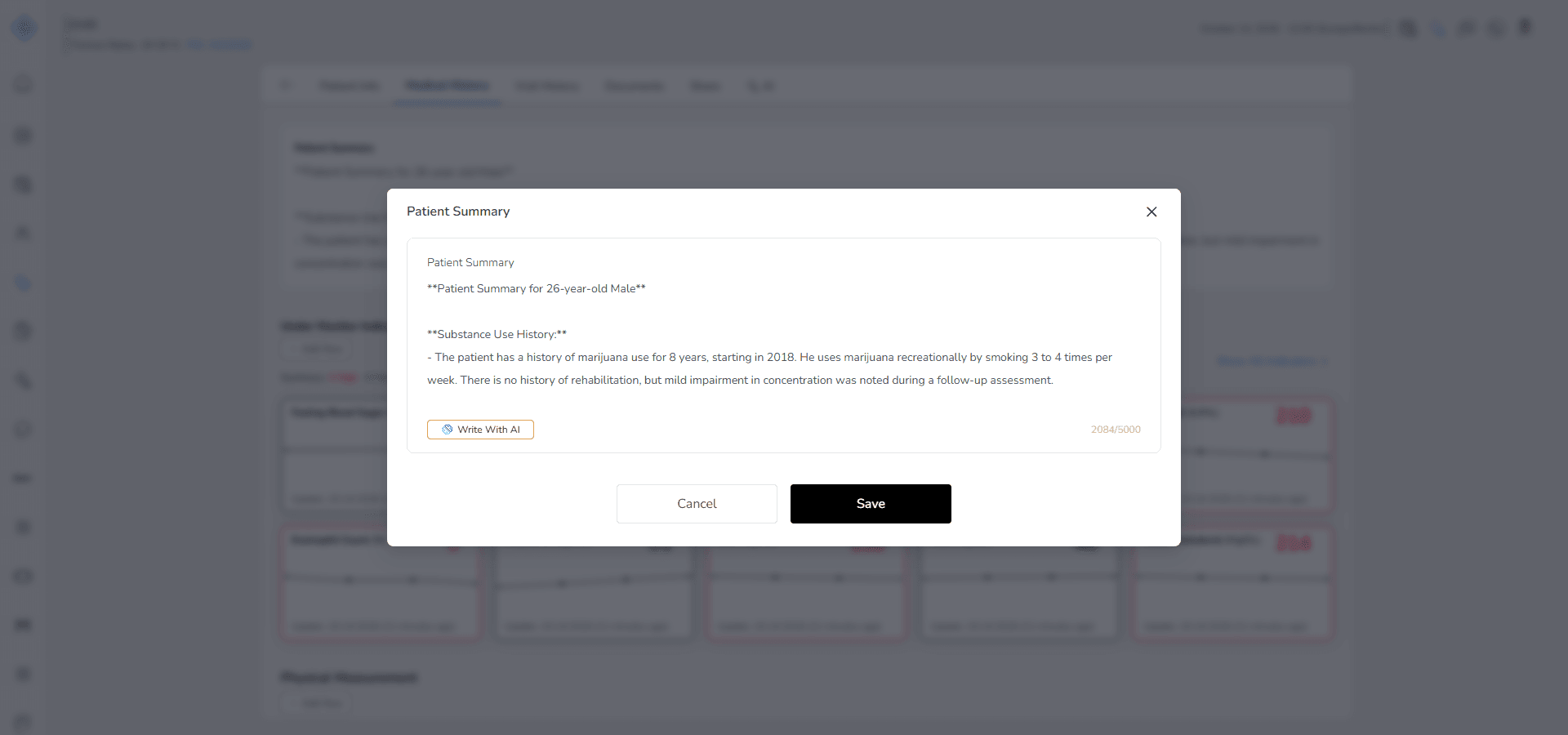
Step 2: Generate Automatically with AI
If you want the system to prepare a structured draft for you:
- Click Write With AI
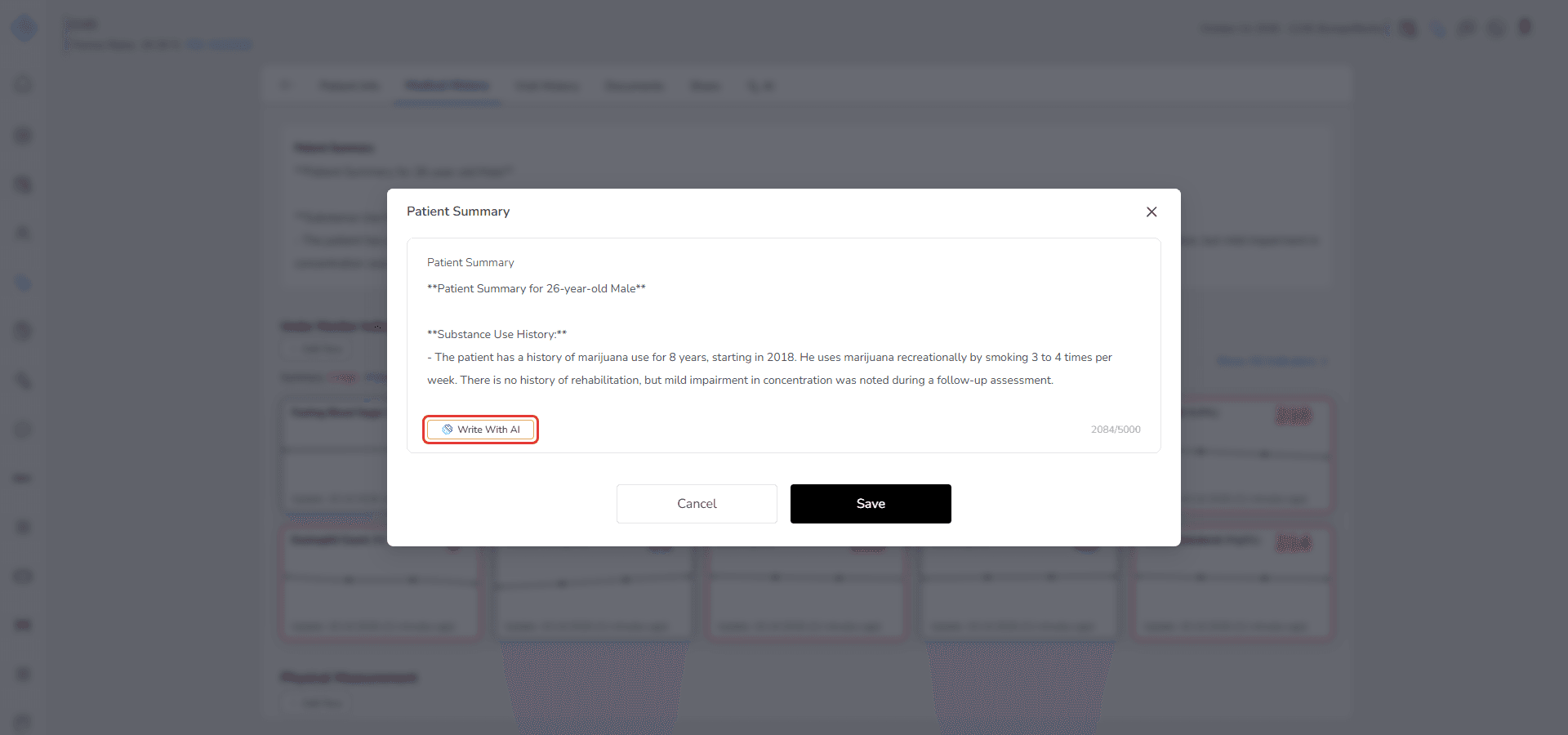
The system will automatically generate a summary using available patient data, including:
- Profile information
- Recorded medical history
- Allergies
- Existing conditions
This gives you a ready to review clinical overview.
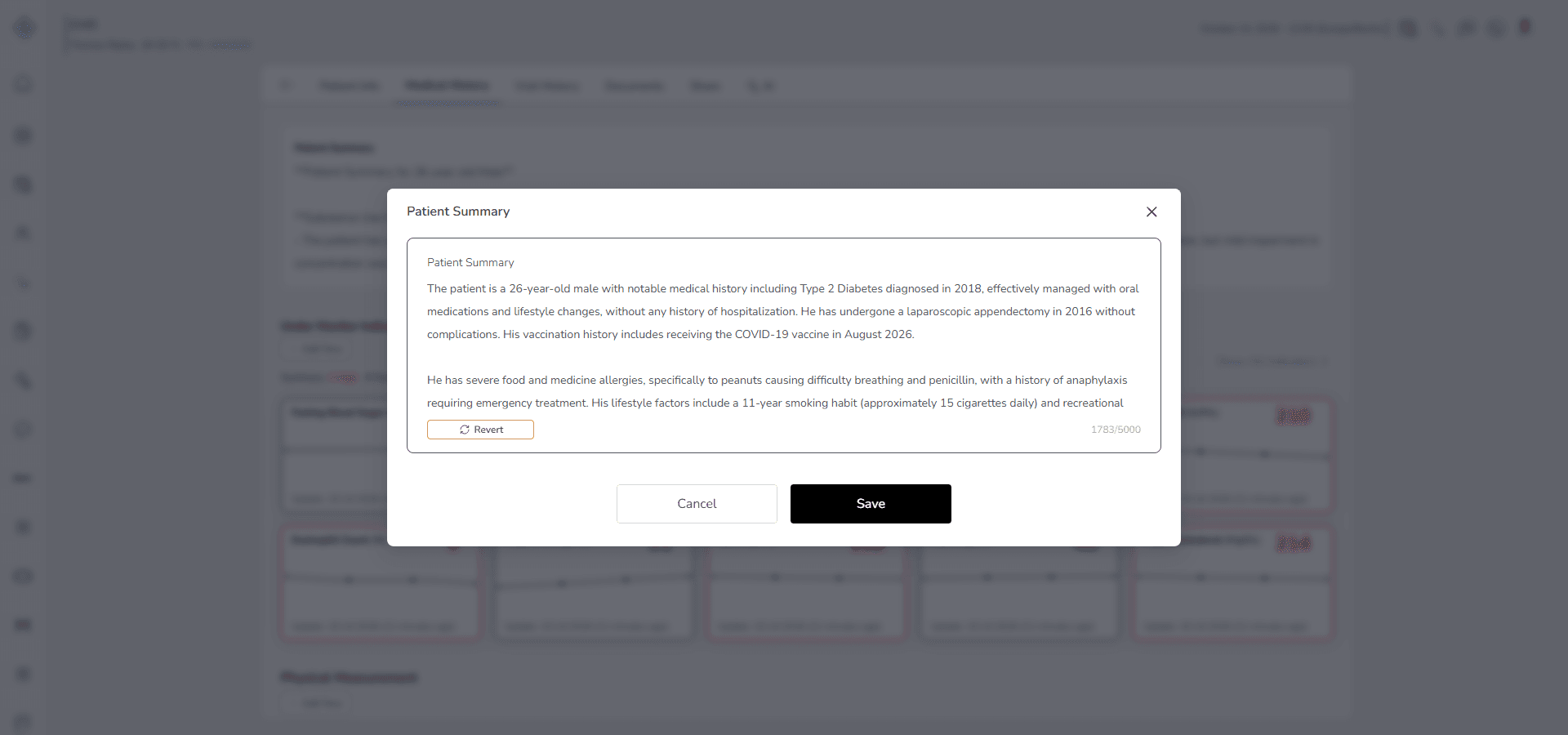
Step 3: Edit or Write Manually or Revert
You have full control over the Patient Summary content at all times.
While the summary is being generated, the button shows Cancel so you can stop the generation. After generating content using Write With AI, the system replaces the Write With AI button with a Revert button.
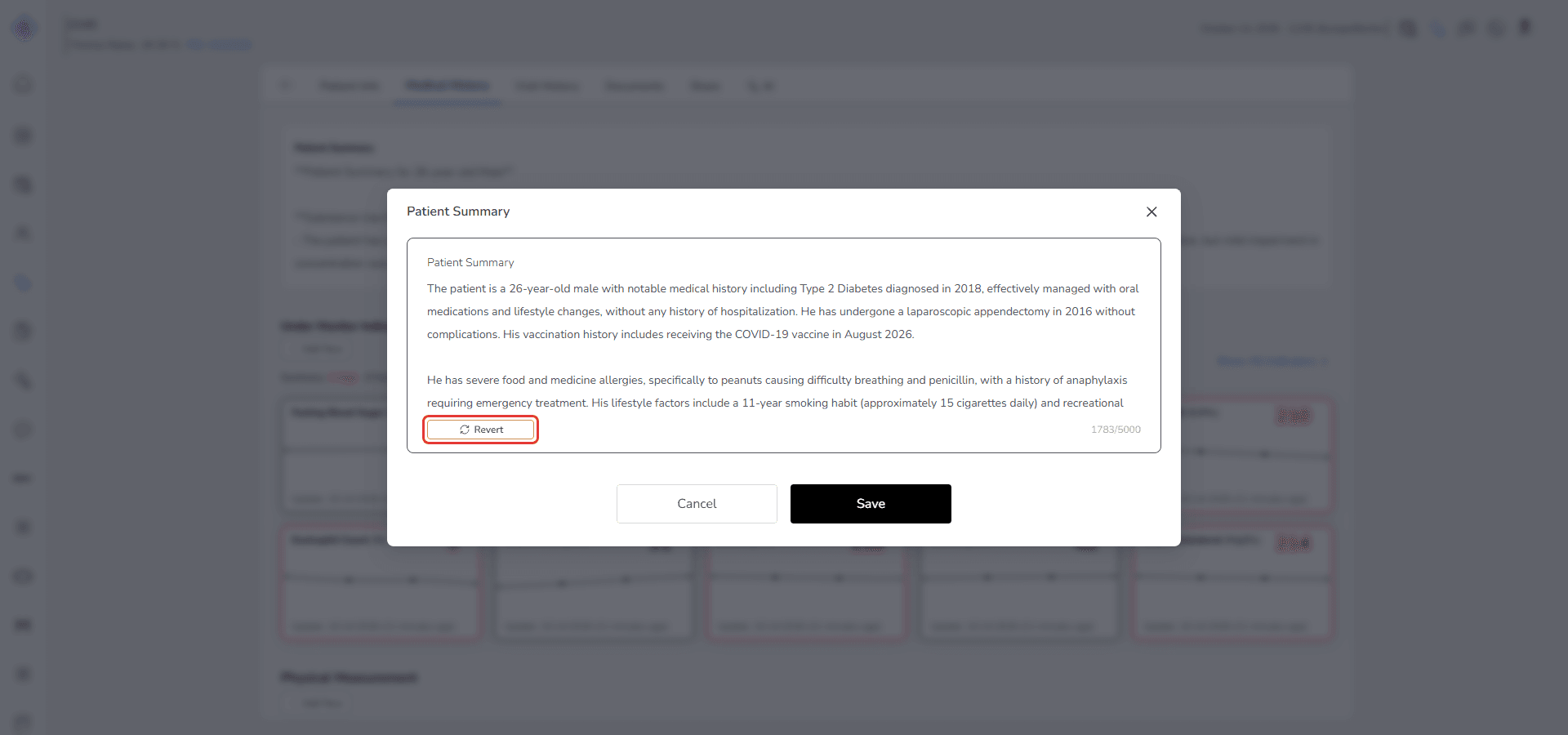
This indicates that the current summary has been modified by AI and allows you to return to the previous version if needed.
You can:
- Modify the AI generated text
- Add additional clinical notes
- Remove unnecessary details
- Rewrite specific sections
- Or create a completely new summary from scratch
Revert Behavior
If you click Revert:
- The summary will return to the exact version that existed before AI generation
- All AI generated modifications will be removed
- The Revert button changes back to Write with AI
Important notes:
- Revert is only available immediately after AI generation
- If you manually edit the content and save changes, the updated version becomes the current active summary
- Reverting does not affect other sections of Medical History
This functionality ensures that AI assistance remains optional and fully reversible, while maintaining full clinical control over documentation.
Step 4: Save the Summary
- After finalizing the content, click Save
The updated summary is immediately displayed at the top of the Medical History tab.
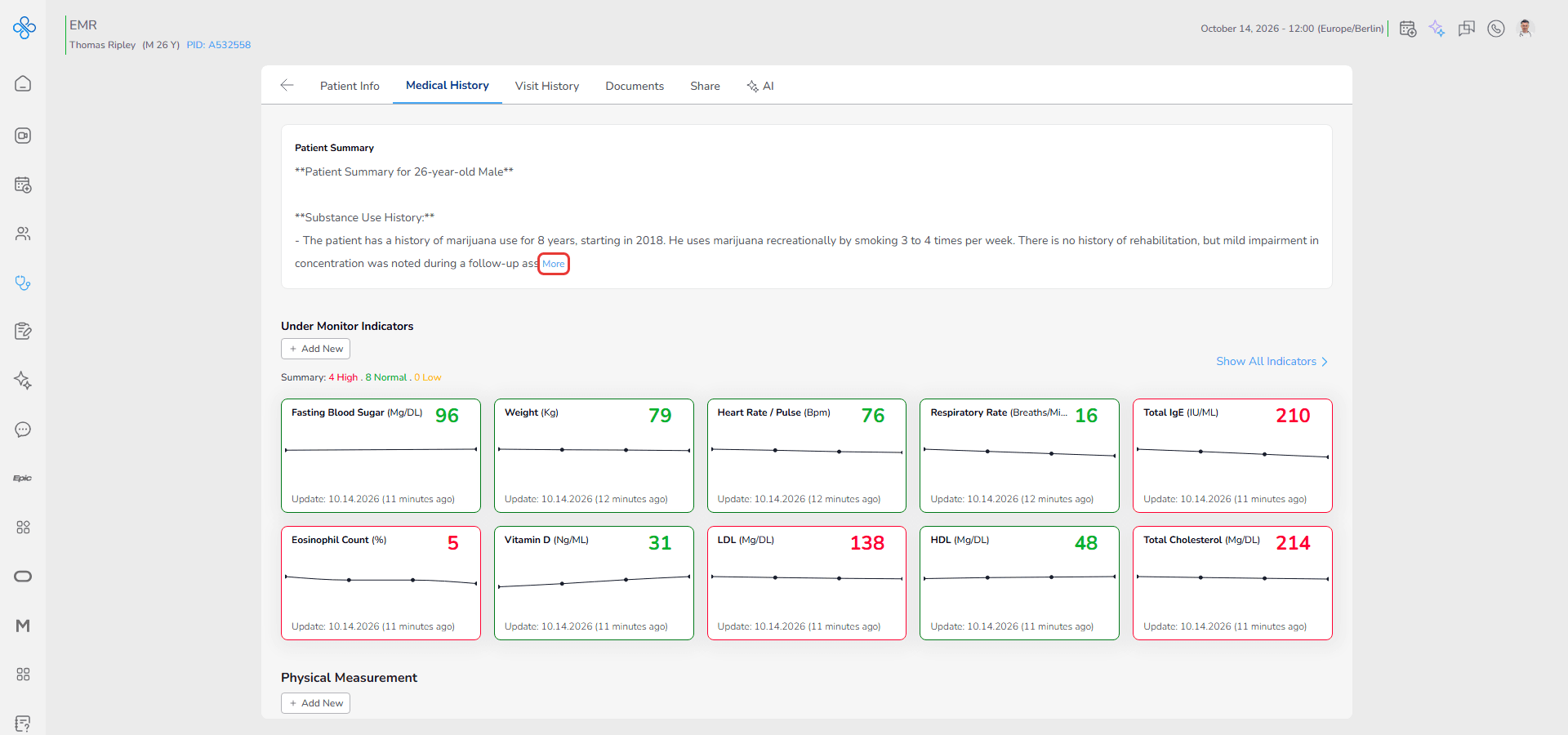
If the summary text is long, it will be truncated by default for better readability.
At the end of the visible text, a More button appears.
- Click More to expand and view the full summary
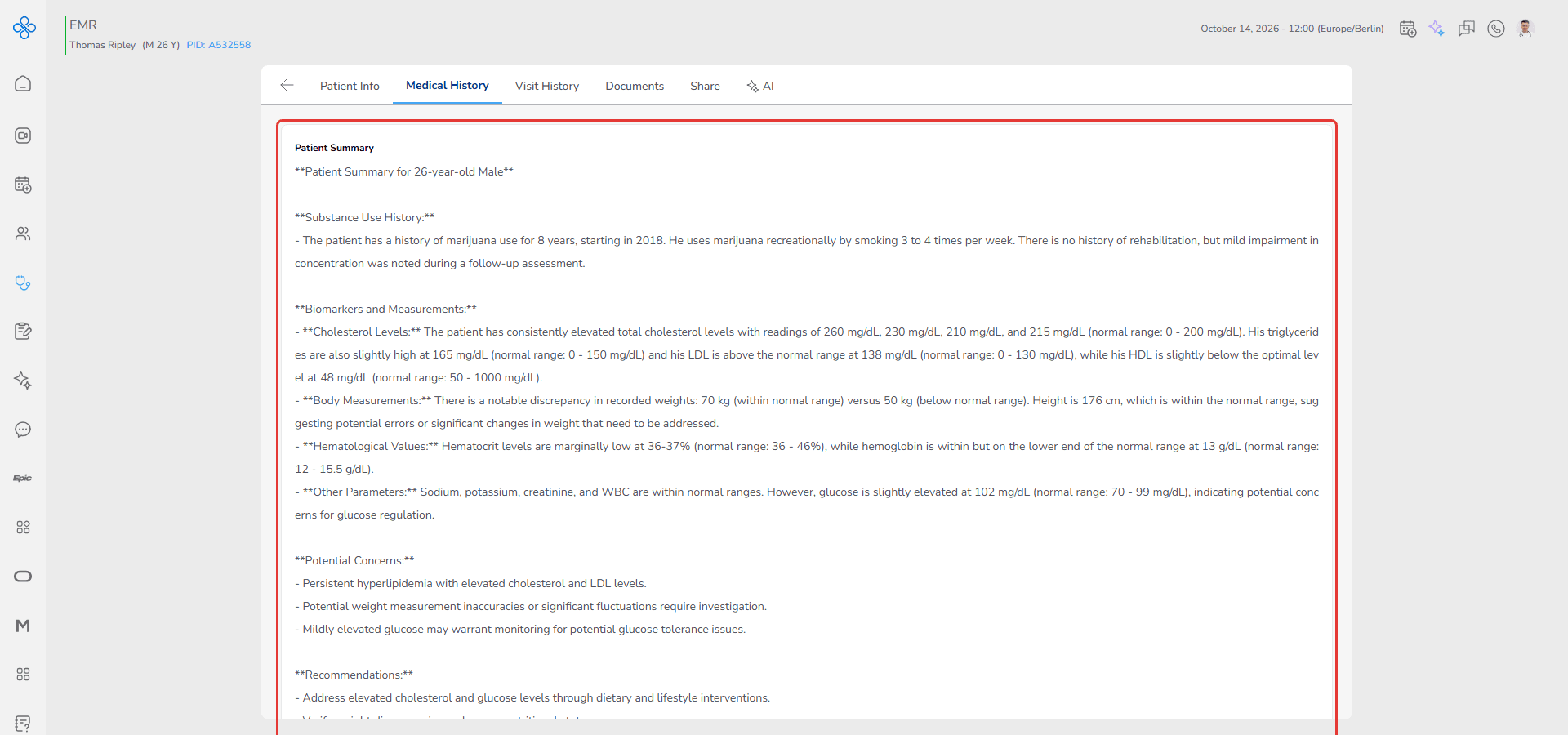
- Once expanded, the More button changes to Less
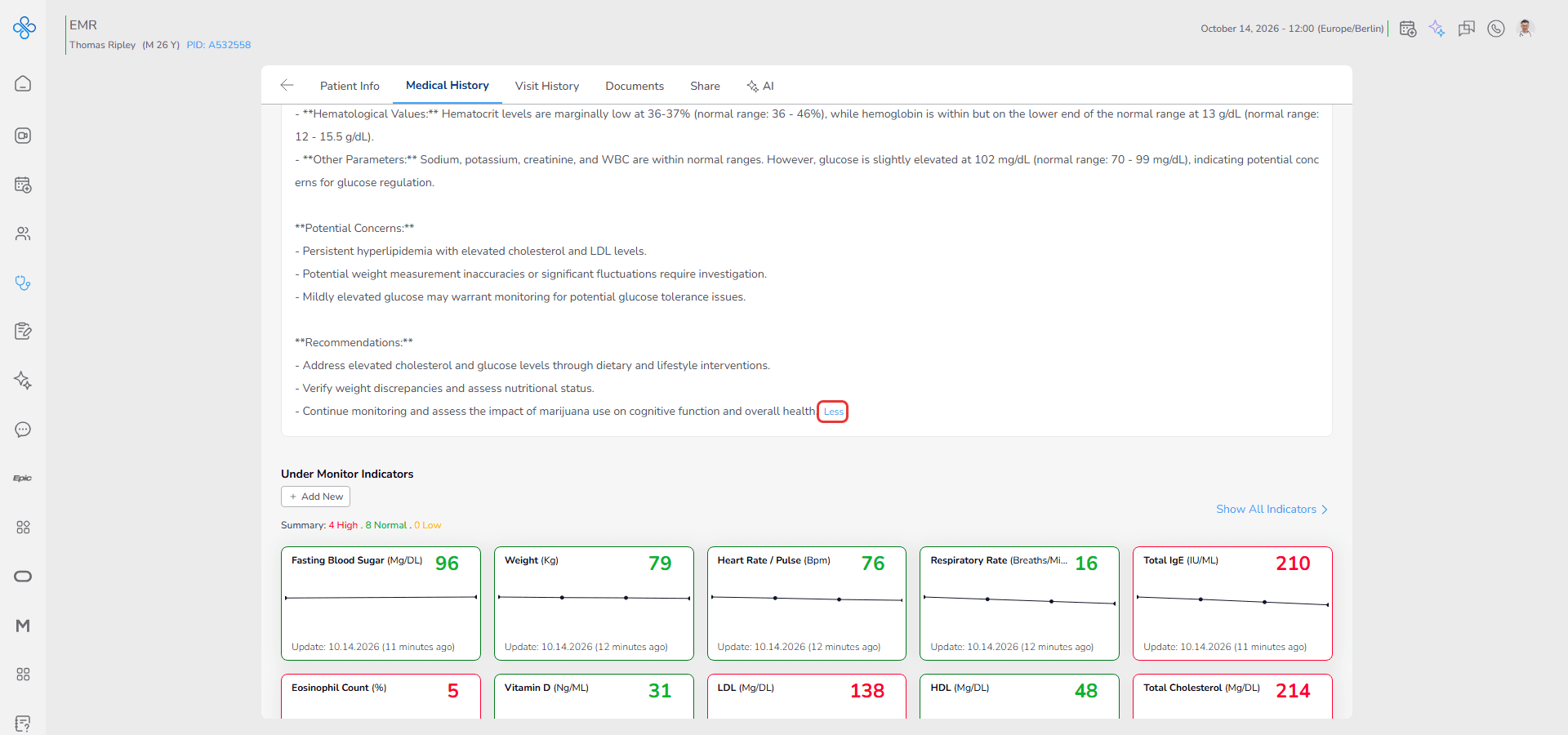
- Click Less to collapse the text back to the shortened view
This behavior ensures long summaries remain readable while allowing full access to detailed clinical documentation when needed.
Fields (Field Descriptions)
| Field / Control | Description |
|---|---|
| Patient Summary | A text field where you can manually enter or edit the patient's summary. |
| Edit Icon | Opens the summary editor |
| Write with AI | A button that automatically generates a summary based on the patient's data. |
| Save | Stores and updates the summary |
| Cancel | Cancel |
Behavior & Expected Outcome
- The summary is saved instantly after clicking Save
- The updated content appears immediately without reloading the page
- AI generated summaries automatically include key patient data from the record
- Edit access requires Edit permission
- View access requires View permission
- Without proper access rights, the Medical History tab remains inaccessible (Access is explained in the Share guide.)
This section should always reflect the most current and clinically relevant overview of the patient.
Common Errors + Fixes
| Issue | Cause | Fix |
|---|---|---|
| The summary is not generated. | The AI service is temporarily unavailable. | Try again later. |
| You don’t have access. | Only the patient’s owner provider can add or generate a summary. | Ensure that you are the patient’s owner provider. |