Epic EMR
Overview
Epic EMR integration lets you connect your Telemedicall account to your Epic system.
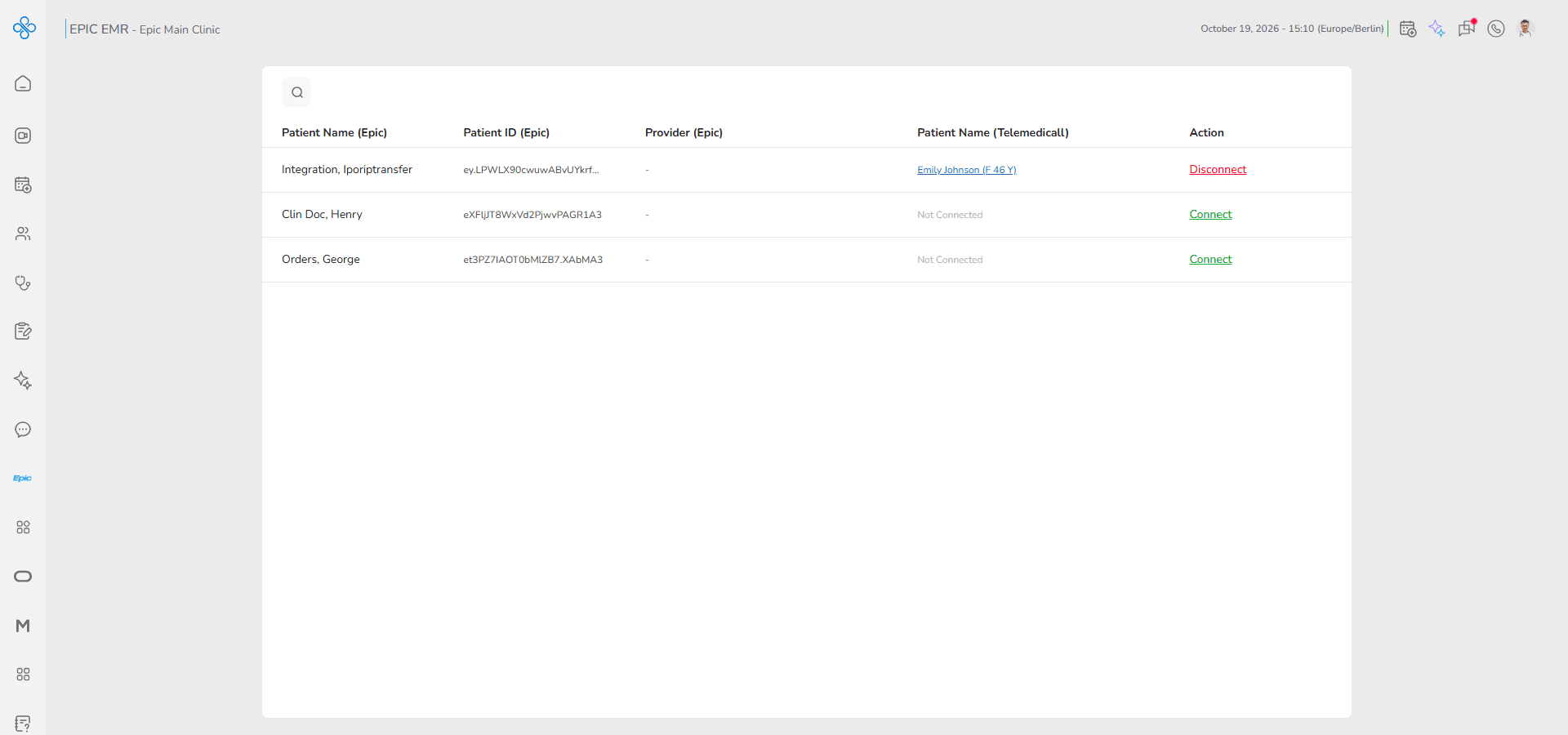
You use this feature to view your patient’s medical records from Epic directly inside Telemedicall.
After connecting, you can:
- See patient data from Epic inside Telemedicall
- Link Epic patients to your Telemedicall patients
- Access diagnoses, allergies and clinical history in one place
This helps you avoid switching between systems and gives you a complete view of your patient.
How to Access Epic EMR
Follow these steps to open Epic EMR:
1. Go to the left sidebar and click Epic EMR
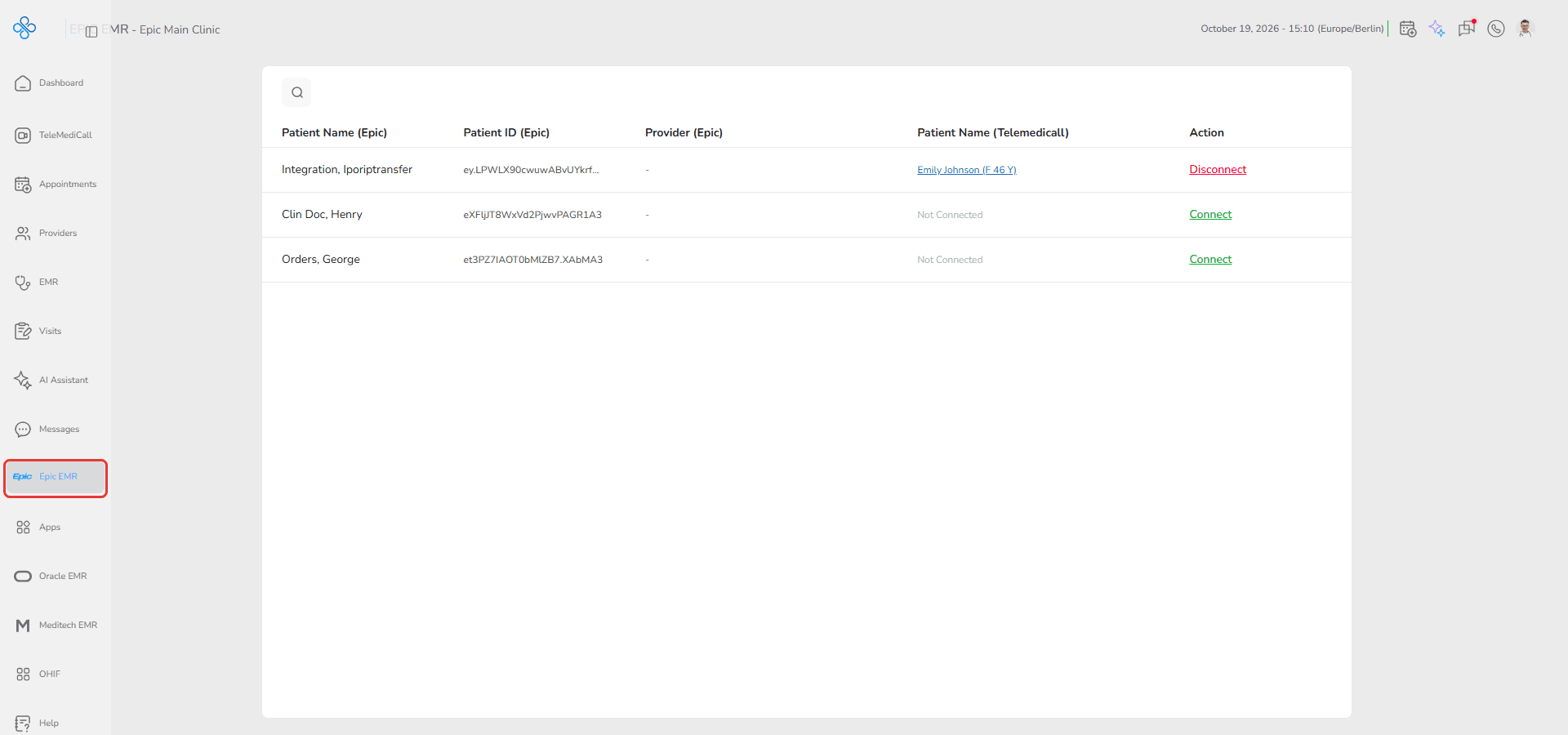
2. You will see the Epic EMR page with the list of Epic patients (see the image in the Overview)
You can open the connection window in two ways:
Method 1
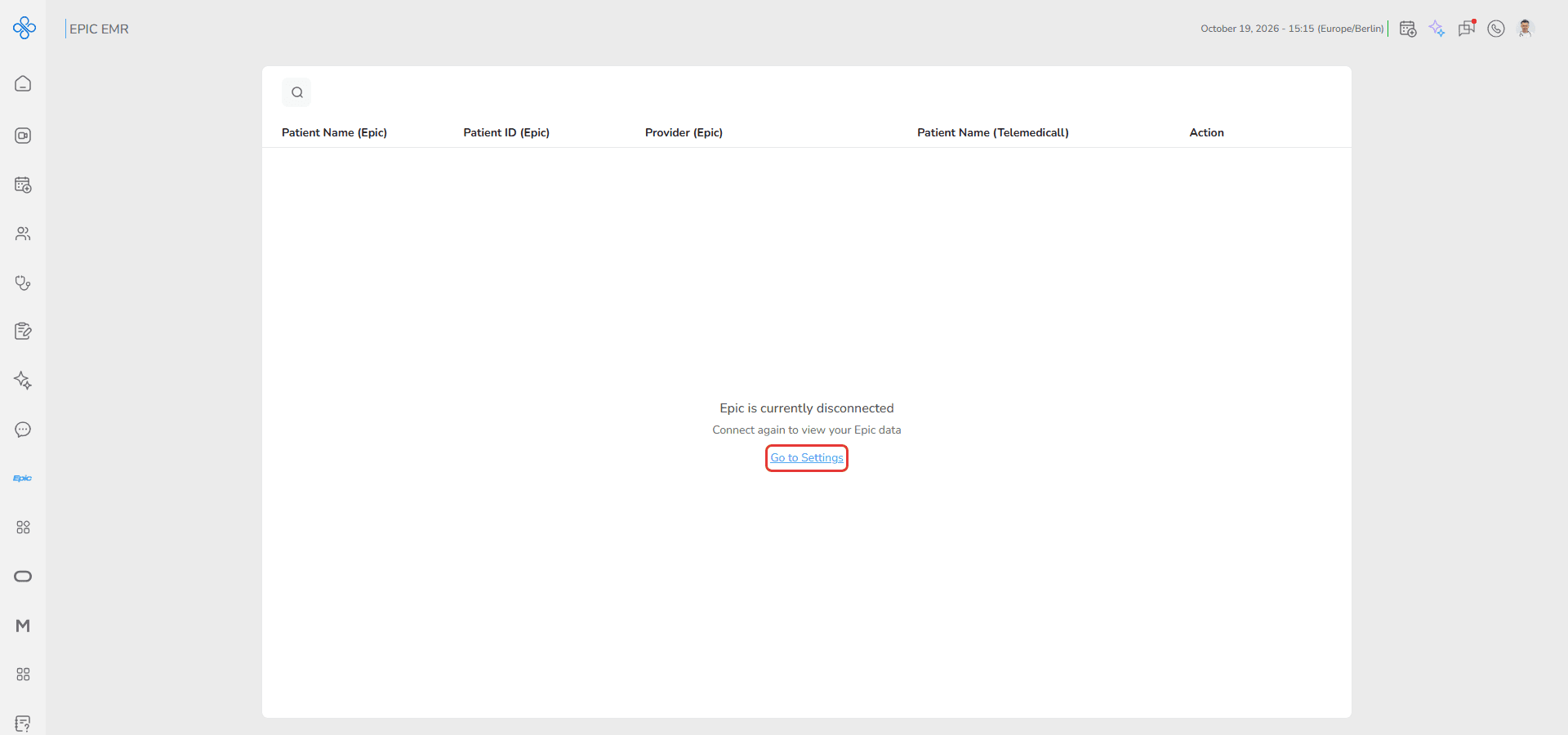
1. Go to the Epic EMR page. If Epic is not connected, the page shows Epic is currently disconnected
2. Click Go to Settings in the middle of the page
Method 2
1. Go to the left sidebar and click Apps
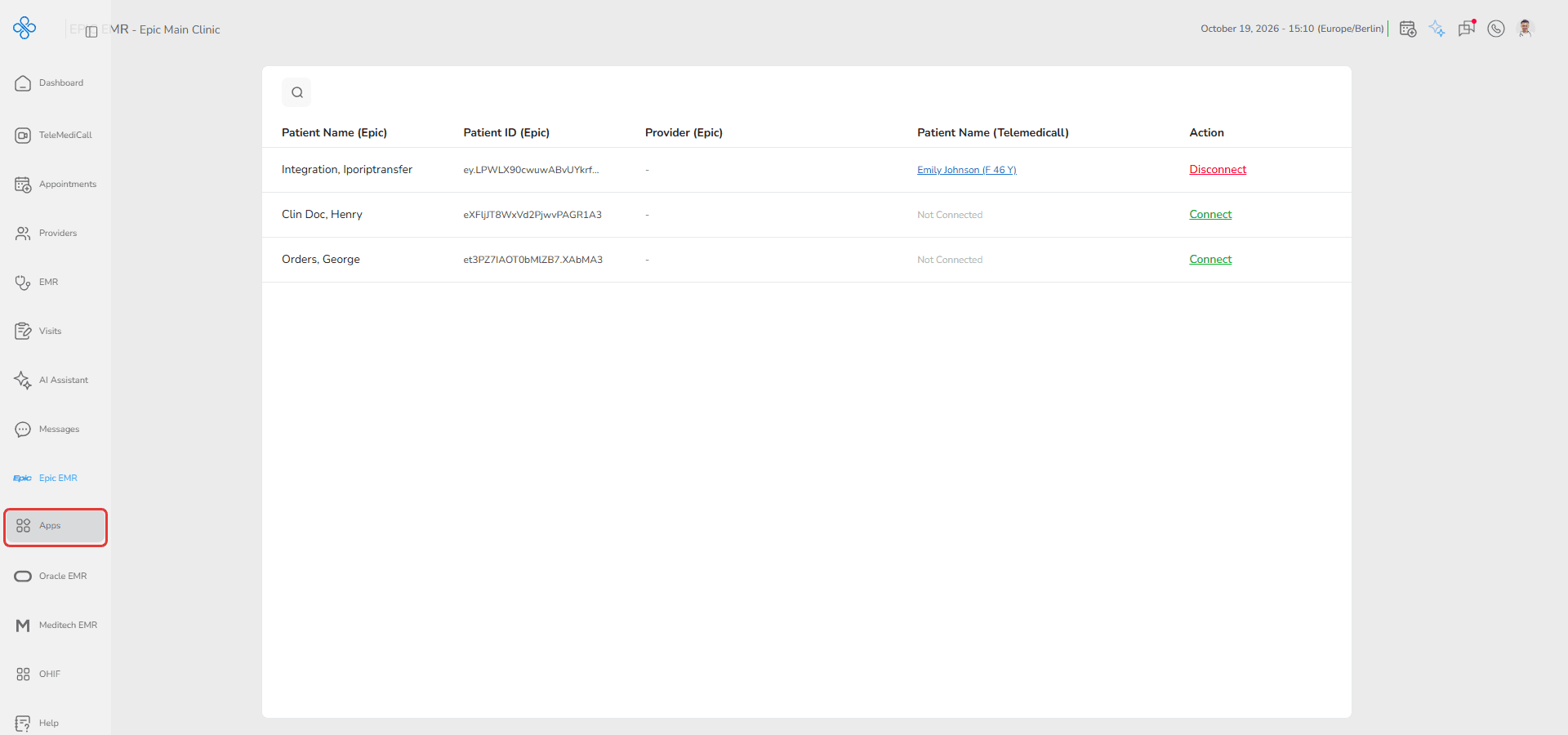
2. Find Epic EMR Connector in the list or search for it
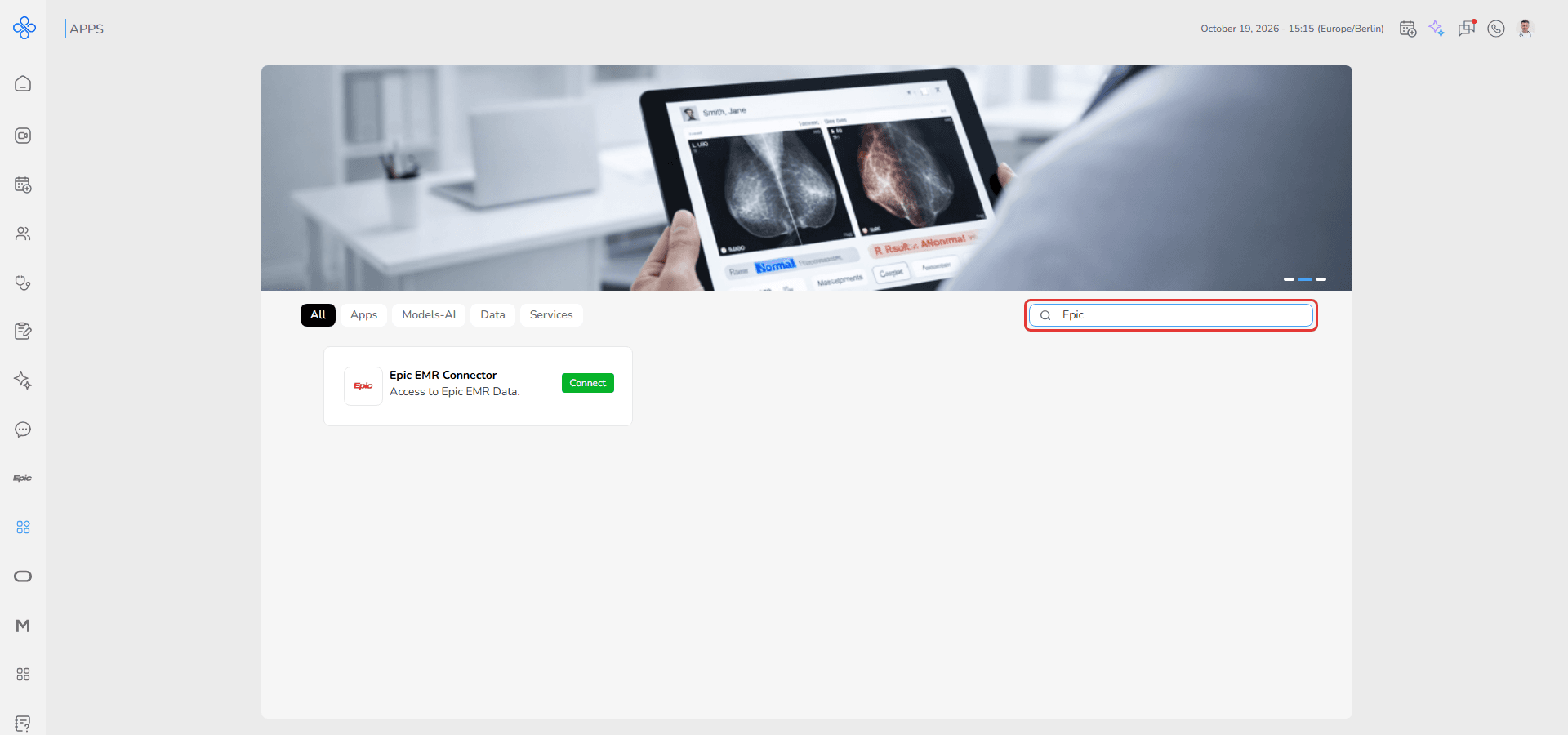
3. Click Connect on the Epic EMR Connector app
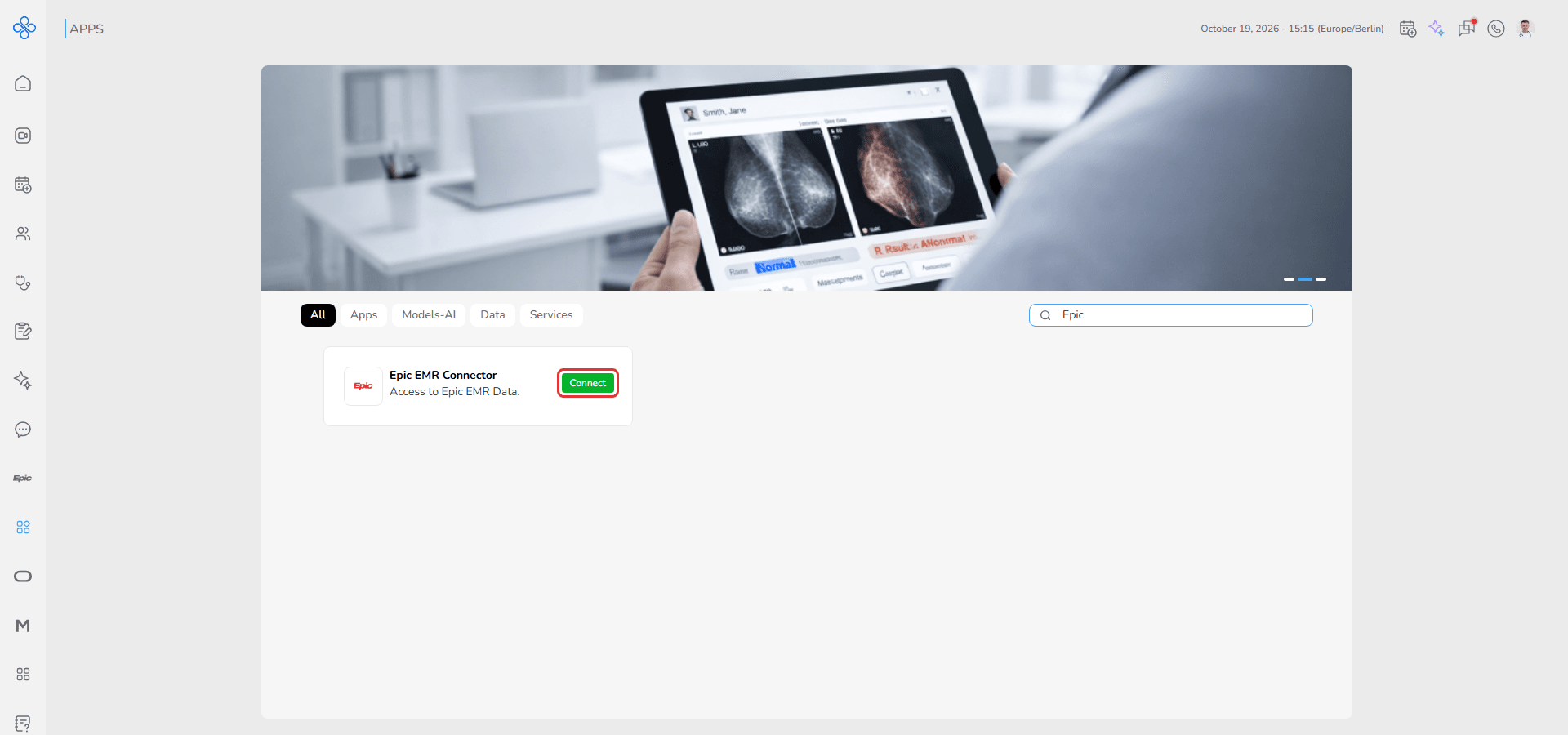
After either method, the connection window will open on your screen.
Steps
How to connect to Epic EMR
1. Open the connection window
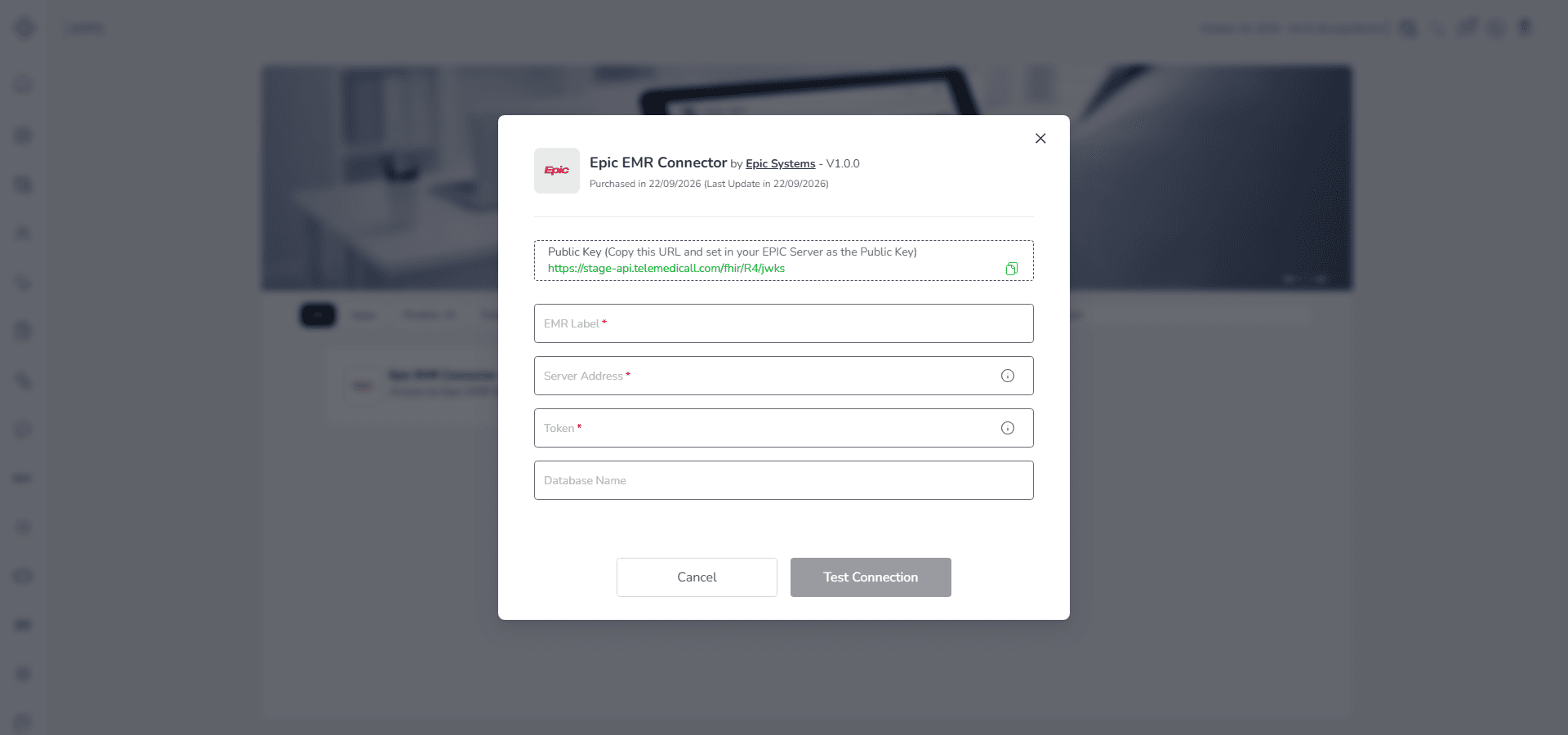
2. Copy the Public Key shown at the top of the window (use the copy icon) and add it to your Epic server settings
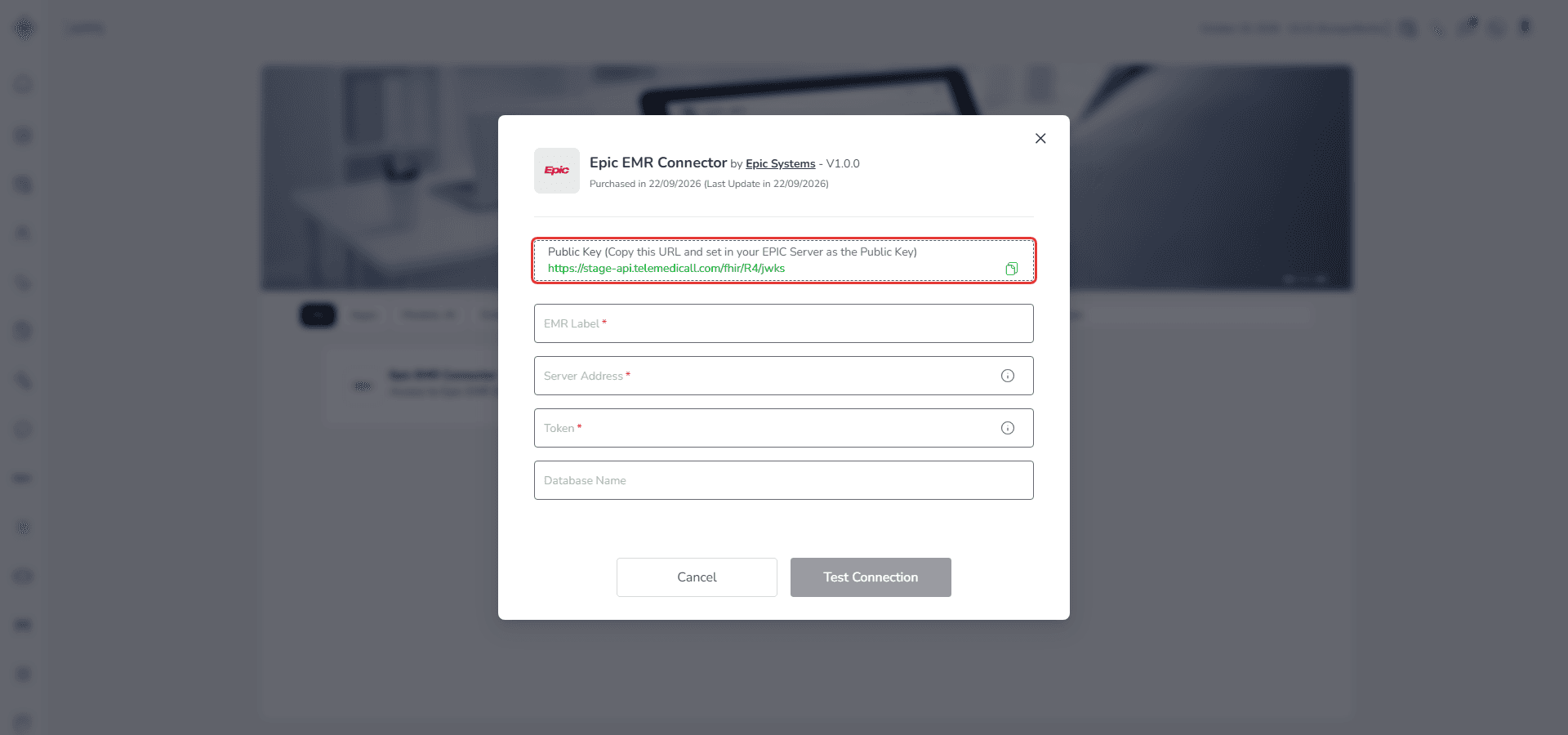
3. Enter an EMR Label — a name for this connection, for example Epic Main Clinic
4. Enter the Server Address — this is your Epic server URL
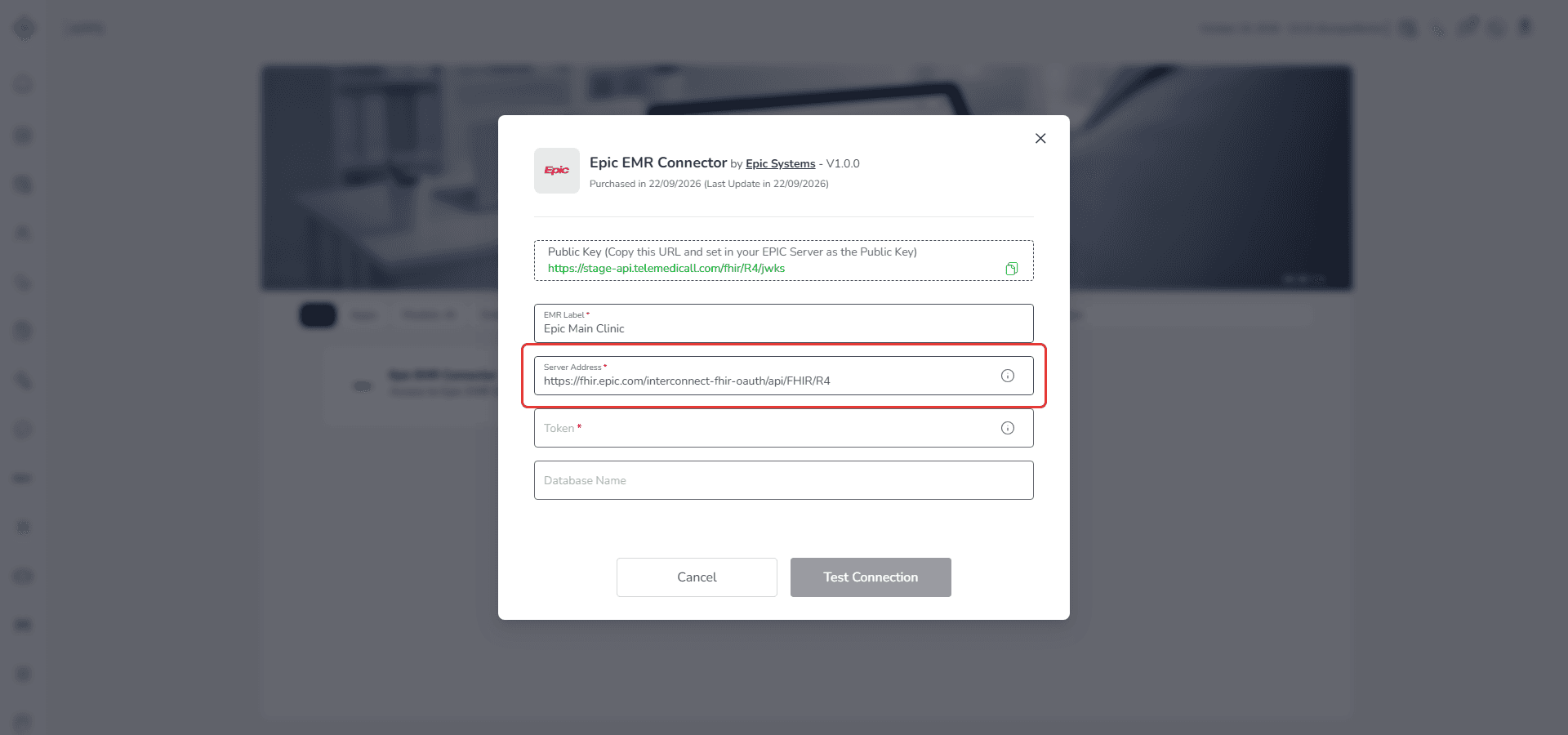
5. Enter the Token — this is your access token from Epic
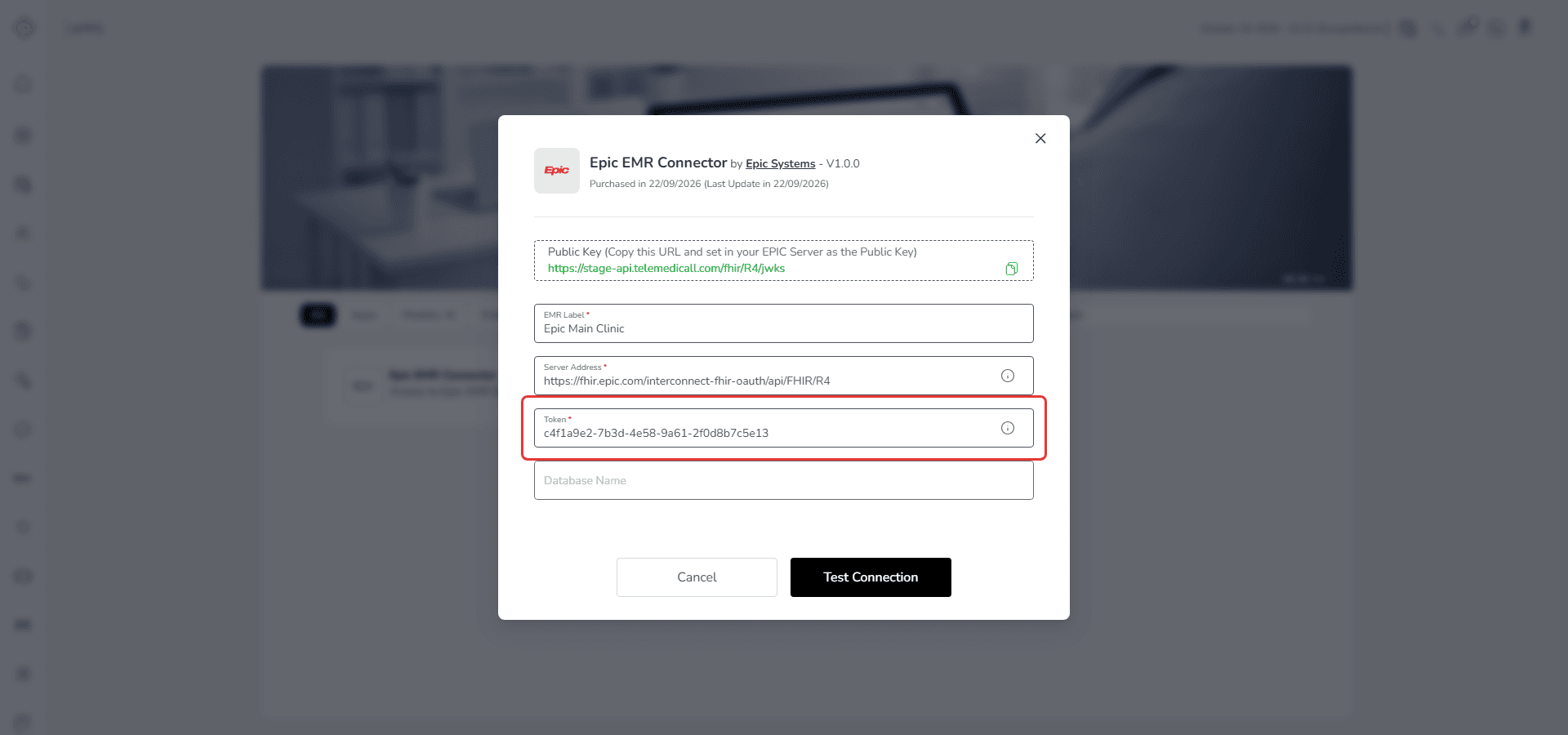
6. Fill the other fields if needed (Database Name is optional)
7. Click Test Connection
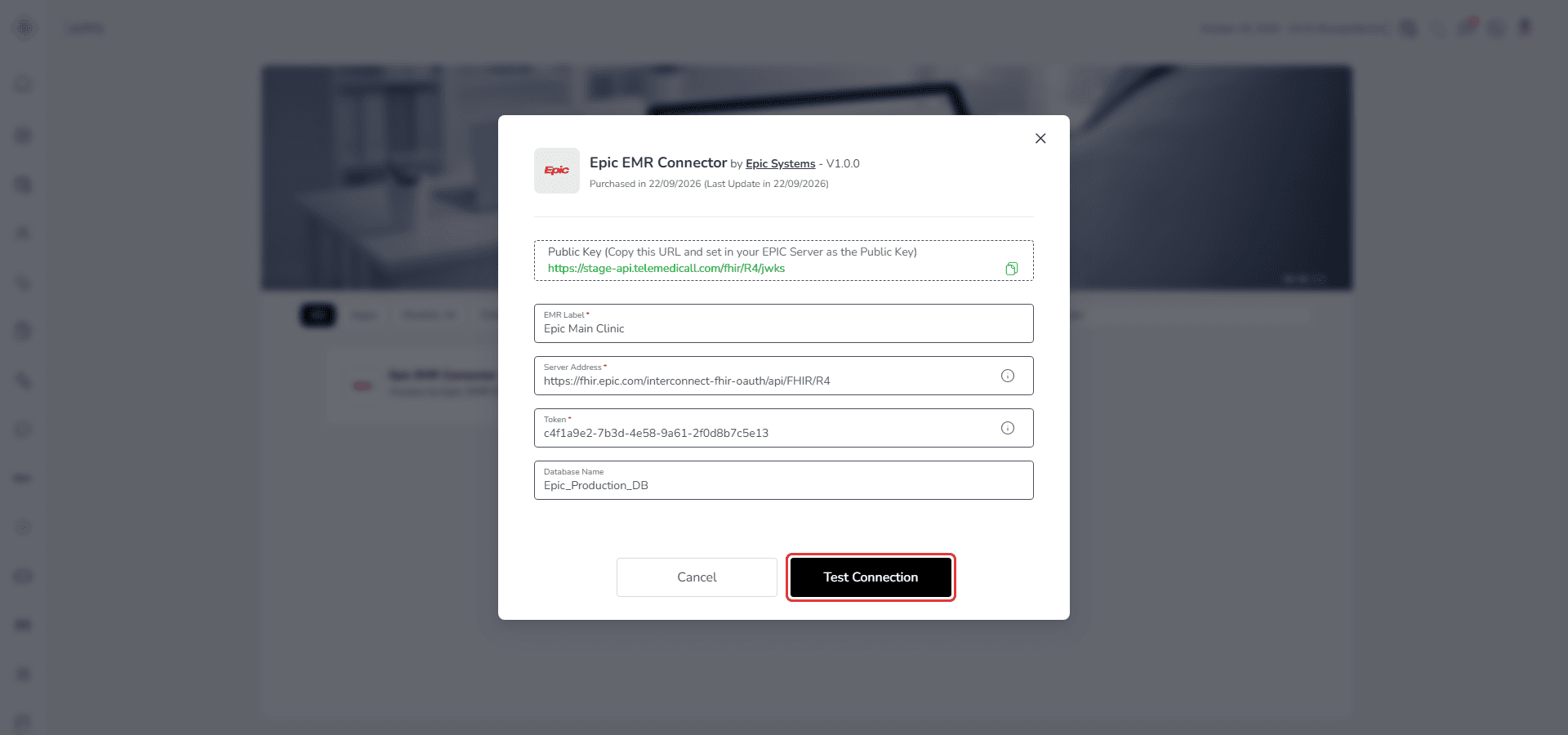
After clicking:
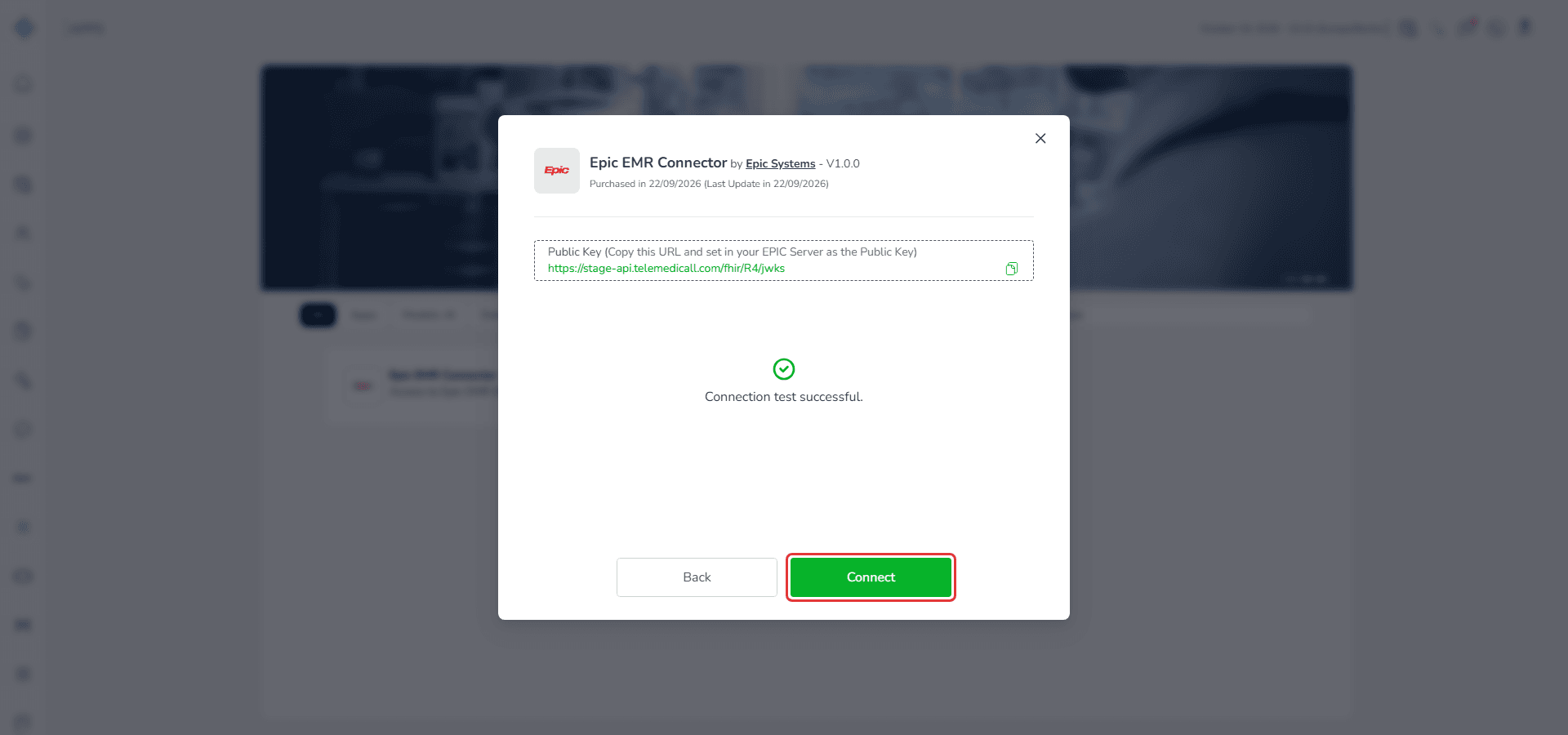
- If the information is correct, you will see Connection test successful
- If the information is incorrect, you will see Connection test failed
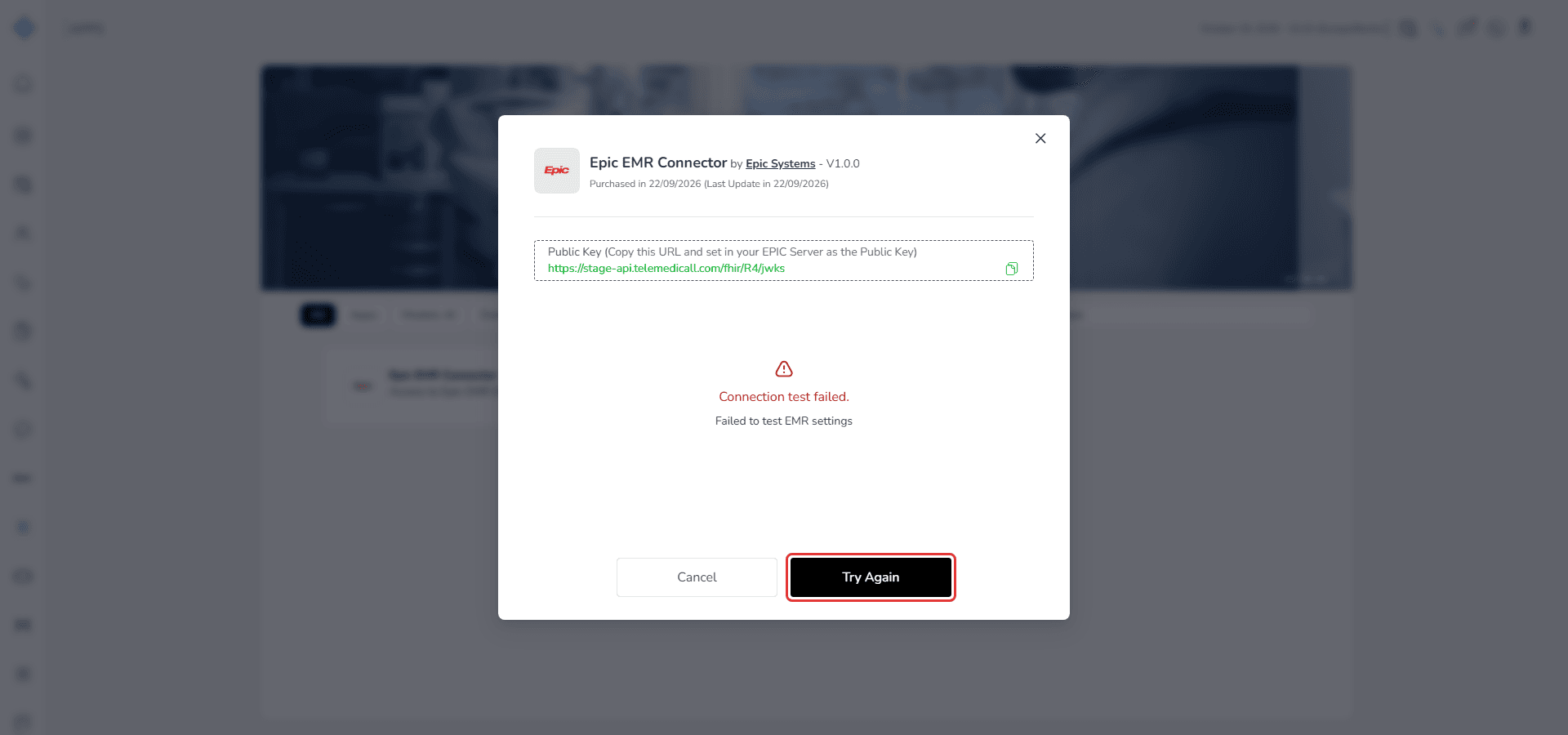
If the test is successful, click Connect.
After clicking Connect:
- Your Epic account is linked
- You will return to the Epic EMR page
- The patient list will be displayed
How to retry connection
1. If the test fails, click Try Again
2. Check the Server Address and Token
3. Re-enter the correct values
4. Click Test Connection again
How to connect a patient
1. After connection, you will see a patient list. Find a patient in the table and click Connect in the Action column
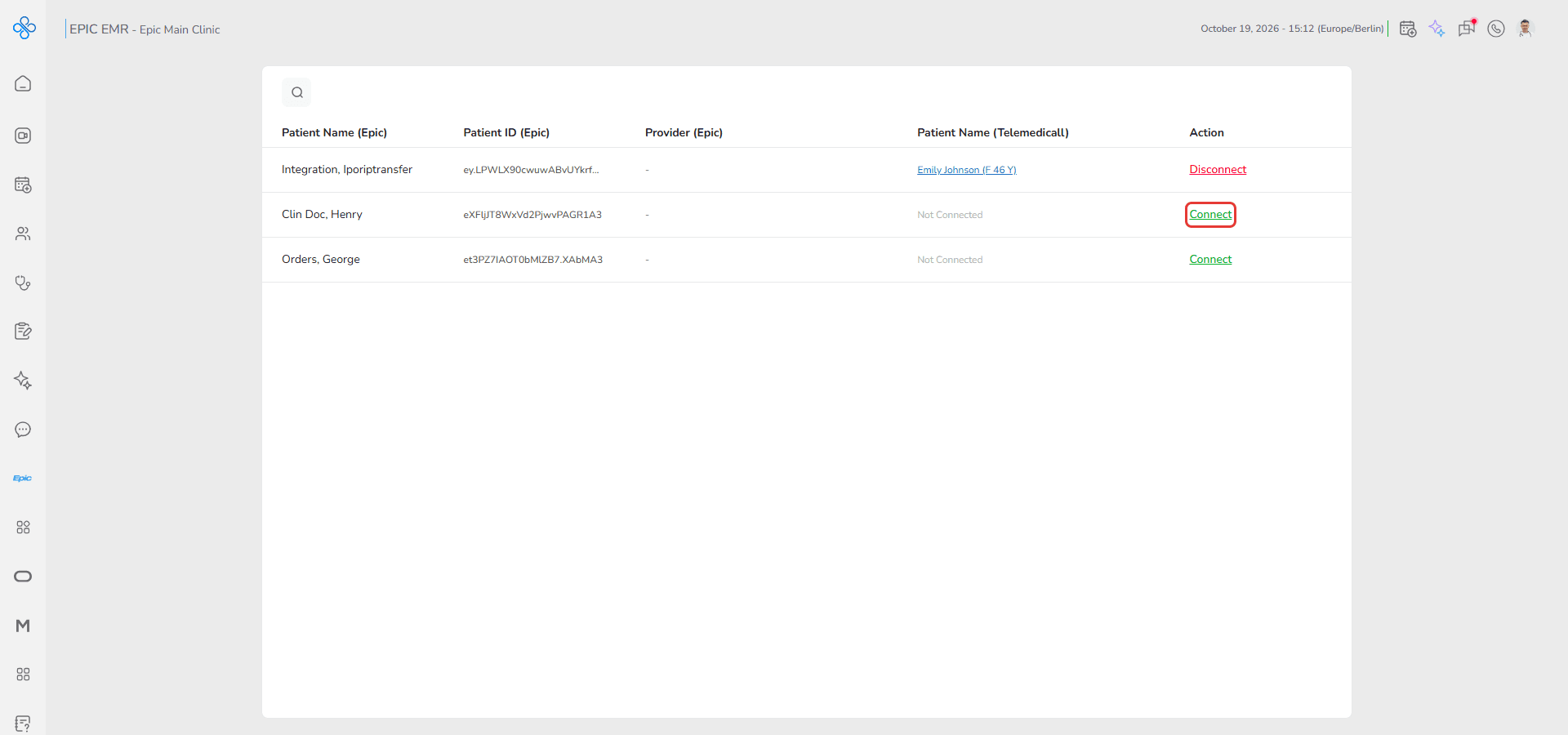
2. The Telemedicall Patient List opens with your Telemedicall patients. Patients that are already linked to an Epic patient are shown in grey, with the linked patient in the Connected Patient (External EMR) column
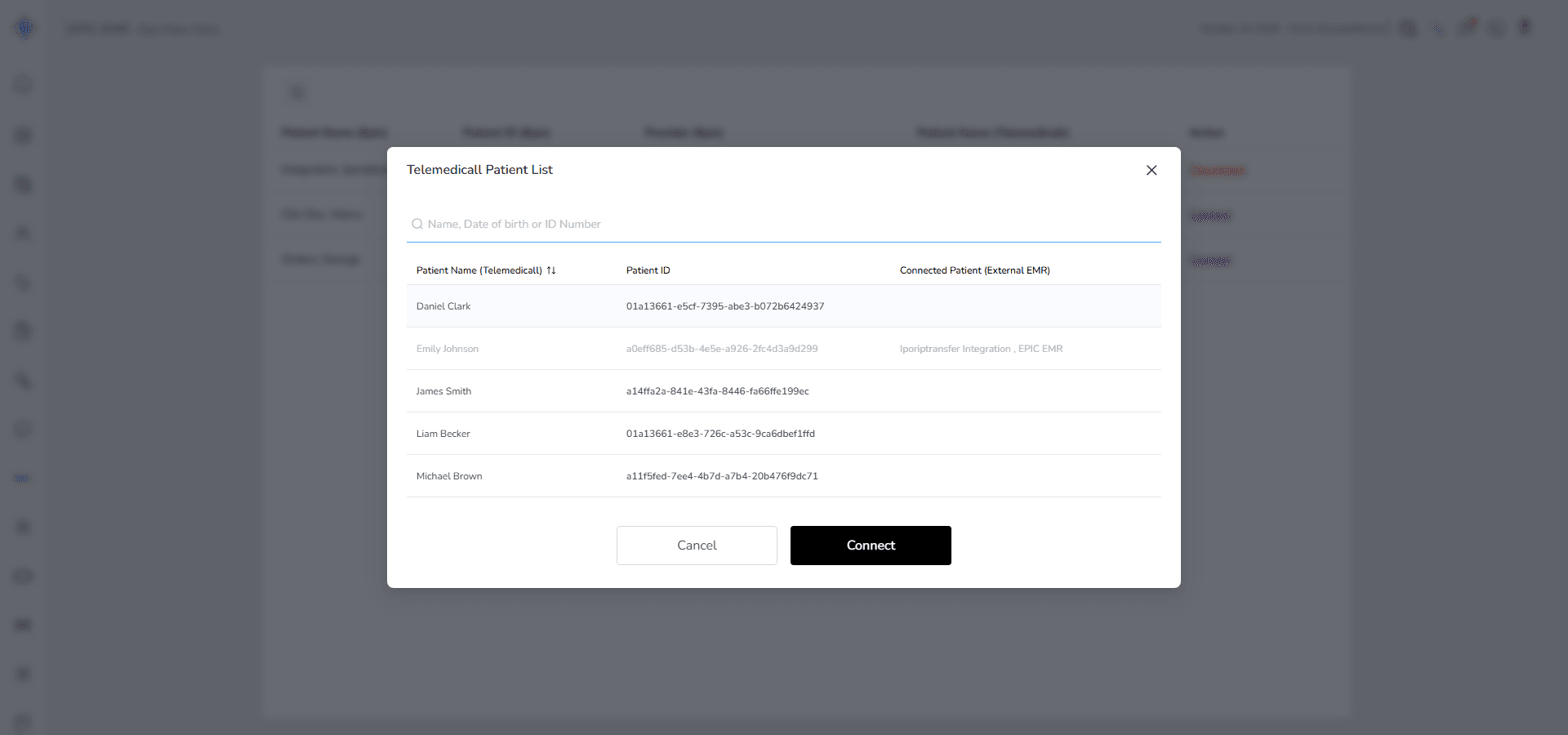
3. Search by name, date of birth or ID number if needed, select a patient from the list and click Connect
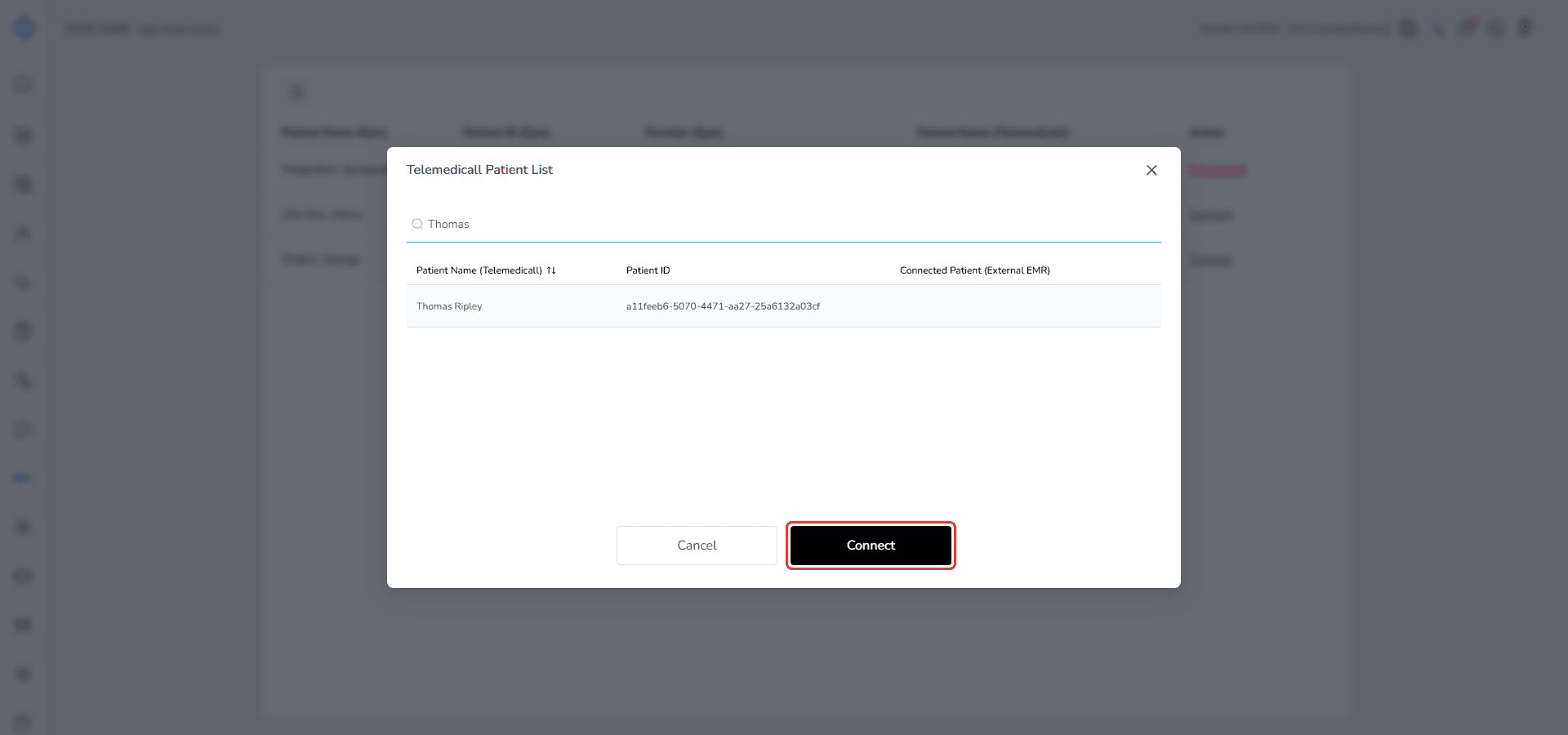
After connecting:
- The patient is linked and their Telemedicall name appears in the list
- The Connect button changes to Disconnect
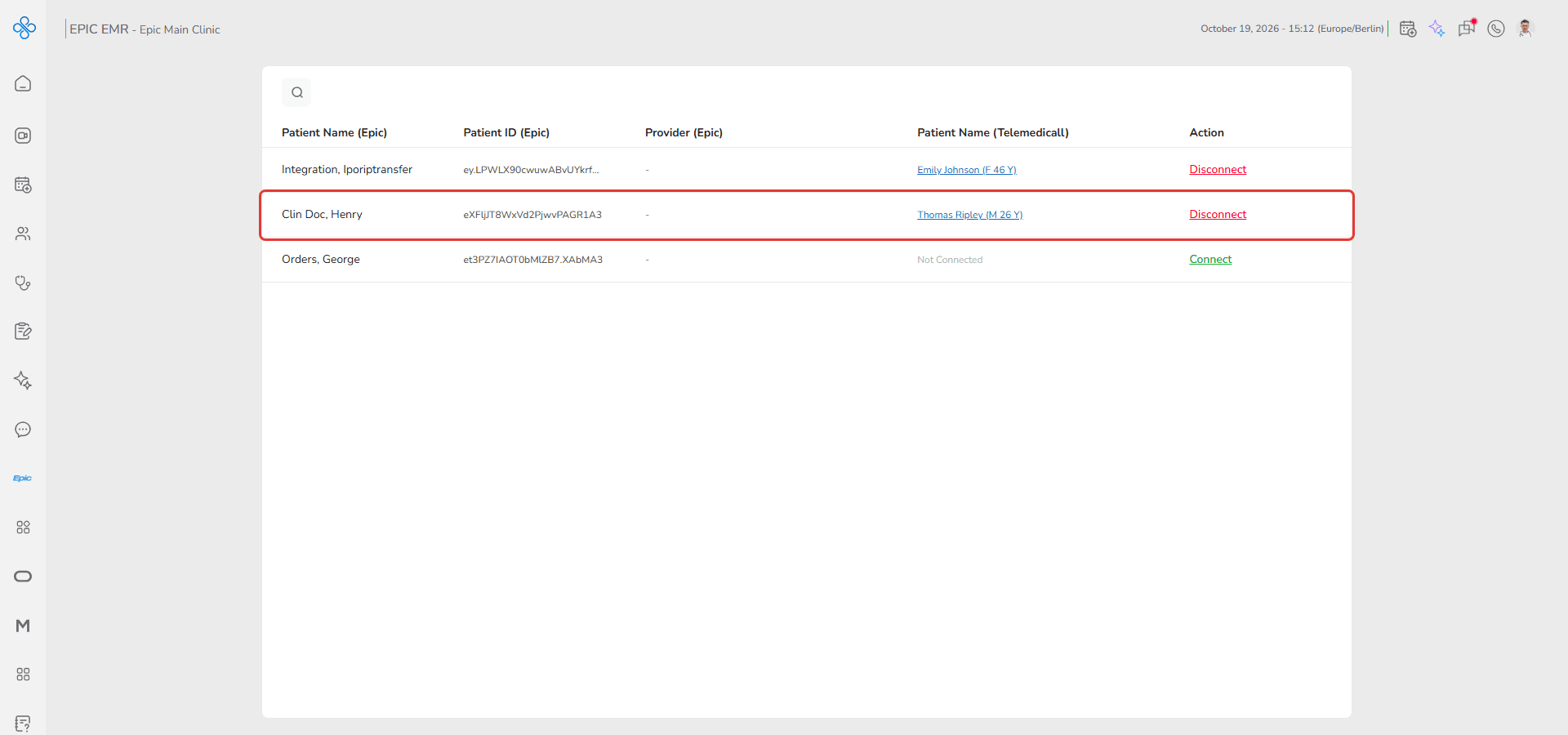
How to view Epic data for a patient
1. Go to the Epic EMR list
2. Click the patient name in the Patient Name (Telemedicall) column
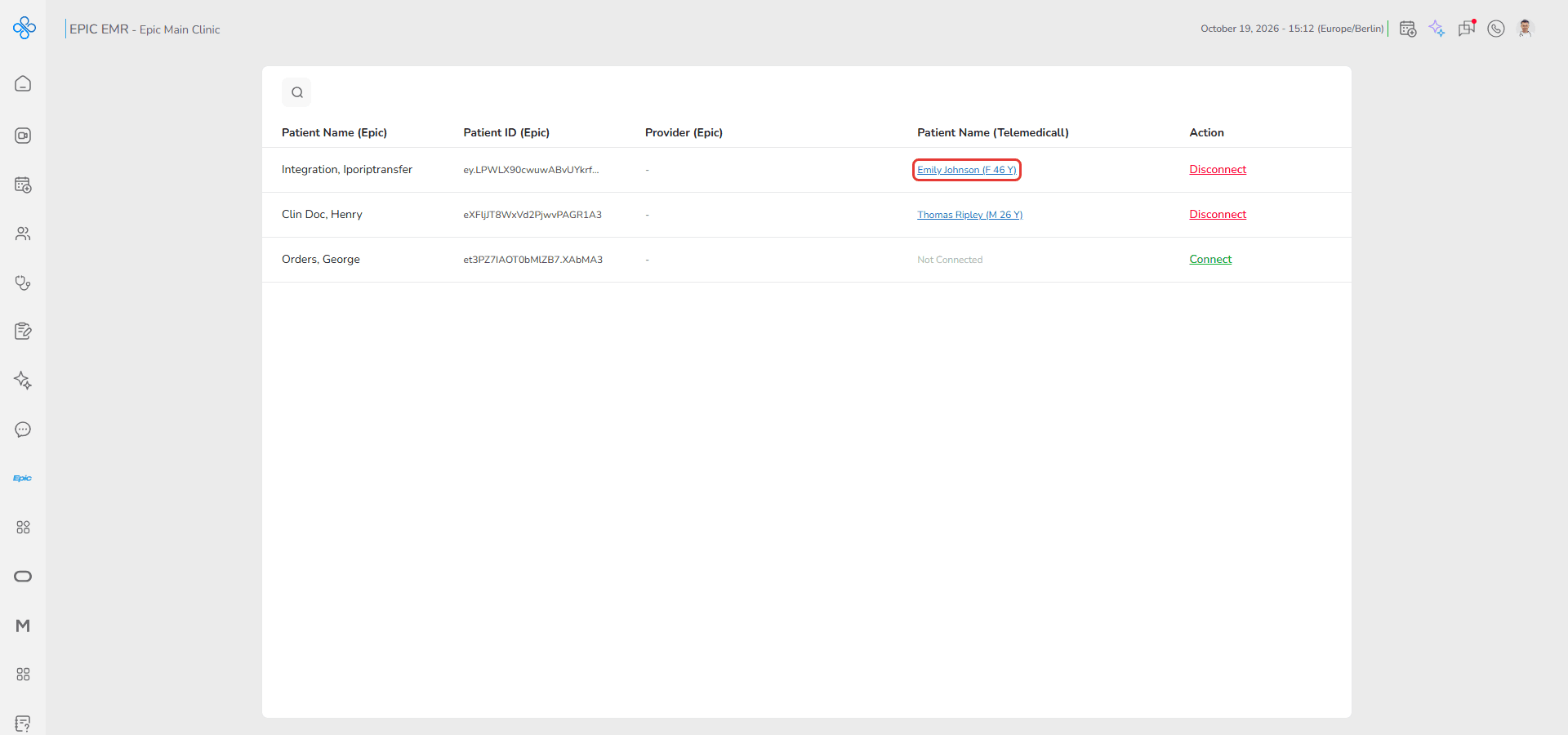
3. You will be redirected to the patient profile
4. Open the Epic tab
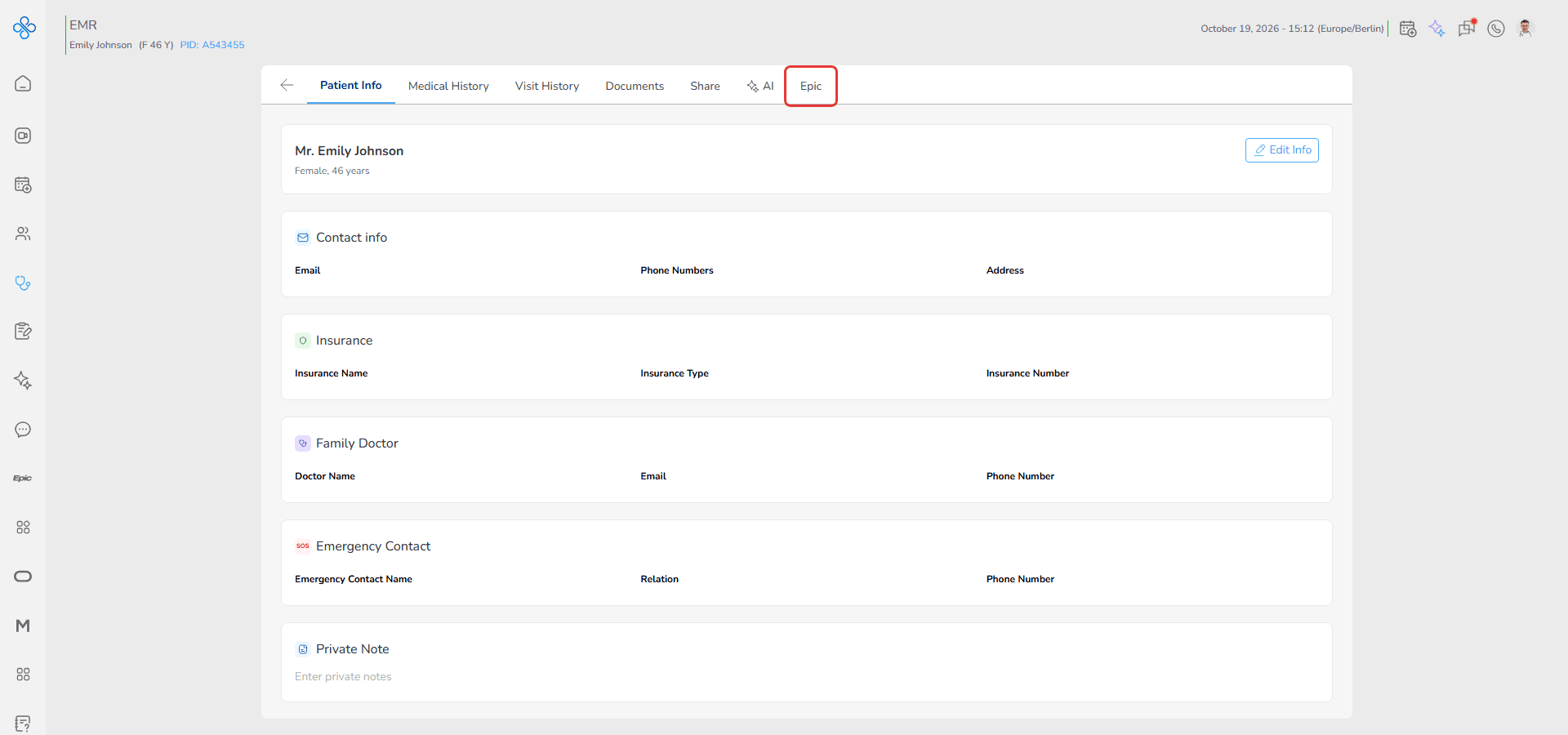
You will be able to view medical information available through Epic, including:
- Problems and diagnoses
- Allergies
- Immunizations
- Other available clinical records
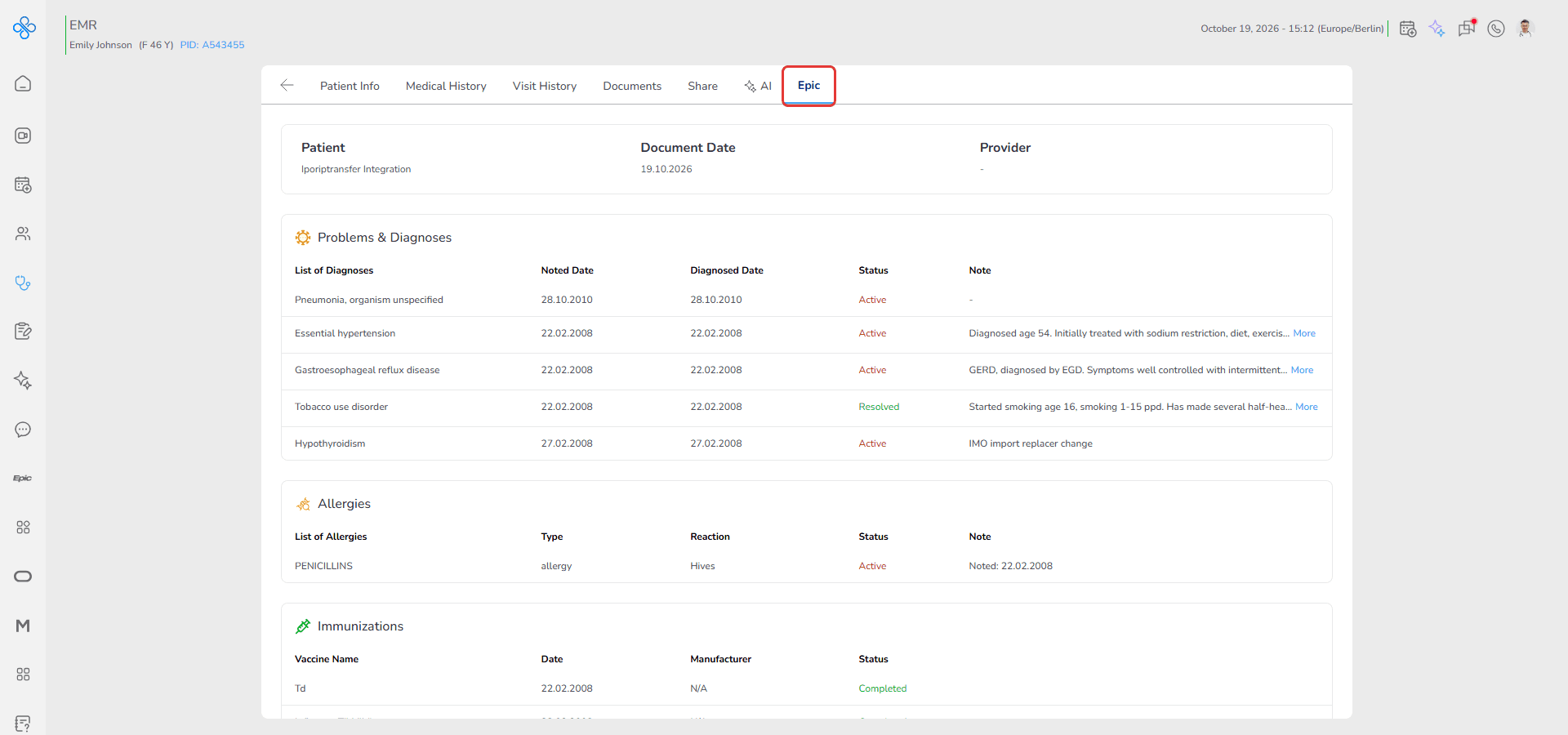
How to disconnect a patient
1. Go to the Epic EMR list and find the connected patient
2. Click Disconnect
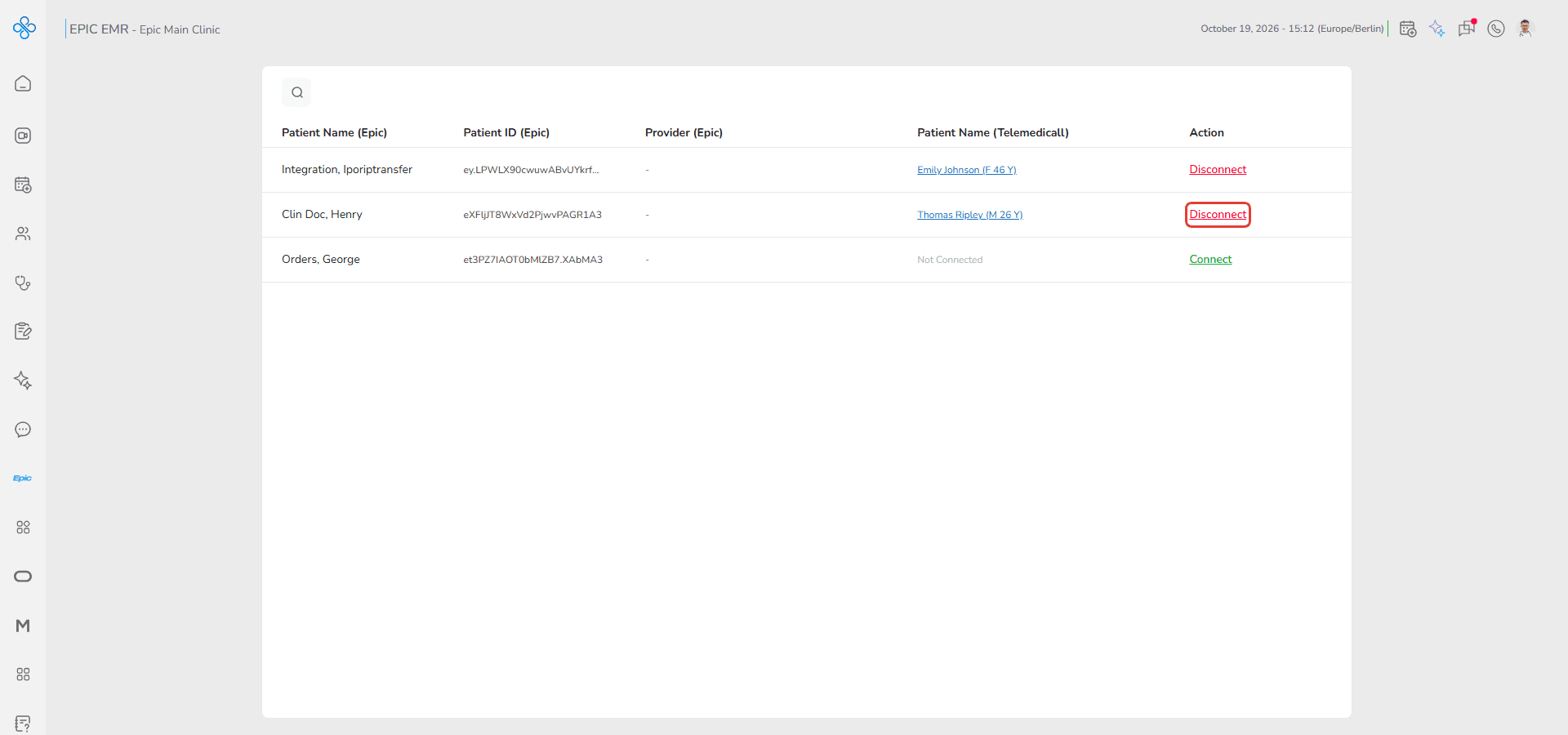
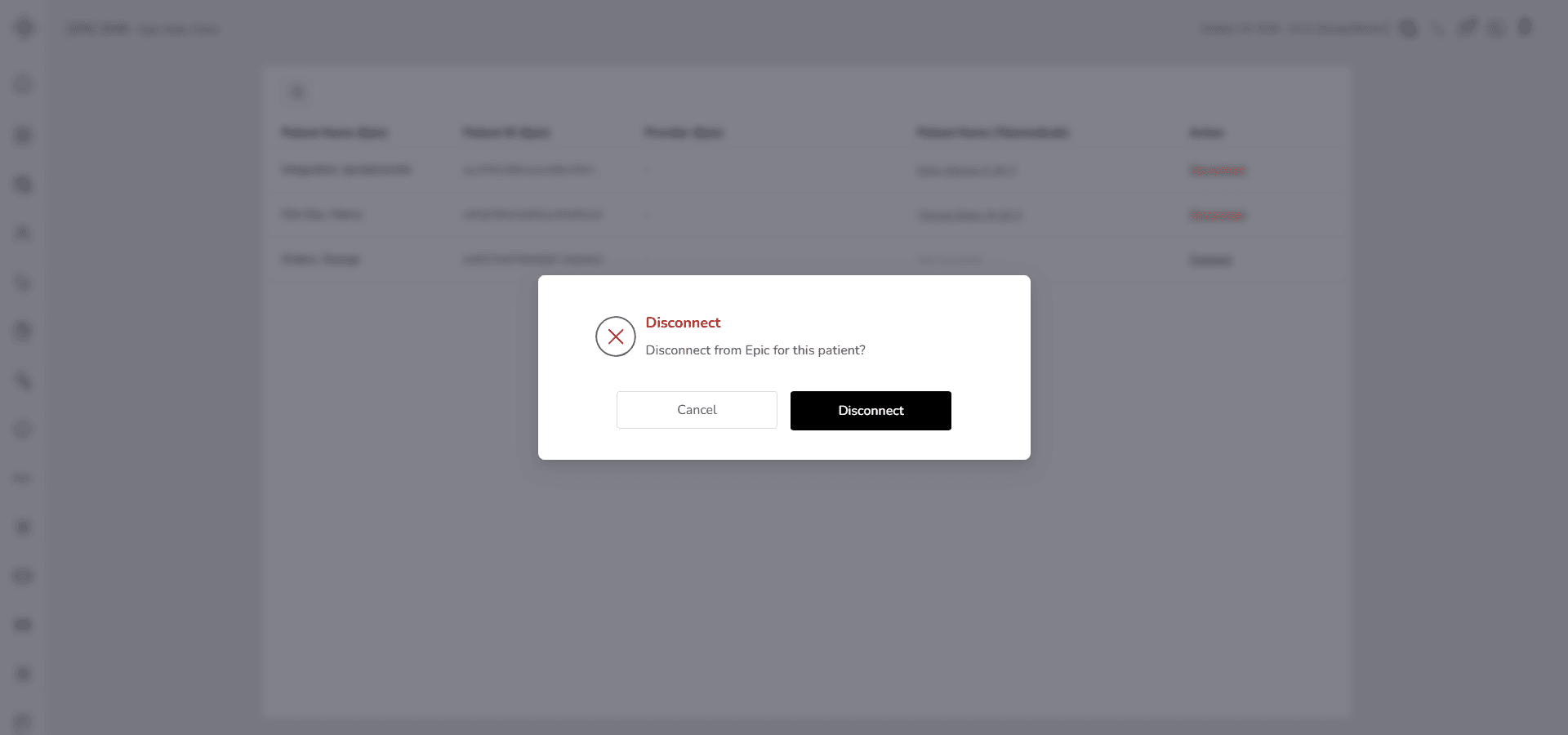
3. A confirmation window appears. Click Disconnect to confirm
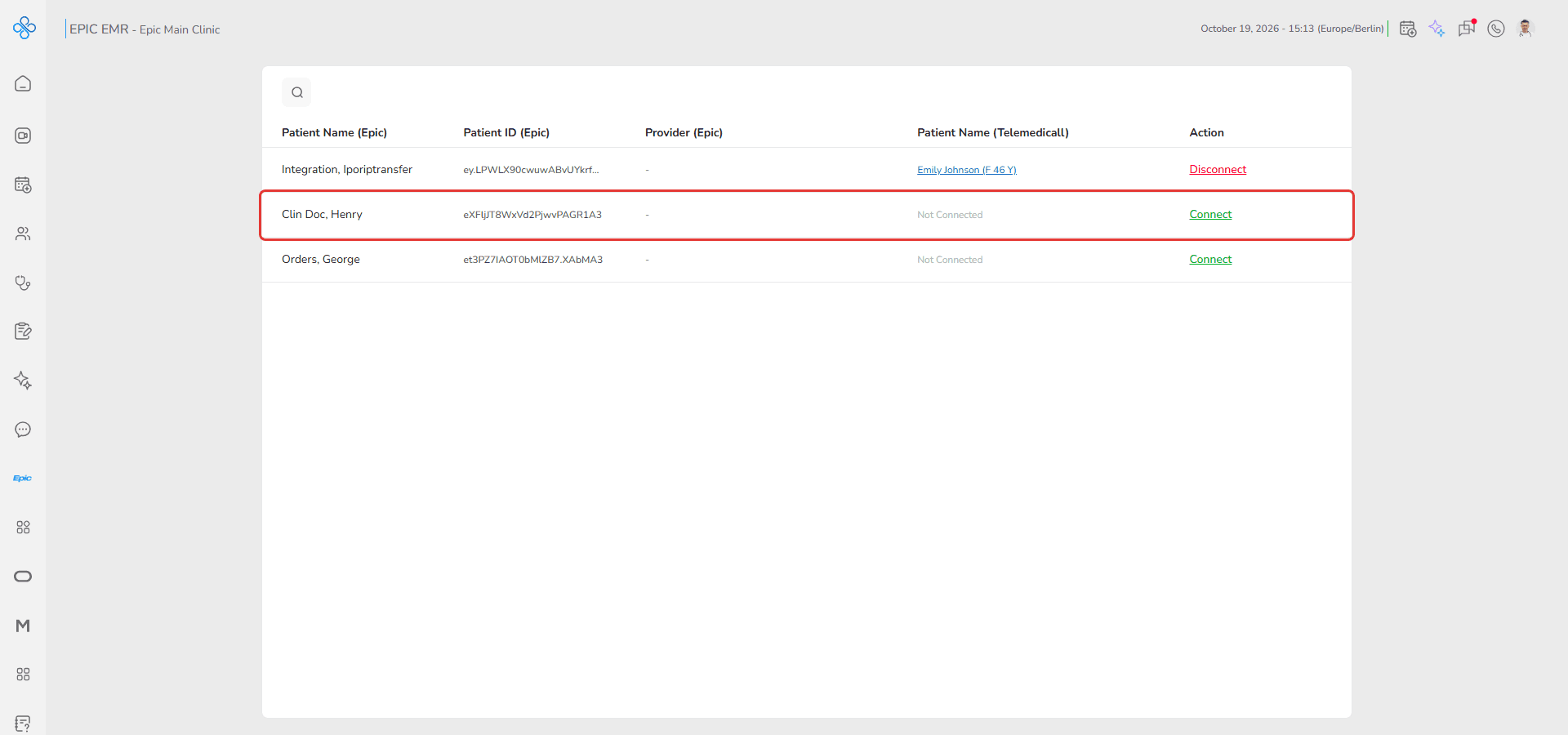
The patient will be unlinked from Epic and shows Not Connected again.
How to disconnect Epic EMR
1. Go to the left sidebar and click Apps
2. Find Epic EMR Connector in the list or search for it
3. Hover over the Epic EMR Connector app and click More Actions (⋮)
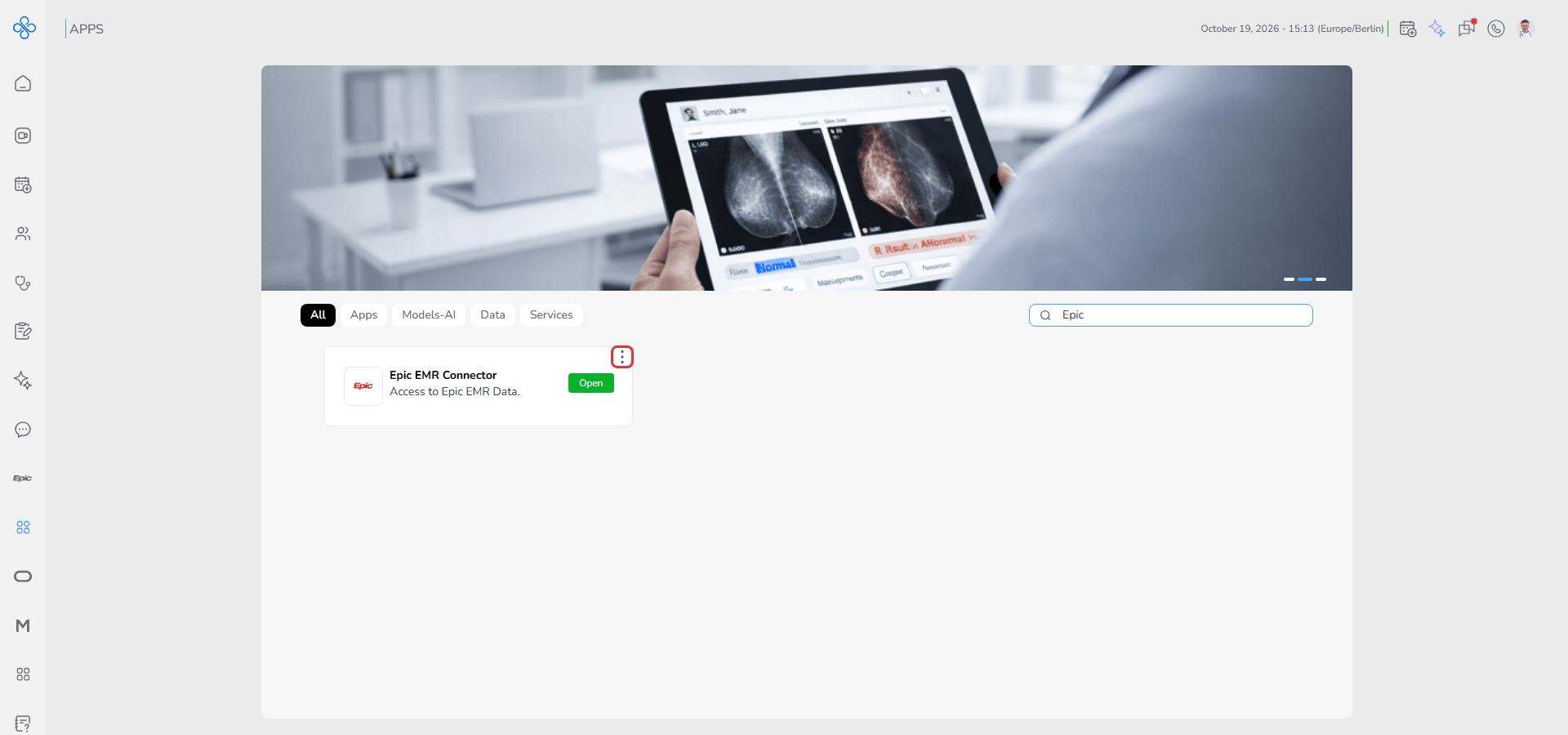
4. Click Disconnect
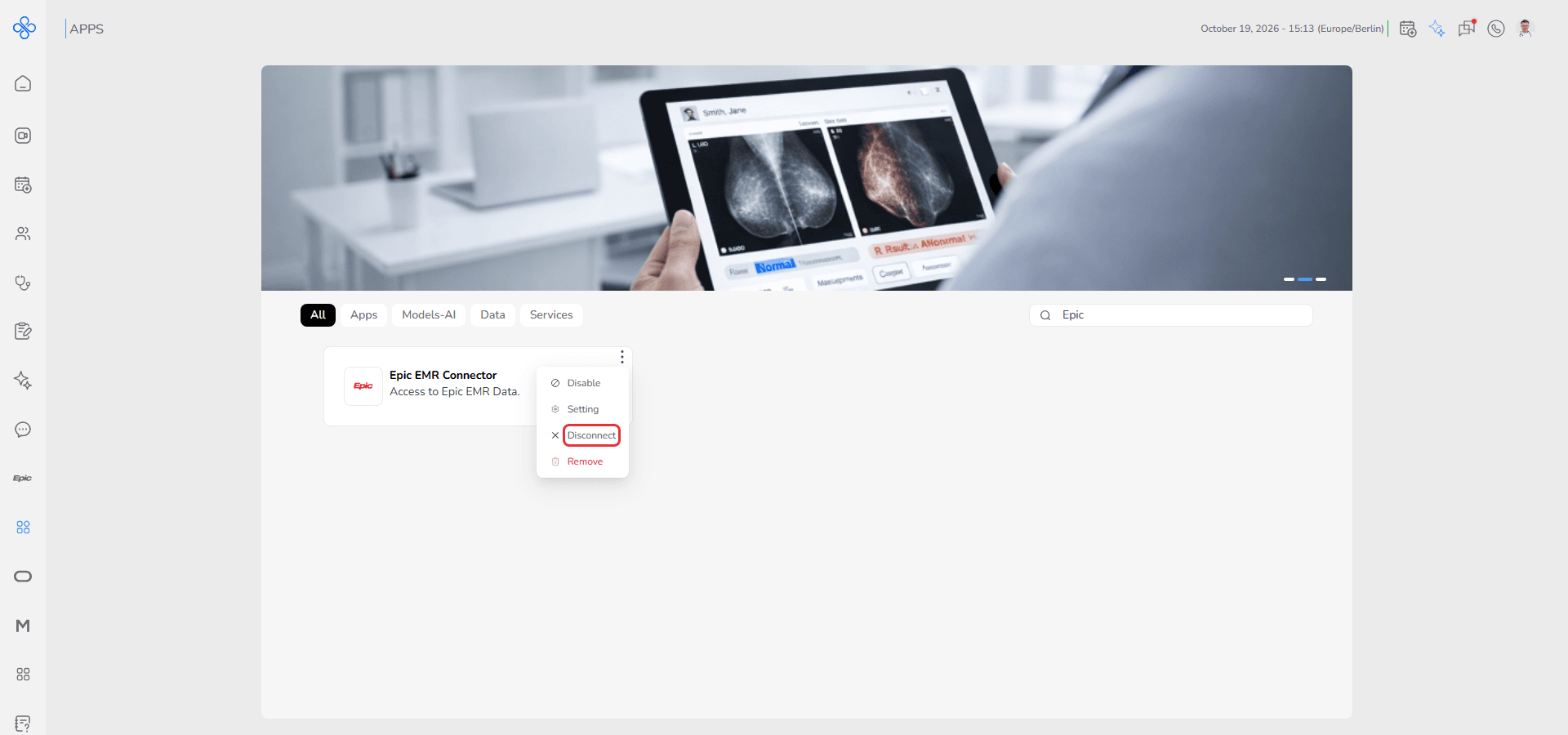
5. A disconnect confirmation window will appear. Click Disconnect to confirm
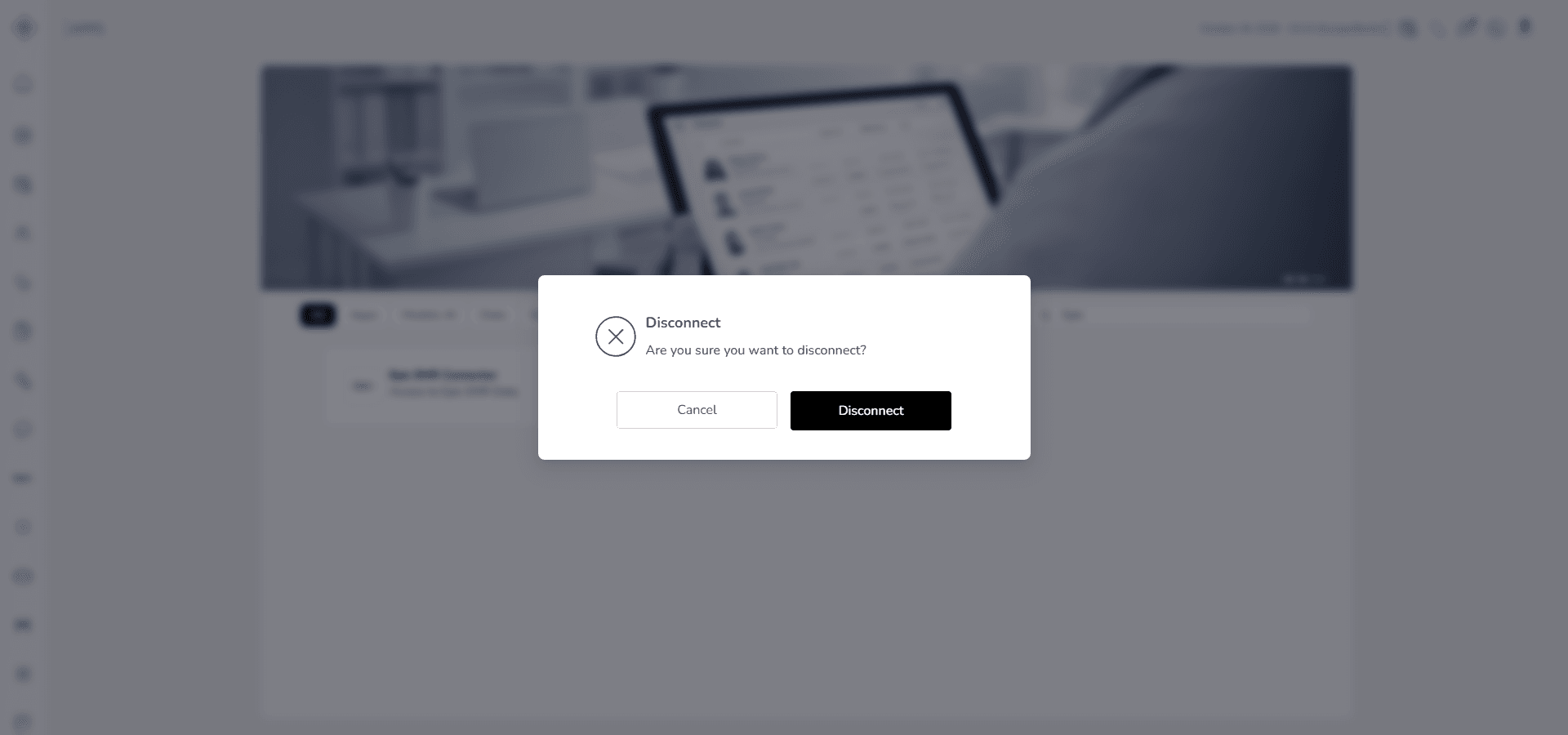
After disconnecting:
- The connection between Telemedicall and Epic EMR will be removed
- Patient data from Epic will no longer sync with Telemedicall
- You can reconnect again later if needed
Fields (Field Descriptions)
| Field | Description | What happens when you use it |
|---|---|---|
| Public Key | A URL generated by Telemedicall | You copy it to Epic to allow secure connection |
| EMR Label | A name for this connection | Helps you identify the connection later |
| Server Address | Your Epic server URL | Required to connect to Epic |
| Token | Access token from Epic | Required to authenticate connection |
| Database Name | Epic database name (optional) | Used if your setup requires database selection |
| Test Connection | Button to verify connection | Checks if your details are correct |
| Connect | Button to confirm connection | Links Telemedicall to Epic |
Behavior & Expected Outcome
- The Test Connection button stays disabled until the required fields are filled
- EMR Label, Server Address and Token are required fields
- After a successful test, Connect becomes available
- After connecting, the patient list is displayed
- Connected patients show their Telemedicall name
- The Connect button changes to Disconnect after linking
- Disconnecting a patient asks for confirmation
- Clicking a patient opens their record
- Epic data appears inside the Epic tab in the patient profile
Common Errors + Fixes
| Issue | Cause | Fix |
|---|---|---|
| Test Connection button is disabled | Required fields are empty | Enter EMR Label, Server Address and Token |
| Connection test failed | Incorrect server or token | Check values and try again |
| Unable to connect | Epic settings not configured | Add the Public Key to your Epic server |
| Patient not linking | No Telemedicall patient selected | Select a patient and connect |
| Connect button not visible | Connection not completed | Complete the connection first |
| No data in Epic tab | Patient not linked | Connect the patient first |