EMR
Overview
The EMR section helps you organize and maintain your patient records in one place.
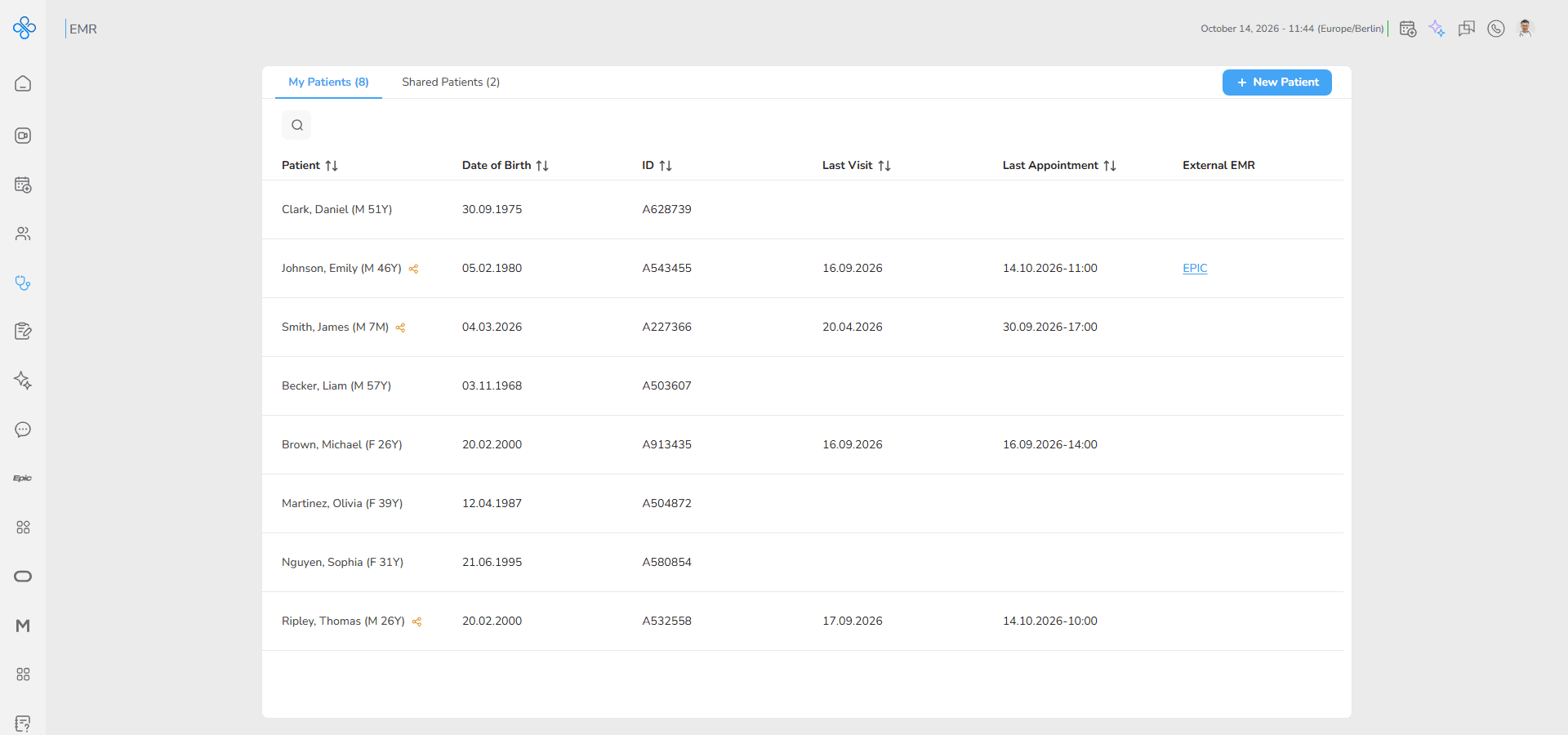
This workspace is designed to support your day to day clinical workflow by giving you quick access to patient information and the ability to take immediate actions when needed.
You can use this section to add new patients, review existing records, or update and manage patient details. Patients are organized into tabs so you can clearly distinguish between those under your direct care and those shared with you by other professionals.
You can access this section in two ways:
- From the EMR item in the sidebar
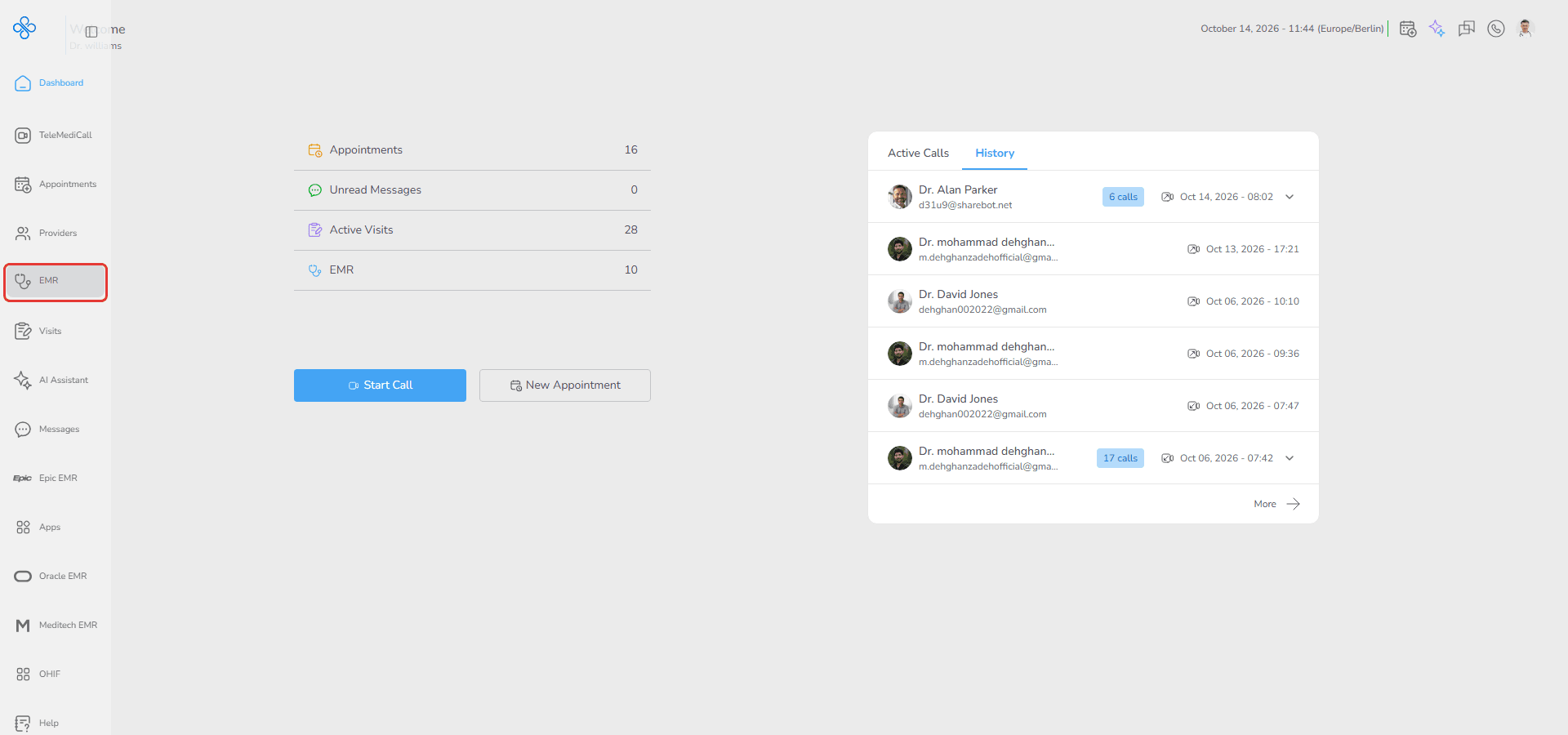
- From the EMR shortcut on the Dashboard
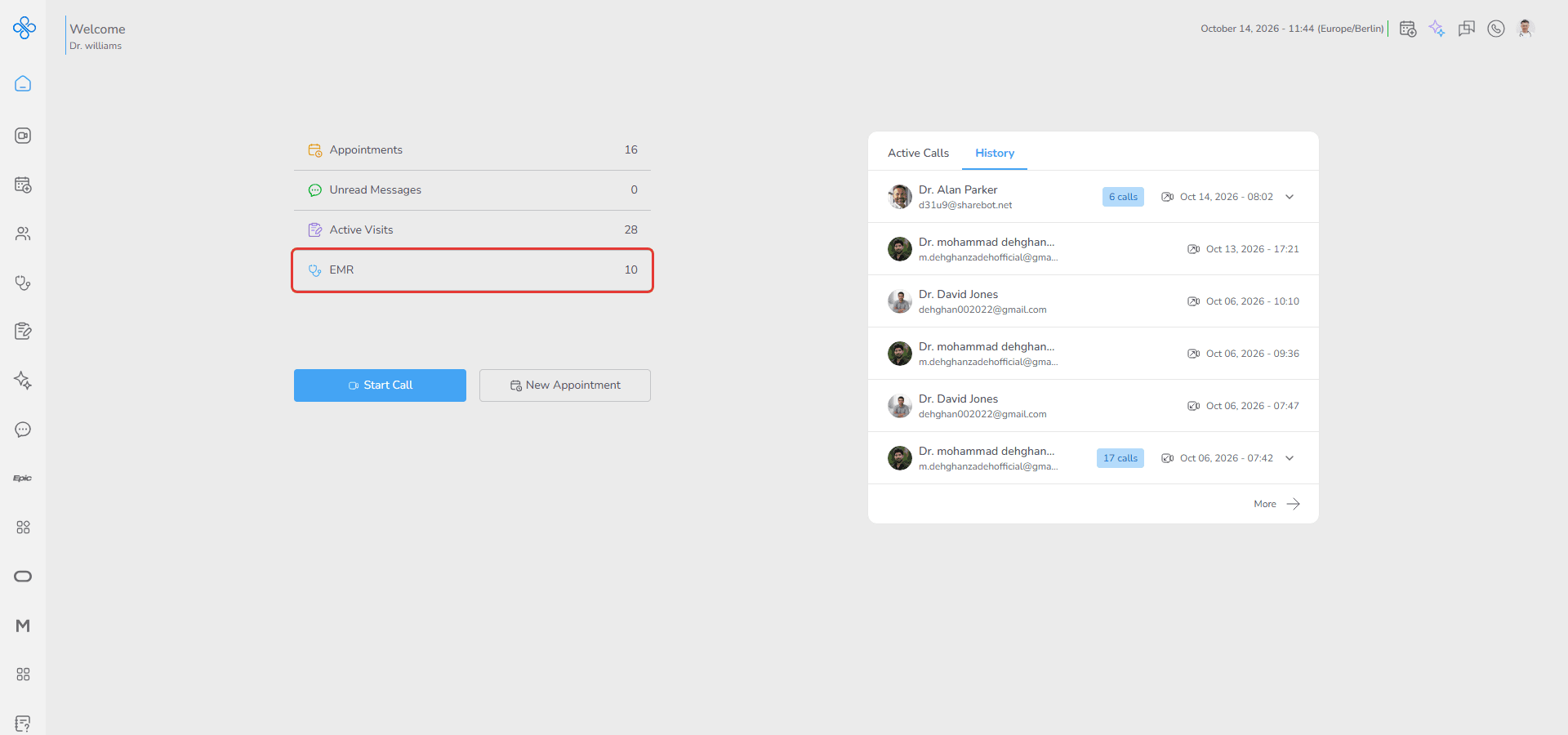
Once inside, you can search for patients, open patient records, and manage records through contextual actions.
To get started, the first step is typically creating a patient record.
After a patient is created, they appear in the patient list where you can review their information, track recent activity, and continue with actions like editing details, scheduling appointments, or starting visits.
EMR User Journey
Working with patients generally follows this flow:
- New Patient Creation guide : Create a new patient using the New Patient option when a record does not yet exist.
- Review & Manage Patients guide : Review and manage patients from the patient list, where you can search, monitor visit history, identify shared relationships, and perform actions such as Edit or Delete, or open the patient record to continue with visits and appointments.
Each stage is supported by guided screens and contextual controls that help ensure accuracy and clarity when handling patient data.
Features Covered
1 . New Patient Creation guide
Use the New Patient button to register a new patient in the system.
This opens a guided entry flow where required details are collected and validated before saving.
After submission:
- The patient is automatically added to the My Patients tab
- The record becomes searchable immediately
- Clinical workflows such as scheduling or visit creation become available
(For detailed steps, refer to the New Patient Creation guide.)
2 . Review & Manage Patients guide
The patient list provides a structured overview of all accessible patients and acts as the operational hub for patient interactions.
From here you can:
- View patient identifiers such as name, date of birth, ID, and last visit
- Search using multiple attributes including name, DOB, insurance ID, or ID number
- Switch between tabs:
- My Patients — patients you created or manage
- Shared Patients — patients shared with you
- Recognize sharing relationships through the share icon indicator
- Open a patient record to continue with visits, appointments and other clinical workflows
- Edit or delete patient records through the More actions (⋮) menu
This list updates dynamically and reflects changes immediately after actions are completed.
(For detailed steps, refer to the Review & Manage Patients guide.)