Review & Manage Patients
Overview
The Review and Manage Patients section is where you spend most of your time working with existing patient records.
After a patient is created this page becomes the main workspace for locating them, reviewing details and taking clinical or administrative actions.
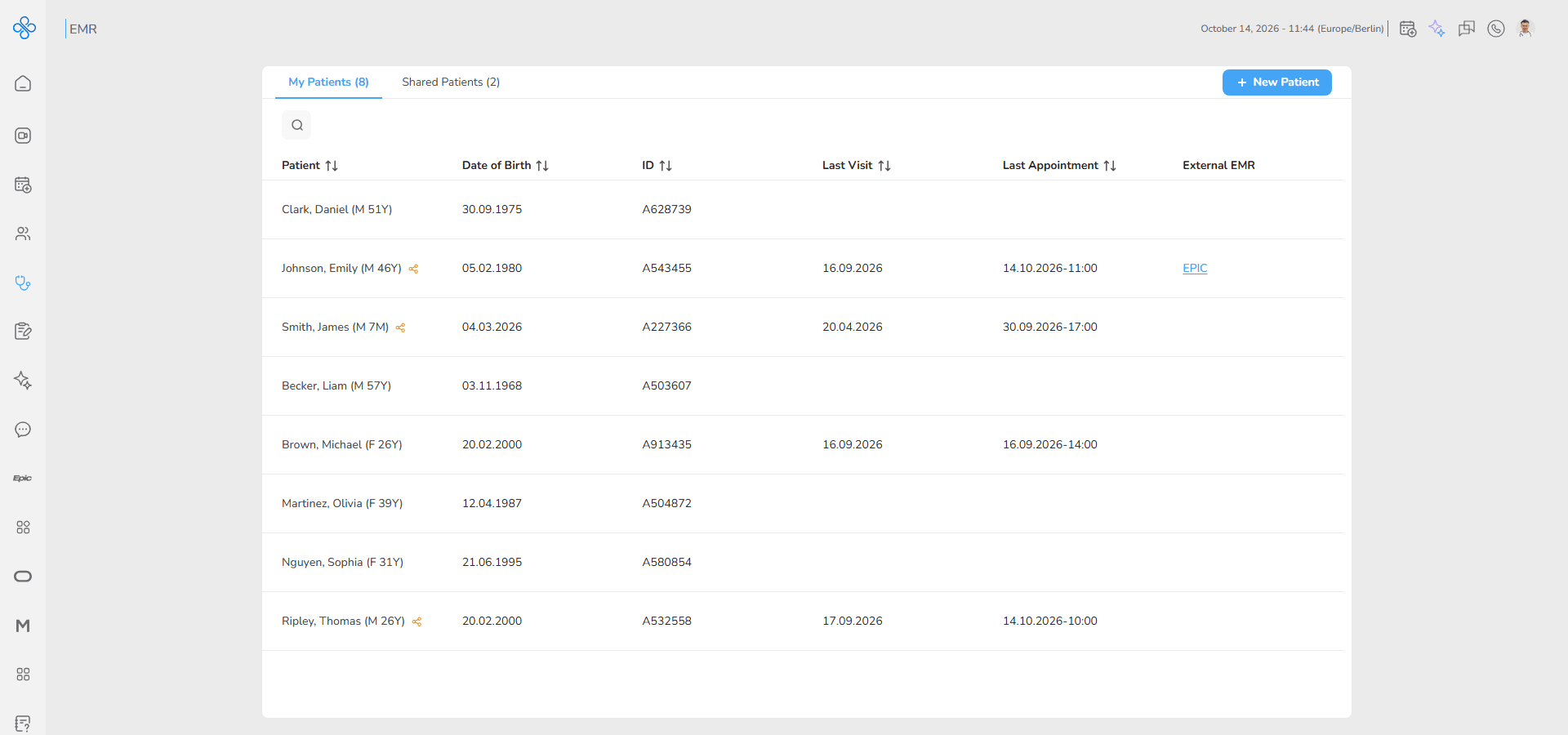
This page helps you keep patient information organized and accessible. You can switch between patients you manage directly and those shared with you by other providers, search across records quickly and open full patient files for deeper interaction.
From here you can:
Review patient identifiers and recent activity
Search across multiple attributes
Edit or remove records you own
Open patient files to continue clinical workflows
Understand sharing relationships between providers
Patients are separated into two tabs so ownership and permissions are clear at all times. This prevents accidental changes and helps you know what actions are available.
Access
You can open this section in the following ways:
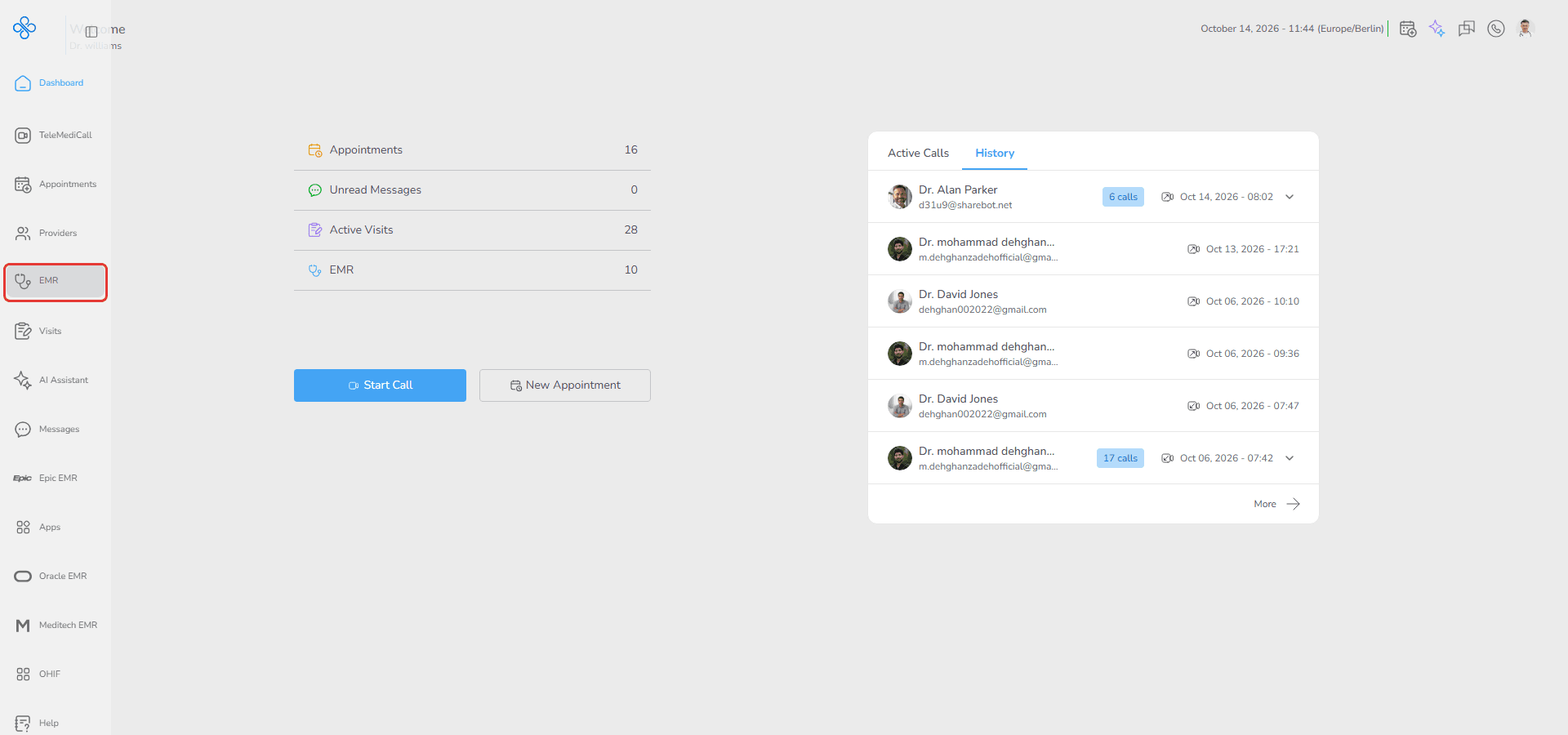
- From the Sidebar
Click EMR in the main navigation menu.
- From the Dashboard Shortcut
Click the EMR shortcut on the Dashboard.
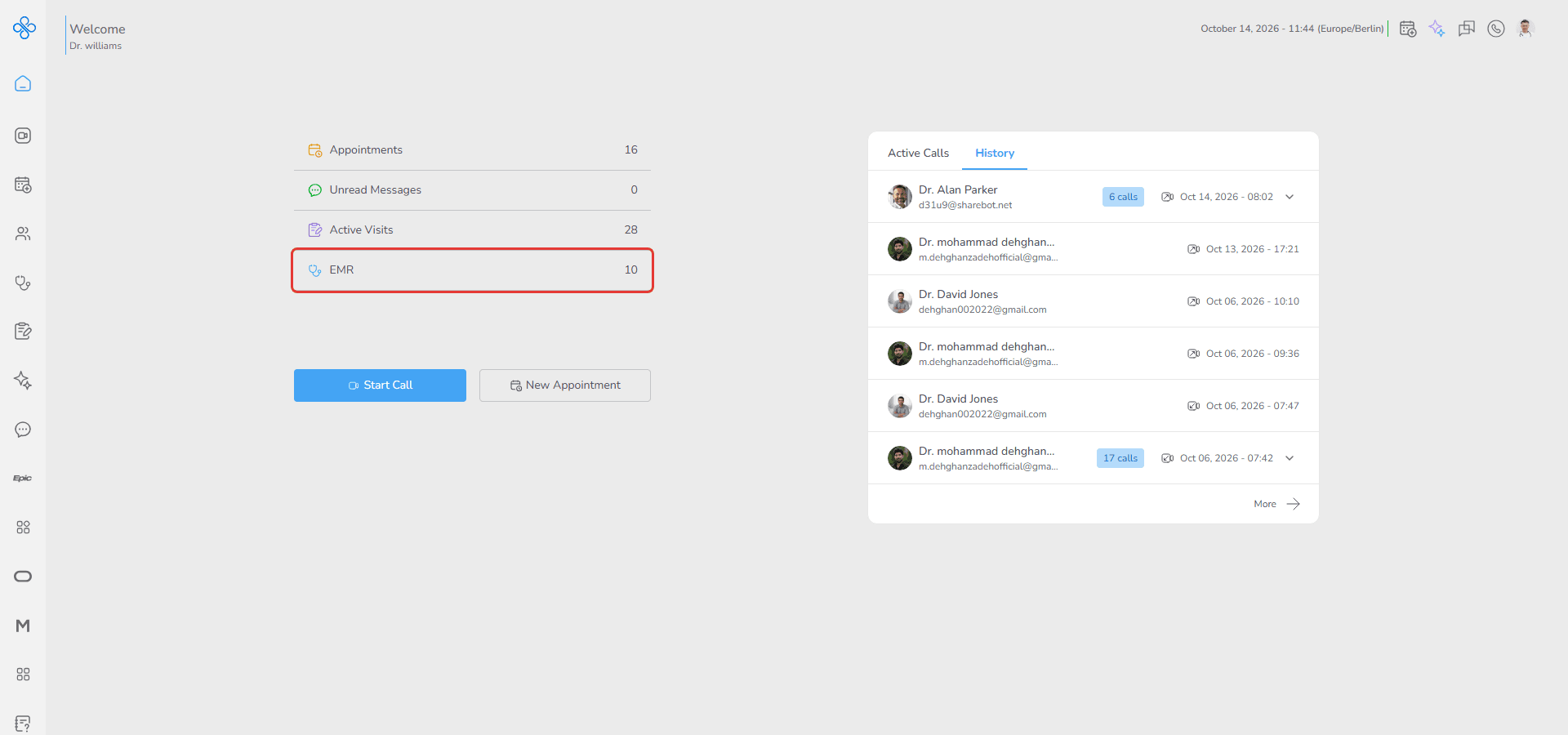
Both paths bring you directly to the patient list where review and management activities begin.
Steps
Step 1: Understand the patient list workspace
When the page opens you see a structured table showing all patients available to you.
This table acts as your operational hub for patient related workflows and gives a quick snapshot of important identifiers and recent activity.
Each row includes:
Patient Name
Date of Birth
ID
Last Visit date
Last Appointment date and time
External EMR link (when the patient is linked to a connected EMR such as Epic)
Visual indicators help clarify sharing relationships:
In My Patients a share icon appears next to the patient name when that patient has been shared with other providers
In Shared Patients no icon is displayed because all patients in this tab are already shared with you
Use this table as your starting point before opening full patient records.
Step 2: Switch between patient ownership tabs
At the top of the page choose the tab that matches your context.
My Patients
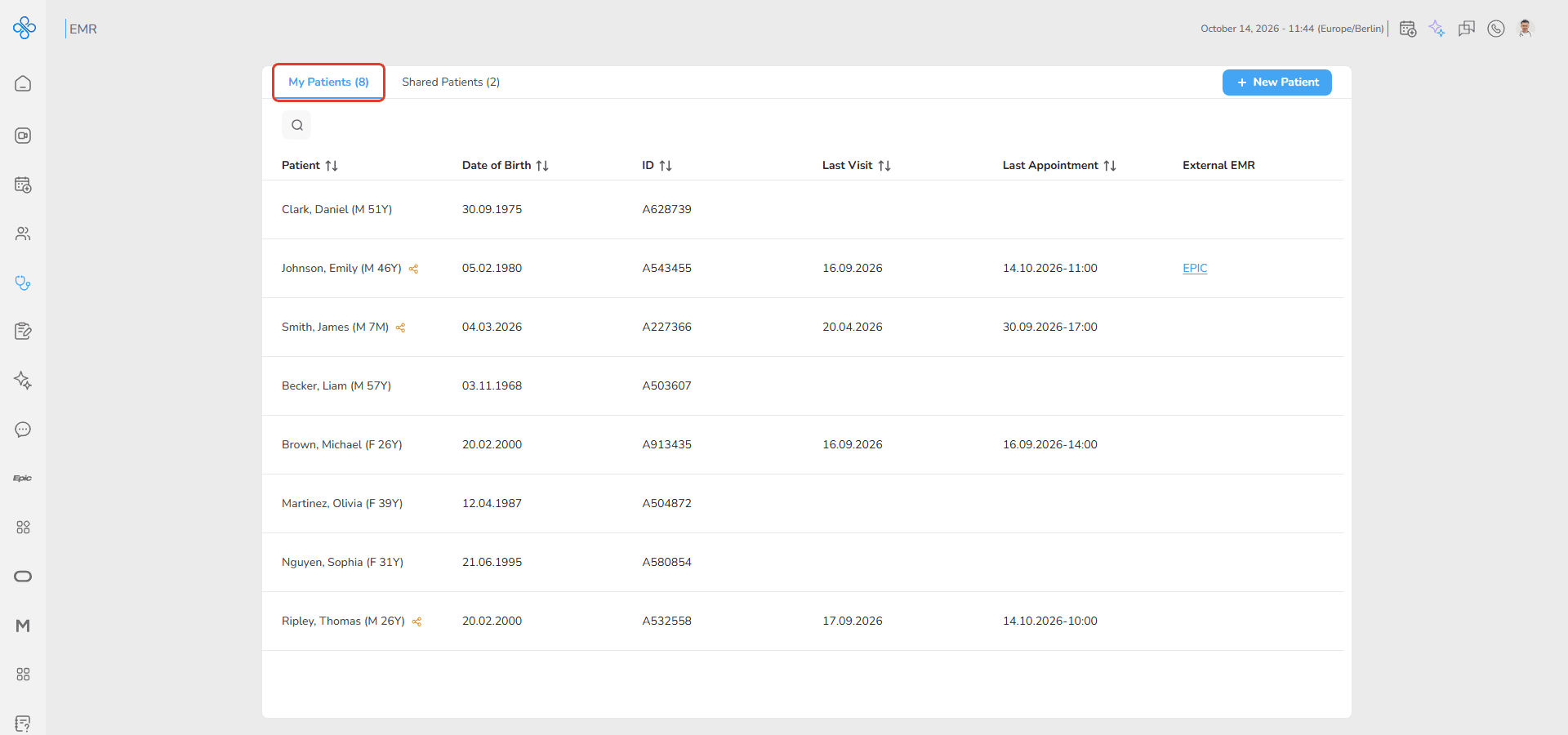
Shows patients created or managed directly by you.
Editing and deletion actions are available here.
Shared Patients
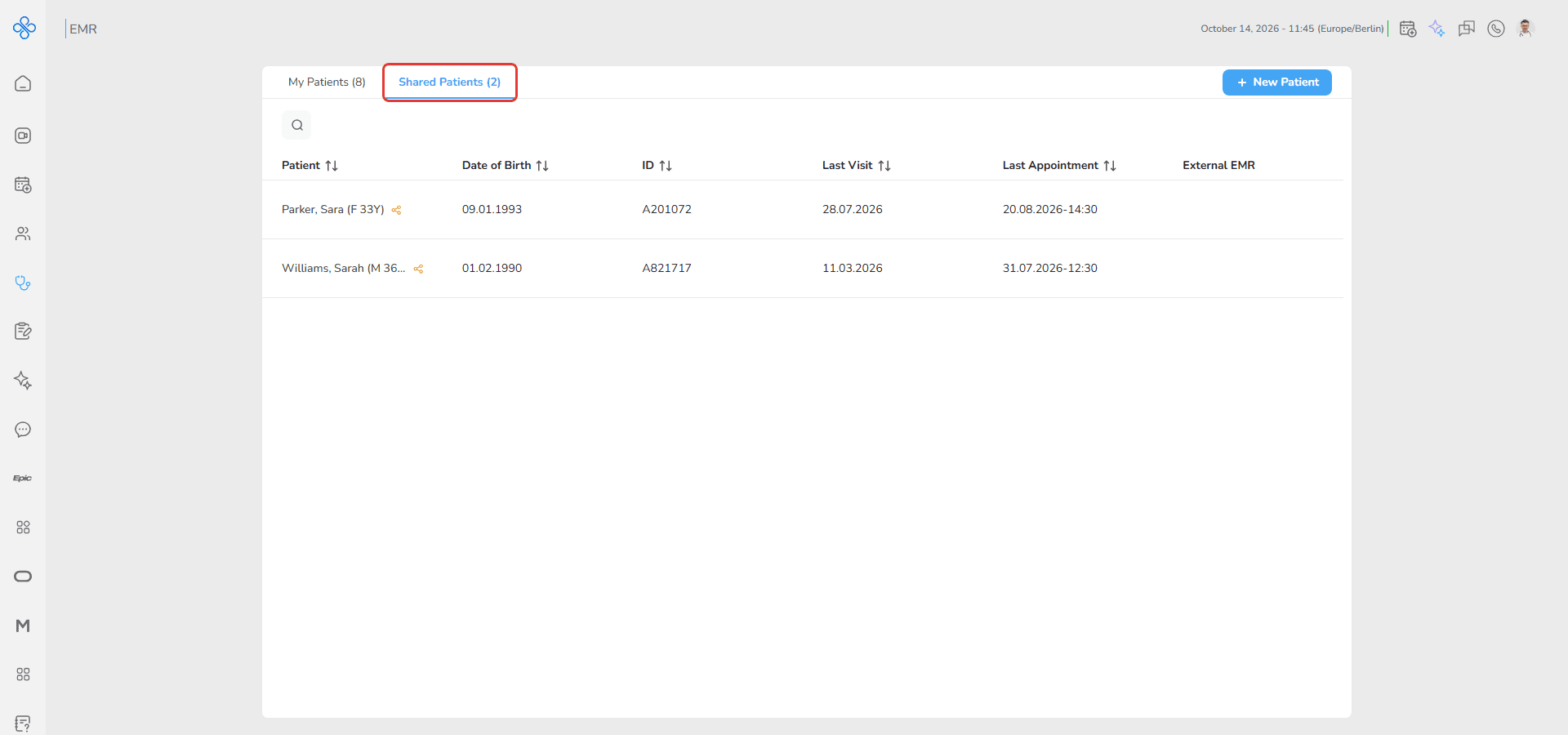
Shows patients another provider shared with you.
You can review information but management actions are restricted.
Switching tabs updates the table immediately and helps you stay aware of your permission level.
Step 3: Search and locate a patient
Above the table, click the search (magnifier) icon to open the search bar used for narrowing results quickly.
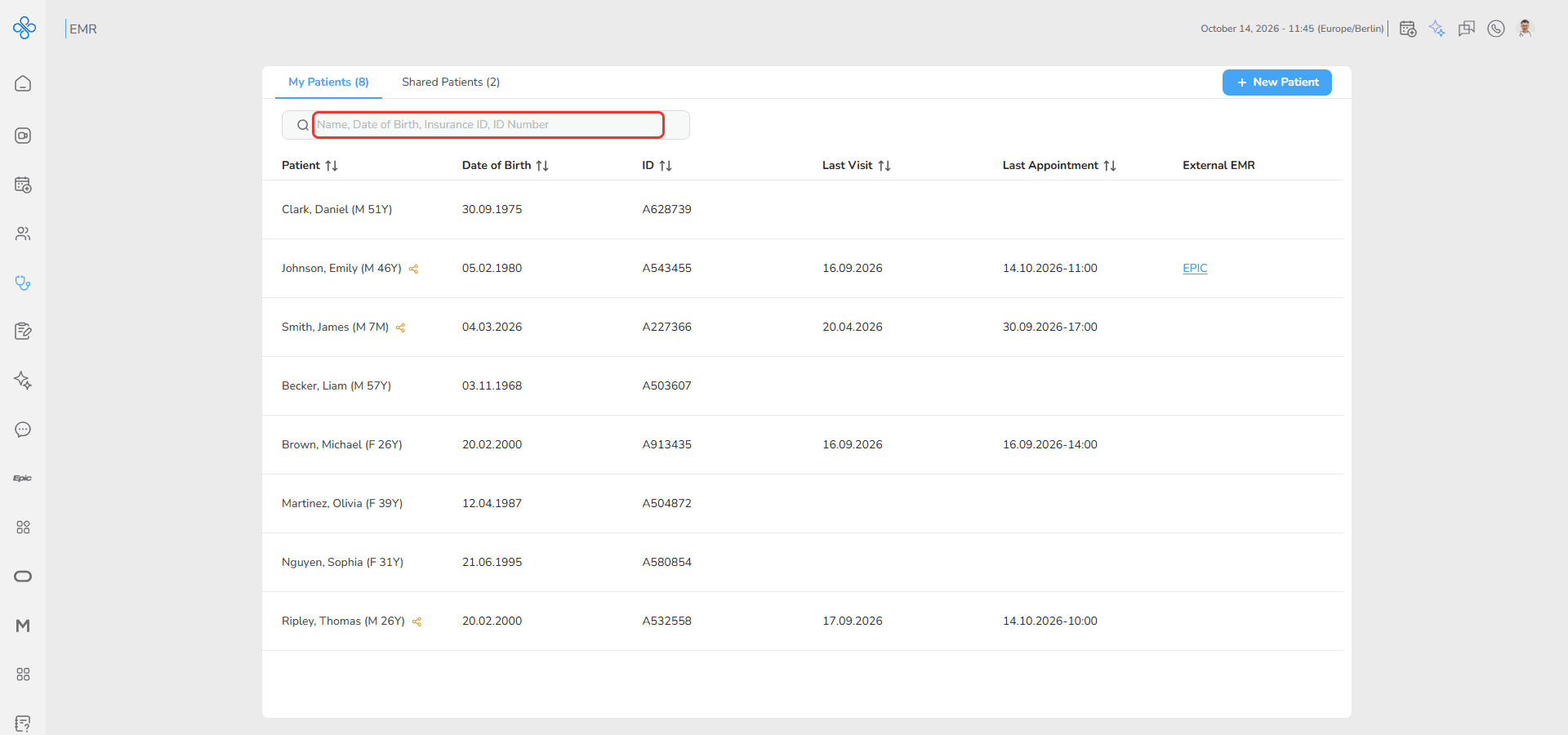
This is especially helpful when working with large patient lists.
You can search by:
Name
Date of Birth
Insurance ID
ID Number
Results update as you type allowing fast navigation without reloading the page.
Step 4: Manage patient records from the list
Hover over a patient row and click the ⋮ More actions menu.
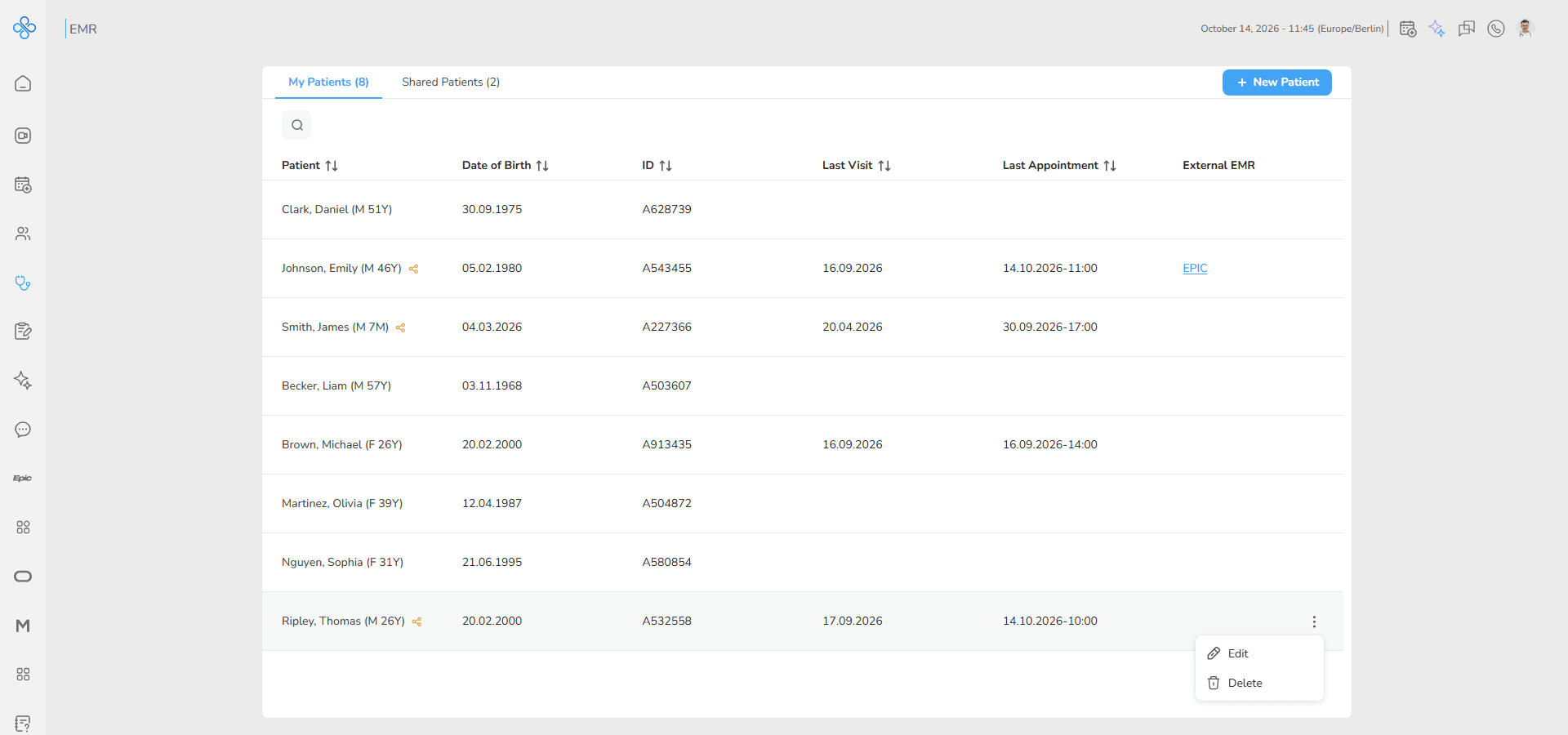
Edit
Available only in My Patients
Opens the patient modal in edit mode which mirrors the creation workflow.
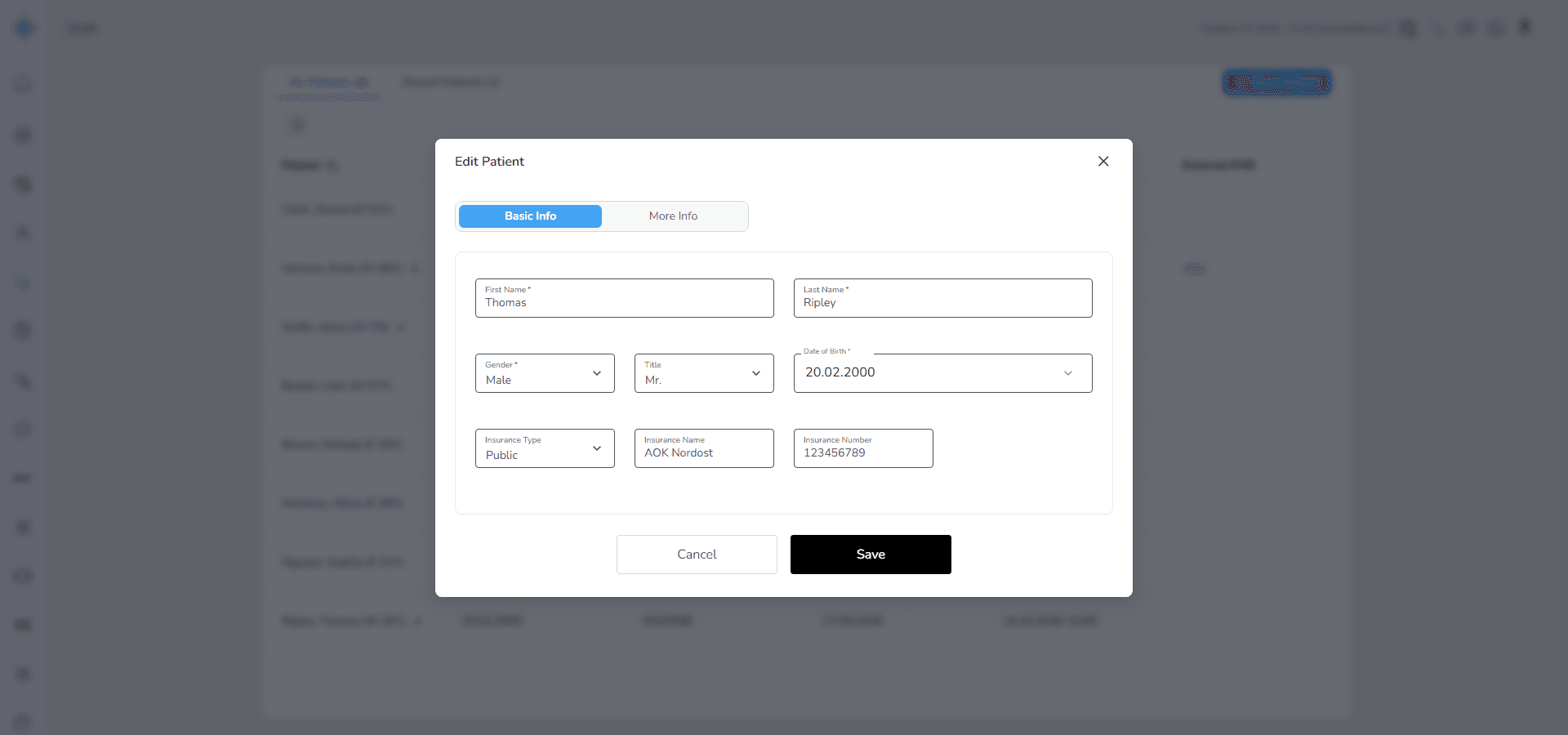
Existing information is pre filled and can be updated.
This modal follows the same structure described in the New Patient Creation guide, including required fields and optional sections.
Delete
Available only in My Patients
Opens a confirmation modal asking:
Are you sure you want to delete this patient?
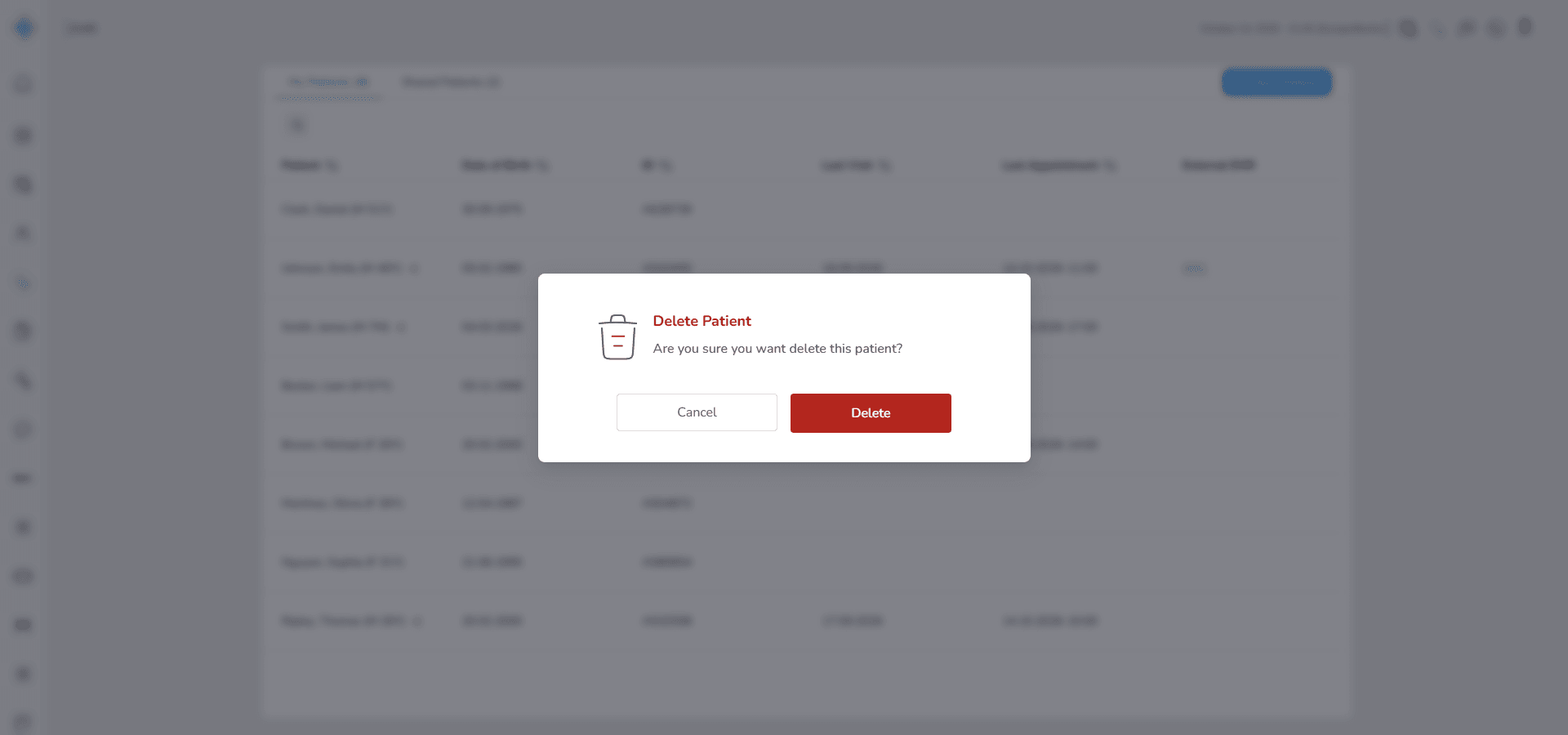
Options available:
Cancel
Delete
Selecting Delete permanently removes the record from the list.
Note:
Editing and deletion are disabled in Shared Patients to protect ownership boundaries.
Step 5: Open the patient record page
Click anywhere on a patient row to open the full patient file.
This transitions you into a detailed workspace organized into six tabs that support deeper workflows.
Basic demographic and identifying data
Diagnoses biomarkers and clinical background
All recorded visits and associated data
Uploaded or generated medical files
Access management with other providers
Patient specific interaction with the assistant
Each tab has its own dedicated user guide that explains workflows in detail and can be referenced as needed.
Fields (Field Descriptions)
| Field / Control | Description |
|---|---|
| Patient Name | Full name of the patient with gender and age shown in parentheses. |
| Date of Birth | The patient’s birthdate. |
| ID | Unique identifier of the patient. |
| Last Visit | Date of the last consultation. |
| Last Appointment | Date of the most recent scheduled appointment. |
| External EMR | Link to the patient’s record in a connected external EMR (for example, EPIC). |
| Edit | Opens the patient profile for editing (only available in My Patients). |
| Delete | Removes the patient record (only available in My Patients). |
| Share Icon | Indicates sharing status of the patient. |
| Search Bar | Field to filter patients by Name, Date of Birth, Insurance ID, or ID number. |
| Patient Count per Tab | Number of patients displayed in parentheses beside each tab title. |
Behavior & Expected Outcome
- Patients are separated into My Patients and Shared Patients tabs to reflect ownership and access level.
- Switching tabs immediately refreshes the table content without navigation delay.
- Share indicators appear only in My Patients to signal outward sharing relationships.
- Shared Patients display no indicator since their shared status is implicit.
- Search queries filter results in real time helping users locate records quickly.
- Creating a new patient adds the record instantly to My Patients.
- Selecting Edit opens the same structured modal used during creation allowing consistent data updates.
- Deleting prompts confirmation before removal to prevent mistakes.
- Clicking a patient opens the detailed record page where extended workflows continue across dedicated tabs.
Common Errors + Fixes
| Issue | Cause | Fix |
|---|---|---|
| Patient not found | No match for entered search criteria. | Check spelling or try another identifier. |
| Unauthorized action | Trying to Edit/Delete in Shared Patients. | These actions are only allowed in My Patients. |
| Loading failure | Server or network issue prevents data from loading. | Refresh the page or check internet connection. |
| Deleted patient still visible | Caching issue after deletion. | Refresh the page to update the list. |