Visit Management
Overview
The Visits page is where you can view and manage all patient visits you are involved in.
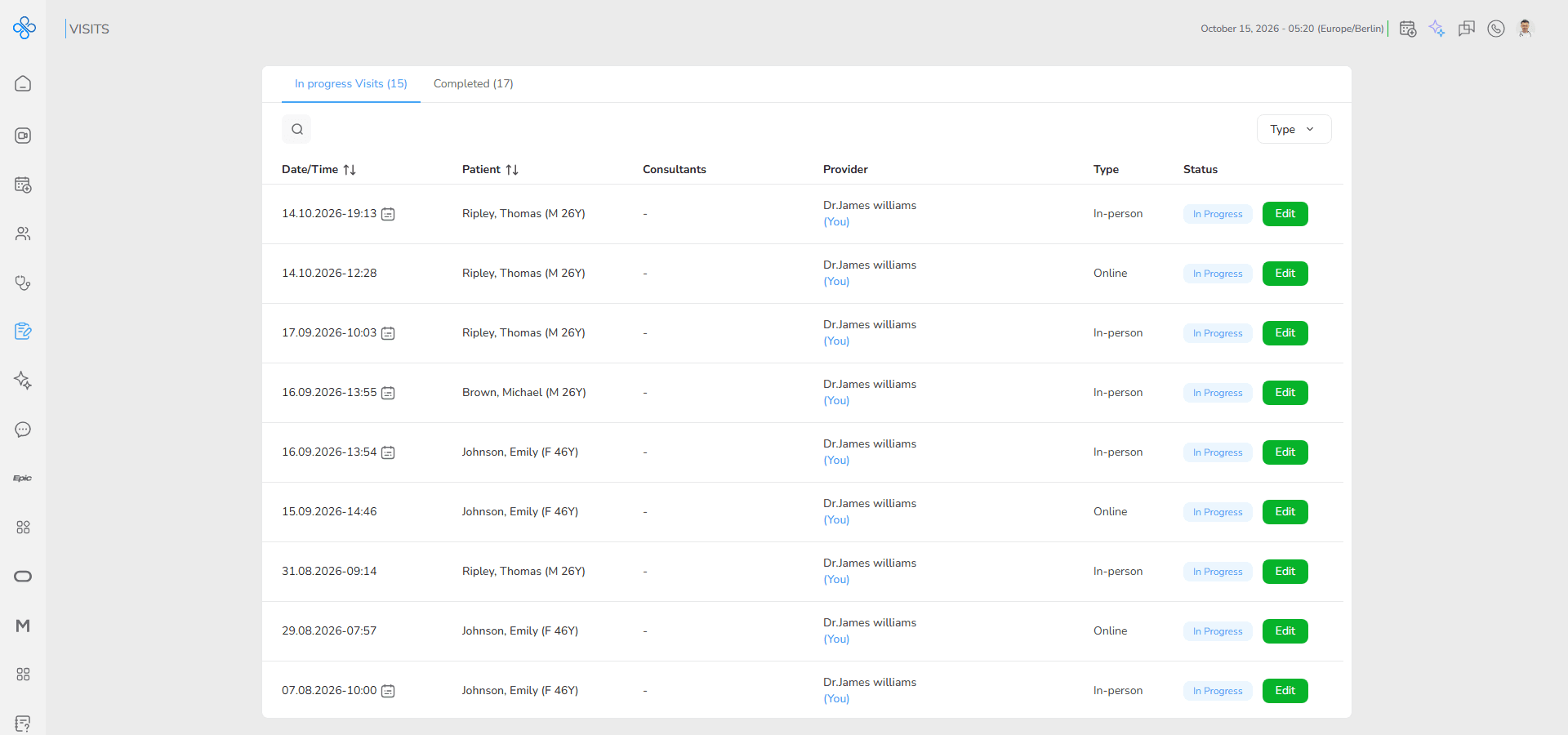
Think of this section as the clinical activity tracker. It helps you monitor ongoing consultations, review completed ones and continue working on visits when needed.
Visits in this list can come from two main sources:
- Started from an appointment: when you click Start Visit during an appointment workflow
- Created as Walk-in visits: manually created from a patient’s visit history
The page is organized into two tabs so you can easily separate what still needs attention from what has already been finalized:
- In Progress Visits: Visits currently active or unfinished
- Completed Visits: Visits that have been closed and finalized
Depending on your access level and relationship to the patient, you may be able to:
- Edit visits
- View visit details
- Delete visits
Steps
Step 1: How to Access the Visits Page
You can open the Visits page in the following way:
- From the Sidebar
- Click Visits in the main navigation menu.
- From the Dashboard Shortcut
- On the Dashboard, click the Active Visits shortcut tile.
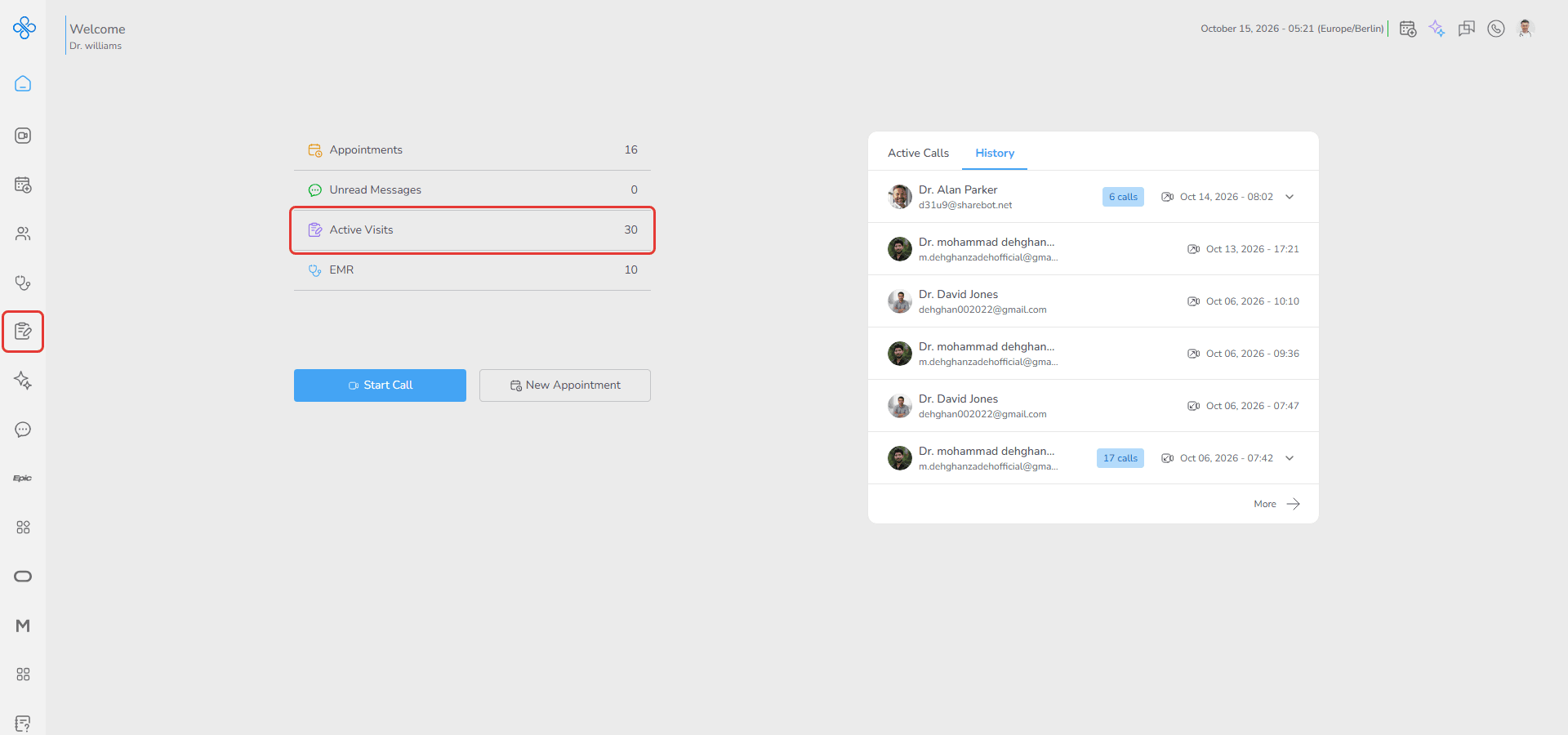
These are the available ways to access the Visits page.
Step 2: Understanding Where Visits Come From
Before working with the list, it helps to know how visits appear here.
Visits are automatically added when:
- You start a visit through an appointment workflow
- You create a walk-in visit from a patient’s visit history
Visits that originate from appointments display an Appointment icon next to their date and time, making them easy to identify.
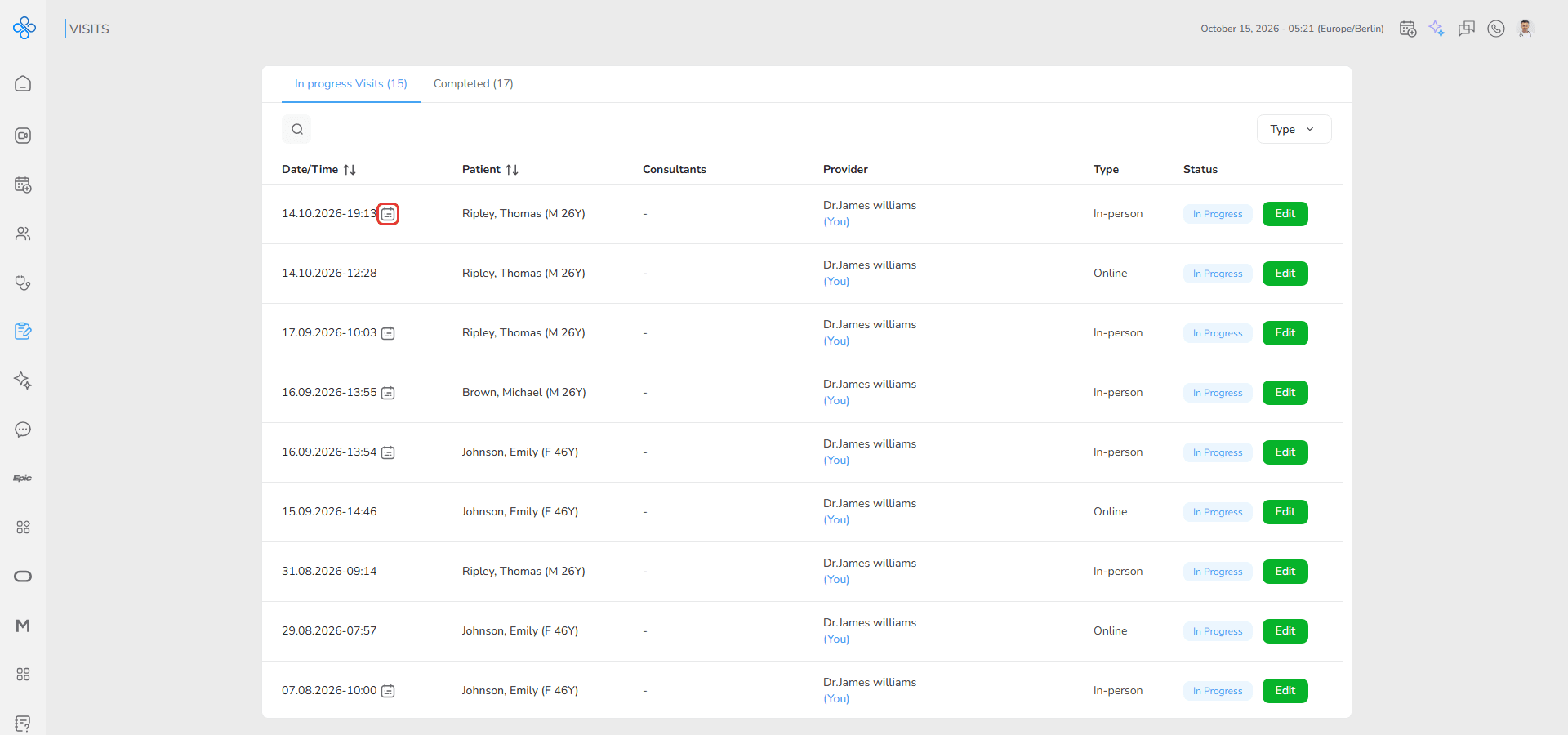
Visits without this icon are walk-in visits.
Step 3: Choose the Right Tab
At the top of the page, select the tab that matches what you’re looking for:
In Progress Visits
Shows visits that are still active and can be continued or edited.
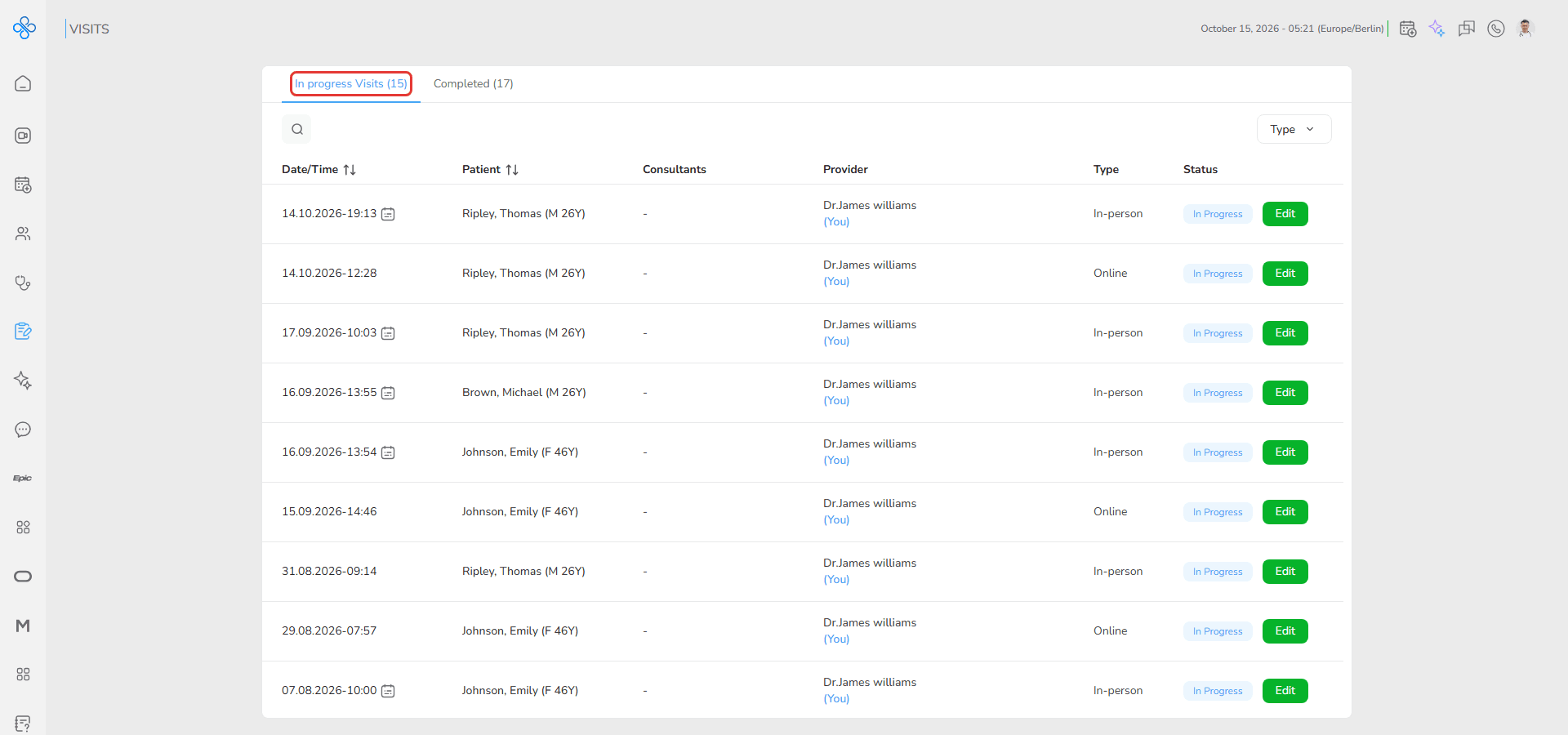
Completed Visits
Shows finalized visits for review or reference.
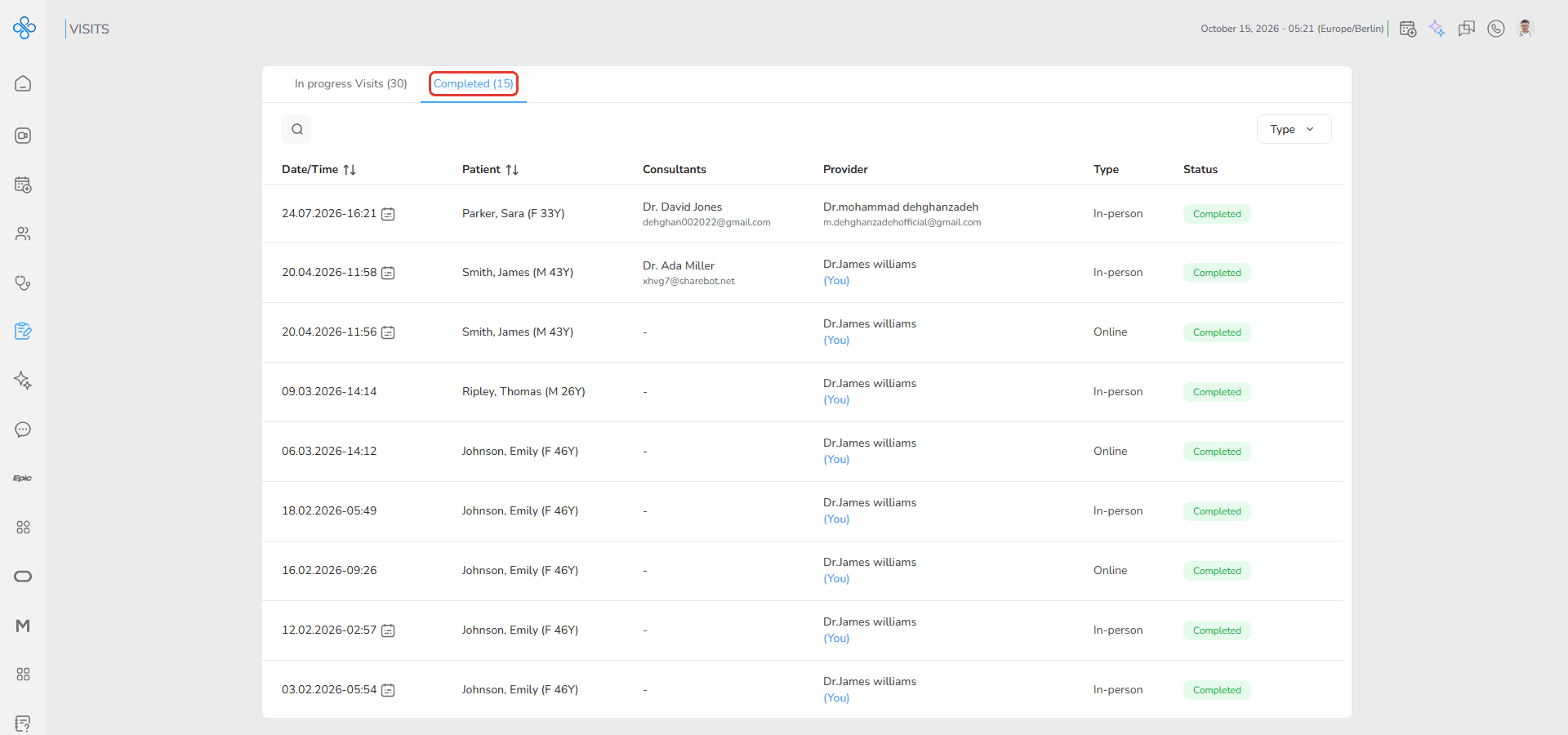
Switching tabs updates the table instantly.
Step 4: Search and Filter Visits
If the list gets long, use the tools above the table:
- Search — click the search (magnifier) icon to open the search bar, then find visits by:
- Patient
- Consultant
- Creator
- Type filter — Narrow results by visit type:
- In-person
- Online
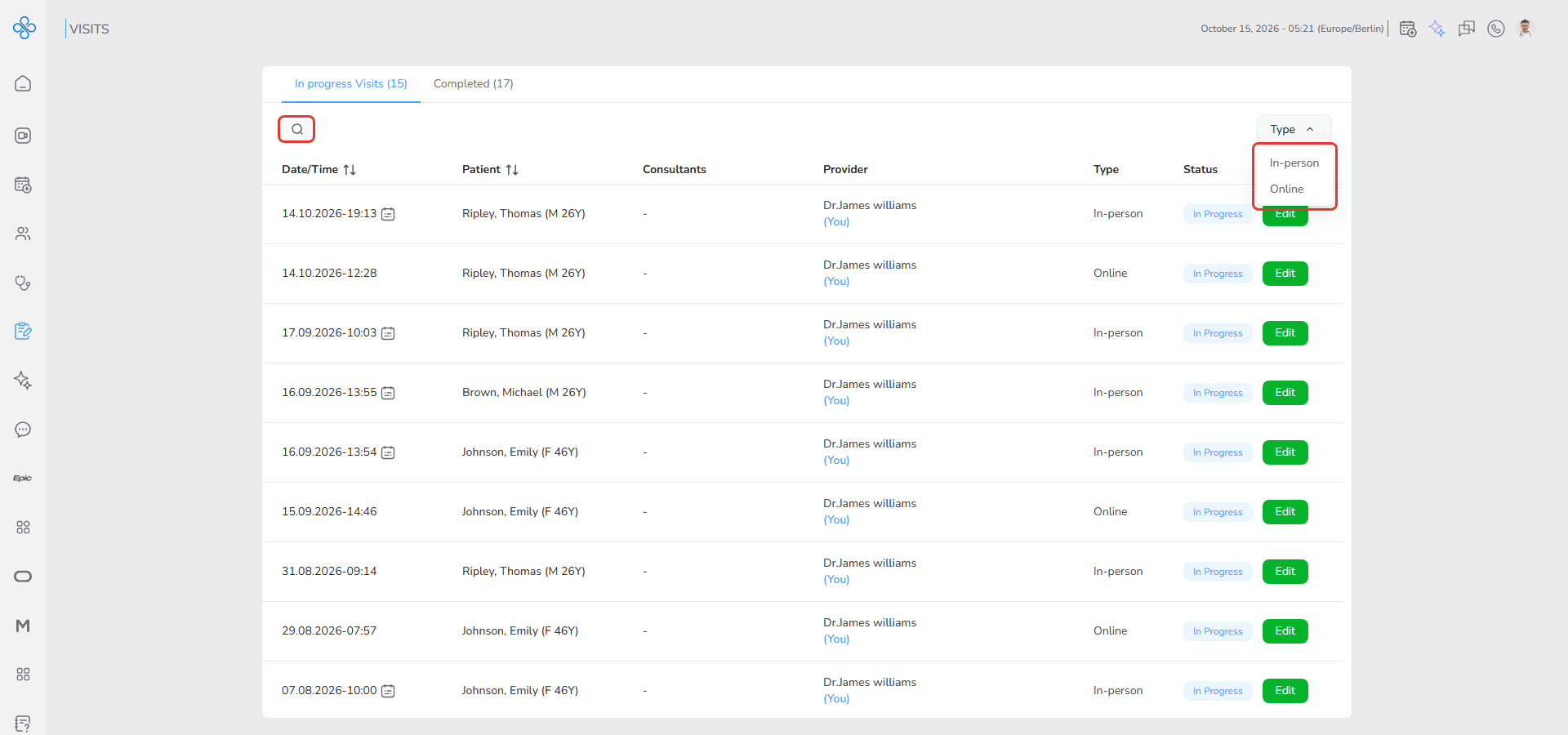
These controls help you locate specific visits quickly.
Step 5: Sort Visits
You can organize the table by clicking column headers such as:
- Date-Time
- Patient
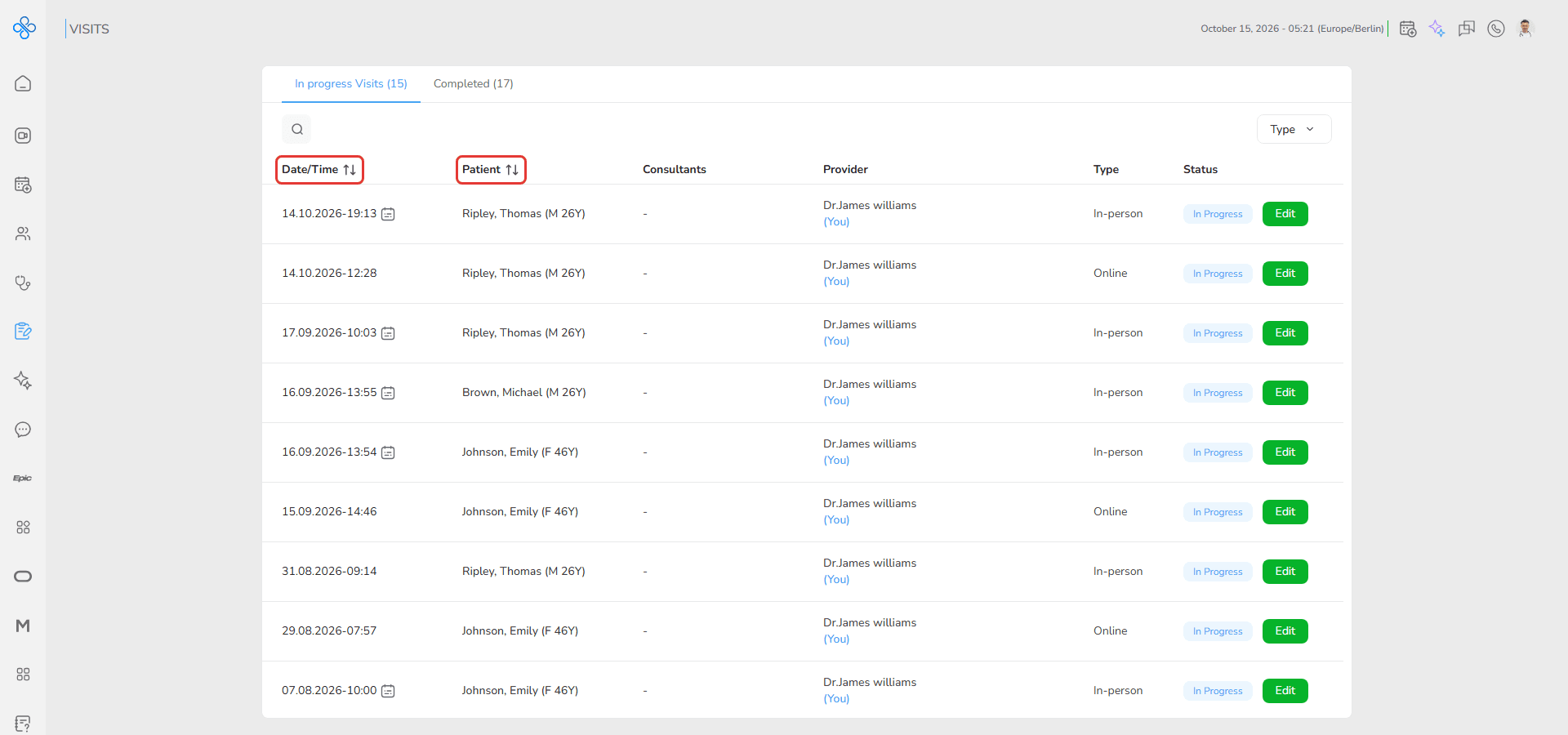
Sorting makes it easier to analyze or locate recent records.
Step 6: Manage a Visit
When you hover over a visit row, the More Actions (⋮) menu appears.
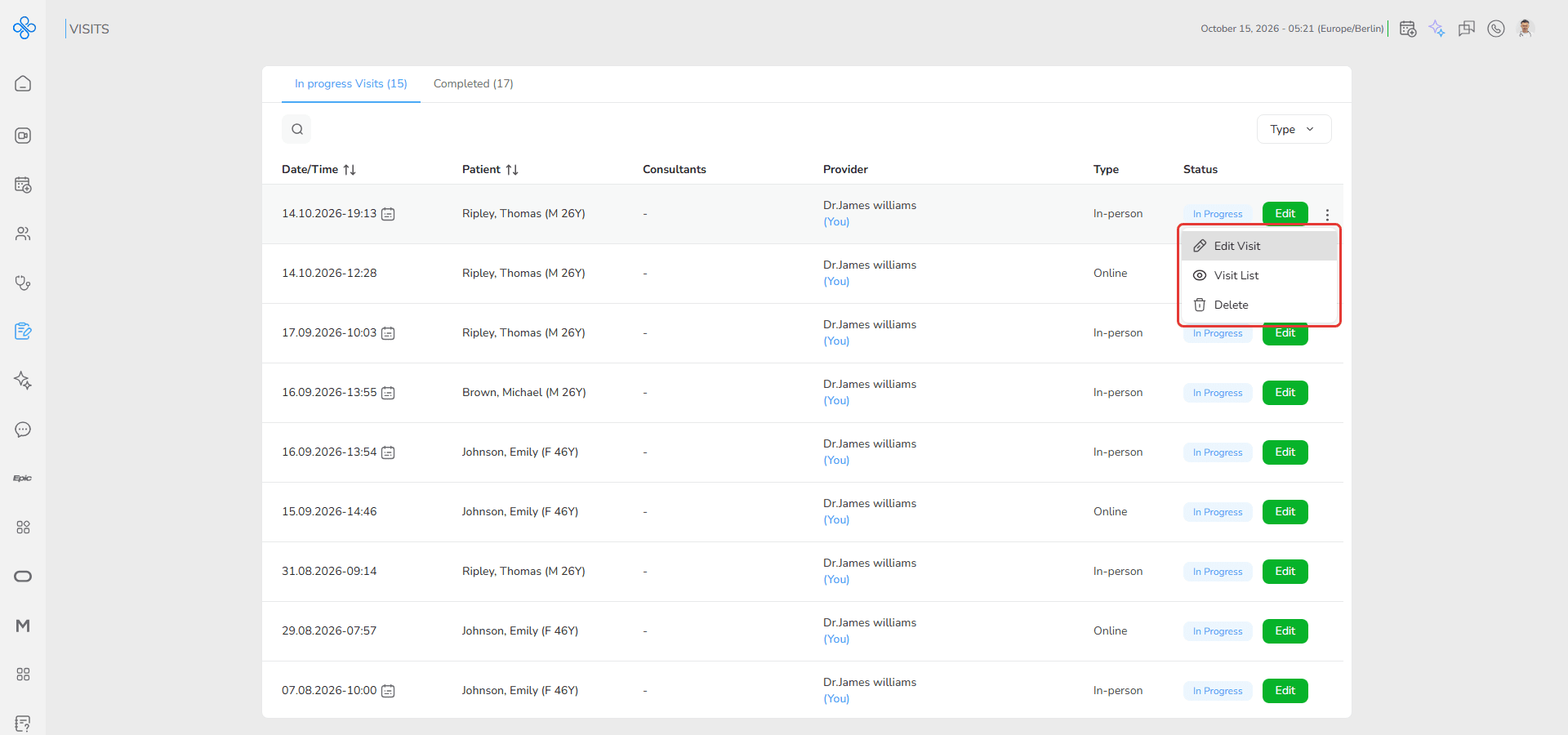
Available options depend on your access level:
If you are:
- The patient owner
- OR a provider with edit permissions
You will see:
- Visit List / View Only: Open visit details without editing ability
- Edit Visit: Open and modify visit details
- Delete: Remove the visit record
- Edit button at the end of the row (quick access)
If you are:
- A shared provider without edit permission
You will see:
- Visit List / View Only: Open visit details without editing ability
This ensures access control based on patient sharing rules.
Fields (Field Descriptions)
| Field | Description |
|---|---|
| Tabs | Switch between active and completed visits |
| Search Bar | Finds visits by patient, consultant, or creator |
| Type Filter | Filters visits by online or in-person |
| Date-Time Column | Shows visit schedule time |
| Patient Column | Displays associated patient |
| Consultant Column | Shows additional involved providers |
| Provider Column | Displays visit owner |
| Type Column | Indicates visit format |
| Status Column | Shows visit progress state |
| Appointment Icon | Shown next to the date and time of visits created from appointments |
| More Actions Menu | Provides contextual visit management options |
| Edit Button | Quick shortcut to edit visit |
Behavior & Expected Outcome
- Switching tabs immediately updates the visible visit list
- Search and filtering dynamically narrow results without page reload
- Sorting reorganizes rows based on selected criteria
- Hovering reveals contextual management options
- Editing opens the visit workspace for continuation
- Deleting removes the visit from the list
- Permission-based controls ensure users only see actions they are allowed to perform
- Appointment-origin visits are visually distinguishable from walk-ins
Common Errors + Fixes
| Issue | Cause | Fix |
|---|---|---|
| Visit Not Editable | The visit is in Completed status. | Visits cannot be edited once completed. Use View mode instead. |
| Access Denied | Provider lacks permission to edit or view patient visit history. | Contact the administrator to request the required access. |
| Delete Option Disabled | Provider does not have Edit access. | Only users with edit rights can delete visits. |