Appointment System
Overview
The Appointments section helps you easily create and manage your medical appointments in one place.
You can access this section in two ways:
- From the Appointments item in the sidebar
- From the Appointments shortcut on the Dashboard
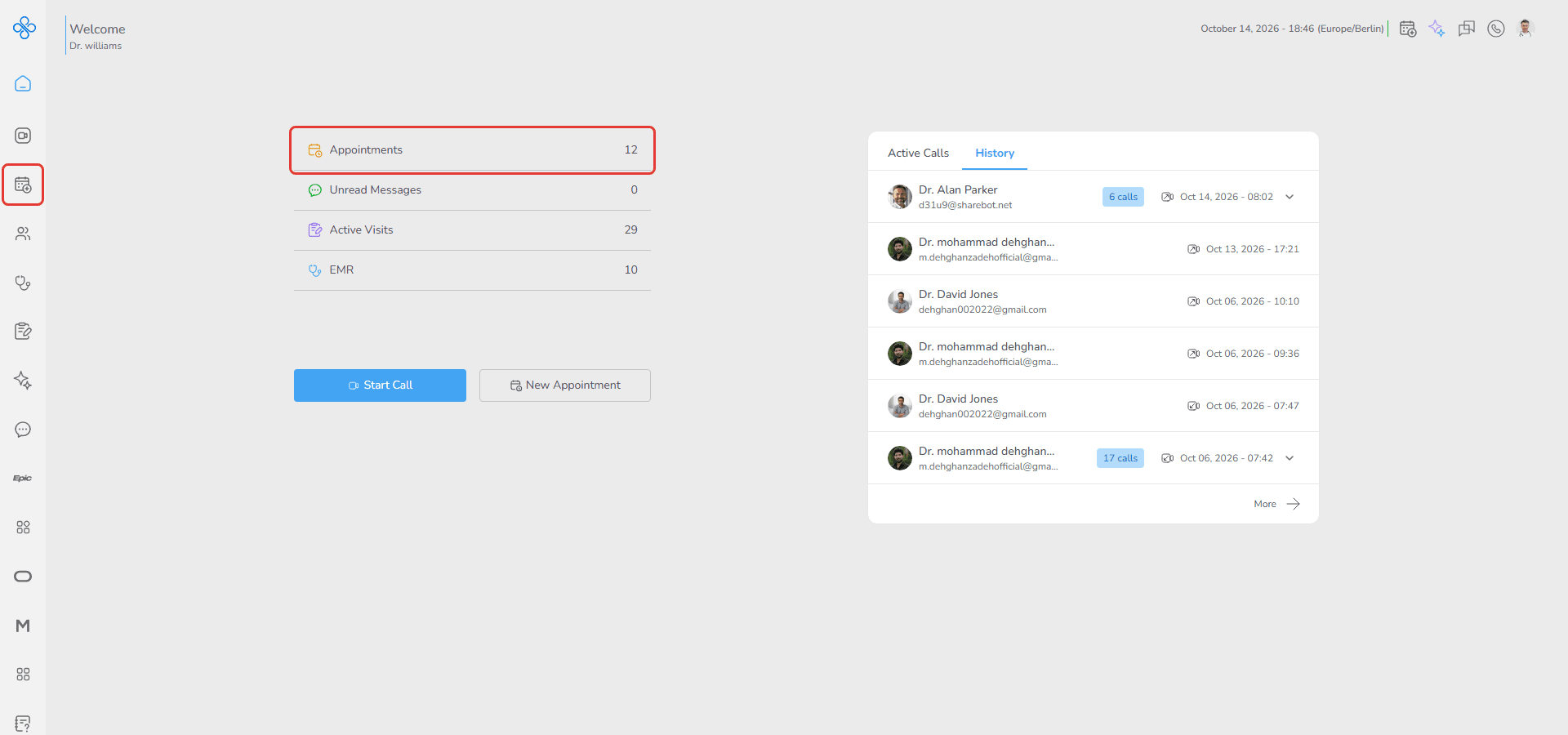
Here, you can schedule new appointments, view your existing ones and take simple actions such as check-in, canceling or starting a visit when the time comes.
To get started, the first step is always creating an appointment.
Once an appointment is created, it will appear in the Appointment List, where you can follow its status, make updates if needed and continue with the next steps like checking in or starting the visit.
Appointment User Journey
Managing appointments typically follows this flow:
- Make an Appointment based on the required visit type.
- Review & Manage Appointments from the Appointment List, where you can view appointment details, track their status, and take all related actions such as Edit, Cancel, Check-In, or Start Visit.
Each step is supported by guided screens and contextual actions to ensure accuracy and clarity.
Features Covered
- Make an Appointment
- Use the +New Appointment option to schedule a new appointment.
- Supported appointment types include:
- Provider Consultation: Schedule a consultation with another specialist.
- Patient Visit (In-person): Arrange a face-to-face visit with a patient.
- Patient Visit (Online): Schedule a remote consultation.
- Patient Visit (Under Supervision): Create a supervised visit involving a consultant.
- Each appointment type follows a guided, multi-step process with a progress bar, helping you complete all required information correctly.
- (For detailed steps, refer to the Make an Appointment guide.)_
- Review & Manage Appointments
- View all appointments in a structured list.
- Search by Patient, Provider, or Consultant name. Filter by time, provider (Me / Other), status or type.
- Access appointment details in a modal.
- Manage appointments before their scheduled end time.
- (For detailed steps, refer to the Review & Manage Appointments guide.)_