Review & Manage Appointments
Overview
The Review & Manage Appointments section is where you keep full control over all your appointments after they are created.
In this section, you can easily see what appointments you have, check their details, and take actions when needed.
From here, you can:
- See Today’s, Upcoming, or Past appointments
- Quickly find an appointment using search and filter
- Review appointment details at a glance
- Take actions such as Edit or Cancel an appointment
- See at a glance how many appointments match your current filters
This section acts as your central workspace for tracking and managing appointments as time moves closer to the visit.
Steps
Step 1: View Your Appointment List
To start reviewing your appointments:
- Go to the Appointments page.
- You will see a table list showing all your appointments in one place.
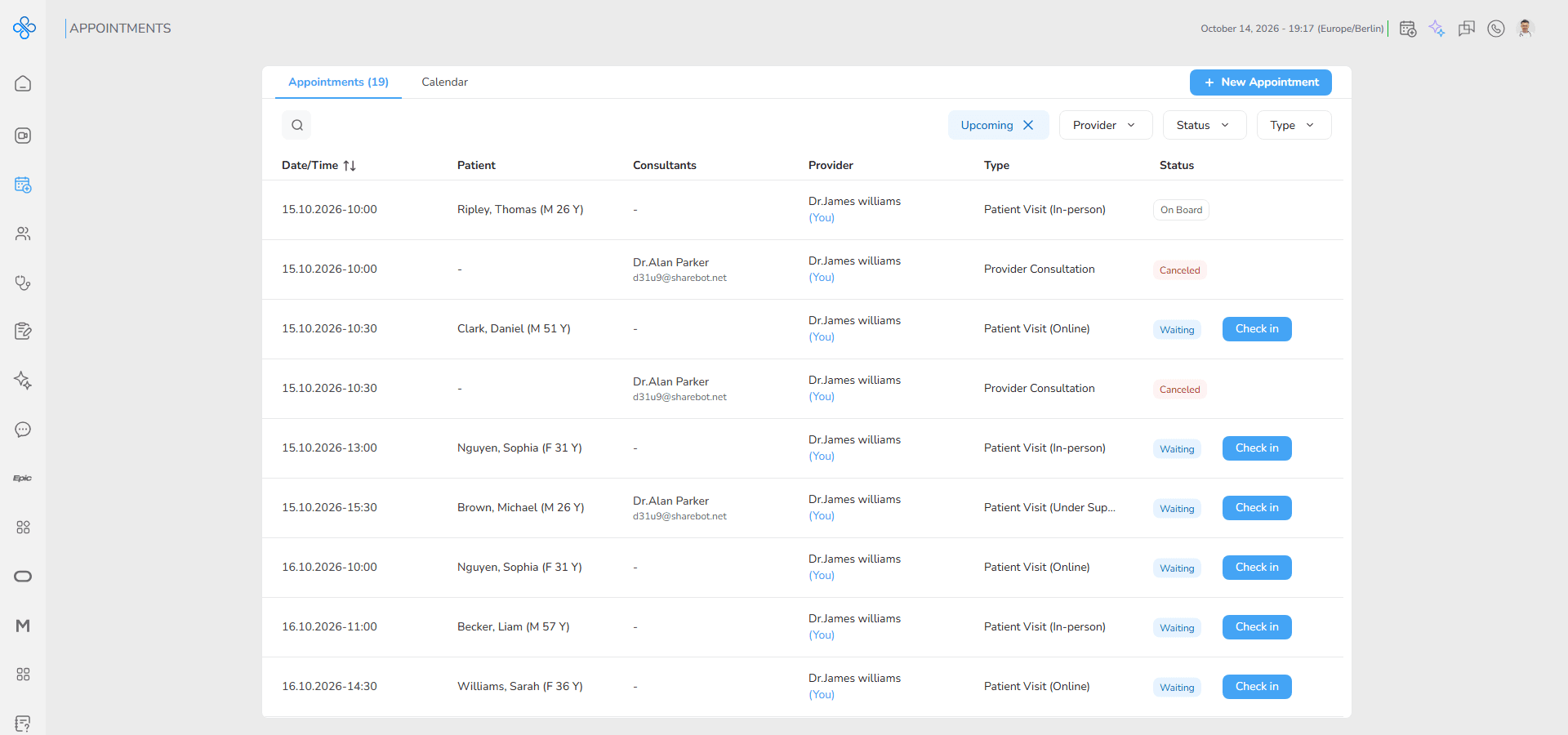
- Each row represents one appointment and includes key information such as:
- Date & Time
- Patient
- Consultant(s)
- Provider
- Appointment Type
- Current Status
- This list updates automatically as appointments are created or changed.
Step 2: Search & Filter Appointments
When your list gets long, you can easily narrow it down.
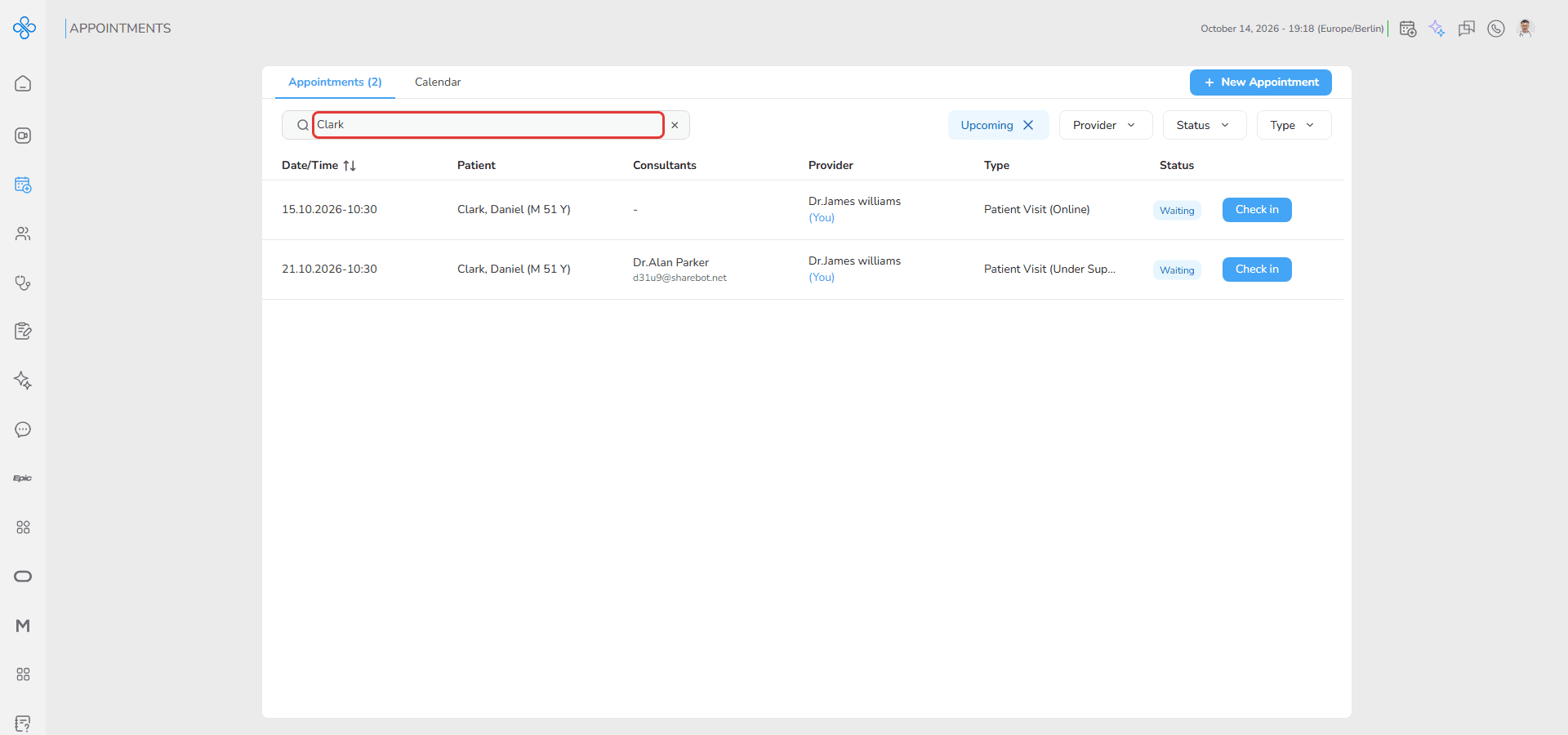
- Search
- Use the search bar above the table.
- Enter a Patient, Provider, or Consultant name to quickly find related appointments.
- Filters
- Use the filter controls at the top-right to refine what you see:
- Type
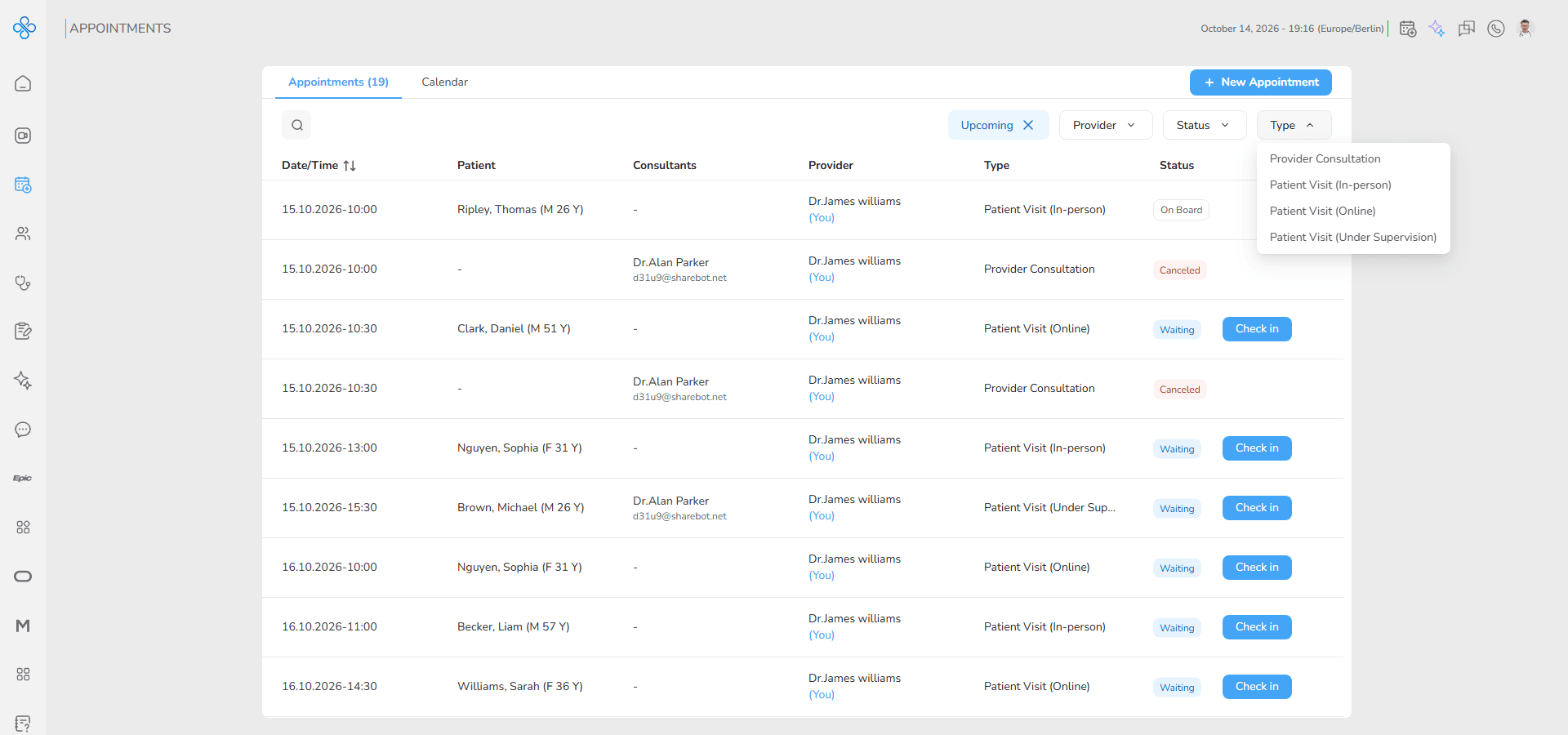
- Filter by appointment type such as:
- Provider Consultation
- Patient Visit (In-person)
- Patient Visit (Online)
- Patient Visit (Under Supervision)
- Status
- View appointments based on their current state:
- Waiting
- Checked In
- On Board
- Checked Out
- No Show
- Canceled
- Provider
- Me (appointments you created)
- Other (appointments created by someone else)
- Time
- By default the list shows only Upcoming appointments. This is shown as an Upcoming chip; click its ✕ to remove it and show the Time filter.
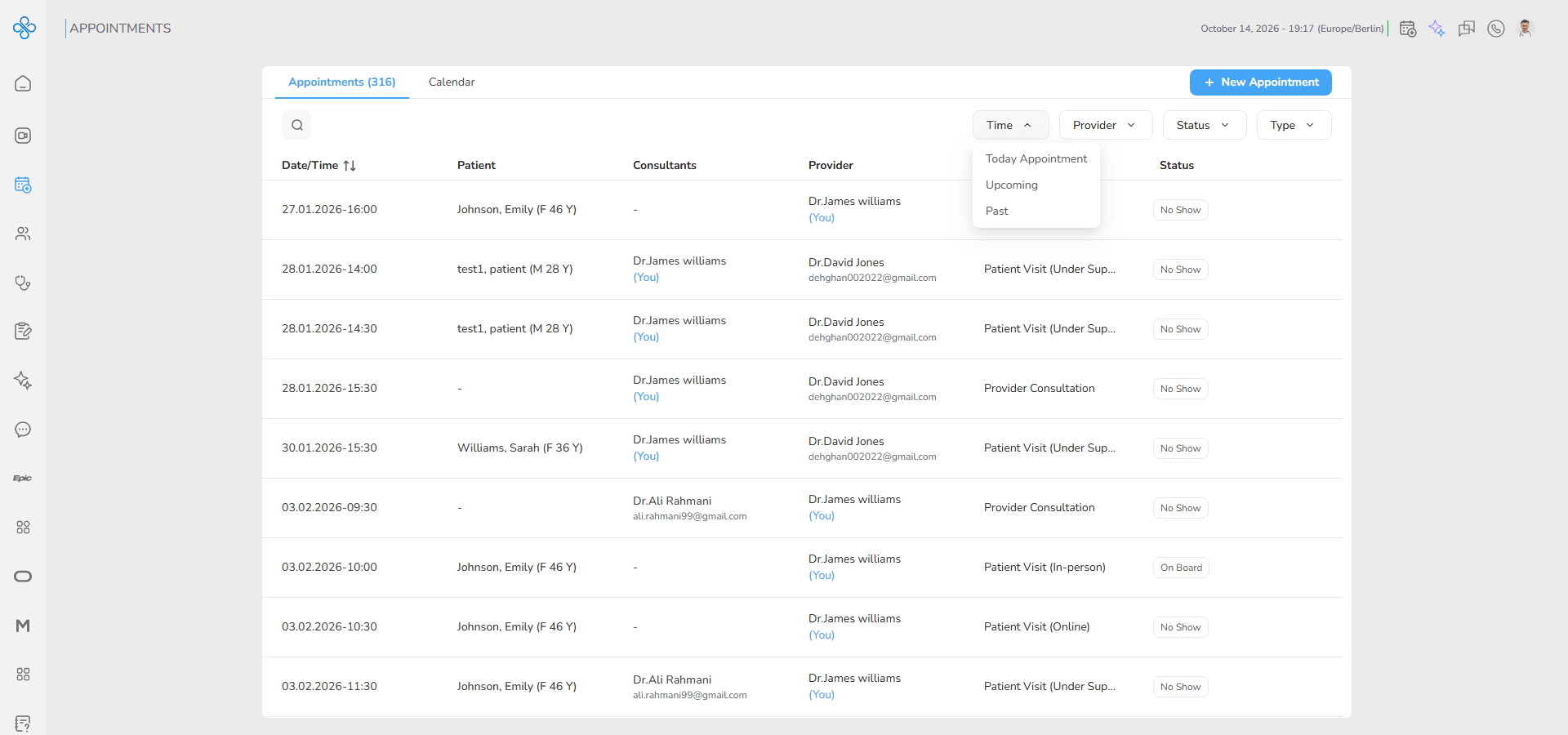
- Today Appointment
- Upcoming
- Past
- Filters can be combined to help you find exactly what you’re looking for.
Step 3: View Appointment Details
To see more information about an appointment:
- Click on any appointment row in the list.
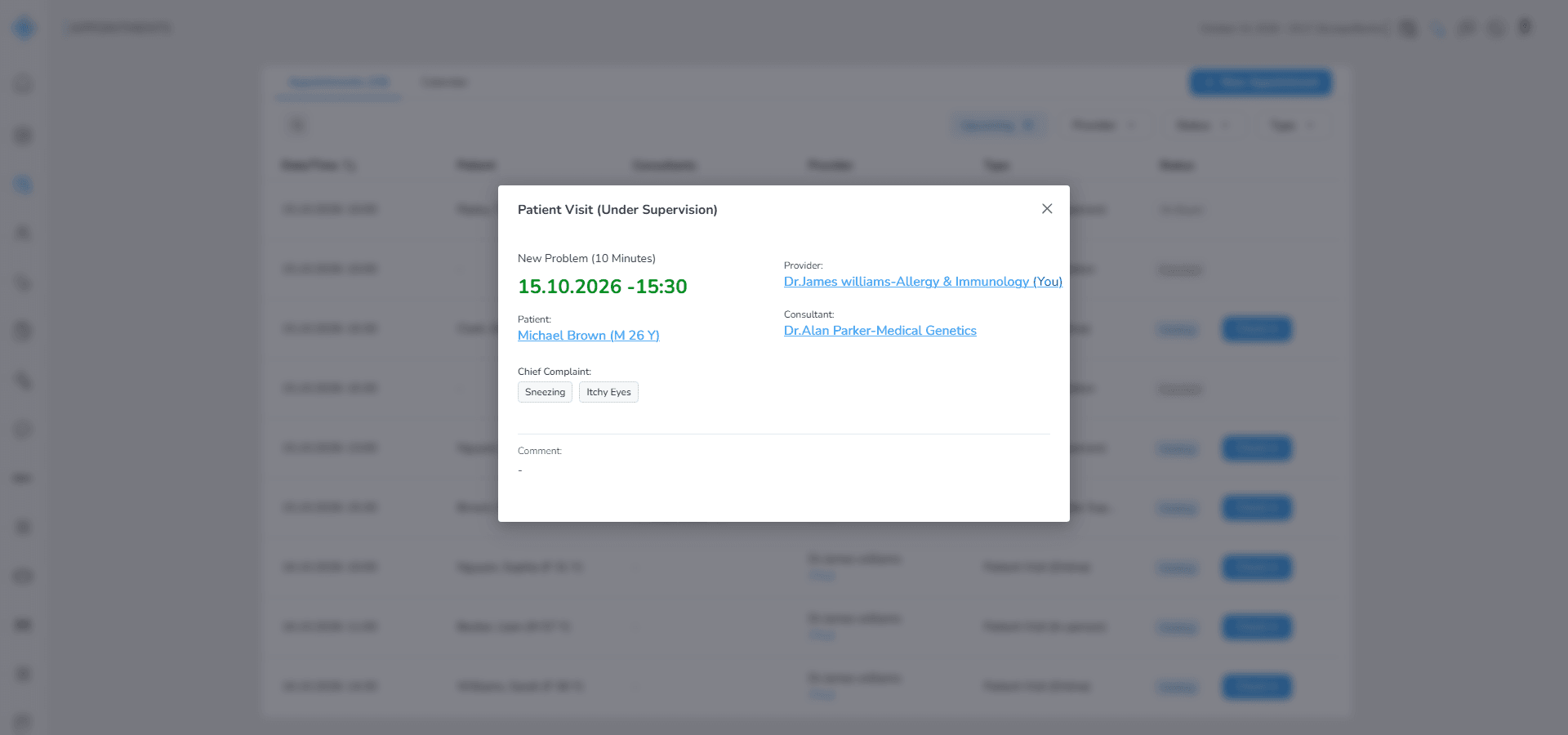
- A Details Modal opens, showing a clear summary including:
- Appointment type
- Patient name
- Consultant(s)
- Date and time
- Current status
- Notes (if added)
- This lets you review everything without leaving the page.
Final Step: Manage an Appointment
To take action on an appointment:
- Hover over the appointment row.
- Click the More Actions (⋮) menu.
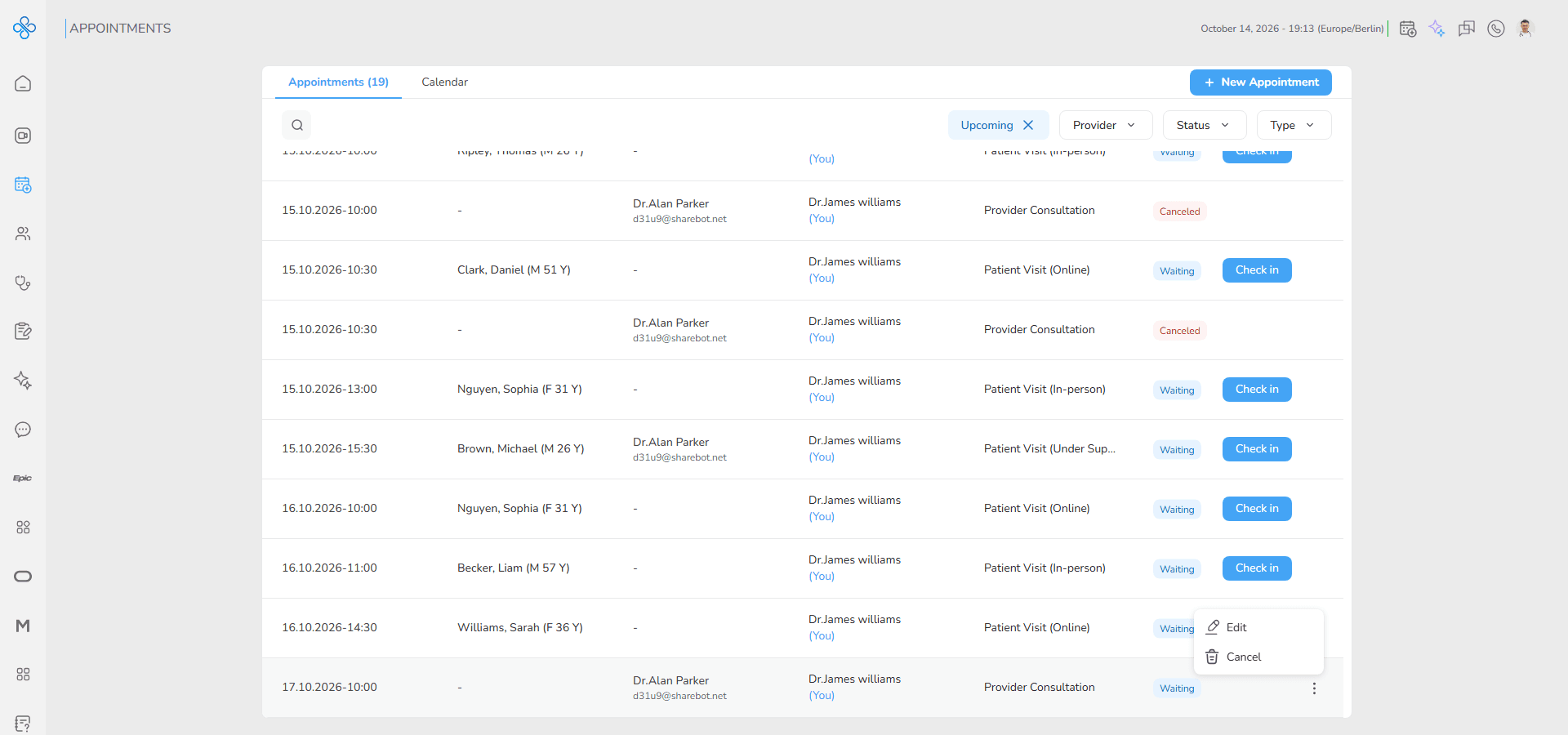
Cancel an Appointment
- Select Cancel.
- A confirmation modal appears.
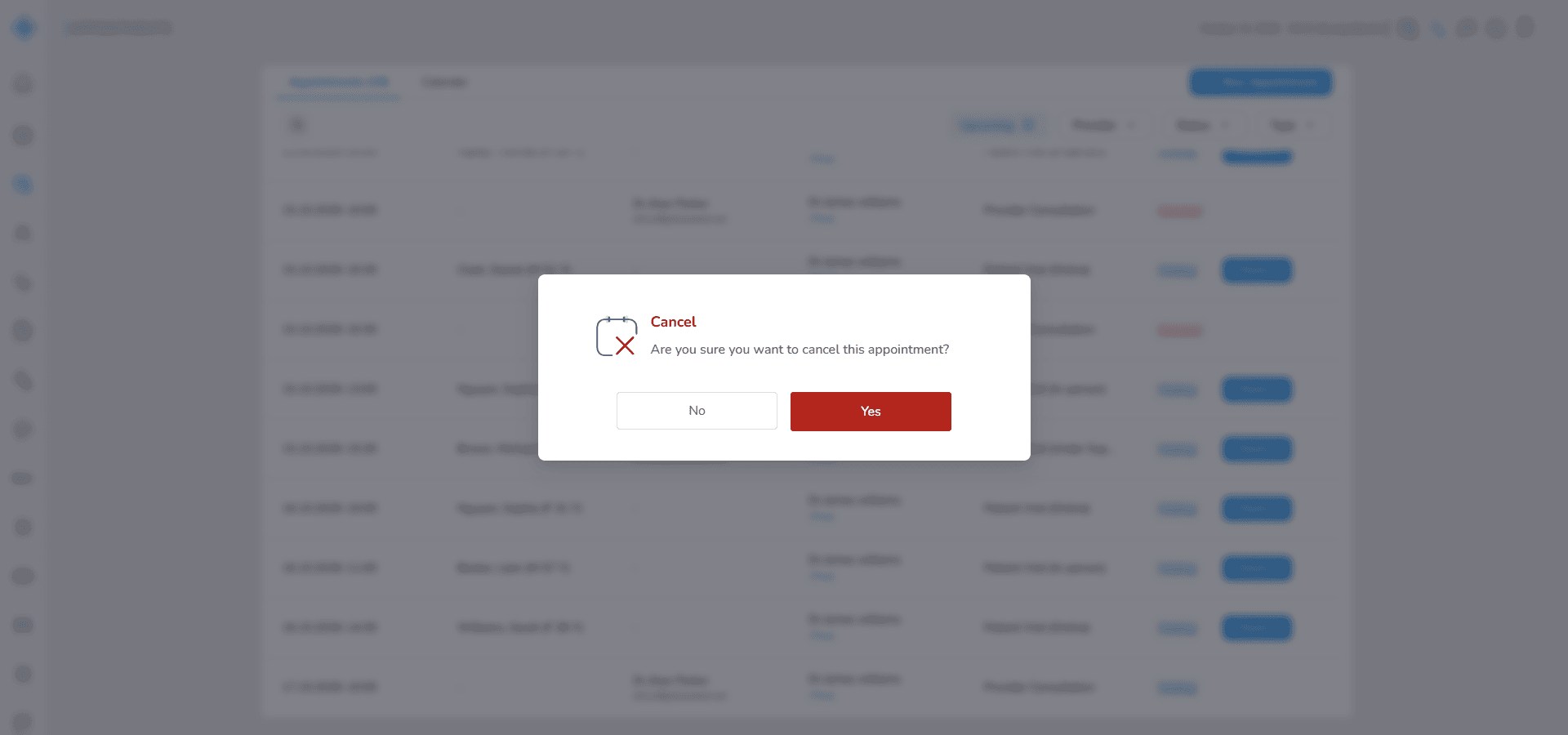
- Click Yes to cancel the appointment, or No to keep it.
- The appointment status changes to Canceled.
- Cancellation is only possible before the appointment’s scheduled end time.
Edit an Appointment
- Select Edit.
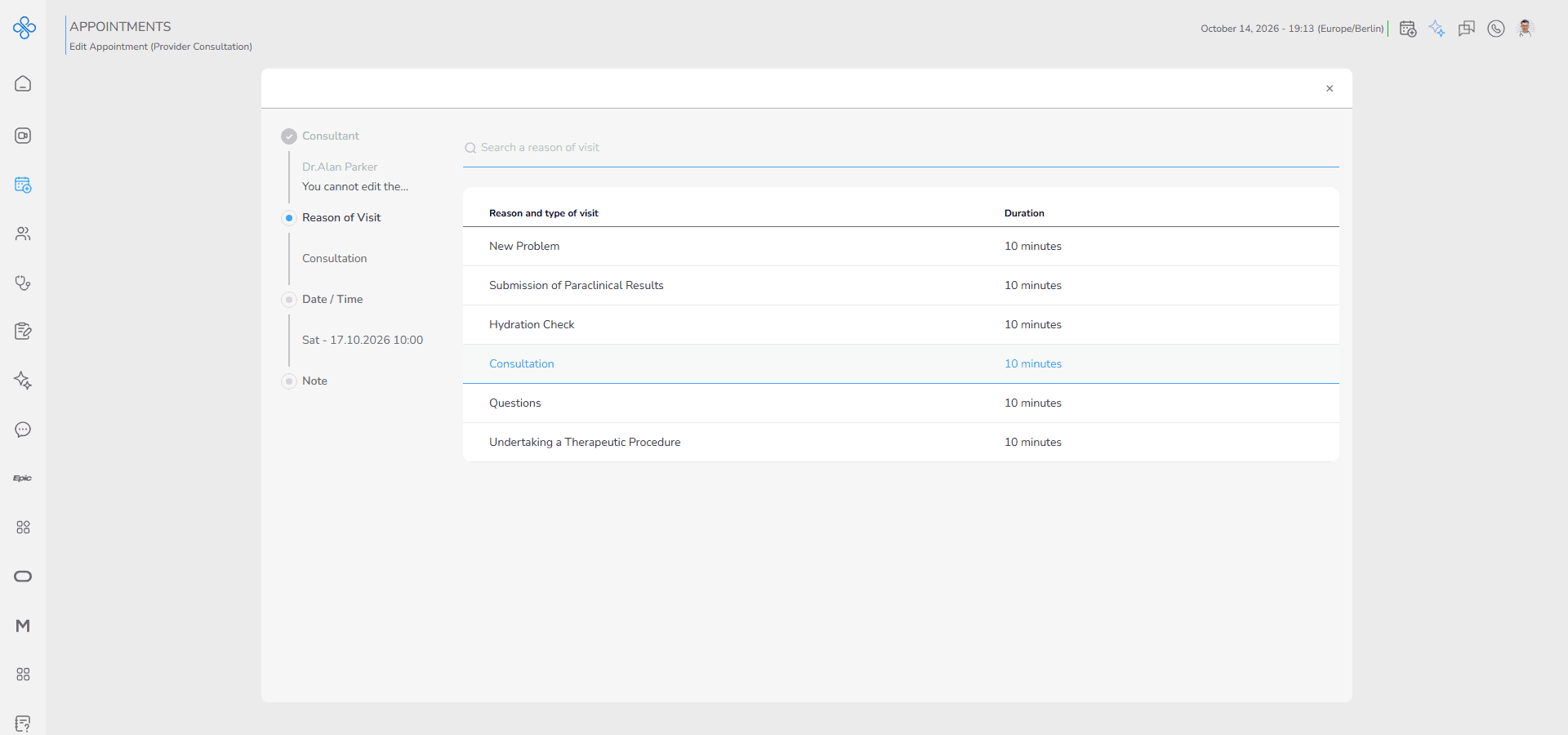
- The appointment opens again in its original creation flow (step-by-step).
- The edit form automatically adjusts based on the appointment type.
- You can update details before the appointment reaches the Check-in status.
- Saving changes will overwrite the previous appointment information.
Check-In & Start Visit (Patient Appointments)
For appointment types that include a patient (In-Person, Online, and Under Supervision), you can manage the visit directly from the Appointment List.
Check-In
- At the end of each appointment row, a Check in button is available while the appointment status is Waiting.
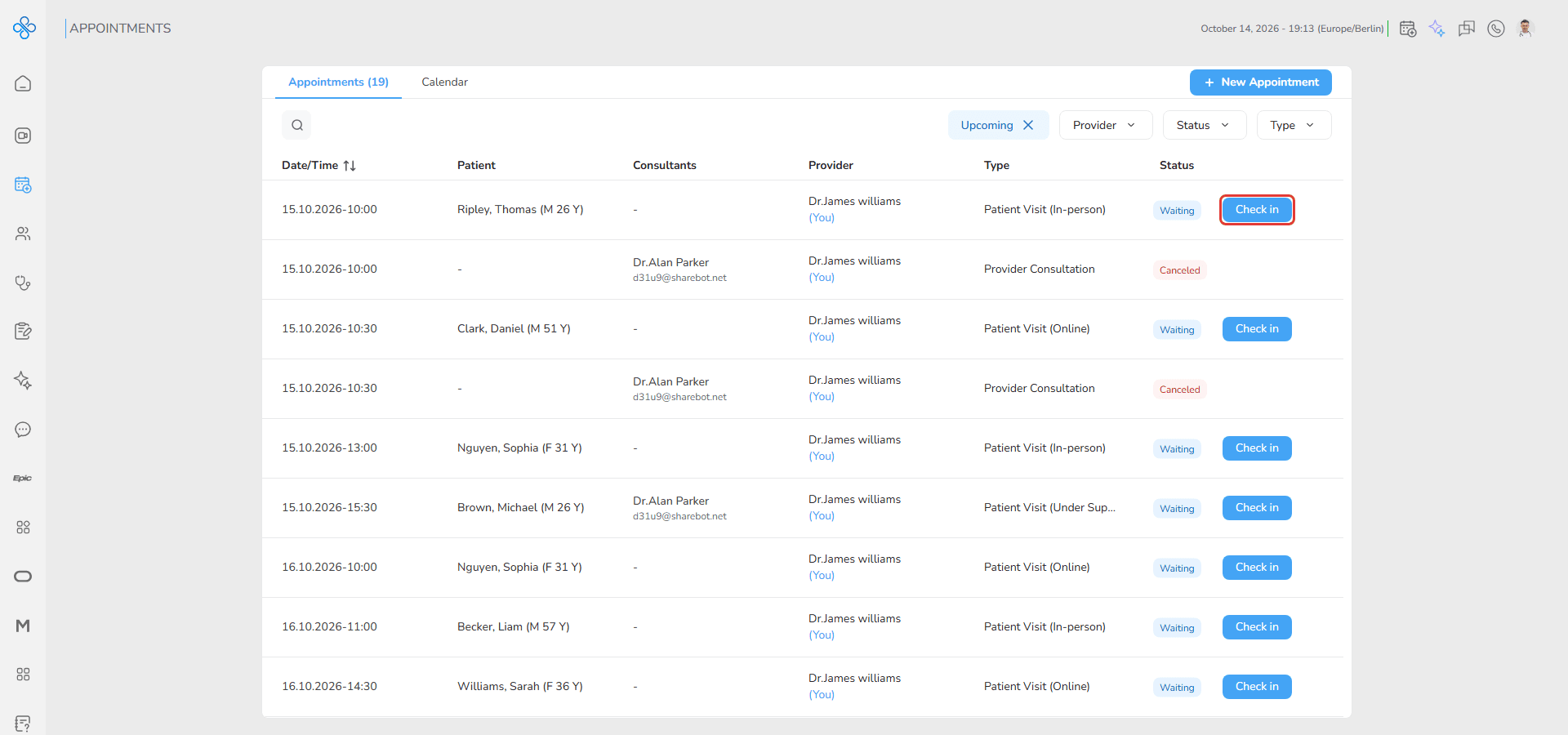
- Click Check-In to confirm the patient’s arrival.
- A confirmation modal is displayed with the message: “Admit patient outside appointment time! Are you sure?”
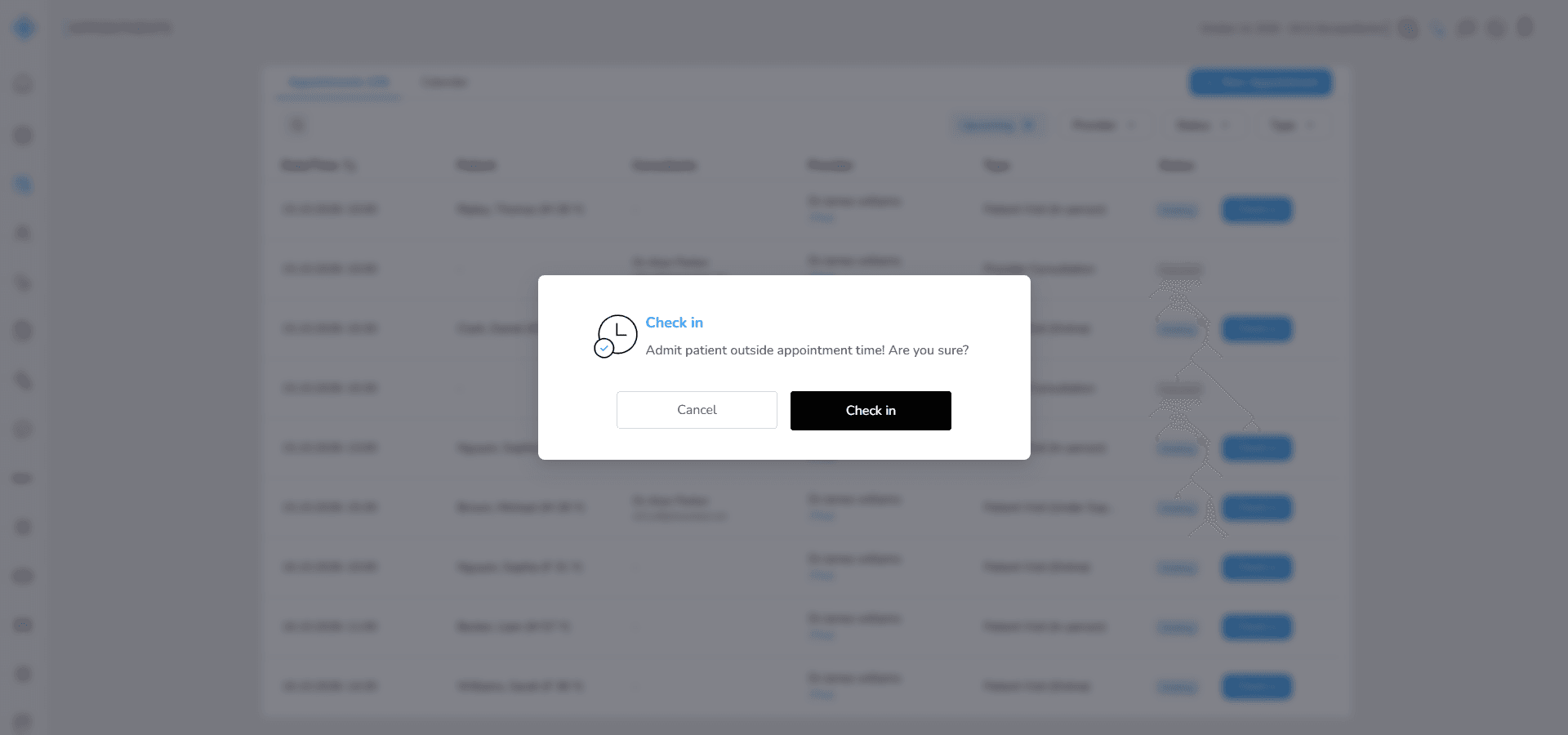
- The modal includes two actions:
- Check-In → confirms the action and proceeds
- Cancel → closes the modal without making any changes
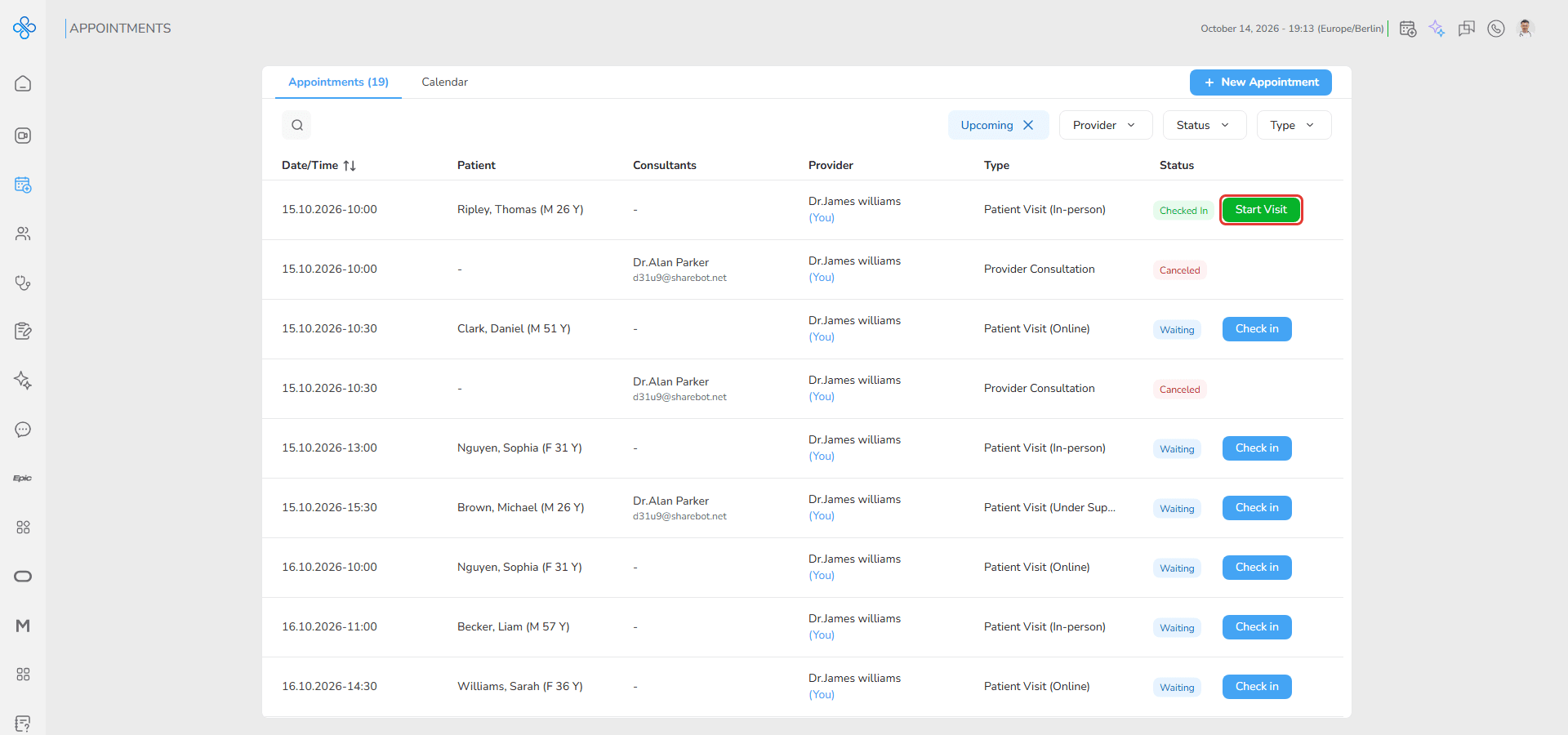
- Once clicked:
- The appointment status changes from Waiting to Checked In.
- The Check-In button is replaced with Start Visit.
Start Visit
- Click Start Visit to begin the patient visit.
- You are redirected to the patient’s Visit History tab with the new visit open in edit mode, where you can enter and manage all visit-related information such as clinical notes and visit details.
- (For more information about this page, see the Visit History guide.)
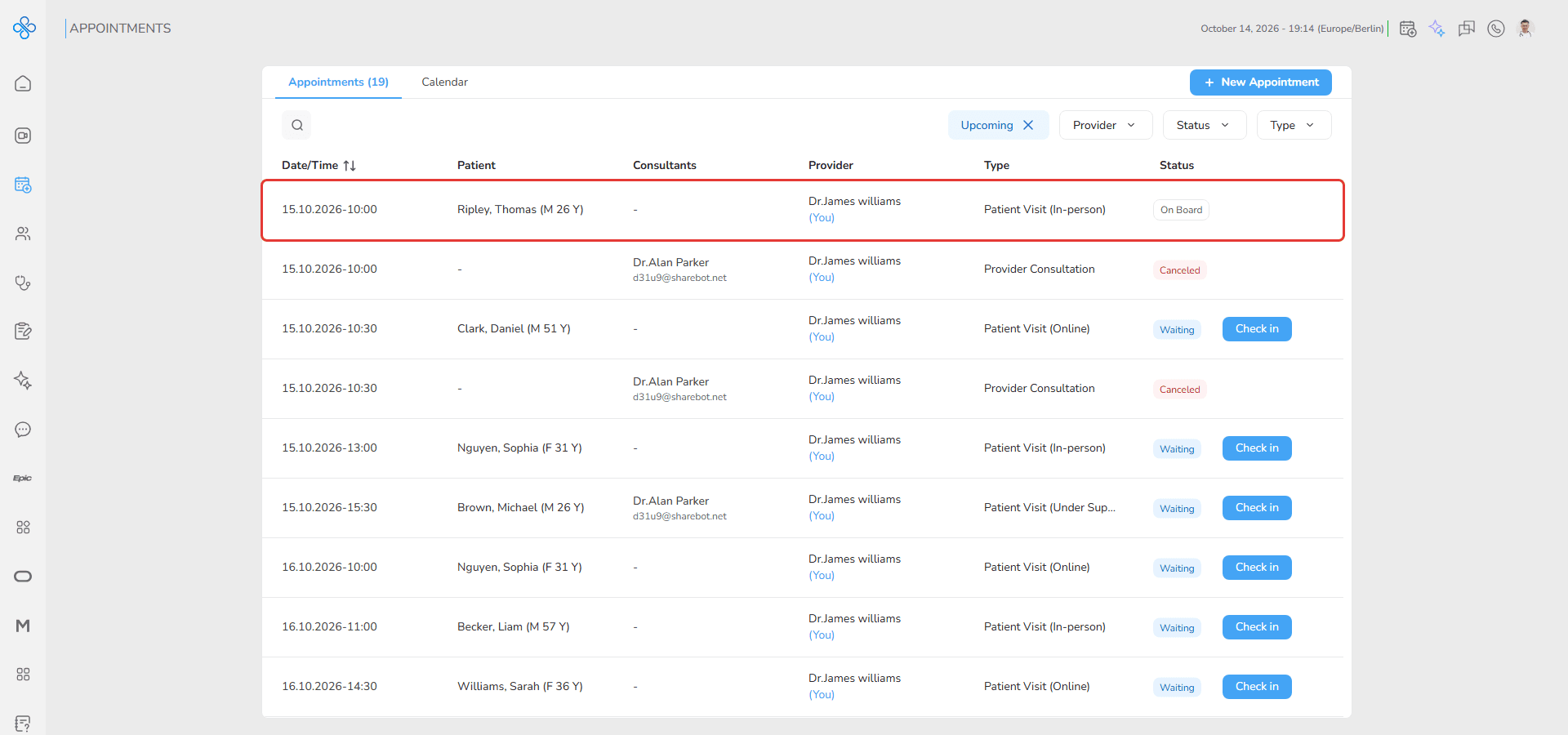
- After starting the visit, the appointment status updates from Checked In to On Board.
Fields (Field Descriptions)
| Field | Description |
|---|---|
| Date - Time | Appointment date and time (sortable). |
| Patient | Patient’s name (First, Last). |
| Consultant(s) | Specialist(s) associated with the appointment. |
| Provider | The provider who owns the appointment ((You) when it is yours). |
| Type | Type of appointment (Provider Consultation, Patient Visit In-person, Online or Under Supervision). |
| Status | Current status: Waiting, Checked In, No Show, Canceled, Checked Out, On Board. |
| Search Bar | Free-text search field for filtering by patient name. |
| Filters | Upcoming chip and drop-down filters for Time, Provider, Status and Type. |
| Appointments Counter | Number on the Appointments tab showing how many appointments match the current filters. |
Behavior & Expected Outcome
- Hovering over a row highlights it and displays the More Actions (⋮) menu.
- Cancel Button: Disabled after the appointment’s scheduled time has ended.
- Edit Button: Disabled once the appointment has been Checked In.
- Appointment details modal opens in read-only mode with a summary of the appointment.
- Filtering and searching dynamically update the list without page reload.
- The Appointments counter updates automatically as appointments are added or the filters change.
Common Errors + Fixes
| Issue | Cause | Fix |
|---|---|---|
| Appointment cannot be edited | The appointment time has already passed or the status is not Waiting. | Ensure the appointment is still upcoming and in Waiting status before attempting to edit. |
| Appointment cannot be canceled | The appointment time has already passed. | Cancel only before the scheduled end time of the appointment. |
| Check-In button not available | The user does not have ownership of the patient or lacks edit access to the patient’s Visit History. | Verify user permissions. Only the patient owner or users with edit rights can check in and start visits. |