Make an Appointment
Overview
The Make an Appointment section helps you create new appointments in a clear and guided way, whether you want to consult with another provider or schedule a visit with a patient.
This feature walks you through the process step by step. First, you choose the type of appointment you need, and then the system shows you only the fields and options related to that choice. This way, you always know what to do next and never see unnecessary steps.
How to Start Creating an Appointment
There are multiple entry points in the system to start making an appointment. No matter which one you use, they all lead to the same flow.
You can start creating an appointment from any of the given pathways:
- Appointments Page
- Click the + New Appointment button at the top of the page.
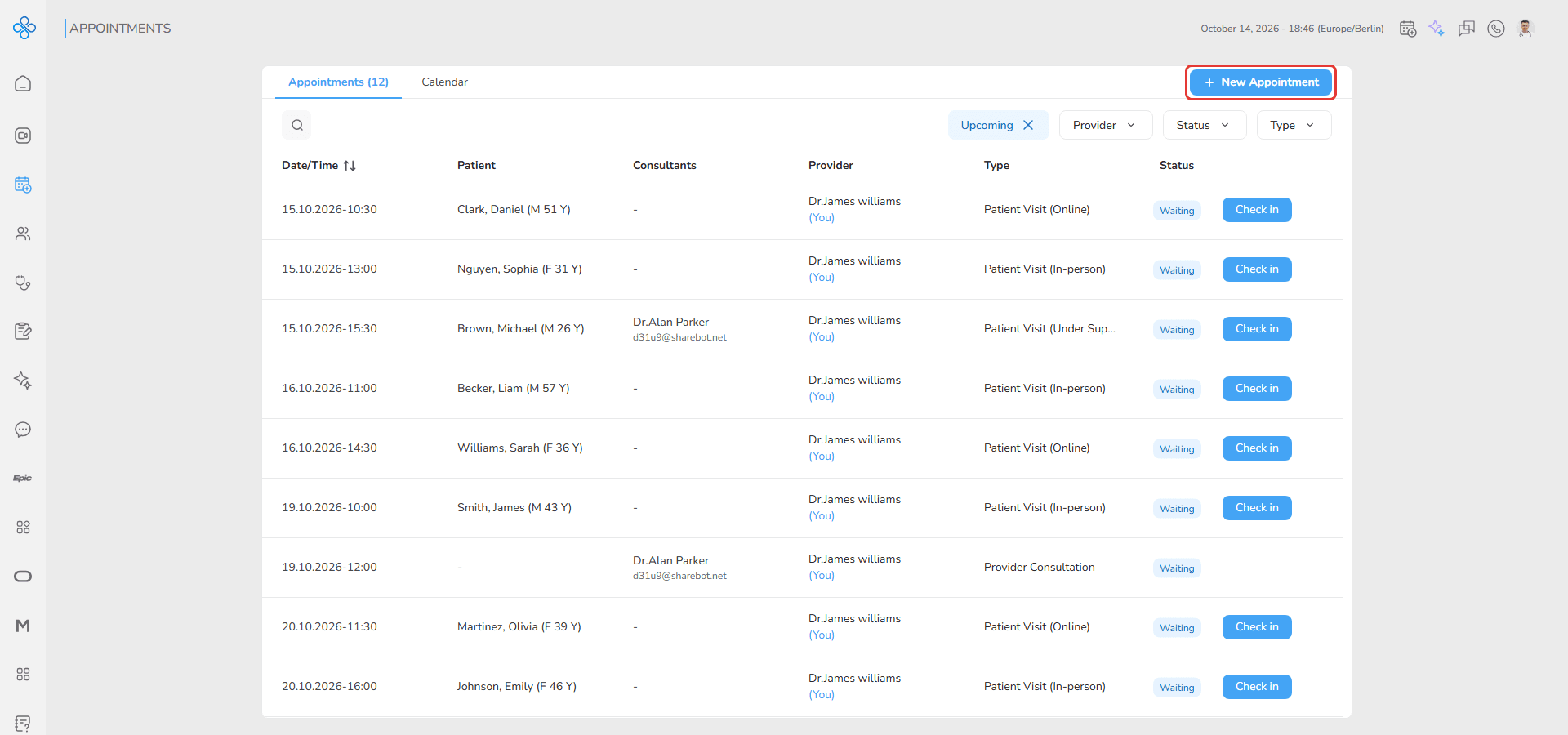
- Dashboard Calendar
- Open the calendar panel with the calendar icon at the top right, select a date and then a free time slot. A message appears with a Create an appointment button.
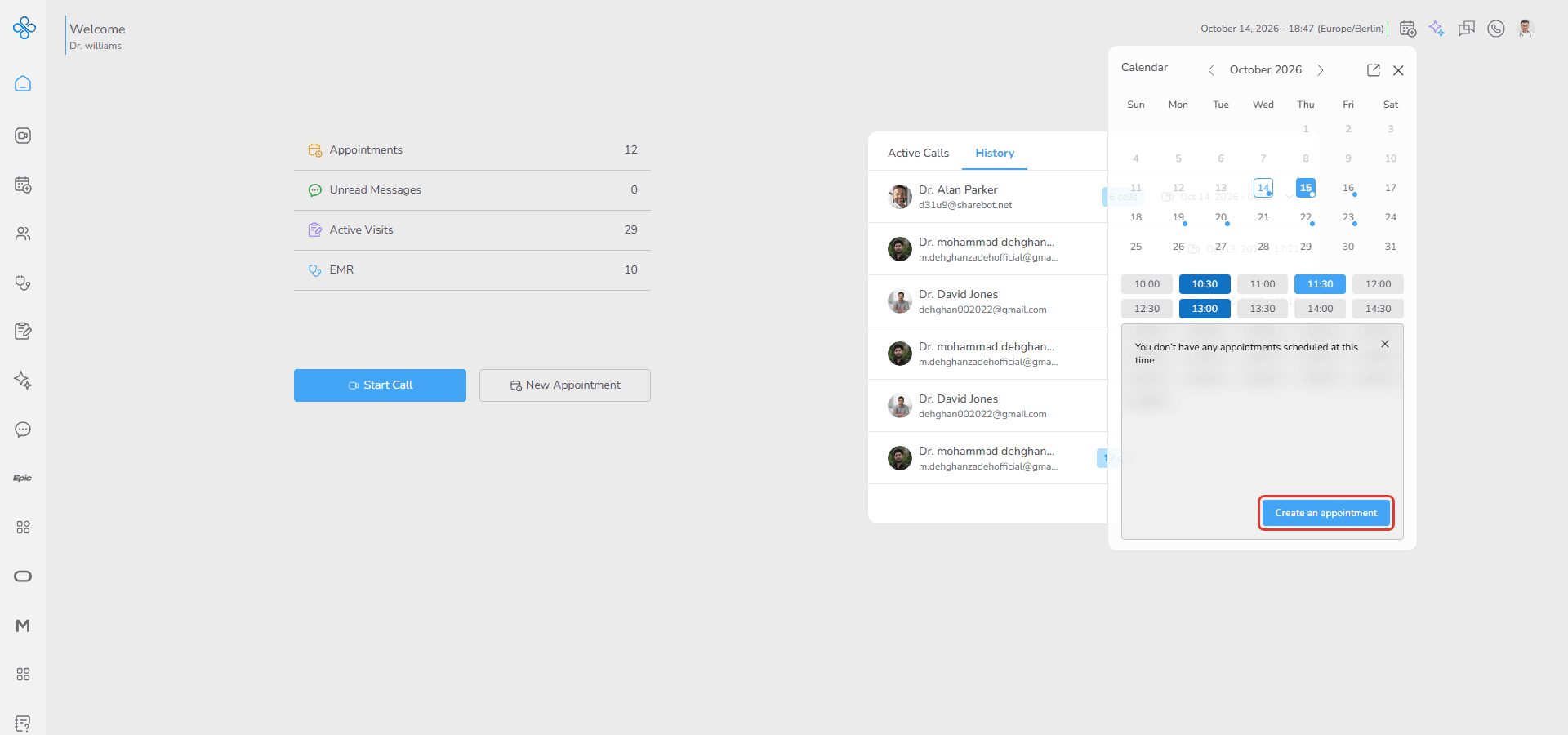
- Providers page
- Use the available time slots shown in each provider’s row for the nearest available date.
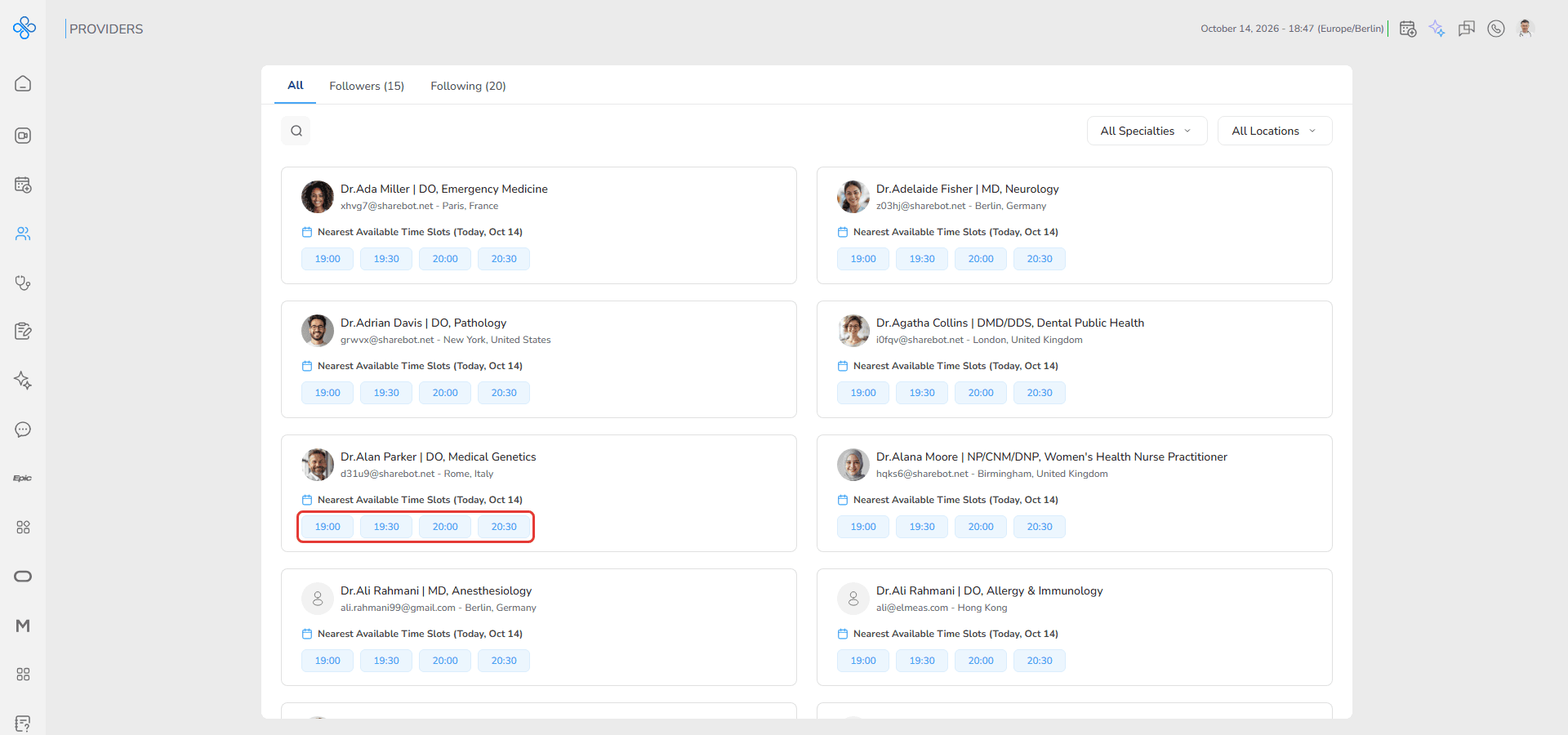
- Provider Info tab
- In the provider’s profile, open the Info tab. On the right side, you will see available dates, time slots, and a Book an appointment button.
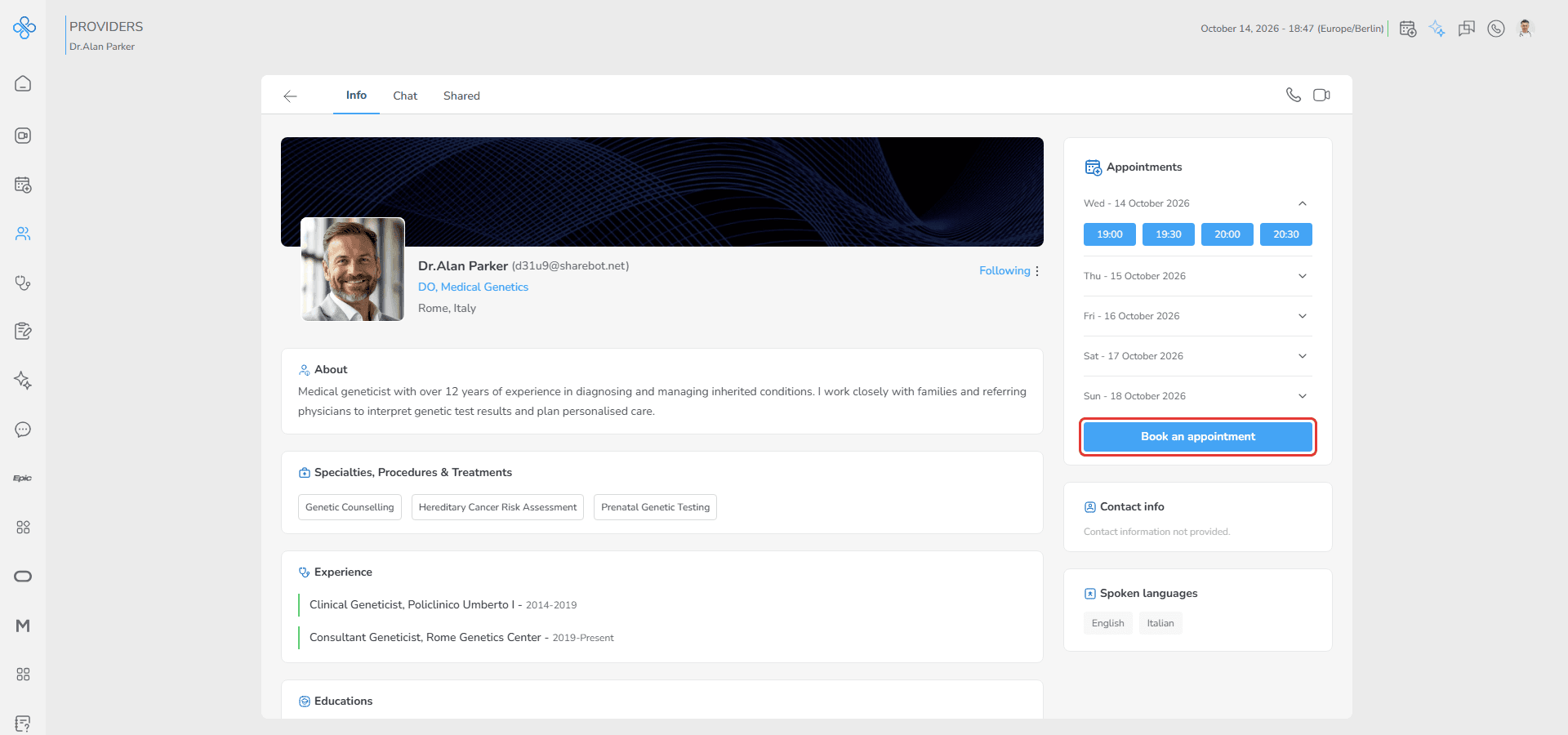
No matter which path you choose, the Appointment Type Selection modal opens.
Note:
Note that if you access appointment creation from the Providers page or the Provider Info tab, only Provider Consultation and Patient Visit Under Supervision are available.
Patient Visit In-person and Patient Visit Online are disabled in this context.
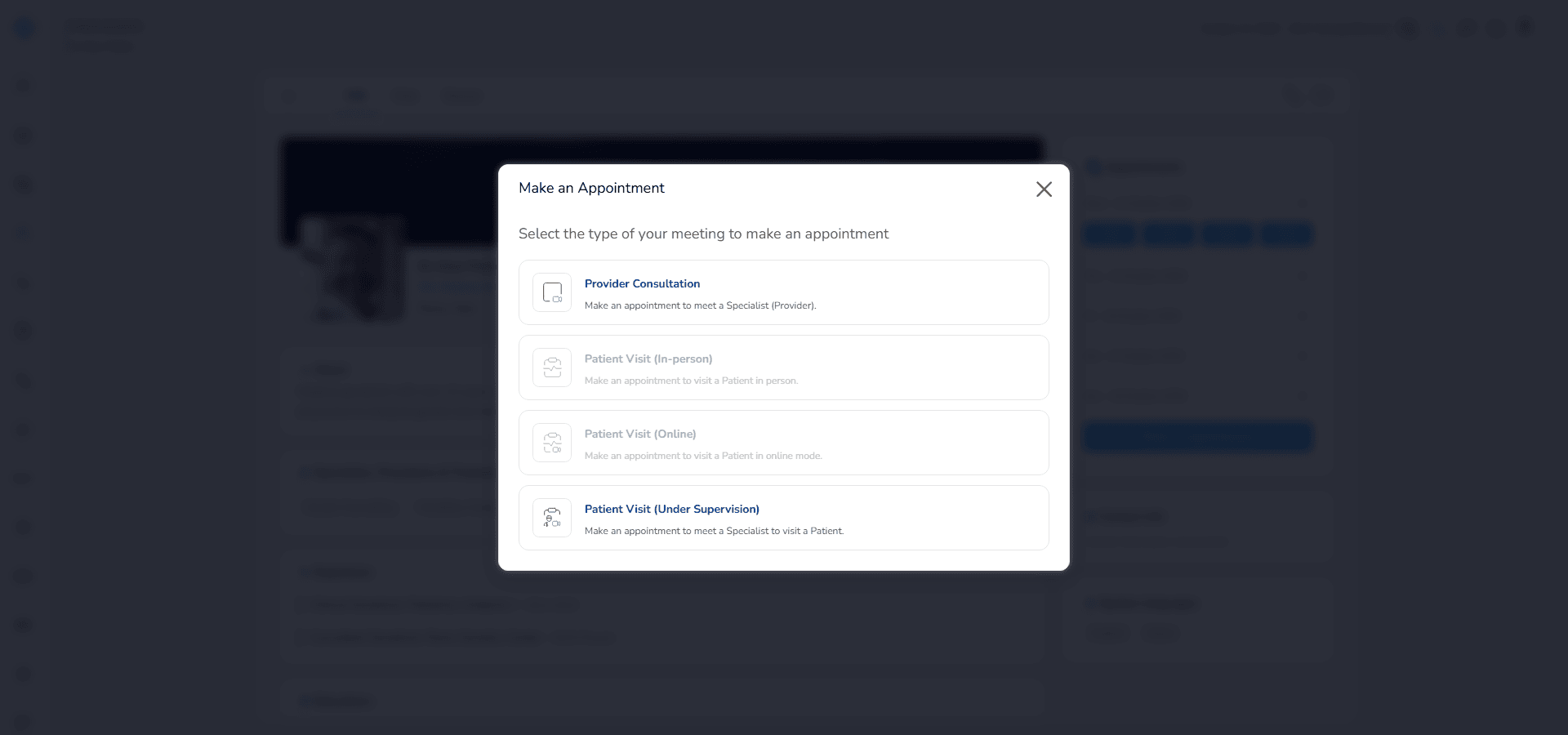
Appointment Type Selection Modal
After starting the appointment creation from any entry point, the Appointment Type Selection modal is displayed.
In this modal, you can see all appointment types that are currently available to you.
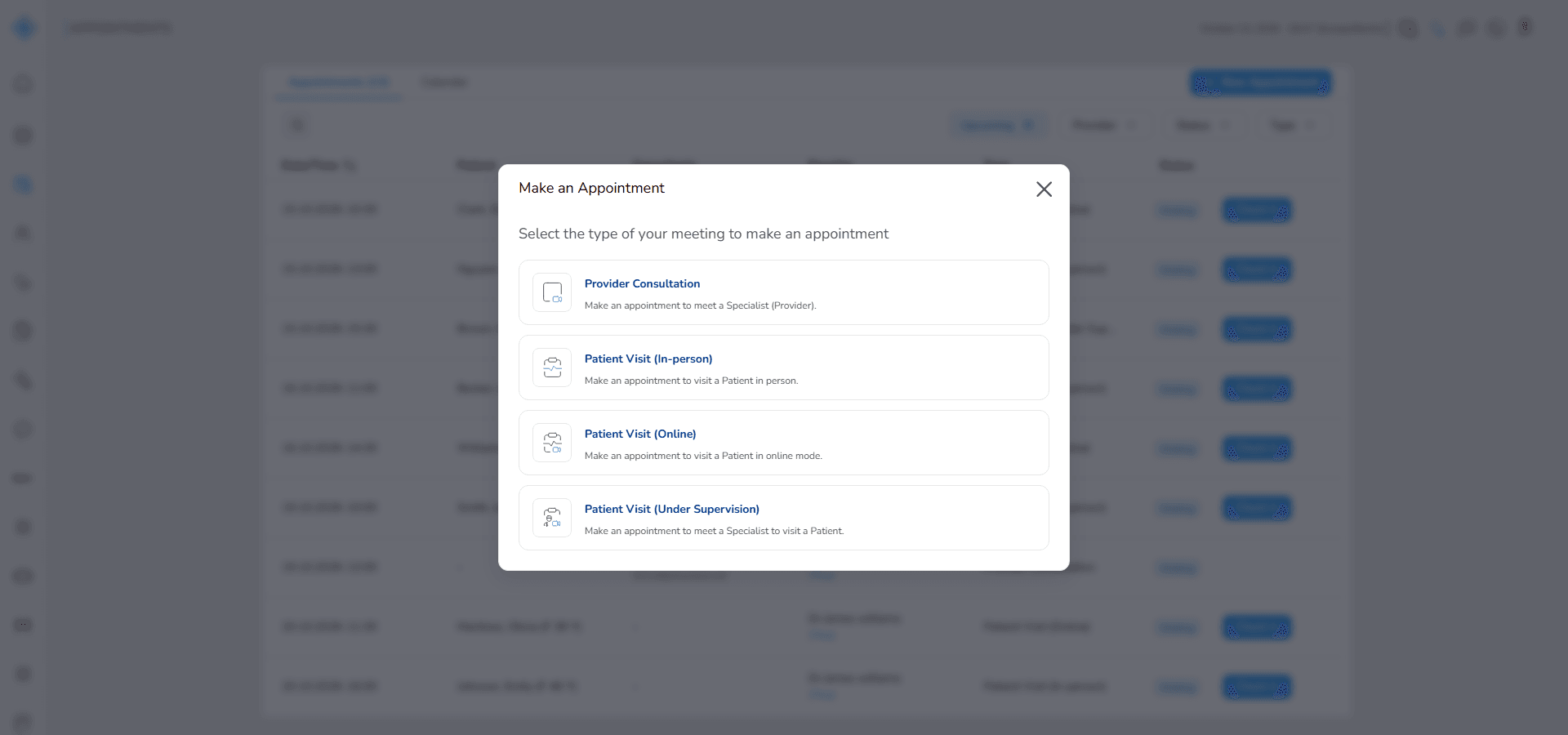
For each appointment type, the following information is shown:
- Icon: helps you quickly recognize the appointment type
- Title: the name of the appointment type
- Description: a short explanation of what this appointment is used for
Once you select an appointment type, you are automatically taken to the creation flow for that specific type.
From this point on, you can continue by following the detailed user guides listed in the Features Covered section below, where each appointment type is explained step by step.
Features Covered
- Provider Consultation Appointment
- Schedule a remote consultation with another specialist to discuss a case or get professional advice.
- Patient Visit (In-person) Appointment
- Schedule a physical, in-person visit with a patient at a specific time.
- Patient Visit (Online) Appointment
- Schedule a remote (online) visit with a patient using video or audio communication.
- Patient Visit (Under Supervision) Appointment
- Schedule a patient visit where you consult with another specialist during the visit for supervision or guidance.