Authentication
Overview
Authentication in Telemedicall allows you to securely access your account or create a new one. You can log in or sign up using either your email address or a social account. Telemedicall supports the following authentication methods:
- Email + One-Time Password (OTP)
- Social Login
- Google ✅
- Apple ✅
- GitHub 🚧 (currently unavailable)
Note:
When using Social Login, no OTP verification is required. Users are authenticated directly via the selected provider. On all Authentication pages, the current date, time, and time zone are displayed in the header. By default, the time zone is set based on the user’s device settings until the user manually selects a time zone during the Sign-Up process.
How Authentication Works
This section guides you through how to log in or register in Telemedicall. You don’t need to decide upfront whether you are logging in or signing up. Telemedicall automatically detects your statu s based on your email or social account and guides you through the correct flow. You can:
- Enter your email and verify it with a one-time password (OTP), or
- Use a supported social account (Google or Apple) to authenticate instantly Depending on your account status:
- Existing users are logged in automatically
- New users are guided through the sign-up steps to complete their profile
Steps
Step 1: Enter Your Email (Login or Sign-Up)
This step is the entry point for both existing users and new users
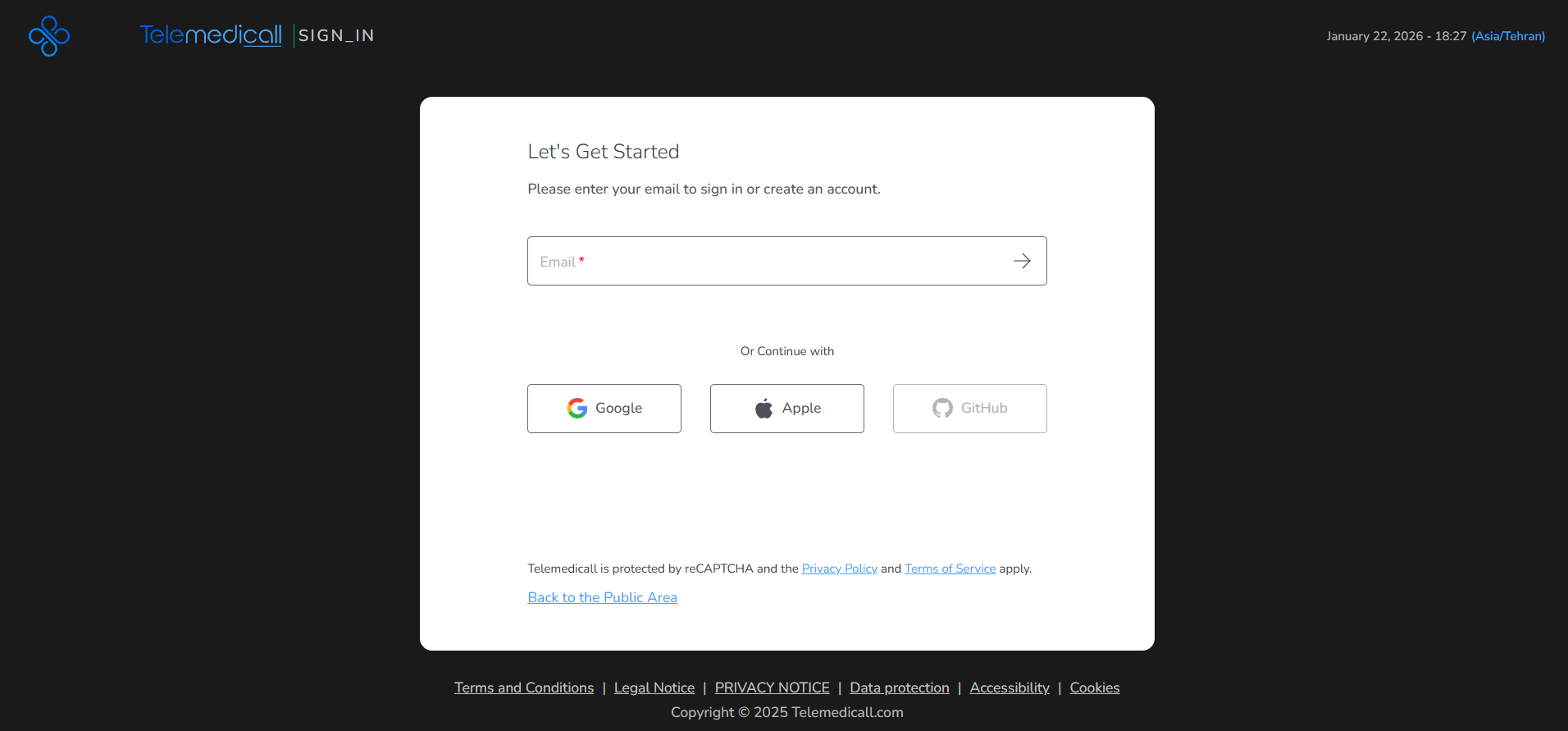
- Enter your email address in the Email field.
- By clicking Continue (arrow icon):
- A One-Time Password (OTP) is sent to the entered email address.
- You are redirected to the Email Verification page.
Step 2: Verify Your Email (OTP)
This step confirms that you own the entered email address.
- Check your email inbox for the OTP.
- Enter the received code in the verification field.
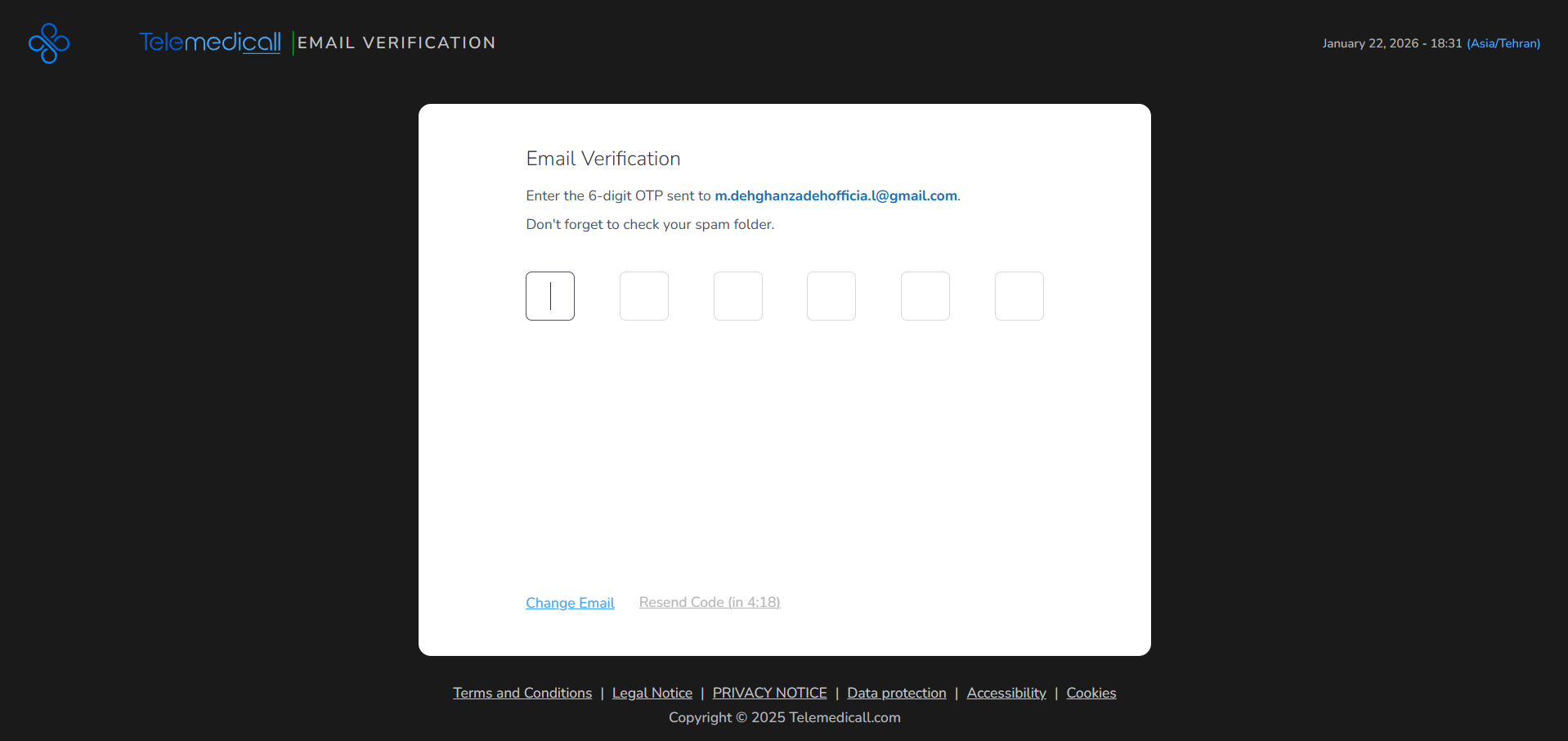
Outcome:
- If the OTP is valid:
- If you already have a completed account, you are logged in automatically.
- If you are new or your profile is incomplete, you are redirected to the Sign-Up flow.
- If the OTP is invalid or has expired, you have two options:
- Click Change Email to enter a different email address, or
- Click Resend Code to receive a new OTP (available after 5 minutes)
Step 3: Sign-Up – Personal Information
If you are creating a new account, you will be asked to complete your basic personal details.
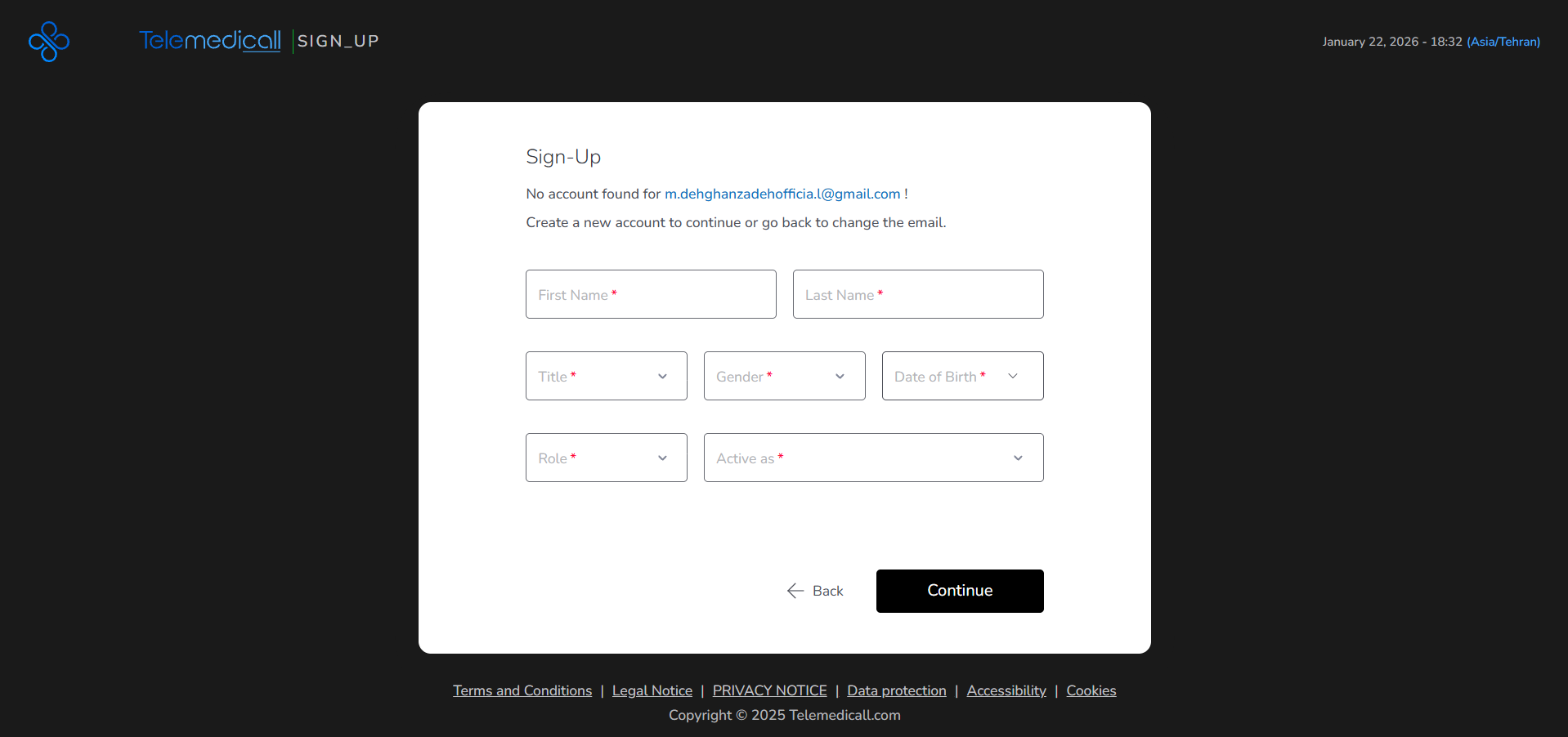
- Fill in the following required fields:
- First Name
- Last Name
- Title
- Gender
- Date of Birth
- Occupation (Role)
- Specialty (Active as)
Once all required fields are completed:
- Click Continue to proceed to the next step.
Step 4: Sign-Up – Location & Legal Information
In this step, you provide system-related and legal information required to activate your account.
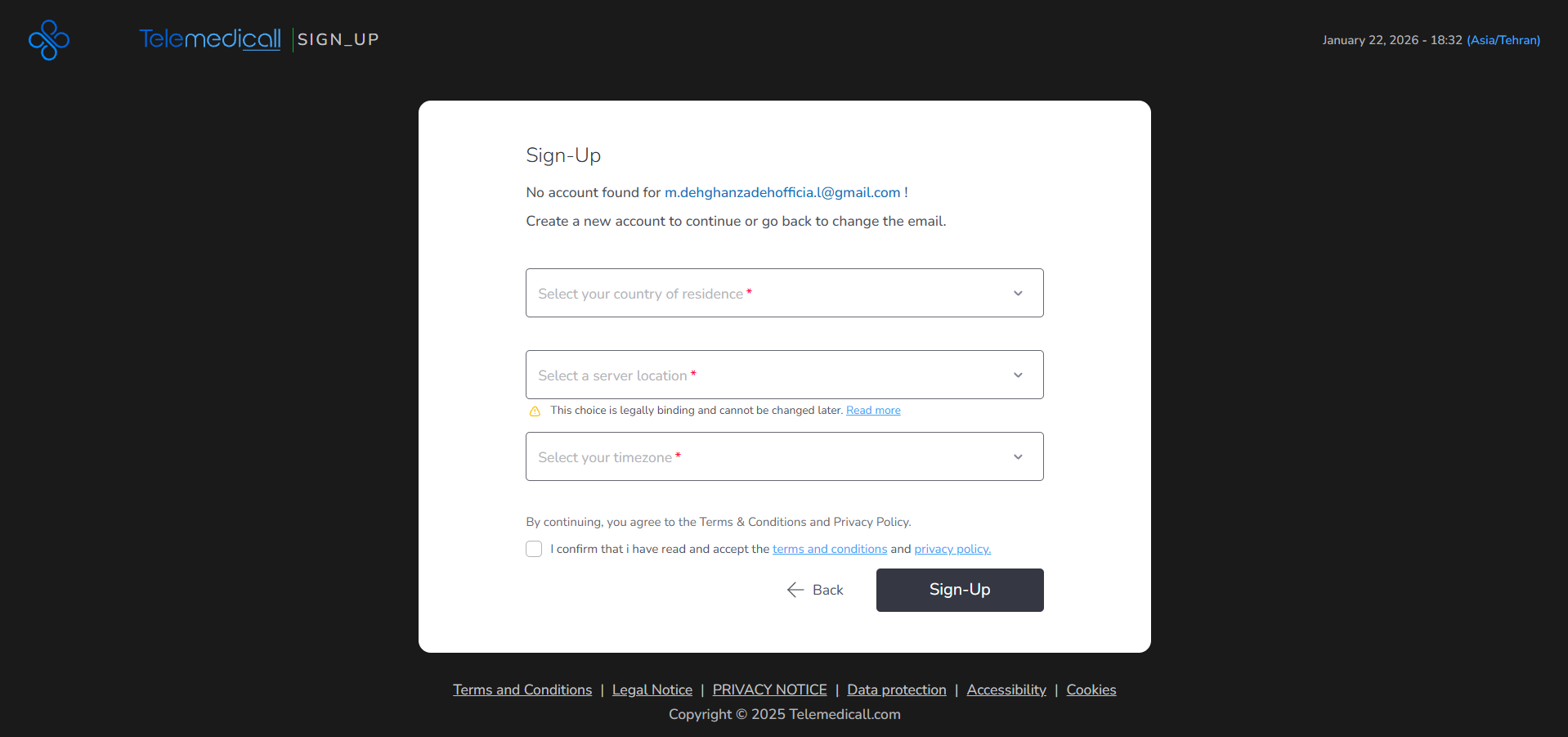
- Complete the following fields:
- Country of Residency
- Server Location (Data Residency)
- Time Zone
Then:
- Review and accept the Terms & Conditions and Privacy Policy.
- Click Continue.
After completing this step:
- Your Telemedicall account is successfully created.
- You are redirected into the system.
Alternative Flow: Social Login (Google / Apple)
You can also access Telemedicall using a social account.
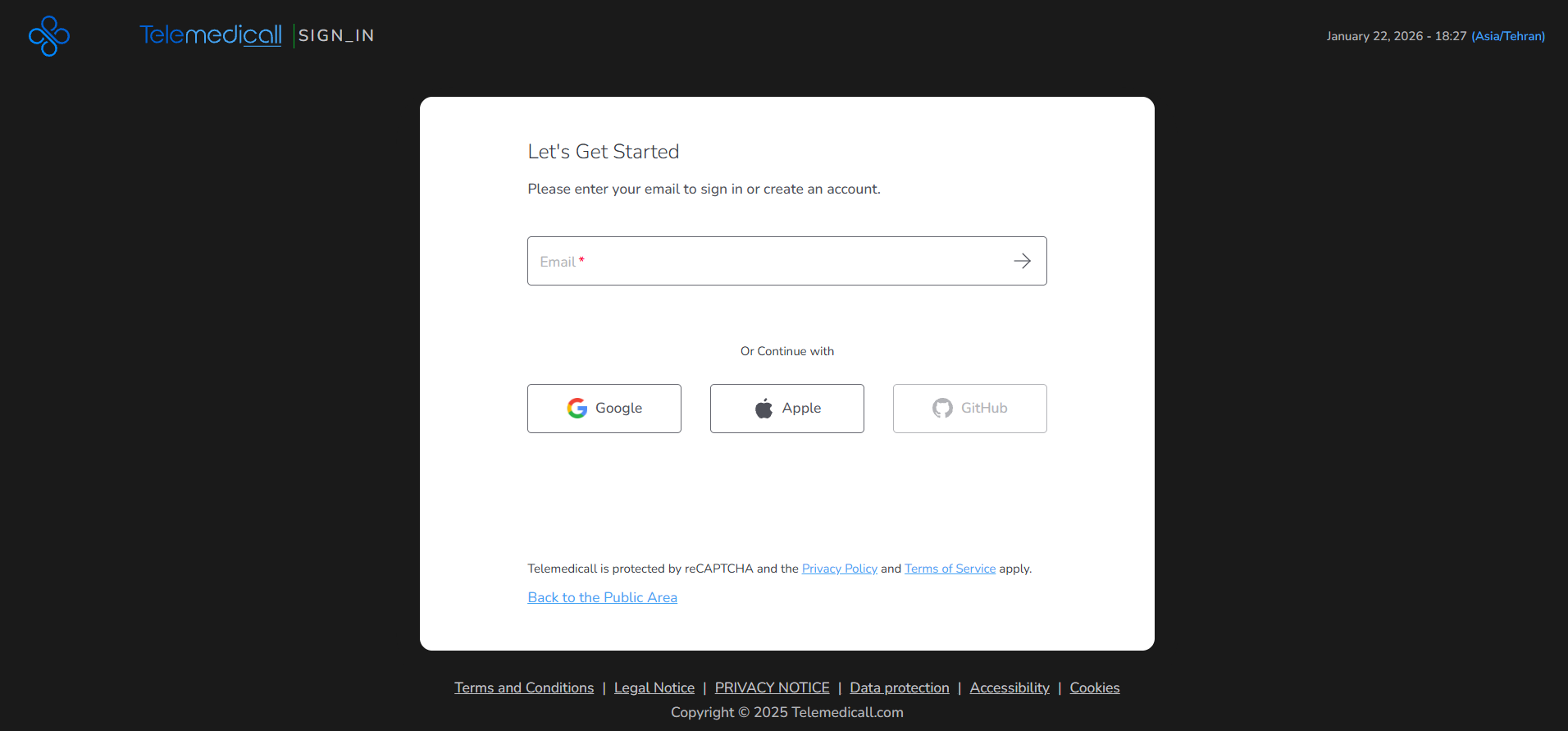
- Click on Google or Apple on the authentication page.
- Complete authentication through the selected provider.
Behavior:
- OTP verification is not required.
- If your profile information is incomplete:
- You will be redirected to the Sign-Up steps to provide the missing details.
- Once completed, you will be logged in automatically.
Fields (Field Descriptions)
- Login / Email Verification
| Field | Description | Required |
|---|---|---|
| User’s email address for OTP delivery | Yes | |
| OTP Code | Verification code sent to the email | Yes |
- Sign-Up – Personal Information
| Field | Description | Required |
|---|---|---|
| First Name | User’s first name | Yes |
| Last Name | User’s last name | Yes |
| Title | Title (Mr., Ms., Dr, Prof) | Yes |
| Gender | User’s gender | Yes |
| Date of Birth | User’s date of birth | Yes |
| Role (Occupation) | User’s role or occupation | Yes |
| Active as (Specialty) | User’s active specialty | Yes |
- Sign-Up – Location & Legal Information
| Field | Description | Required |
|---|---|---|
| Country of Residency | User’s country of residence | Yes |
| Server Location | Legal data residency location | Yes |
| Time Zone | User’s time zone | Yes |
| Terms & Conditions | Acceptance of legal terms and privacy policy | Yes |
Behavior & Expected Outcome
- OTP verification is used only for Email-based authentication.
- Social Login bypasses the OTP verification step.
- If a user’s profile is incomplete, they are automatically redirected to the Sign-Up flow.
- Server Location selection is legally binding and cannot be changed after registration.
- Time Zone behavior:
- Initially detected from the user’s device.
- Saved once manually selected during Sign-Up.
- The Back button allows users to return to the previous step.
- GitHub Login is currently disabled and displayed as inactive.
Common Errors + Fixes
| Issue | Cause | Fix |
|---|---|---|
| Invalid OTP Code | Incorrect or expired OTP | Request a new OTP |
| Email Not Found | Email is not registered | Continue with Sign-Up |
| Required Fields Missing | Mandatory fields are incomplete | Complete all required fields |
| Terms Not Accepted | Legal terms not confirmed | Accept Terms & Conditions |
| Server Location Change Attempt | Attempt to modify data residency | Change not permitted |
| Social Login Failed | External provider error | Retry or use Email Login |