TeleMediCall
Overview
TeleMediCall is where you can review and manage your call history with other users on the platform. Its page is titled Call List.
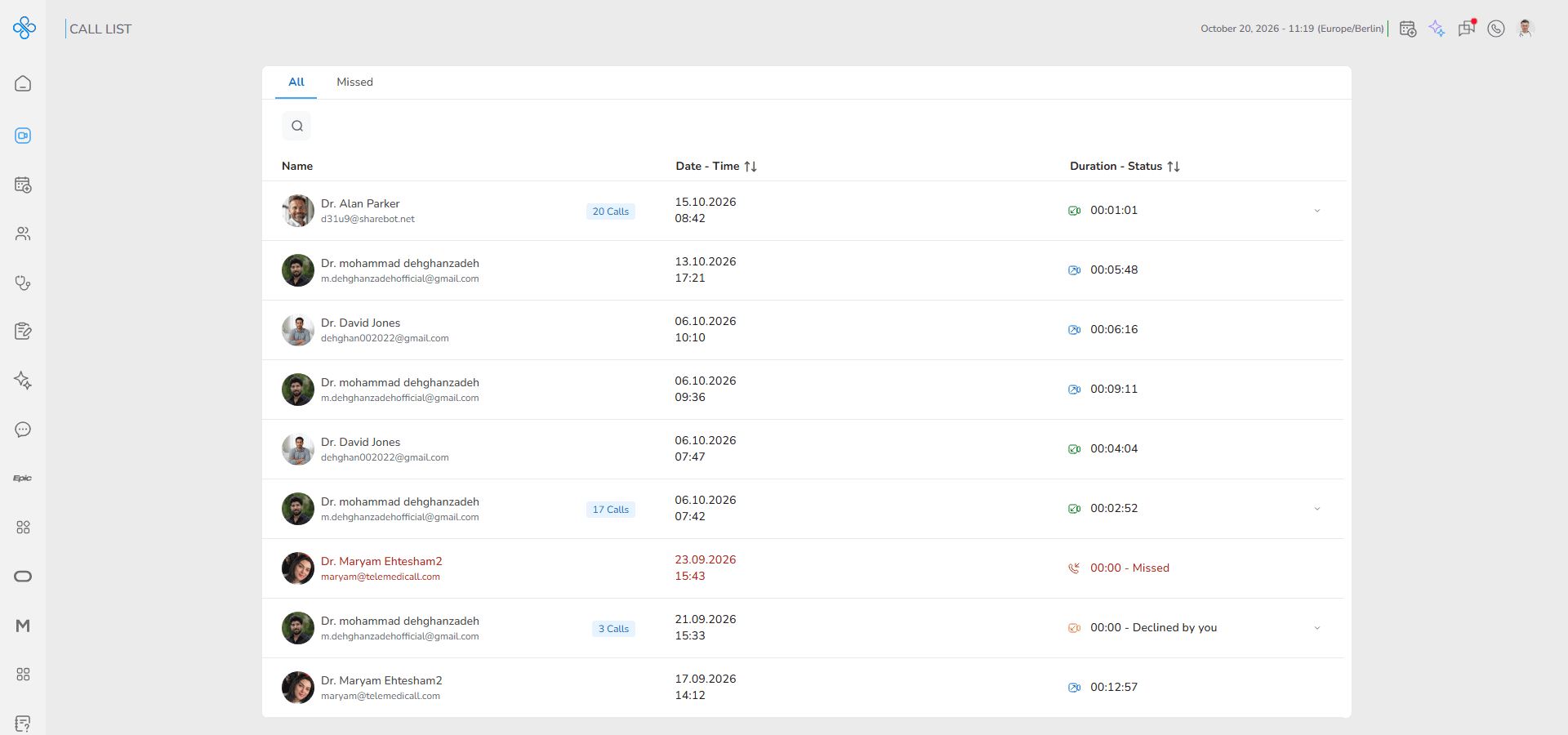
It gives you a clear view of both voice and video interactions — whether they were incoming or outgoing — and allows you to quickly reconnect, message, or start a new call.
From this page you can:
- See all past calls in one structured list
- Separate missed calls from answered ones
- Identify call type, direction and status at a glance
- Quickly start a new voice call, video call, or chat
- Search and review call timing details
This page acts as your communication history center — especially useful when you want to follow up with someone or review recent interactions.
Steps
Step 1: How to Access TeleMediCall
You can reach this page in several practical ways:
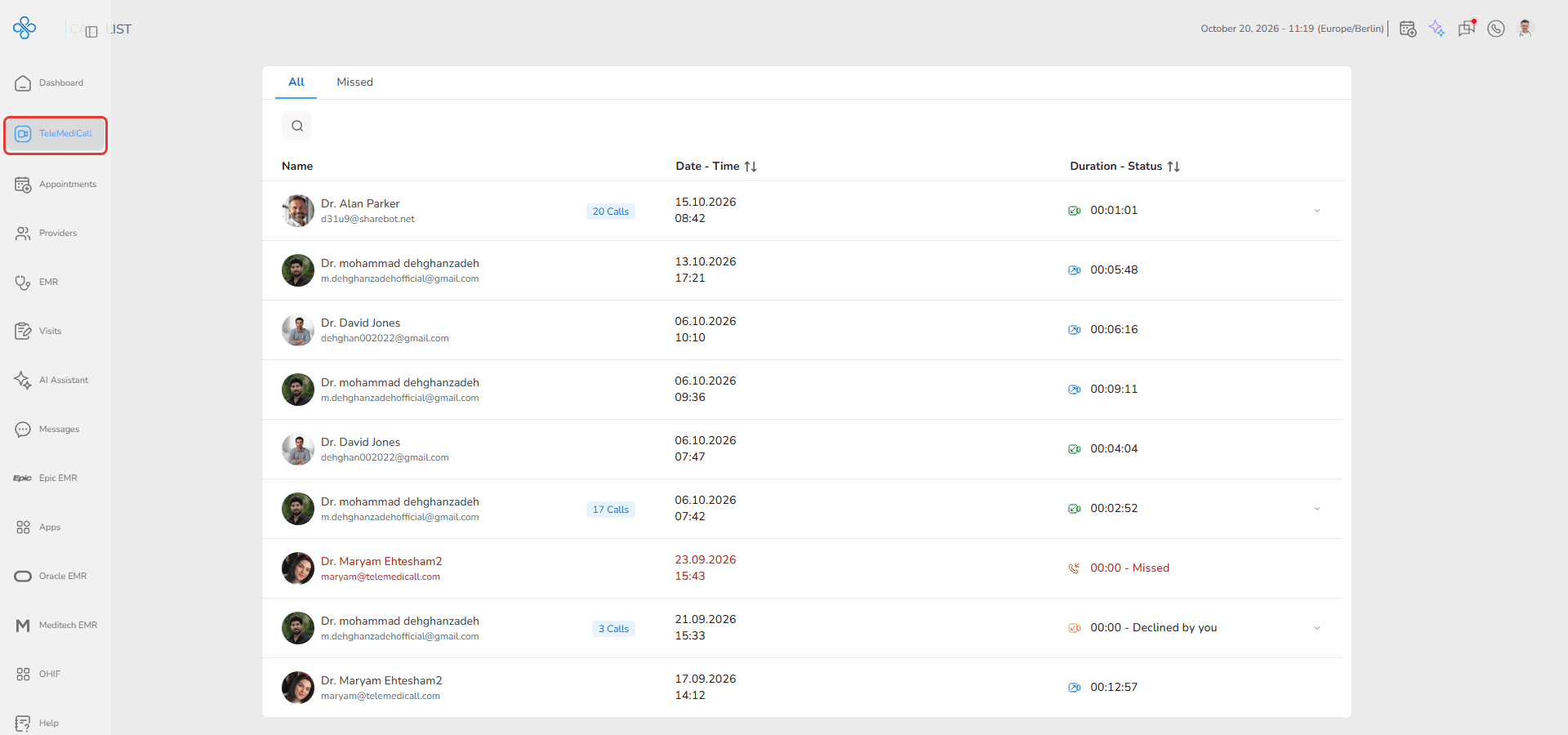
From the Sidebar
Click TeleMediCall in the main navigation menu.
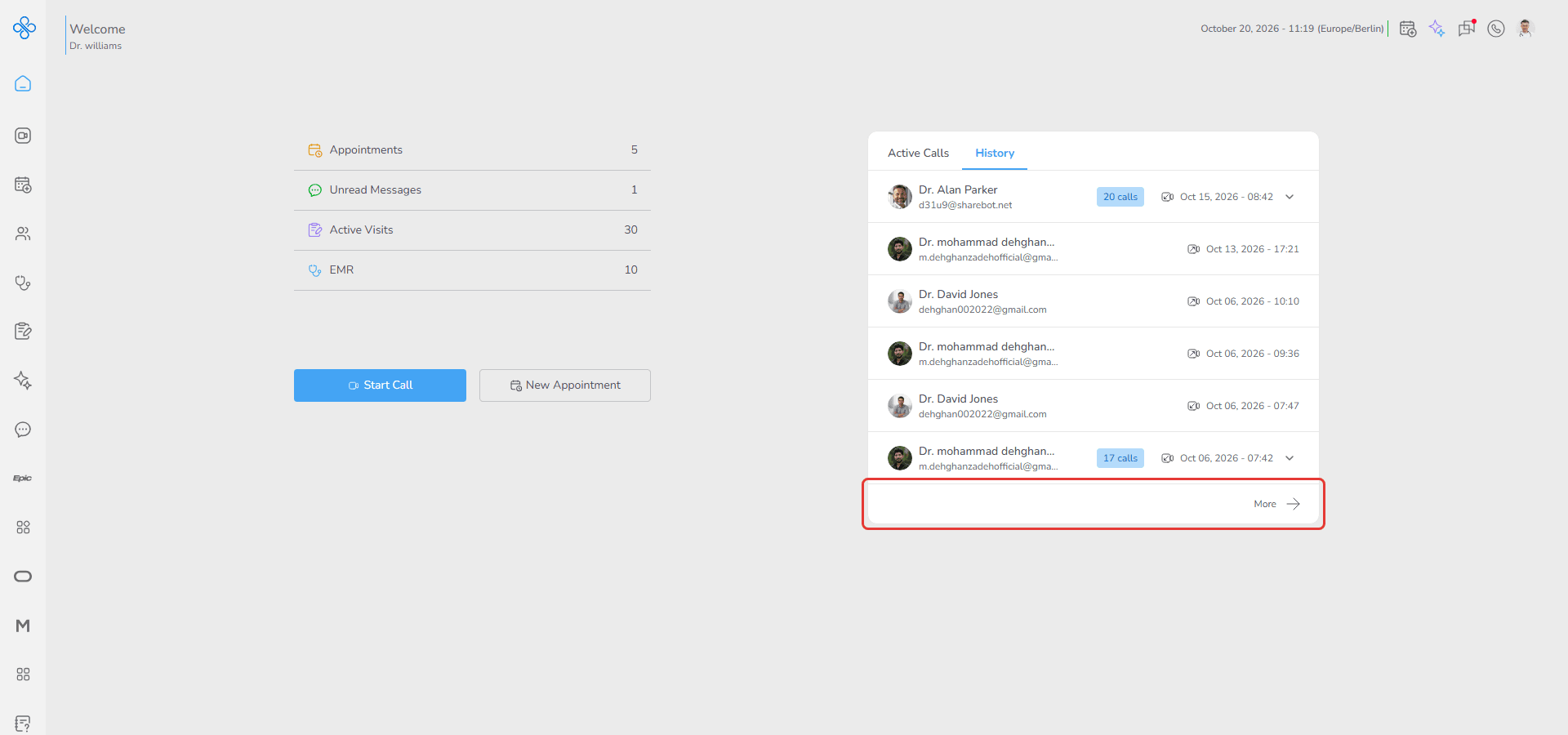
From the Dashboard
In the Calls panel, click More at the bottom of the recent calls list. This opens TeleMediCall.
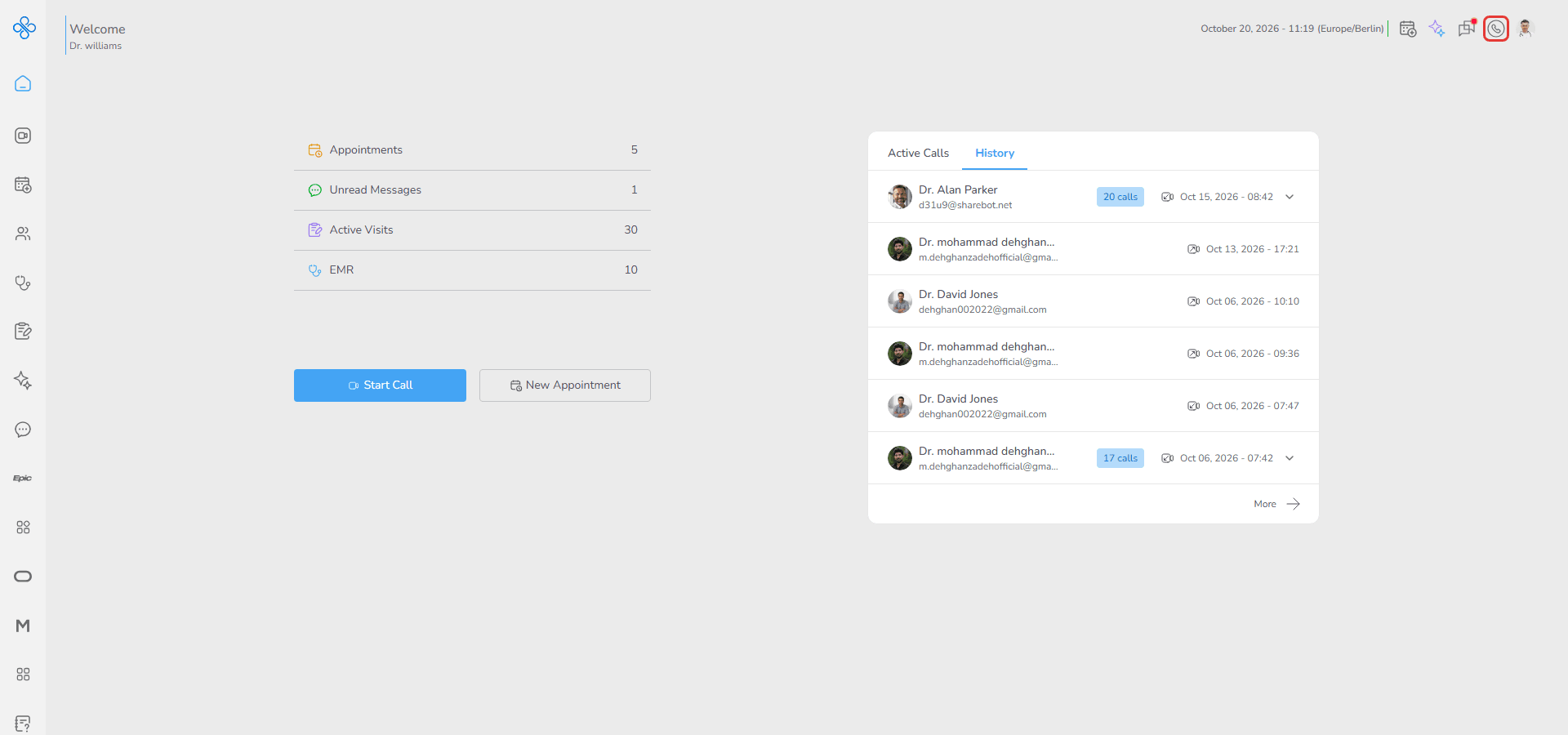
From the Header Call Icon
If there is no active or waiting call, clicking the call icon in the header opens TeleMediCall.
Step 2: Understanding Tabs (All vs Missed)
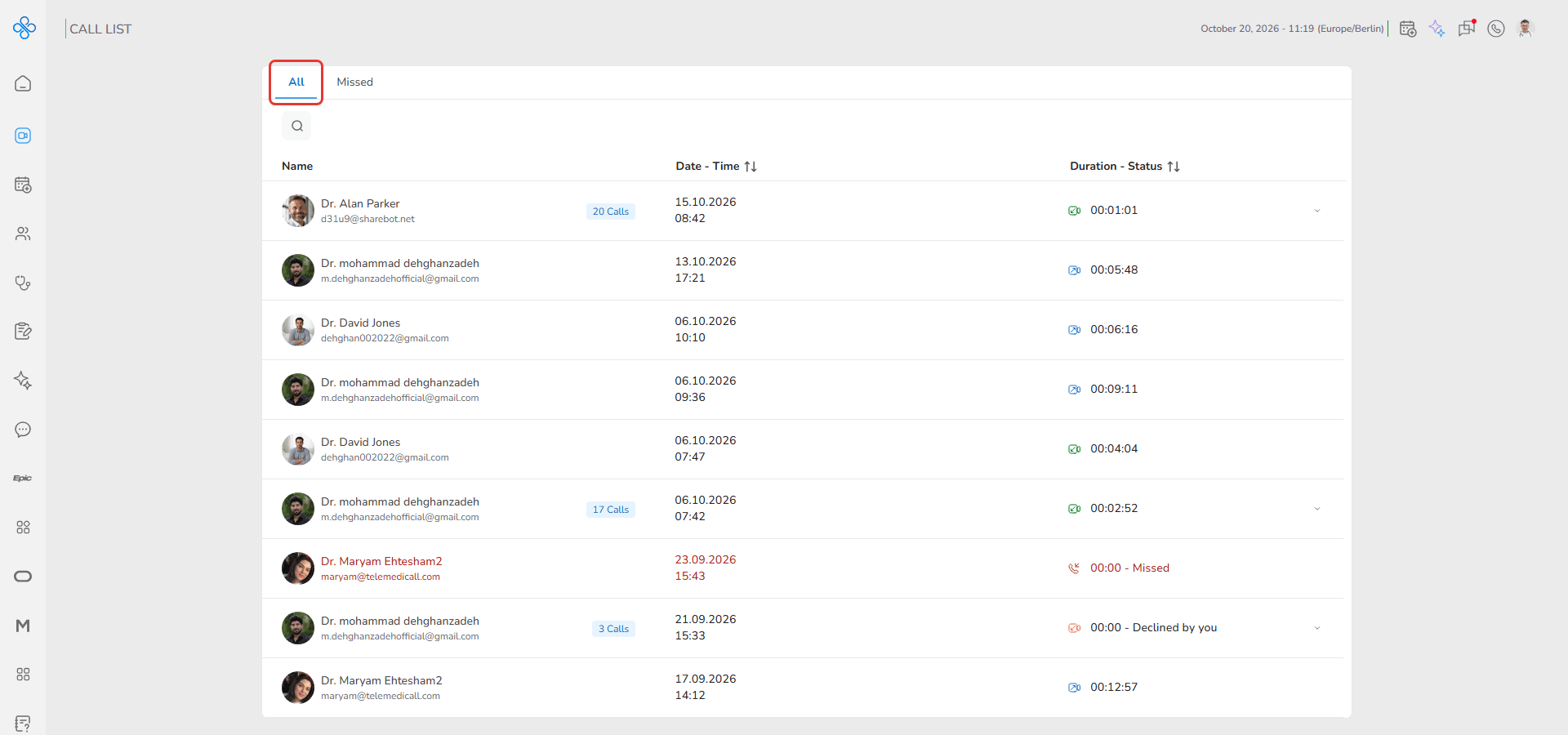
At the top of the page, you'll find two tabs that help you organize your call history.
All
Shows every call interaction (voice or video, incoming or outgoing).
Missed
Shows only calls that were not answered or were declined — useful for quick follow-ups. A red dot on the tab tells you there are new missed calls.
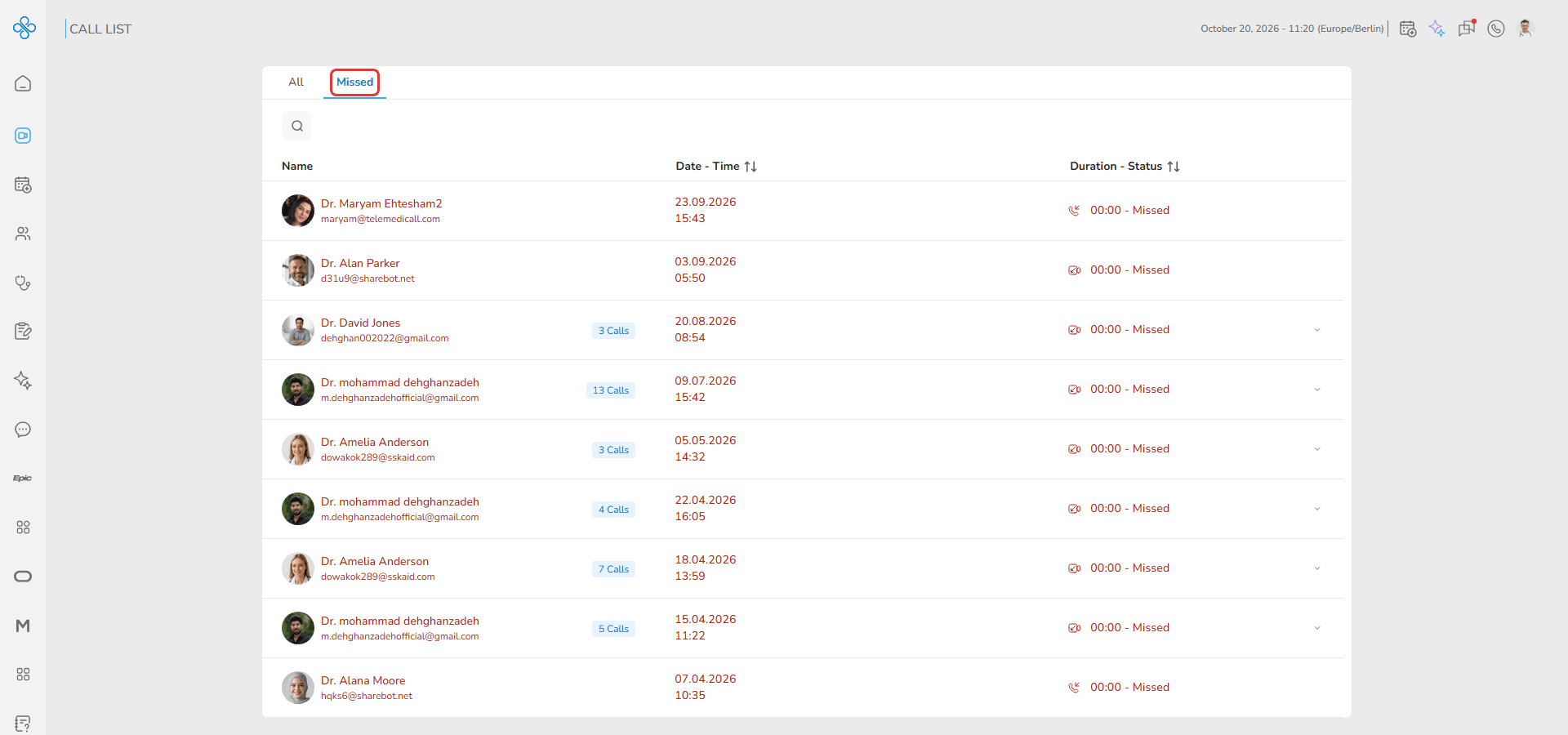
Switching tabs instantly updates the list below.
Step 3: Searching for a Contact
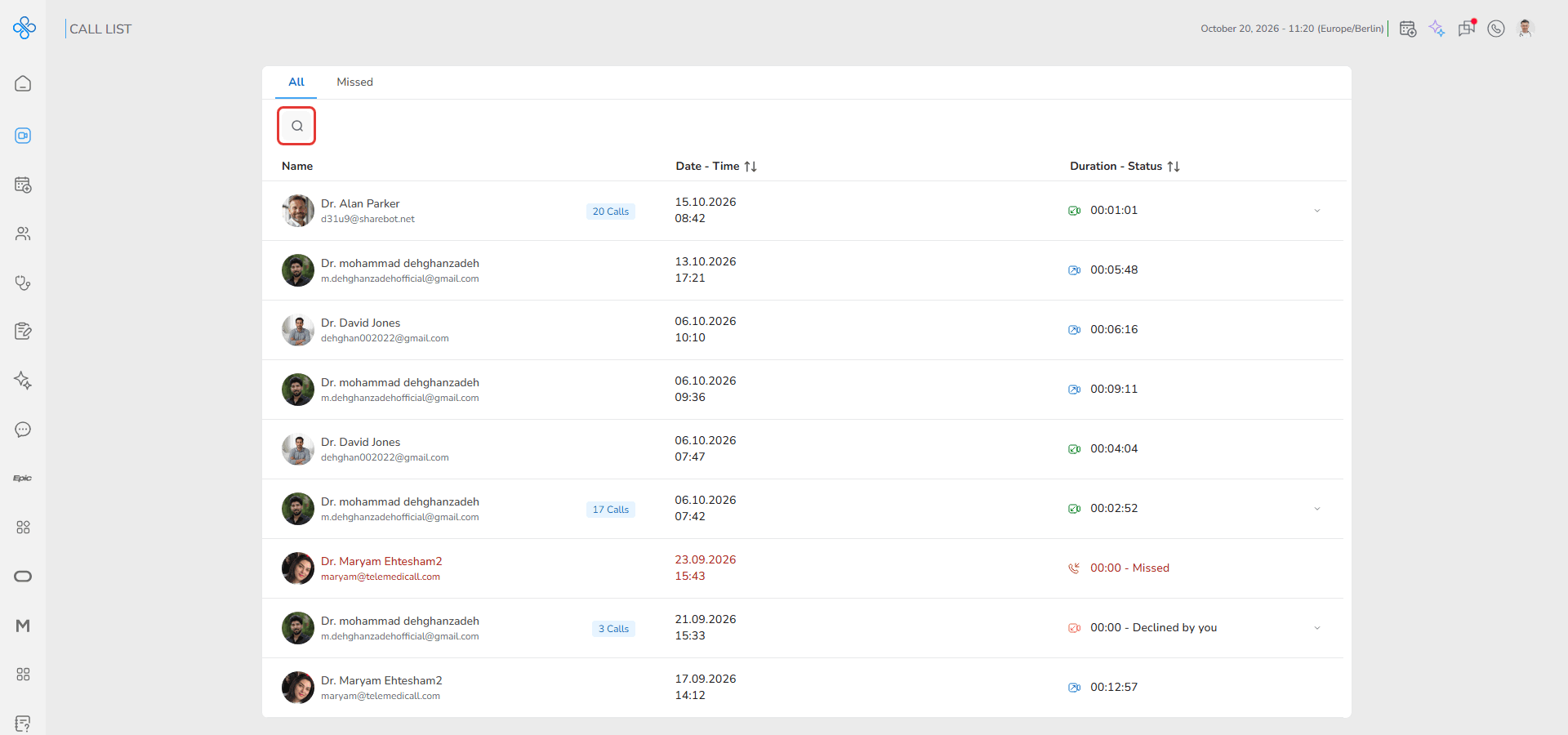
Above the list, a search allows you to quickly locate calls with a specific person.
1. Click the search icon
2. Type the contact's name
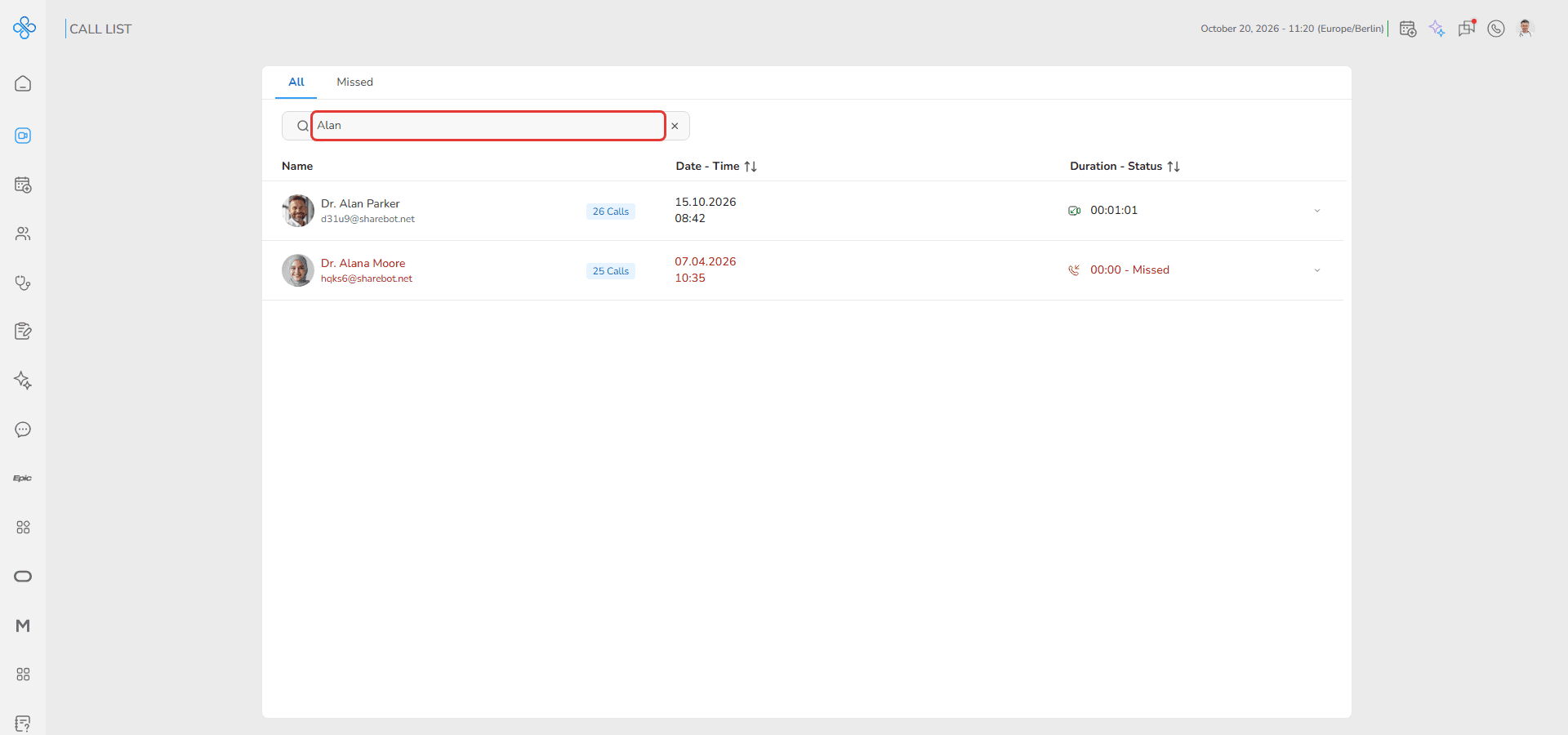
- Matching results appear instantly
- Works in both tabs
- Click × to clear the search
This is helpful when your call history grows larger.
Step 4: Reading the Call List
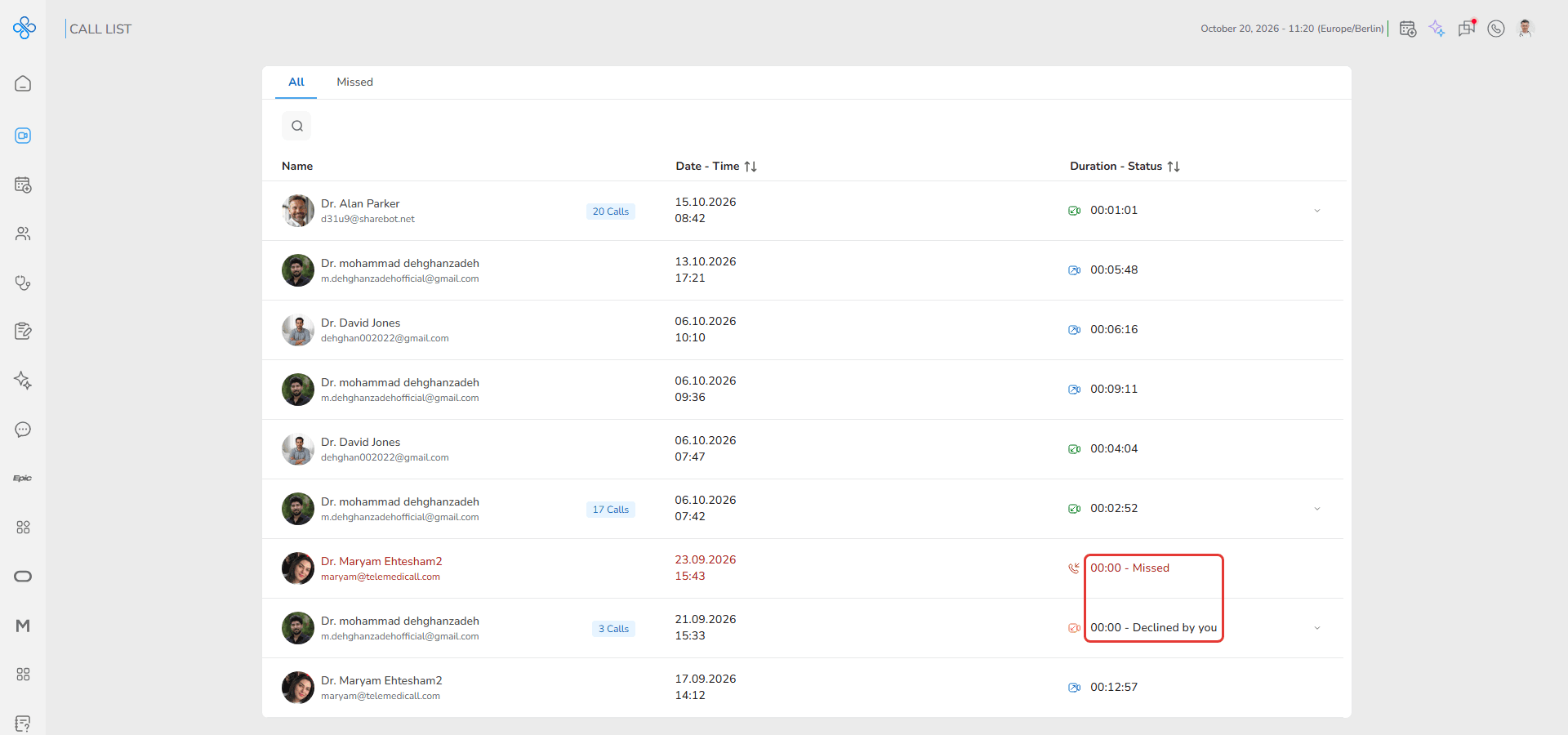
Each row in the list represents a call interaction and provides key information:
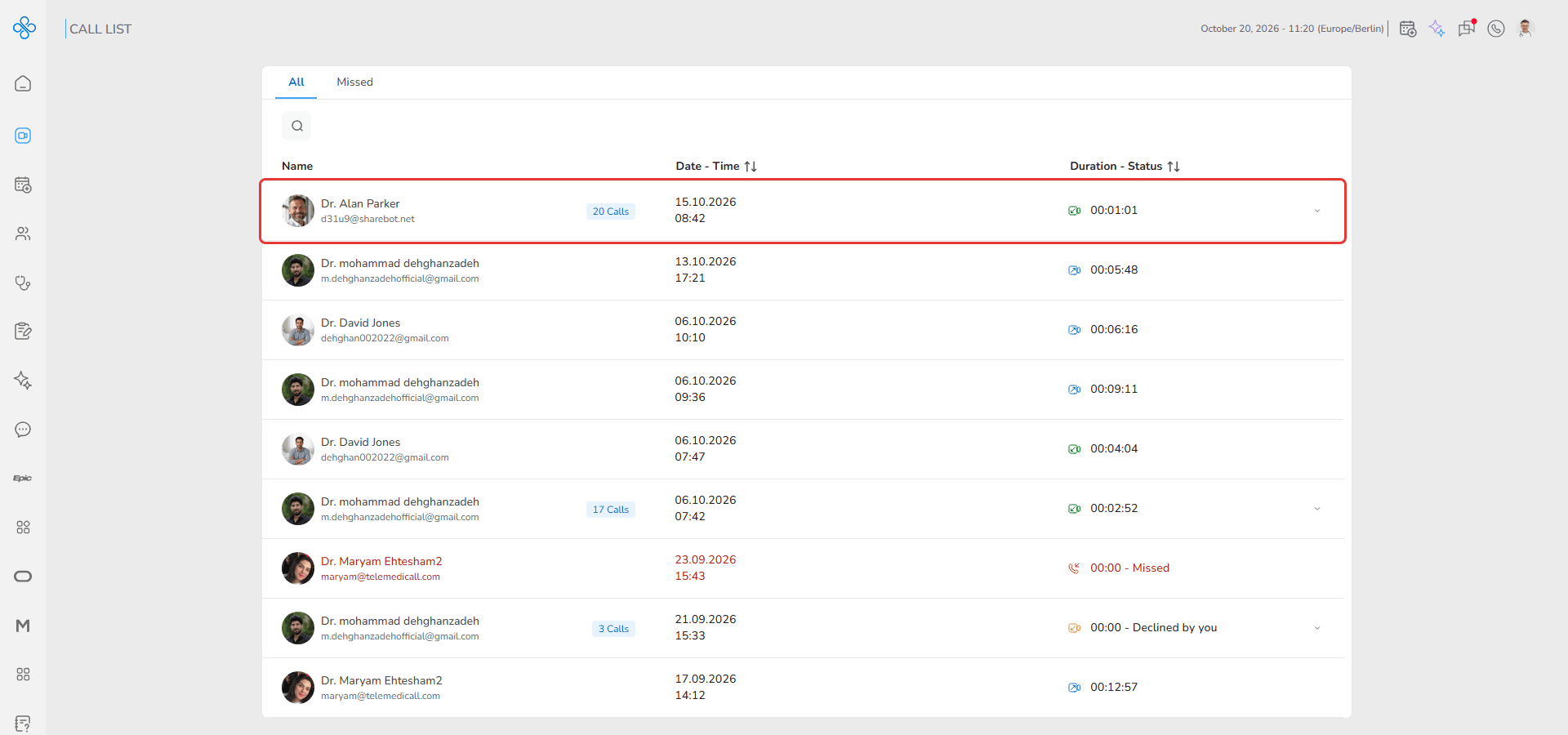
- Contact name and email
- Date and time of the call
- Call icon, duration and status
Grouped calls
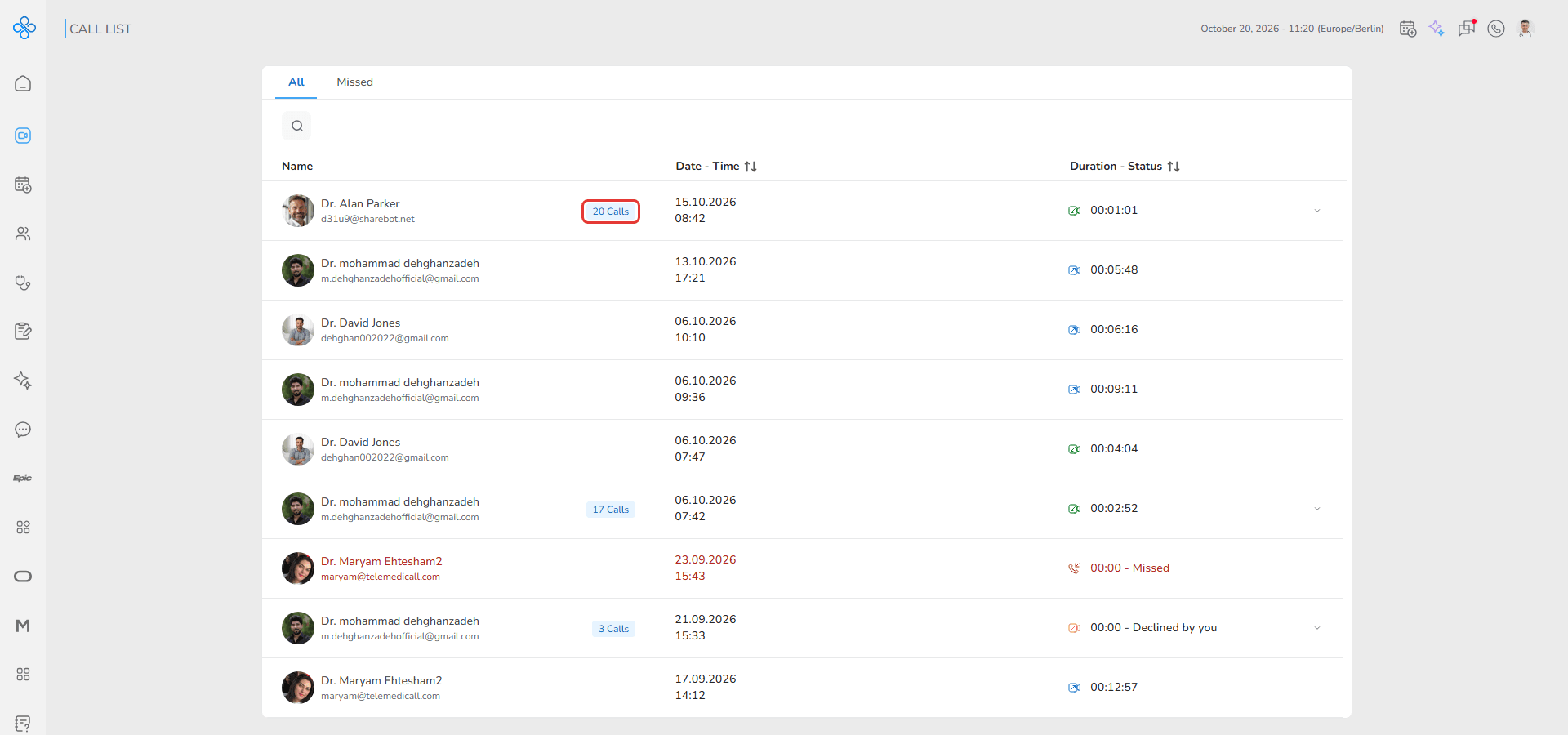
Several calls in a row with the same contact are grouped into one row. A badge such as 20 Calls shows how many calls the group holds.
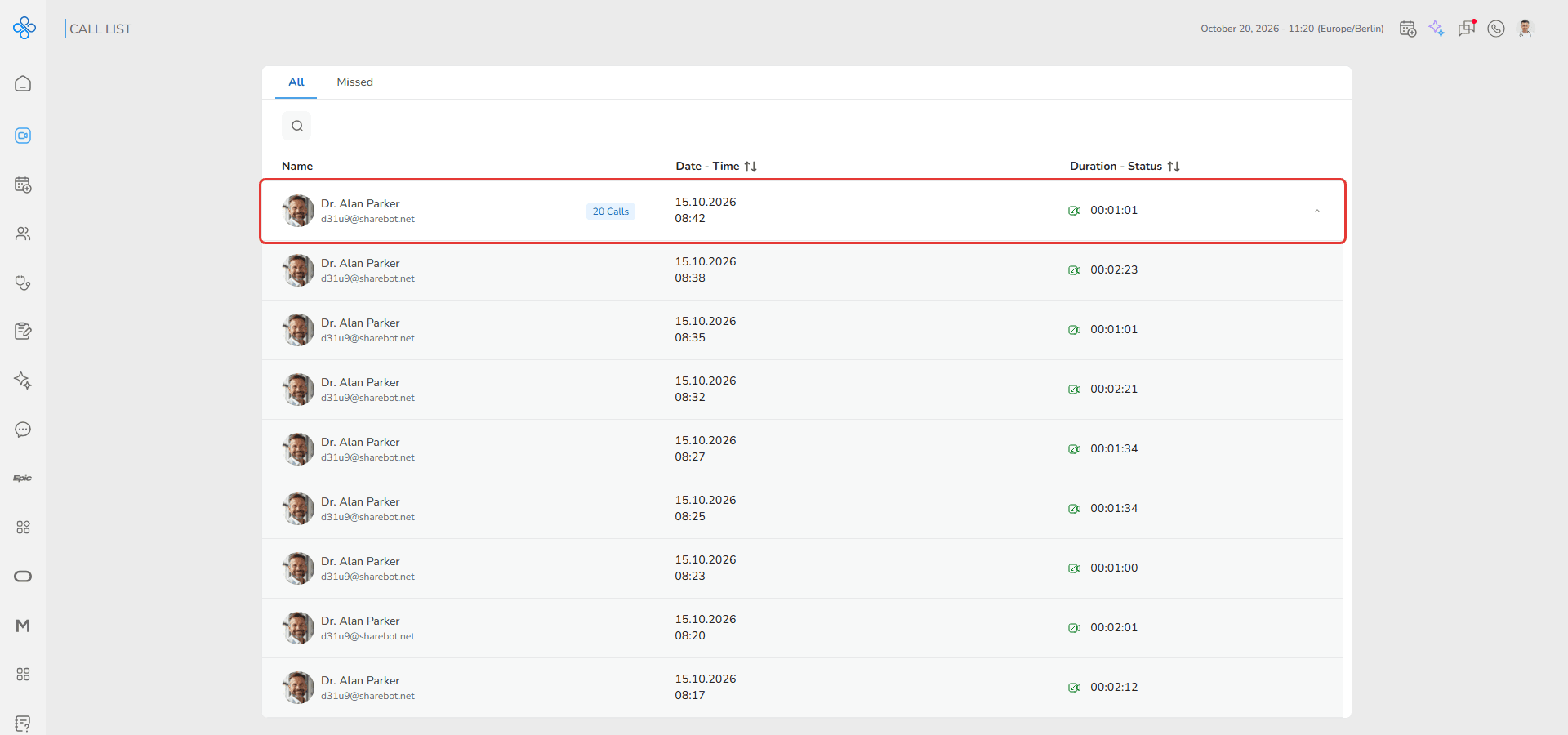
Click the arrow at the end of the row to expand the group and see each call with its own time and duration.
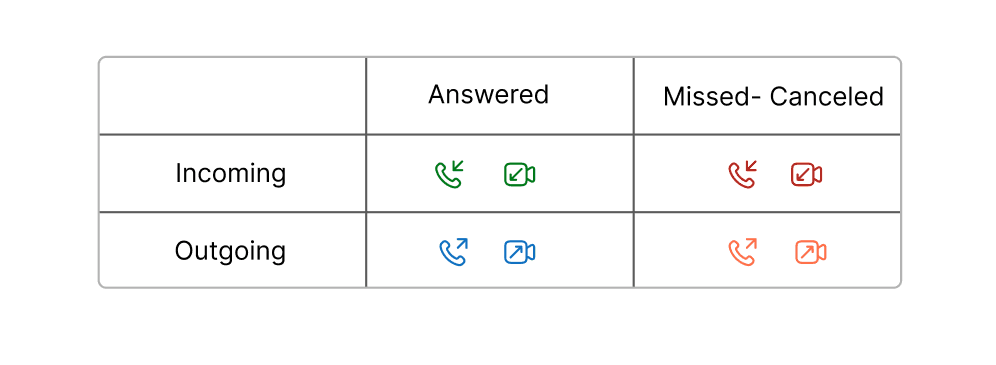
Call icons and status
Icons indicate:
- Voice vs Video call
- Incoming vs Outgoing direction
- Answered vs Missed / Declined status
Calls that were not answered show their status next to the duration, for example Missed or Declined by you, and missed calls appear in red.
Step 5: Taking Action on a Call
When you hover over a call row, quick action buttons appear:
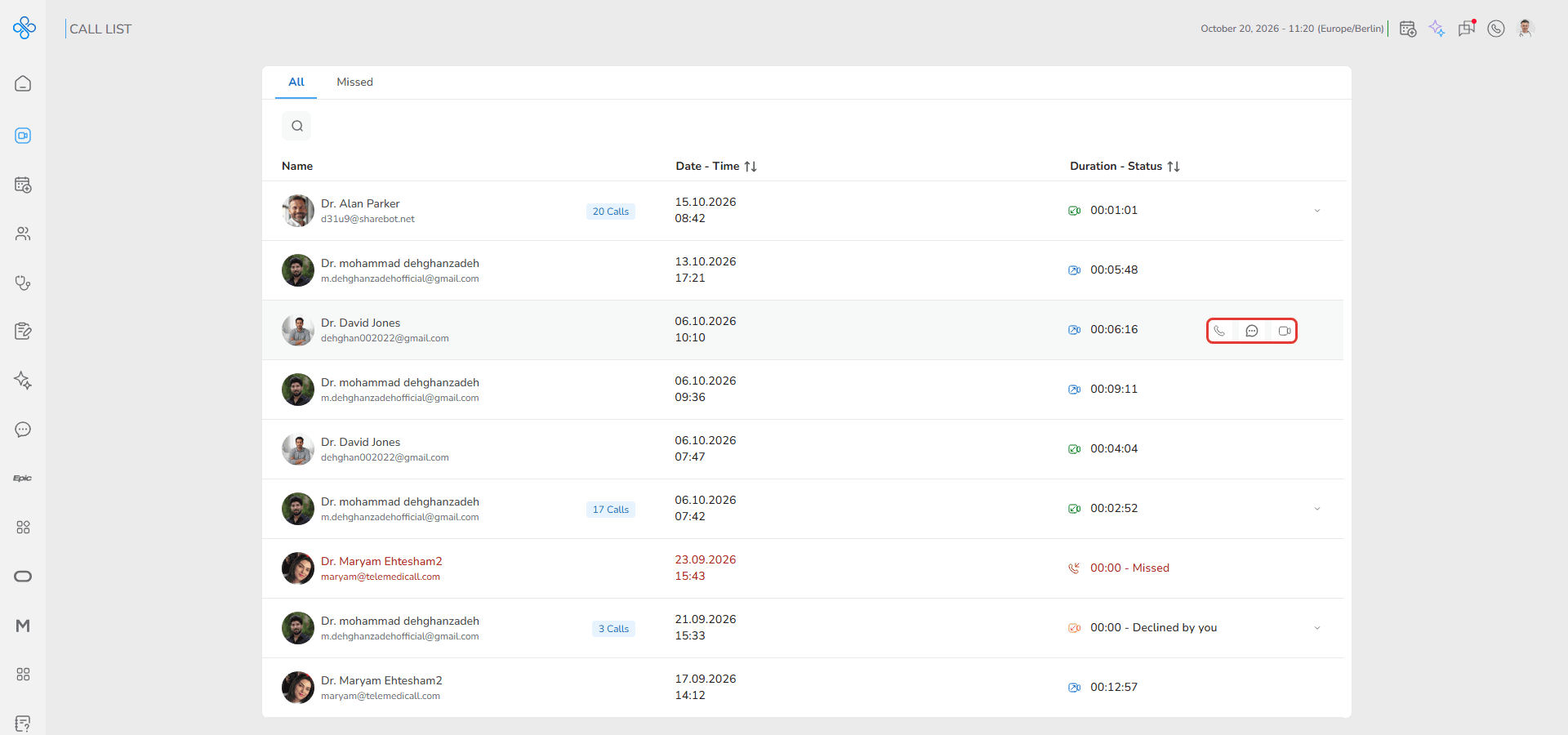
- Voice Call — Start a voice call
- Message — Open the chat with that contact
- Video Call — Start a video call
These shortcuts let you reconnect without leaving the page.
Fields (Field Descriptions)
| Field | Description |
|---|---|
| Tabs (All / Missed) | Filters call records based on call outcome |
| Search | Finds calls by contact name |
| Name Column | Displays the other participant in the call |
| Calls Badge | Shows how many calls a grouped row holds |
| Date - Time Column | Shows when the call occurred |
| Duration - Status Column | Displays the call icon, how long the call lasted, and its status |
| Expand Arrow | Opens the calls of a grouped row |
| Hover Actions | Quick buttons to call or message |
Behavior & Expected Outcome
- Switching between tabs immediately filters the call list without page reload
- Typing in the search field dynamically narrows visible results
- Call icons visually communicate call type and direction for quick scanning
- Consecutive calls with the same contact are grouped, and can be expanded
- Hovering reveals communication shortcuts
- Starting a call or message transitions into the respective workflow
- This page always reflects the latest interaction history available to the user
Common Errors + Fixes
| Issue | Cause | Fix |
|---|---|---|
| Contact not found in search | Name typed incorrectly or no prior interaction | Verify spelling or clear the search field |
| Hover actions not visible | Cursor not positioned over the row | Move the mouse over the call entry |
| Cannot start call | Connectivity or permission issue | Check internet / device permissions |
| Empty Missed tab | No missed calls recorded | Switch back to the All tab |
| A call seems to be missing | It is inside a grouped row | Expand the grouped row with its arrow |