Patient Info
Overview
The Patient Info tab is the first screen you see when opening a patient record.
It provides a clear summary of the patient’s essential identity, contact and insurance details and allows controlled updates when permitted.
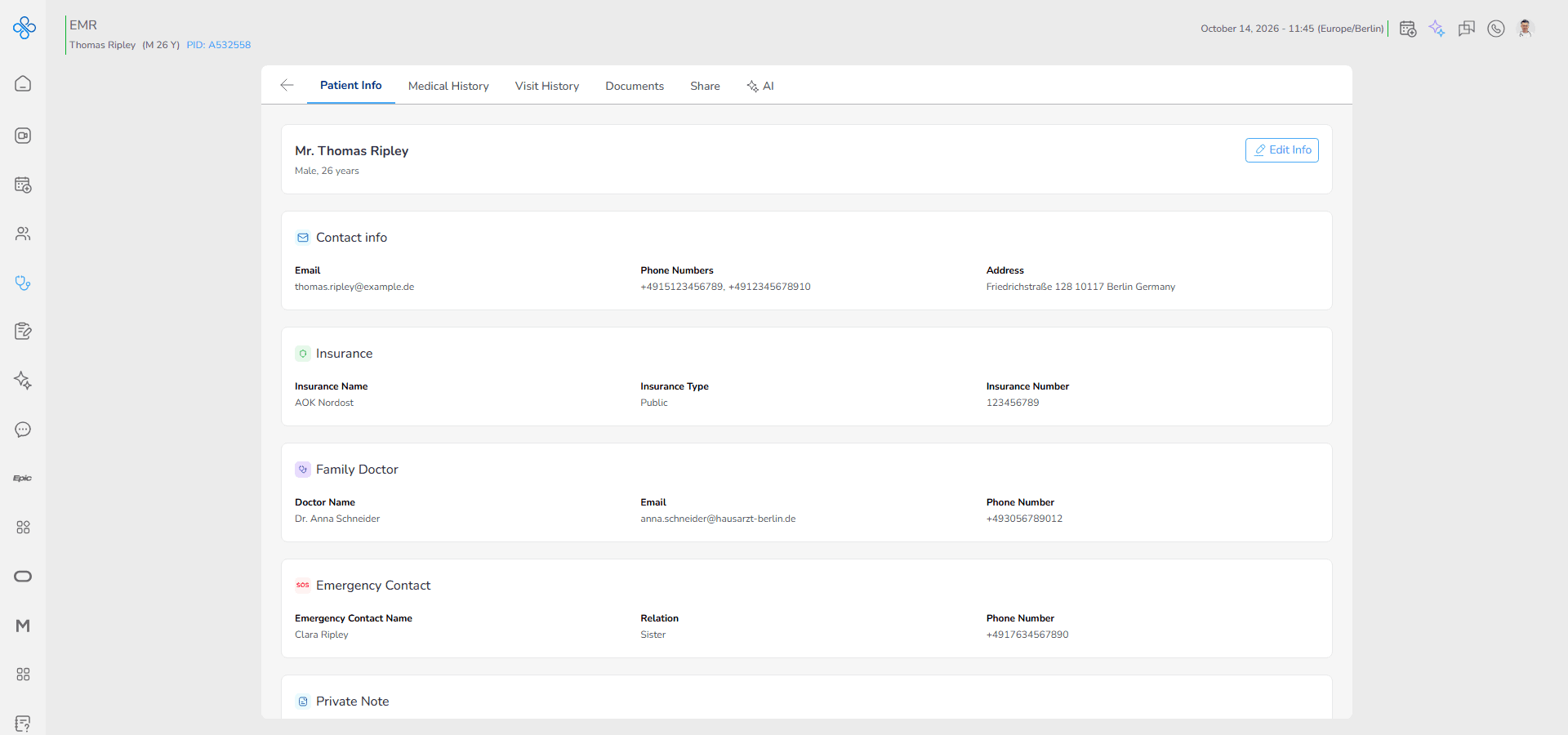
This tab acts as the foundation of the patient file. Before reviewing medical history or visit data, this is where you confirm that the patient’s core information is accurate and up to date.
The page is organized into structured sections to keep information readable and easy to maintain.
Note:
Important access rule
If the patient belongs to the Shared Patients tab and editing permission is restricted, this tab will appear disabled for the provider.
When disabled the information can be viewed but cannot be modified.
In addition this tab includes a Private Note section designed for internal documentation that is visible only to the patient’s owner provider.
Access
Follow this path to open the Patient Info tab:
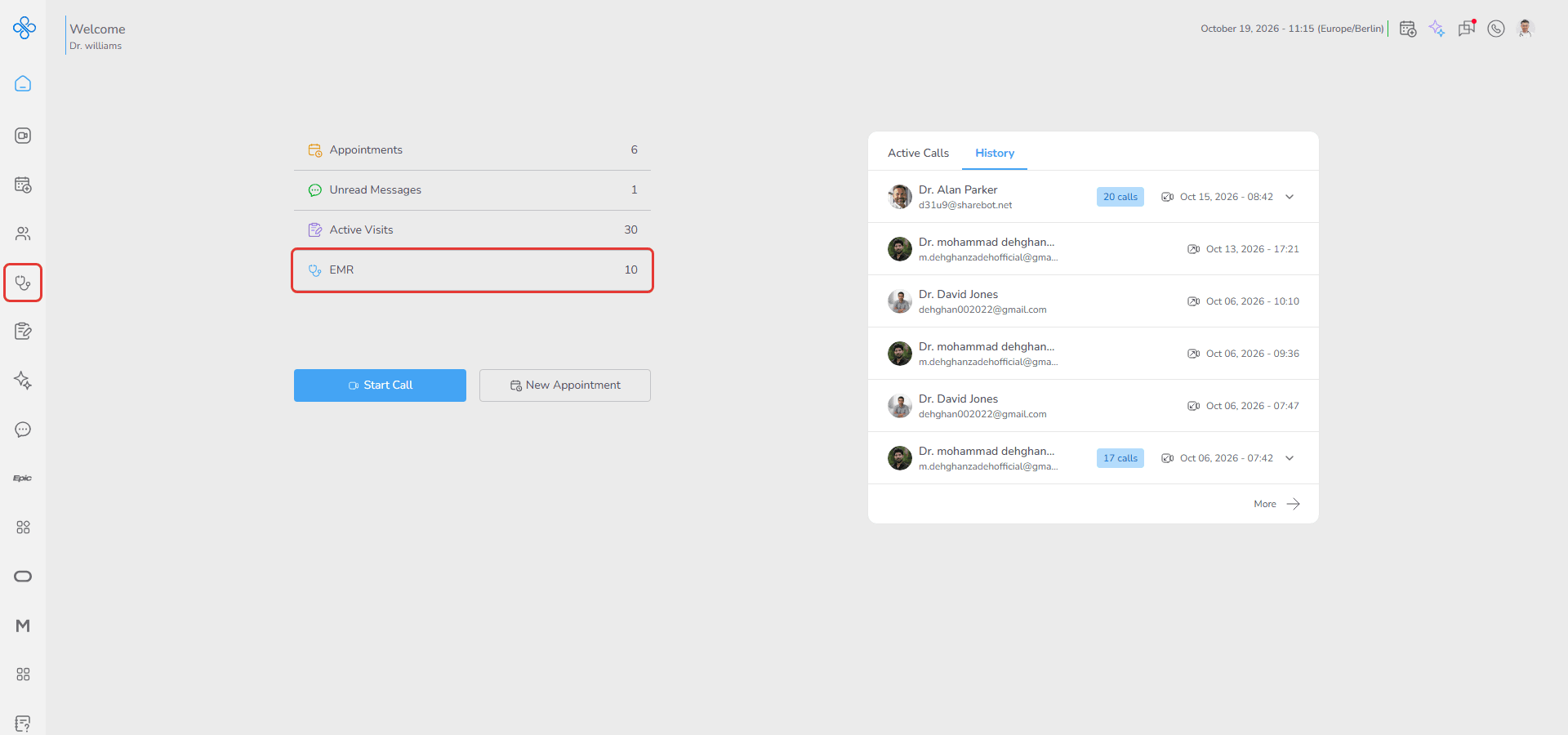
1. Open EMR from the sidebar or dashboard shortcut
2. Click any patient from the list
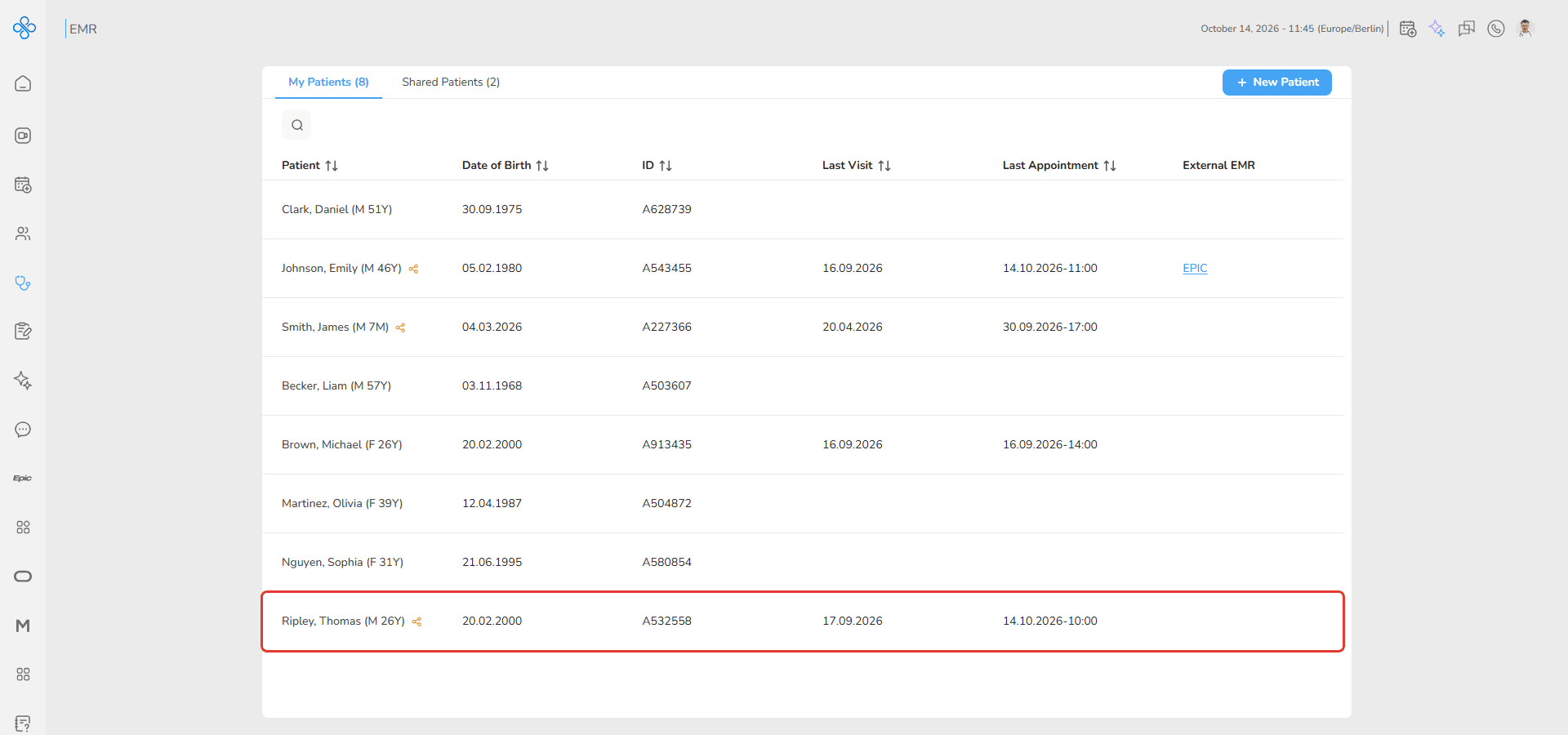
3. You are automatically redirected to the patient record page
4. The Patient Info tab opens by default
This is the primary entry point to the patient file.
Steps
Step 1: Review patient identity and demographic details
When the tab loads you will see the patient’s core information grouped into structured sections.
Displayed information may include:
Full Name
Gender
Date of Birth
Insurance details
Phone number
Address
Emergency contact details
Use this section to verify that identity and contact information are correct before proceeding with clinical workflows.
Step 2: Edit patient information
If you are the owner provider and editing is permitted you will see an Edit Info button.
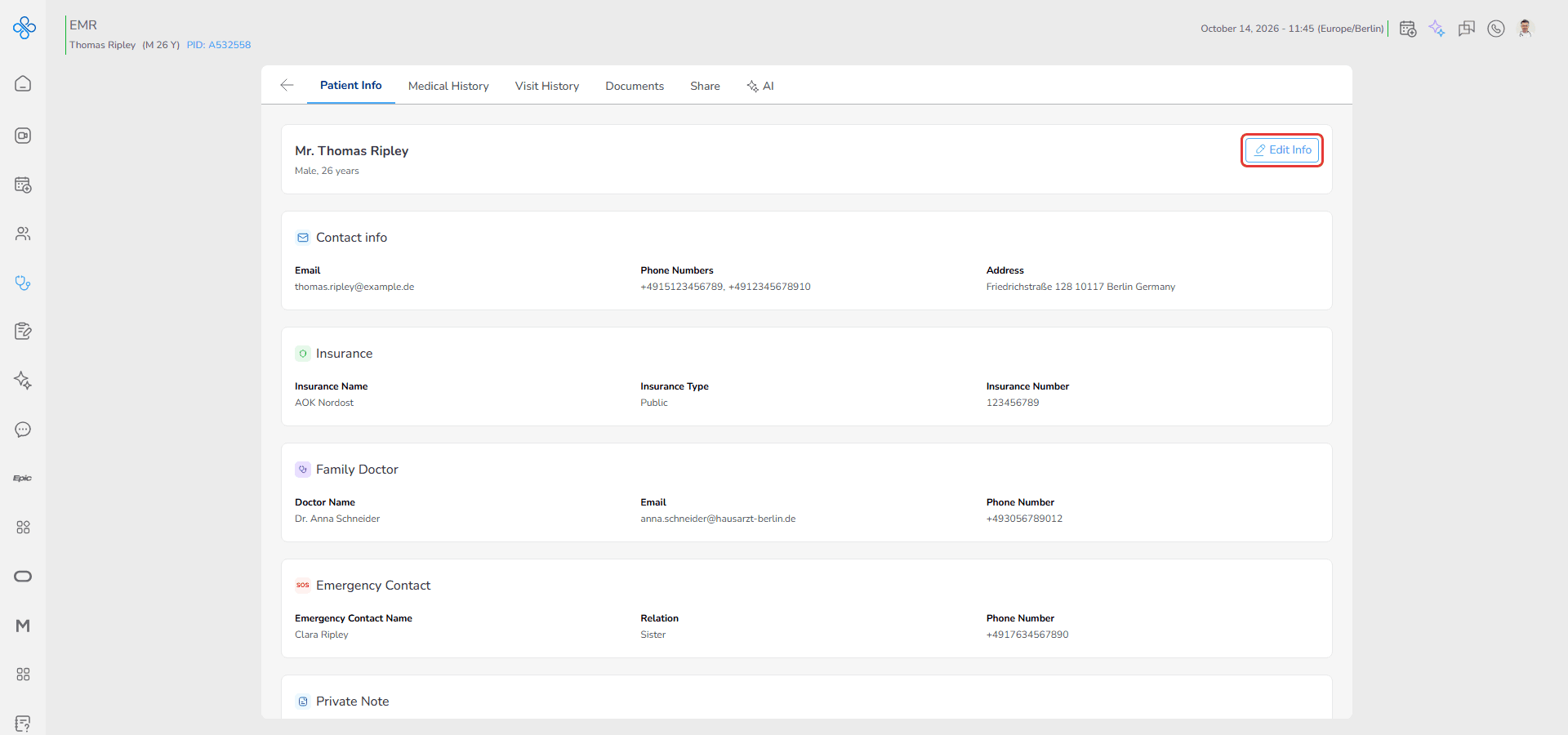
Click the Edit Info button to update patient details.
This opens the same modal used in New Patient Creation but in edit mode.
All previously entered information is pre filled and can be modified.
The modal includes two sections:
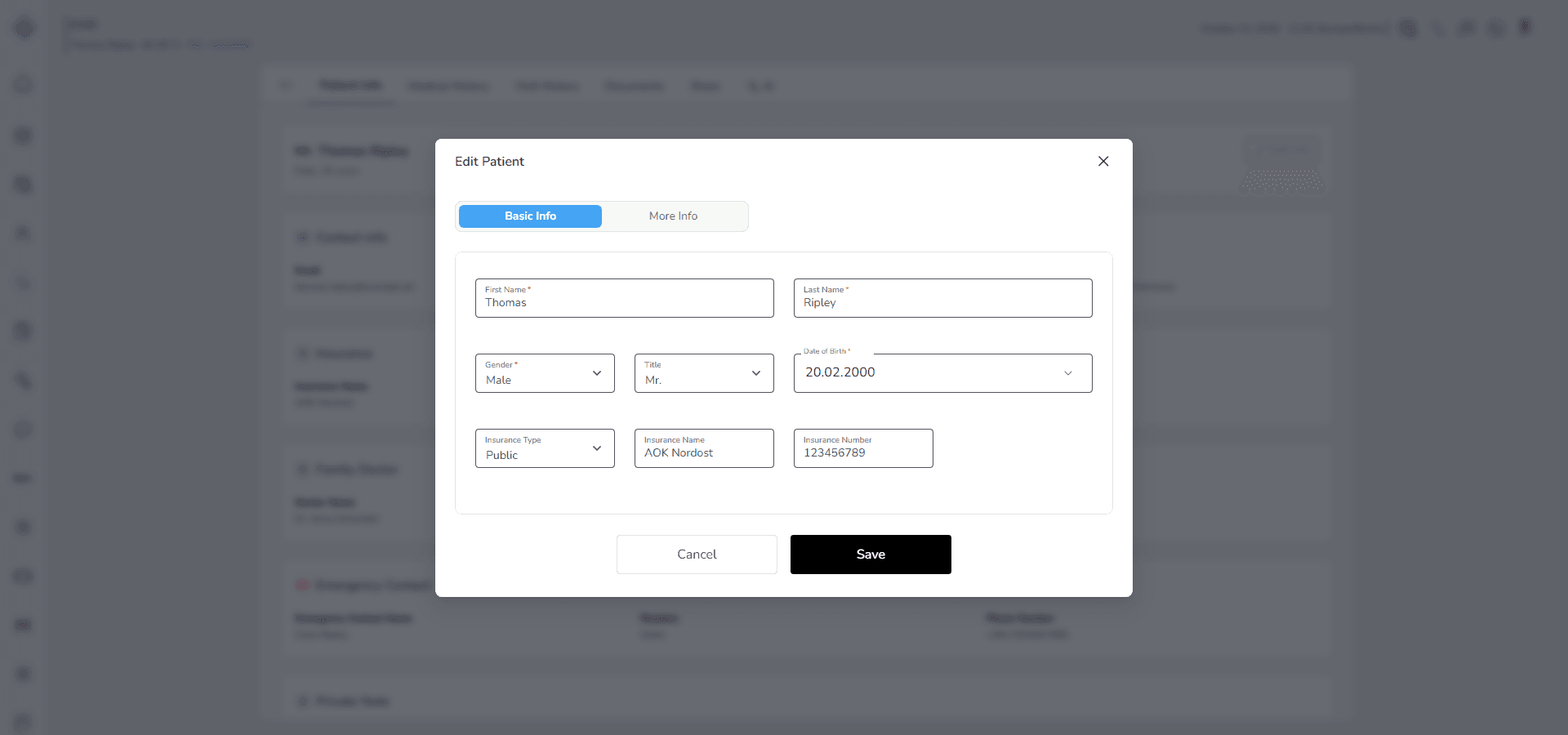
Basic Info
Contains required fields such as First Name Last Name Gender and Date of Birth. These must remain completed.
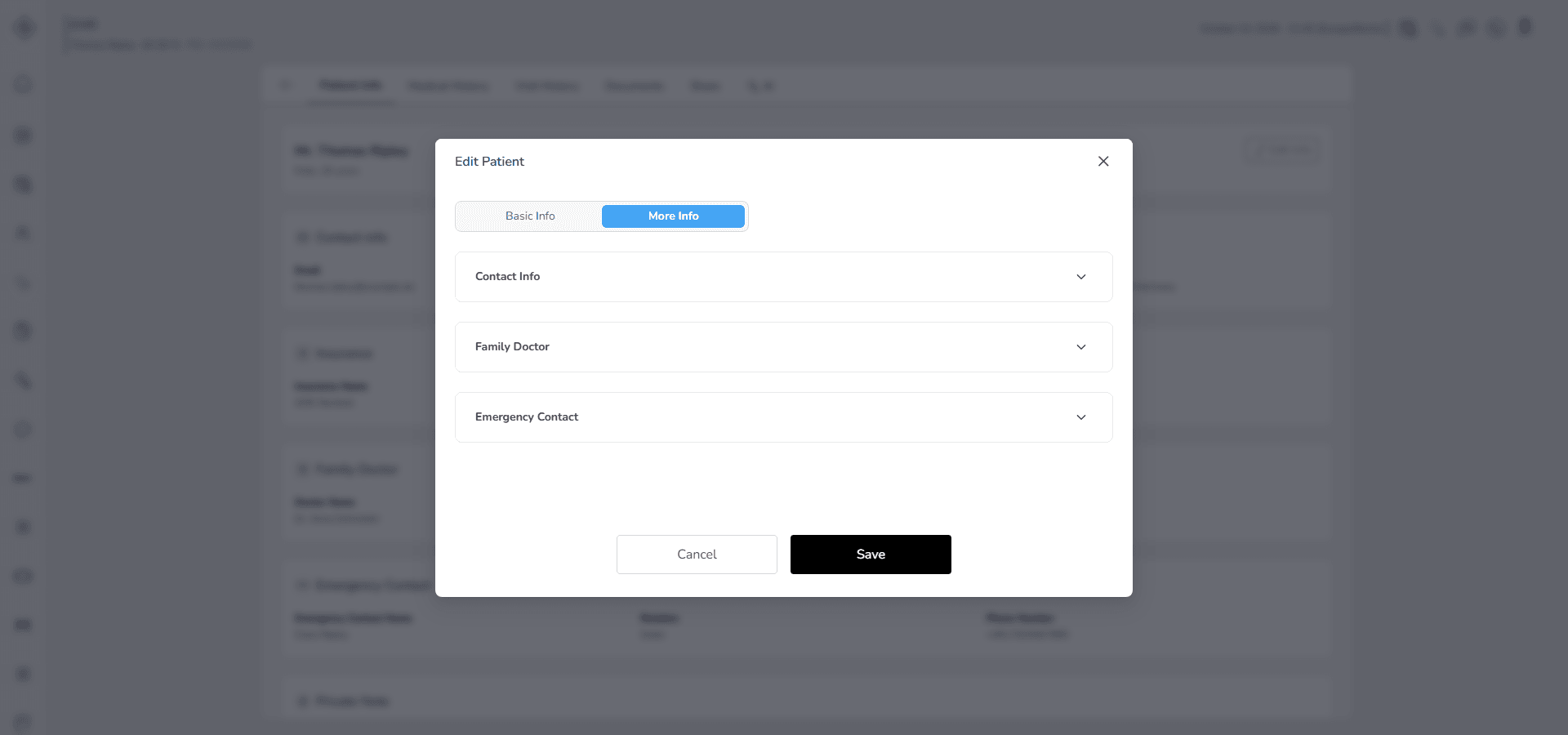
More Info
Contains optional details including Contact Info Family Doctor and Emergency Contact.
After making changes select Save.
The updated information appears immediately in the Patient Info tab.
If you are viewing a shared patient with restricted access the Edit option will be disabled.
Step 3: Add or manage a Private Note
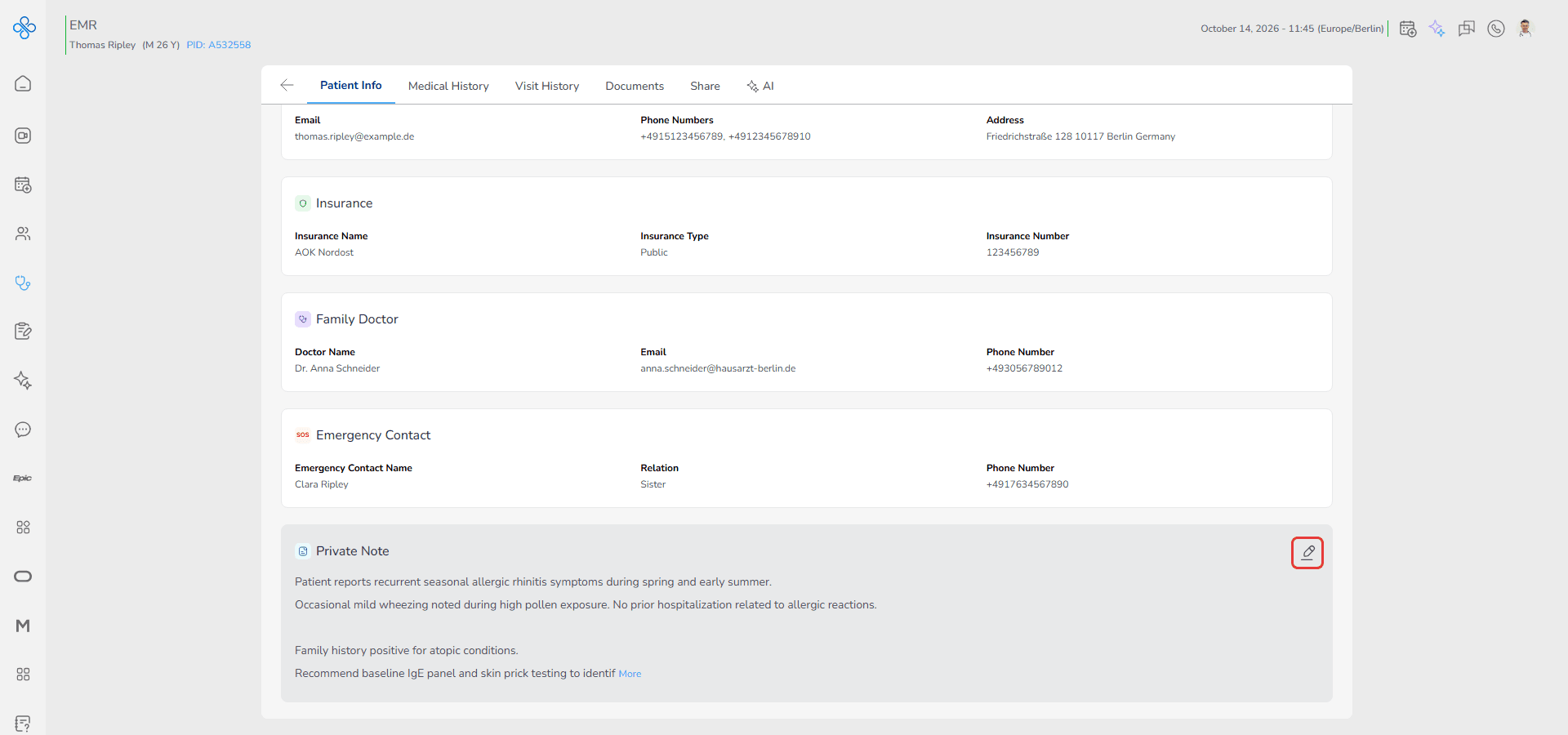
The Private Note section allows internal documentation related to the patient.
To create or update a note:
- Hover over the Private Note section, then click the Edit icon that appears.
- Enter your note in the Private Notes text field
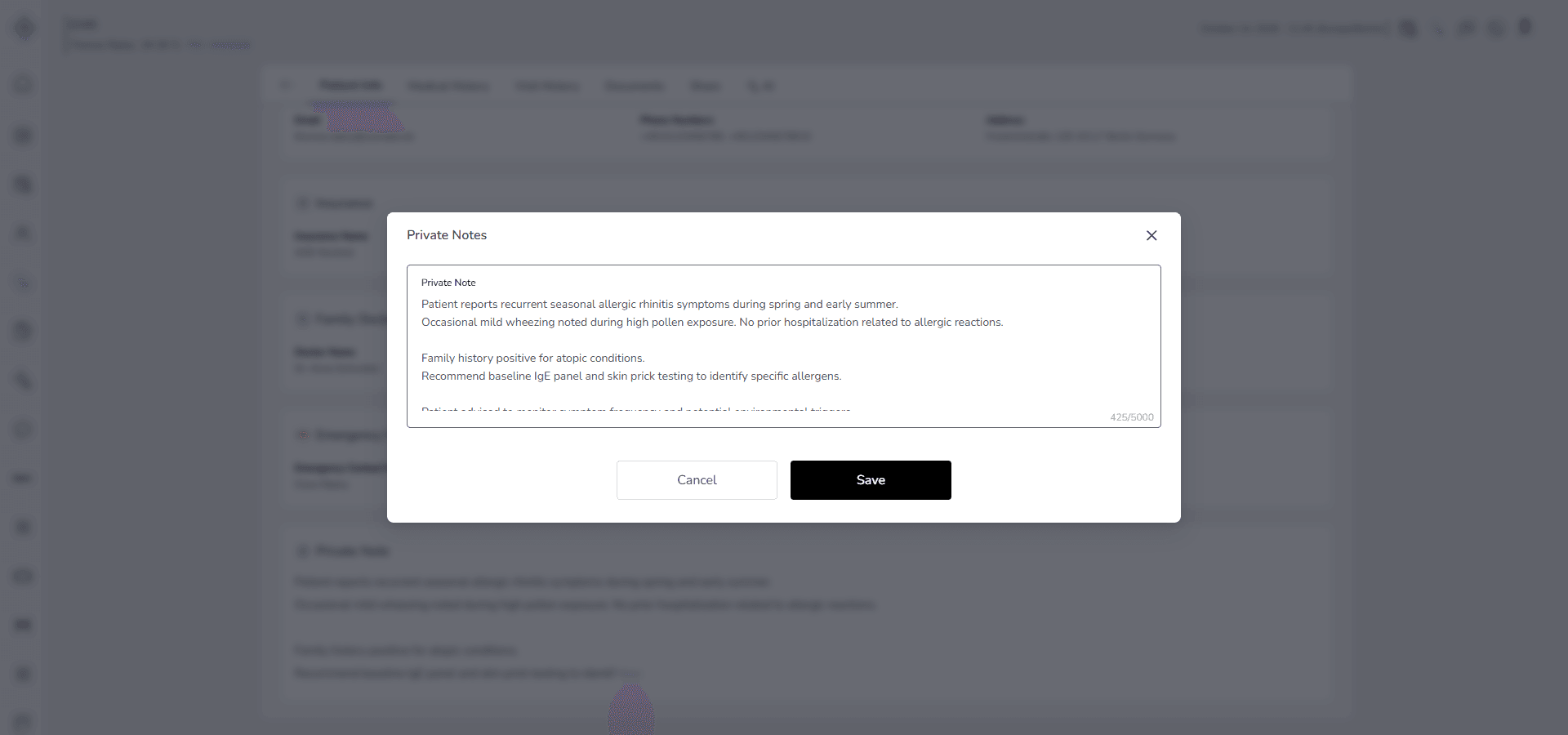
- Select Save
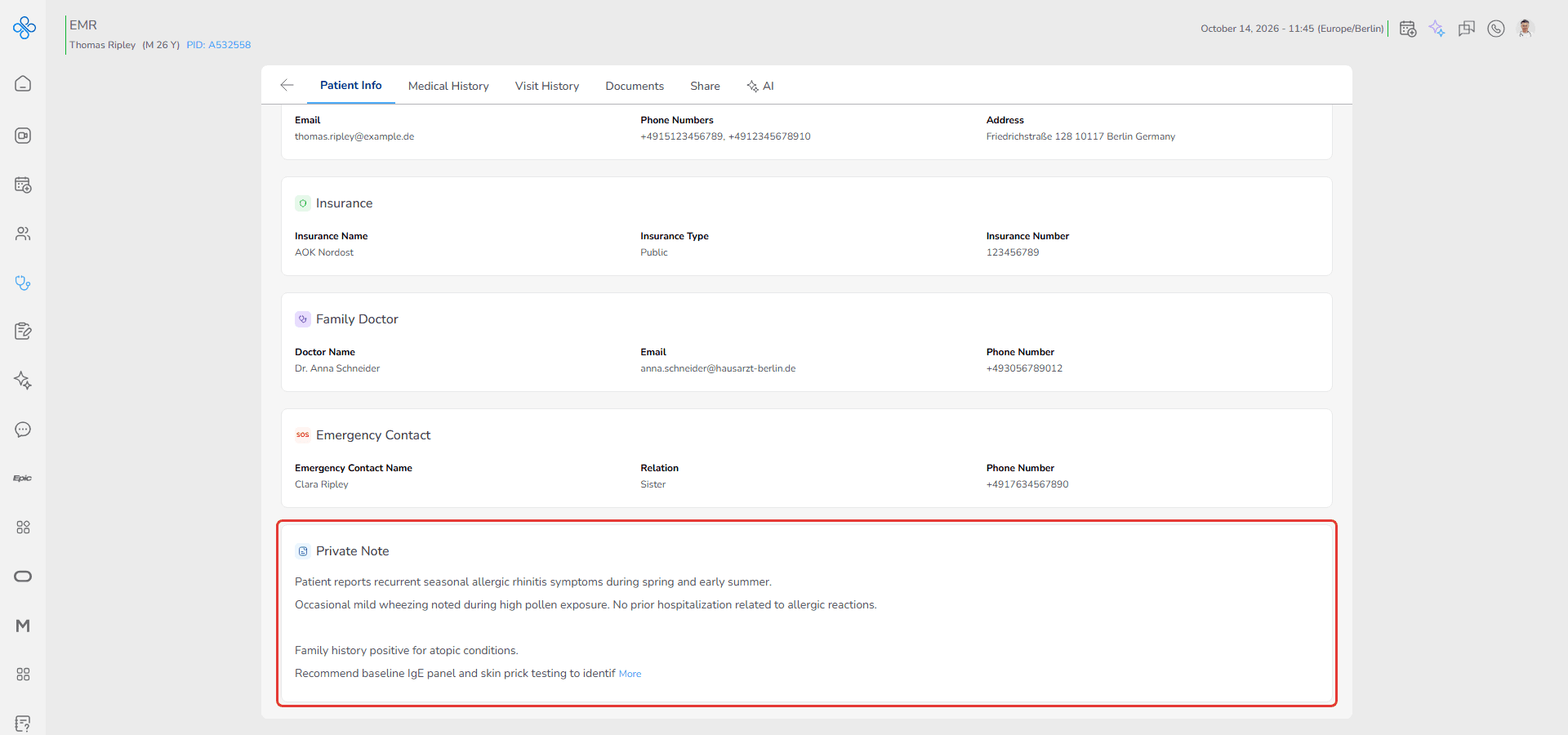
The note is stored within the patient profile and can be updated at any time by the owner provider.
Use this section for confidential observations or reminders that should not be visible to other providers.
Note:
Important visibility rule Private Notes are visible and editable only by the patient’s owner provider. Shared providers cannot view or modify this section.
Fields (Field Descriptions)
| Field Group | Field | Description |
|---|---|---|
| Basic Info | First Name* | Patient’s first name (required). |
| Last Name* | Patient’s last name (required). | |
| Gender* | Patient’s gender (required, dropdown). | |
| Title | Optional title (e.g., Mr., Mrs., Dr.). | |
| Date of Birth* | Patient’s birthdate (required, Day/Month/Year). | |
| Insurance Type | Type of insurance (dropdown). | |
| Insurance Name | Name of insurance provider. | |
| Insurance Number | Patient’s insurance number. | |
| More Info → Contact | Patient’s email address. | |
| Mobile | Mobile phone number. | |
| Landline | Home or office phone number. | |
| Address | Street address. | |
| Zip Code | Postal code. | |
| City | City of residence. | |
| State | State or province. | |
| Country | Country of residence. | |
| More Info → Family Doctor | Name of Family Doctor | Full name of family doctor. |
| Family doctor’s email. | ||
| Phone Number | Family doctor’s phone number. | |
| More Info → Emergency Contact | Name | Emergency contact person’s name. |
| Relation | Relation to the patient (e.g., Parent, Sibling). | |
| Phone Number | Emergency contact person’s phone number. | |
| - | Edit Button | Opens patient edit modal when permitted |
| - | Private Note Field | Internal note visible only to owner provider |
Behavior & Expected Outcome
- Opening a patient record automatically loads the Patient Info tab first.
- If the provider has edit permission the Edit option is available and opens the structured modal.
- If the patient is shared and editing rights are restricted the tab appears disabled and cannot be modified. (Access is explained in the Share guide.)
- Saving updates in edit mode immediately refreshes the displayed information.
- Private Notes are accessible only to the patient’s owner provider.
- Changes to patient identity information are reflected across other workflows such as appointments and visits.
Common Errors + Fixes
| Issue | Cause | Fix |
|---|---|---|
| Edit button not visible | Provider lacks ownership permission | Verify patient ownership |
| Tab appears disabled | Shared patient with restricted access | Contact owner provider if update needed |
| Save button inactive | Required Basic Info fields incomplete | Complete mandatory fields |
| Private Note not visible | User is not the owner provider | Access restricted by design |