AI
Overview
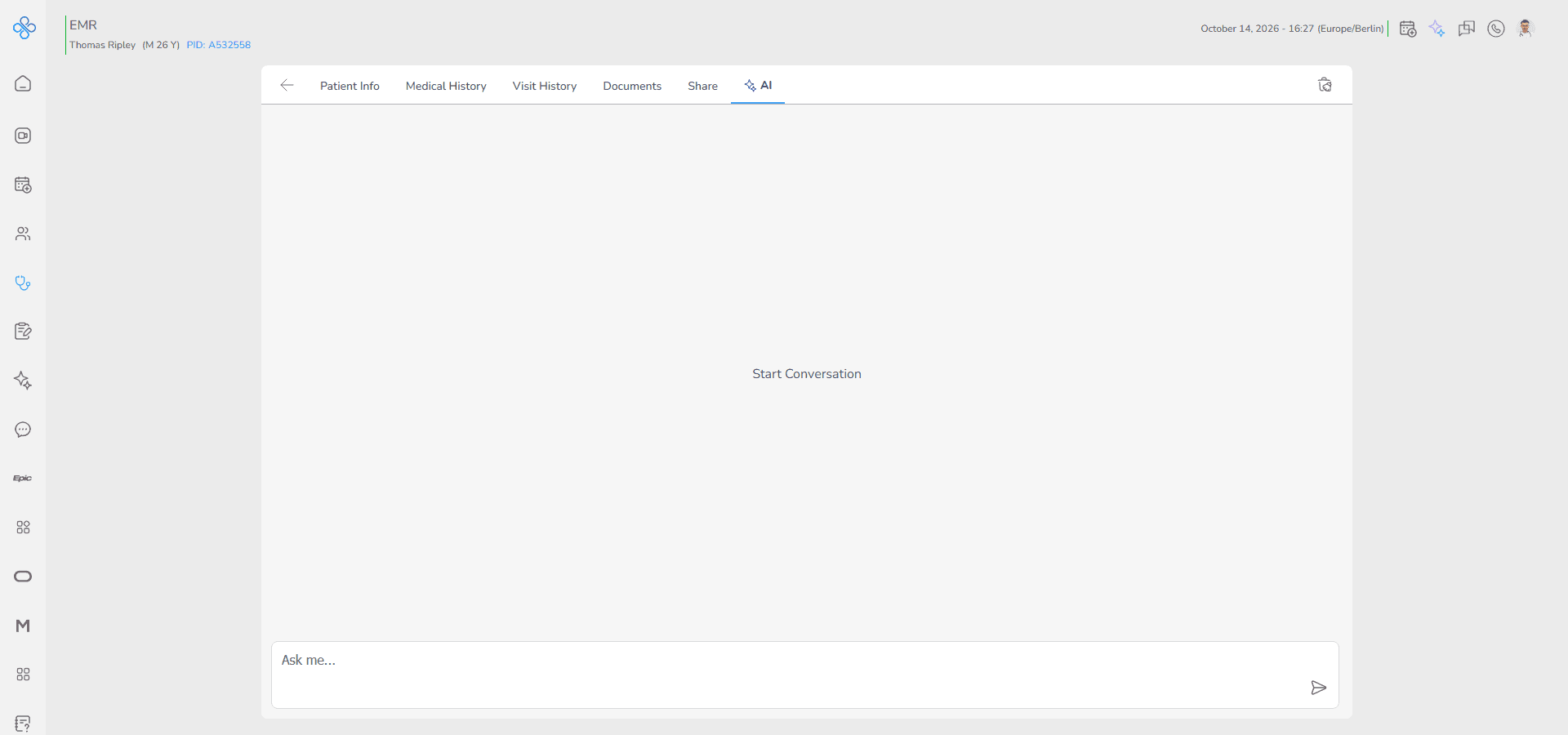
In the AI tab, you can interact with an intelligent assistant that helps you understand and work with your patient’s medical information.
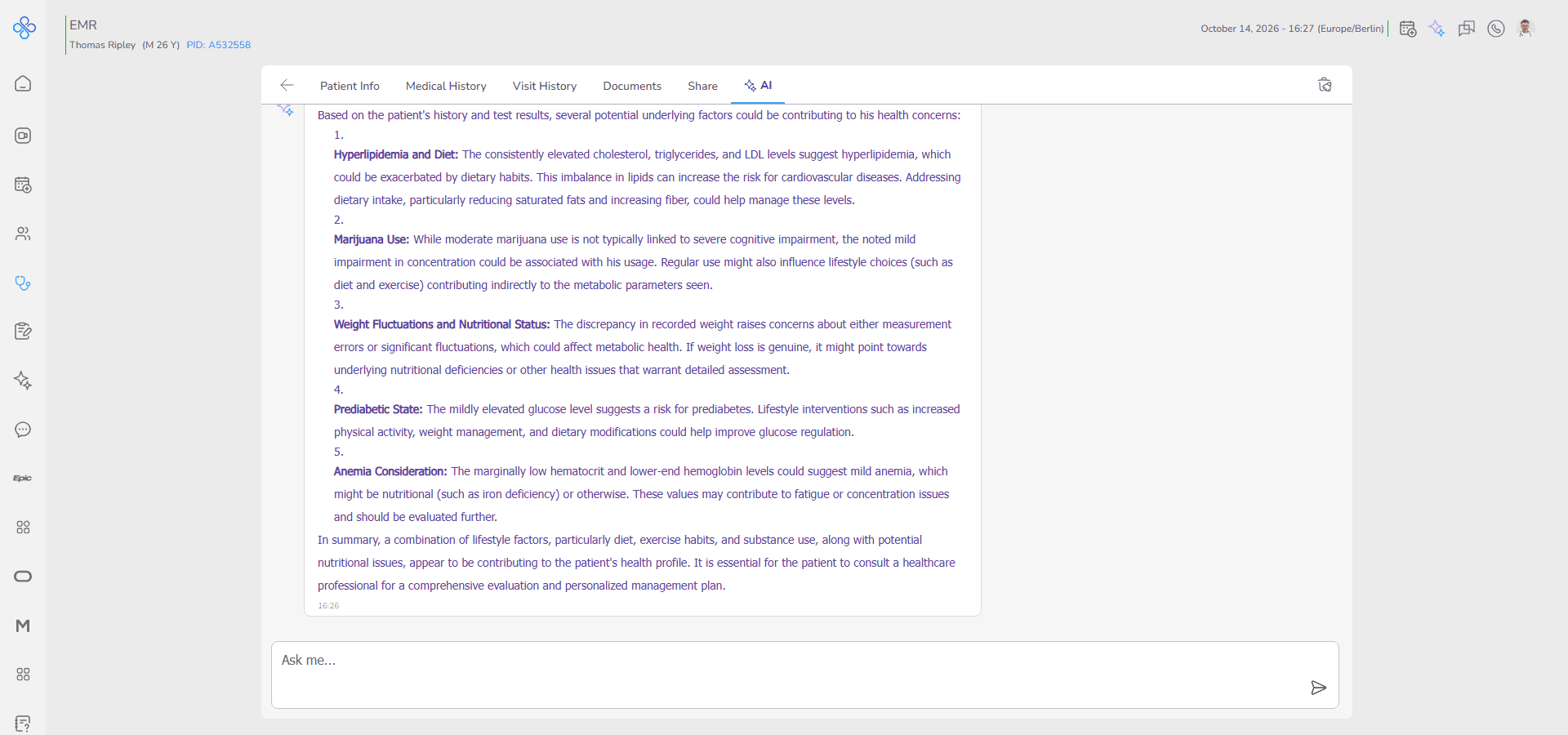
This assistant is connected to the patient’s data.
It can use available medical history, visits, and documents to give you relevant answers.
You can use this section to:
- Ask questions about the patient
- Get quick explanations or insights based on patient data
- Upload documents and ask questions about them
- Continue a conversation in a chat format
The conversation works like a simple chat.
You type your question and the assistant responds in real time.
You also have the option to clear the conversation at any time and start fresh.
This feature is designed only for patient related medical guidance.
Only providers who have access to the patient can use this tab.
Access
Follow these steps to open the AI tab for a patient.
Steps
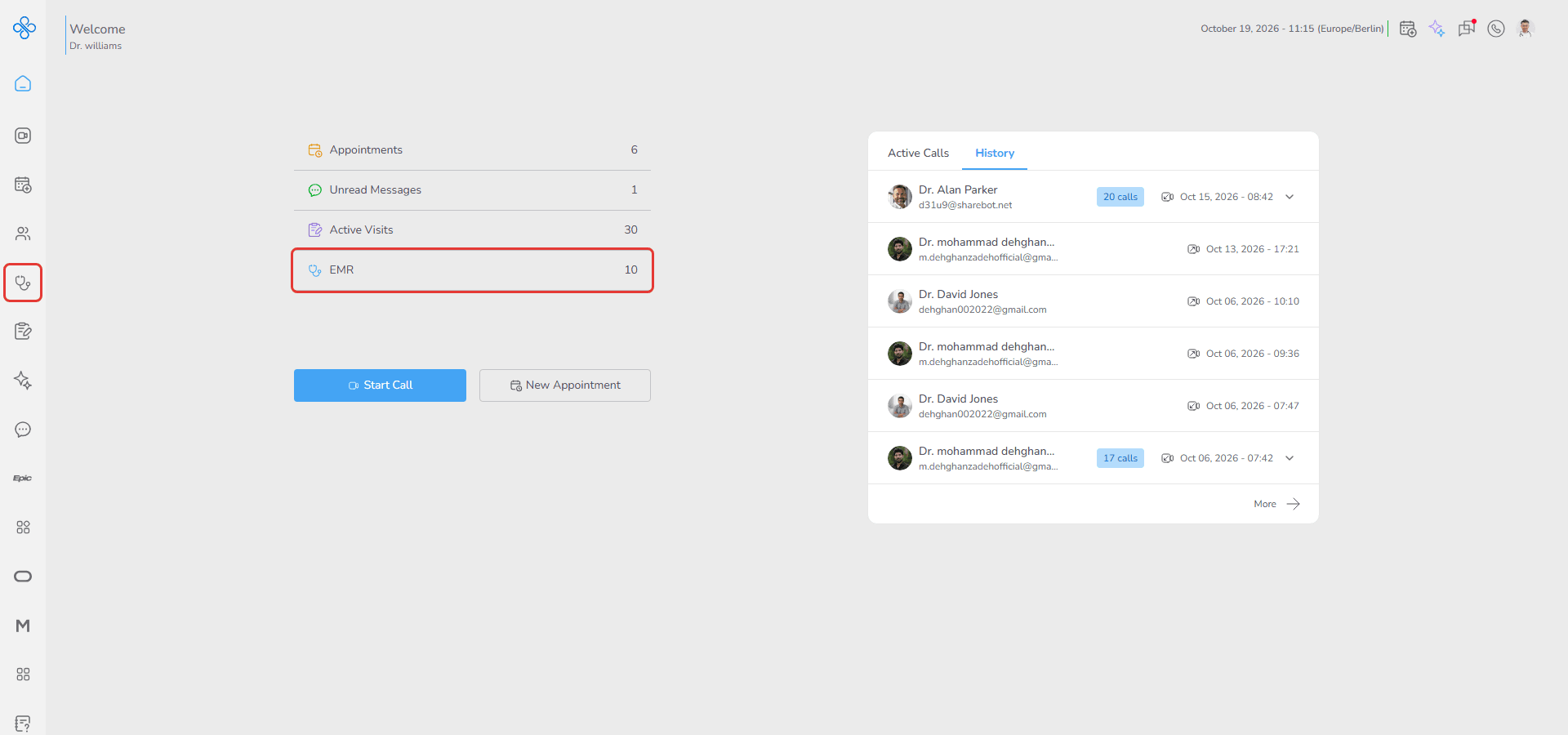
1. Go to EMR from the sidebar or Dashboard shortcut
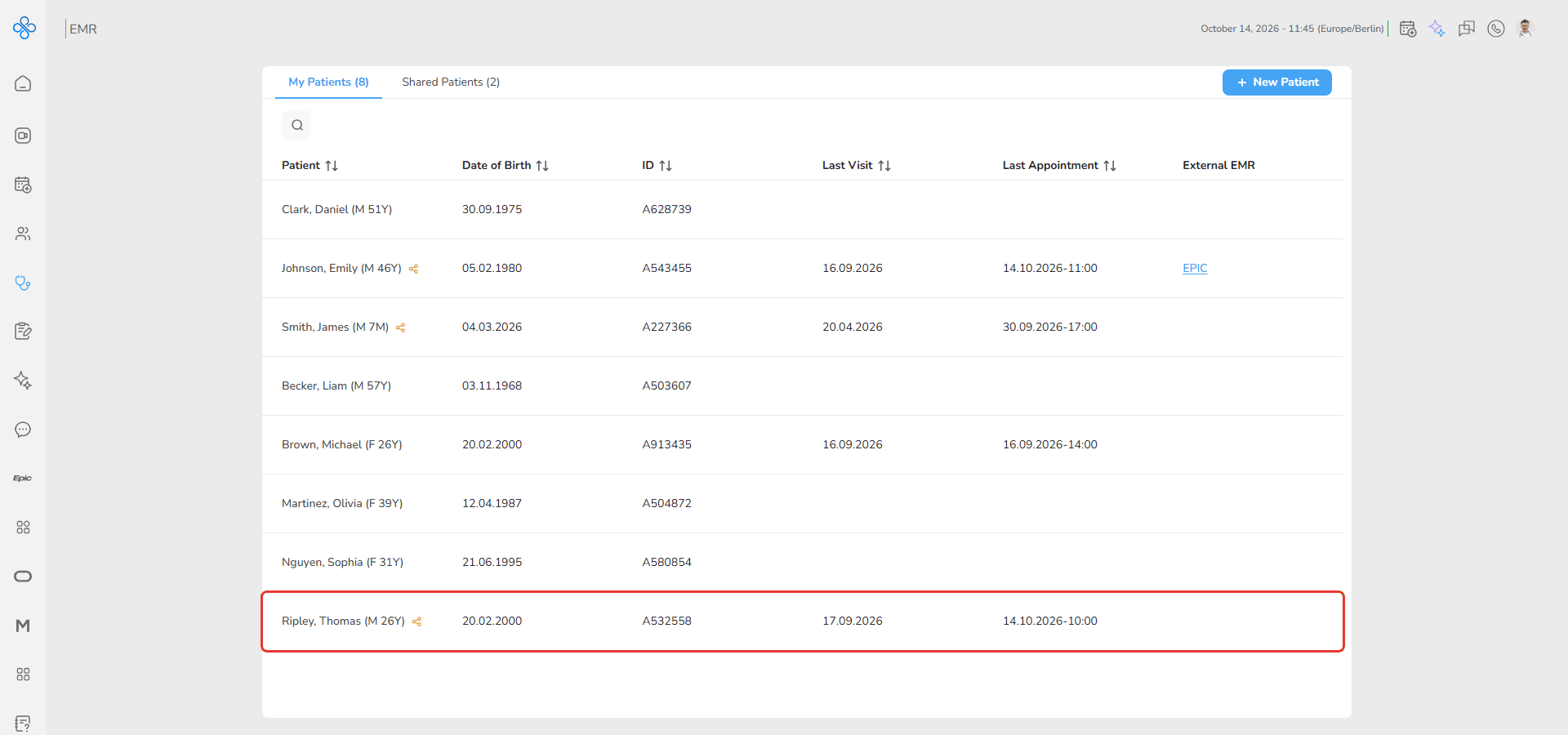
2. Select a patient from the list and open the patient file
3. Navigate to the AI tab
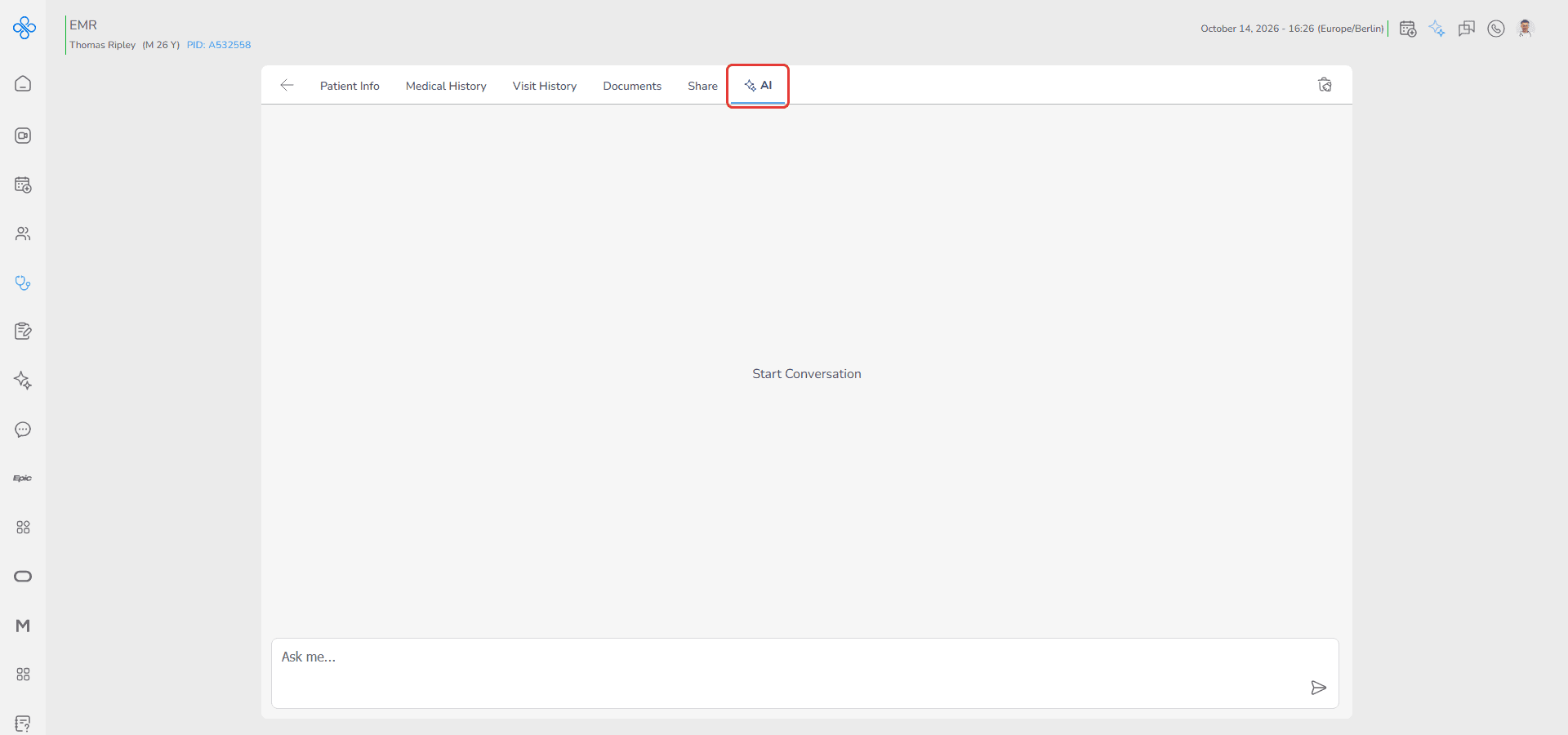
The chat interface will load and you can start interacting with the assistant immediately
How to use the AI assistant
Open the AI tab
At the bottom of the screen, locate the message input box
Type your question or request related to the patient
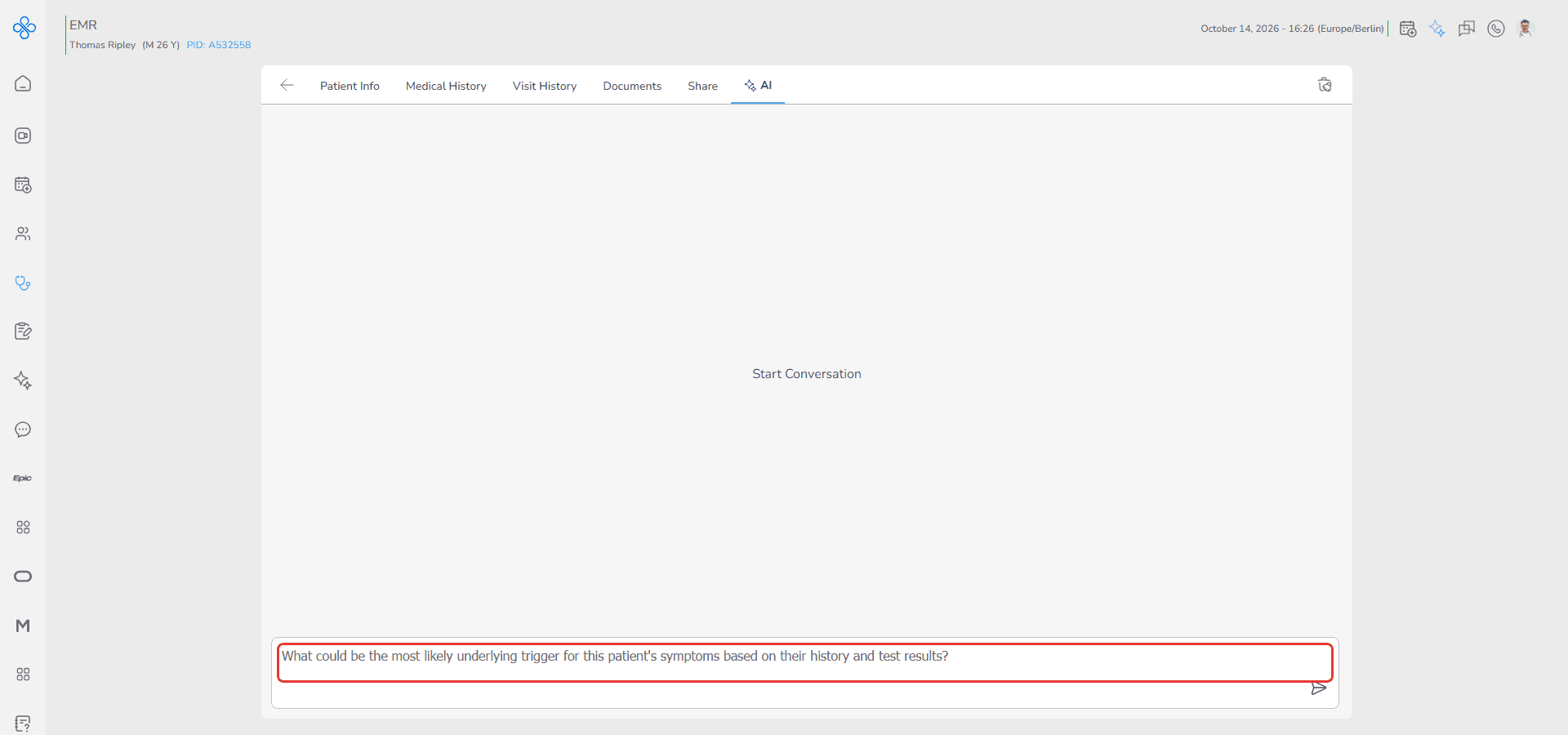
For example, you can ask about symptoms, history, or uploaded documents
Click the Send button or press Enter
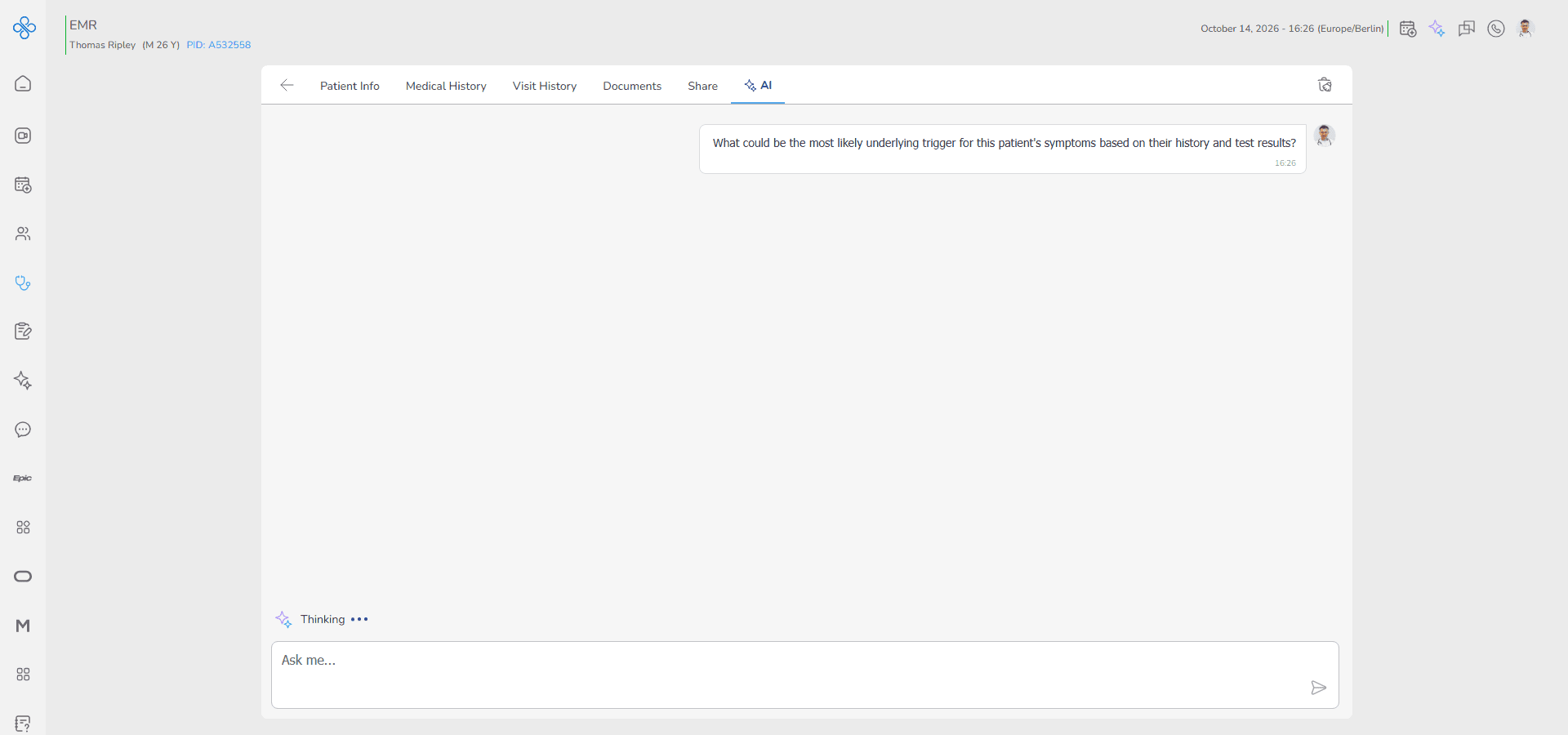
The assistant will respond in the chat area above
You will see your message on the right and the assistant response on the left
How to clear the conversation
Click the Clean Conversation button at the top right
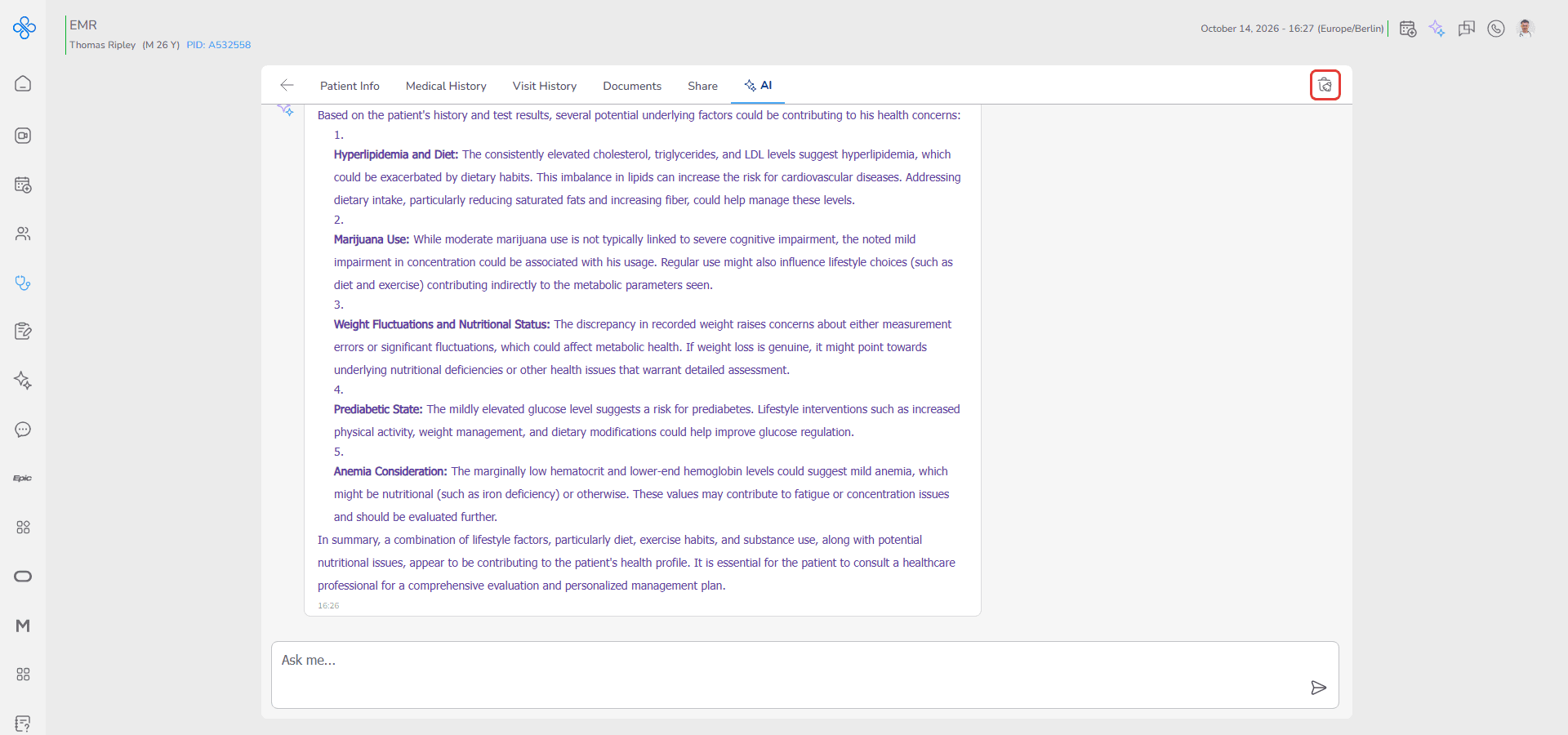
A confirmation dialog appears. Click Clean to confirm
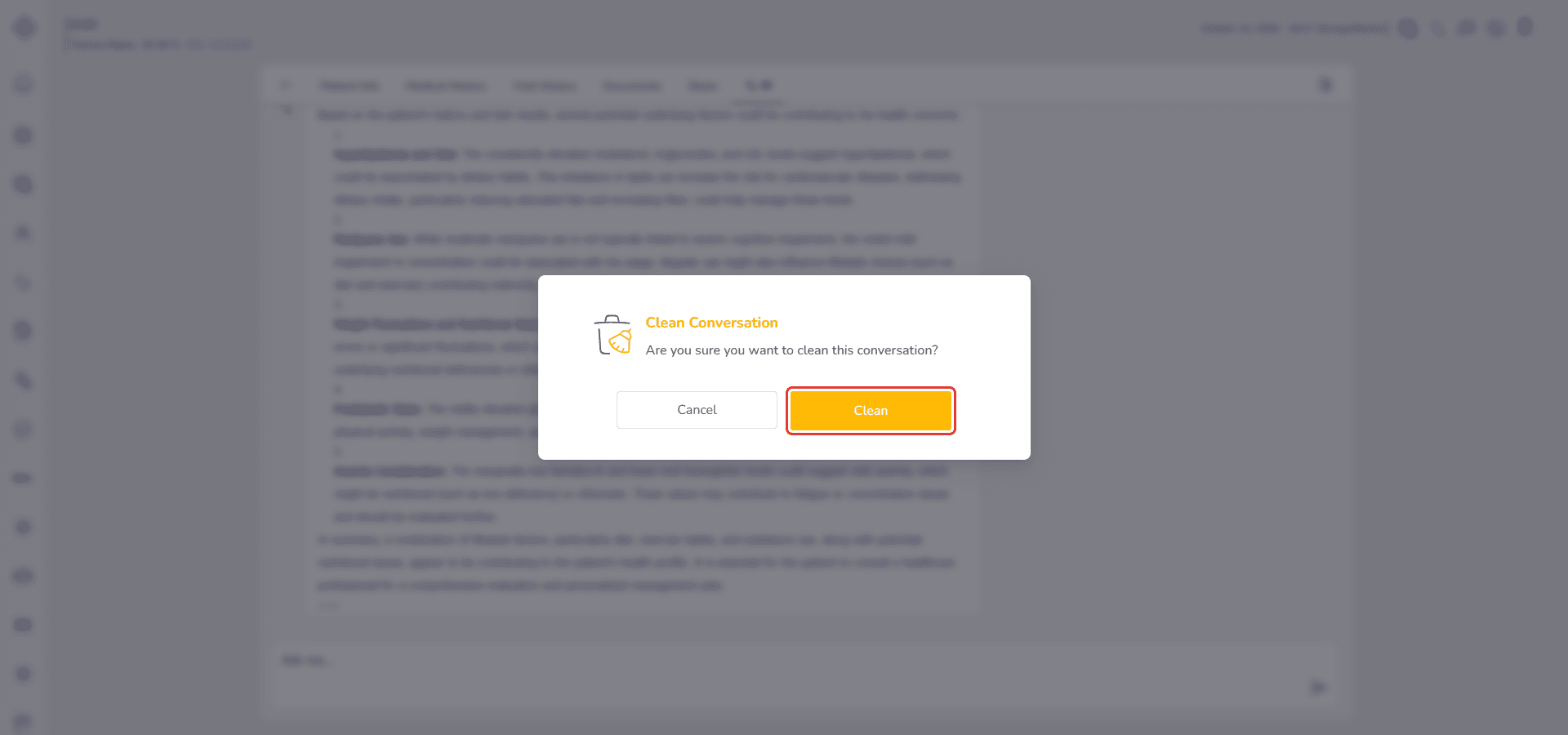
The chat will be cleared
This action only removes the conversation for you
It does not delete any patient data or uploaded documents
Fields (Field Descriptions)
| Field / Control | Description |
|---|---|
| Chat Box | Input field to type questions/requests for the AI assistant. |
| Send Button (▶) | Sends the typed message to the AI assistant. |
| Conversation Window | Displays chat history between provider and AI assistant. |
| Clean Conversation | Clears all chat history for the current session. |
Behavior & Expected Outcome
- The assistant responds immediately after you send a message
- Responses are based on available patient data and uploaded documents
- Clearing the conversation removes only the chat history for your session
- Patient data is not affected by clearing the chat
- Only providers with access to the patient can use this feature
- The assistant focuses only on patient related medical topics
Common Errors + Fixes
| Issue | Cause | Fix |
|---|---|---|
| No response from assistant | Network issue or temporary delay | Check your connection and try again |
| Message not sent | Input field is empty or action not confirmed | Type your message and press Send or Enter |
| Conversation not cleared | Action not confirmed or not triggered | Click Clean Conversation again |
| Response not relevant | Question is unclear or too general | Ask a more specific question related to the patient |