Day View
Overview
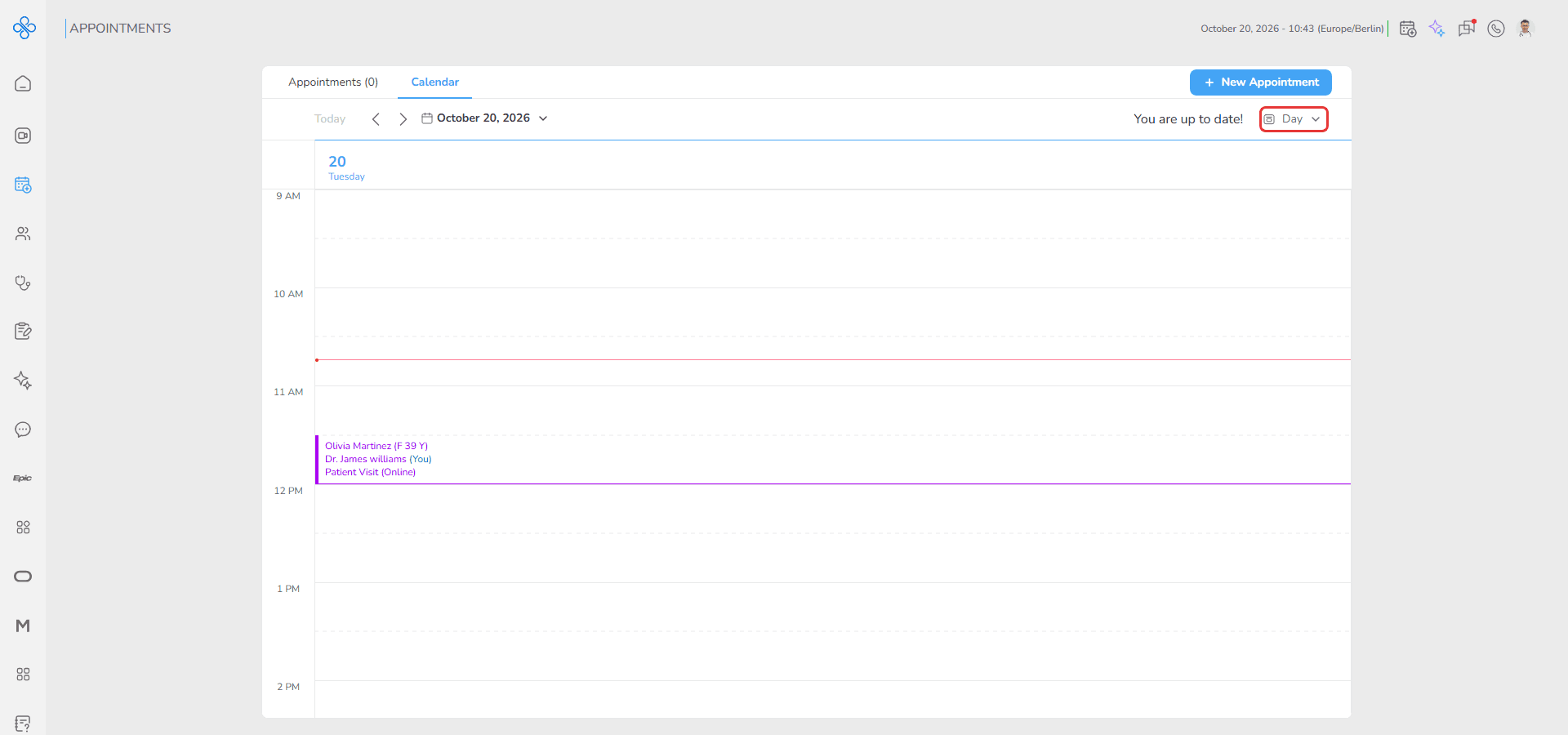
The Day view displays all appointments for a single day across a 24 hour timeline.
You can:
- Review daily appointments
- Check available time slots
- Create appointments directly from the calendar
- Join active meetings
Appointments appear as time blocks inside the schedule. A red line shows the current time.
Access
1. Open the Calendar page
2. Click the view dropdown at the top right and select Day
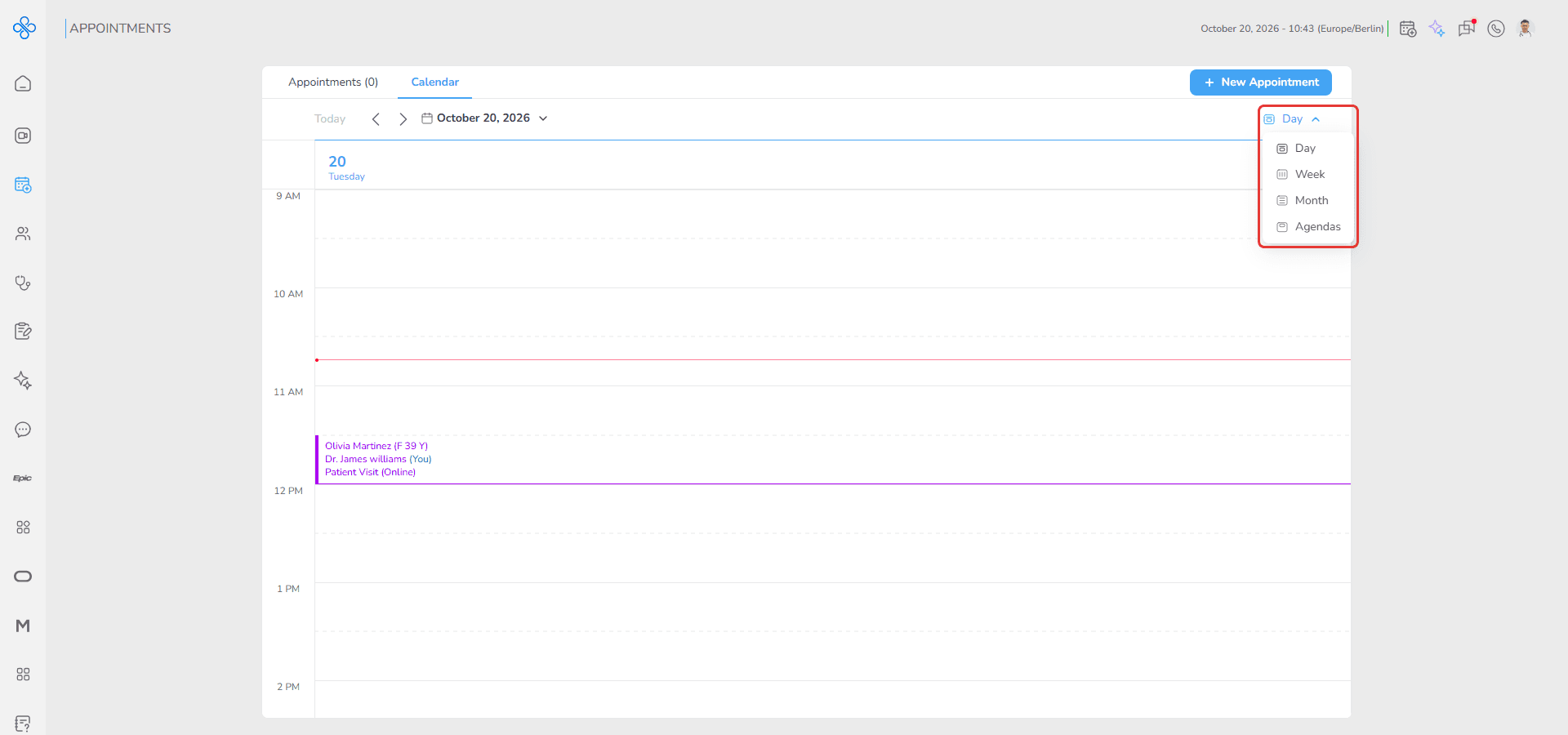
The calendar displays the selected day's timeline. Day is also the view the calendar opens with.
Steps
How to select a date
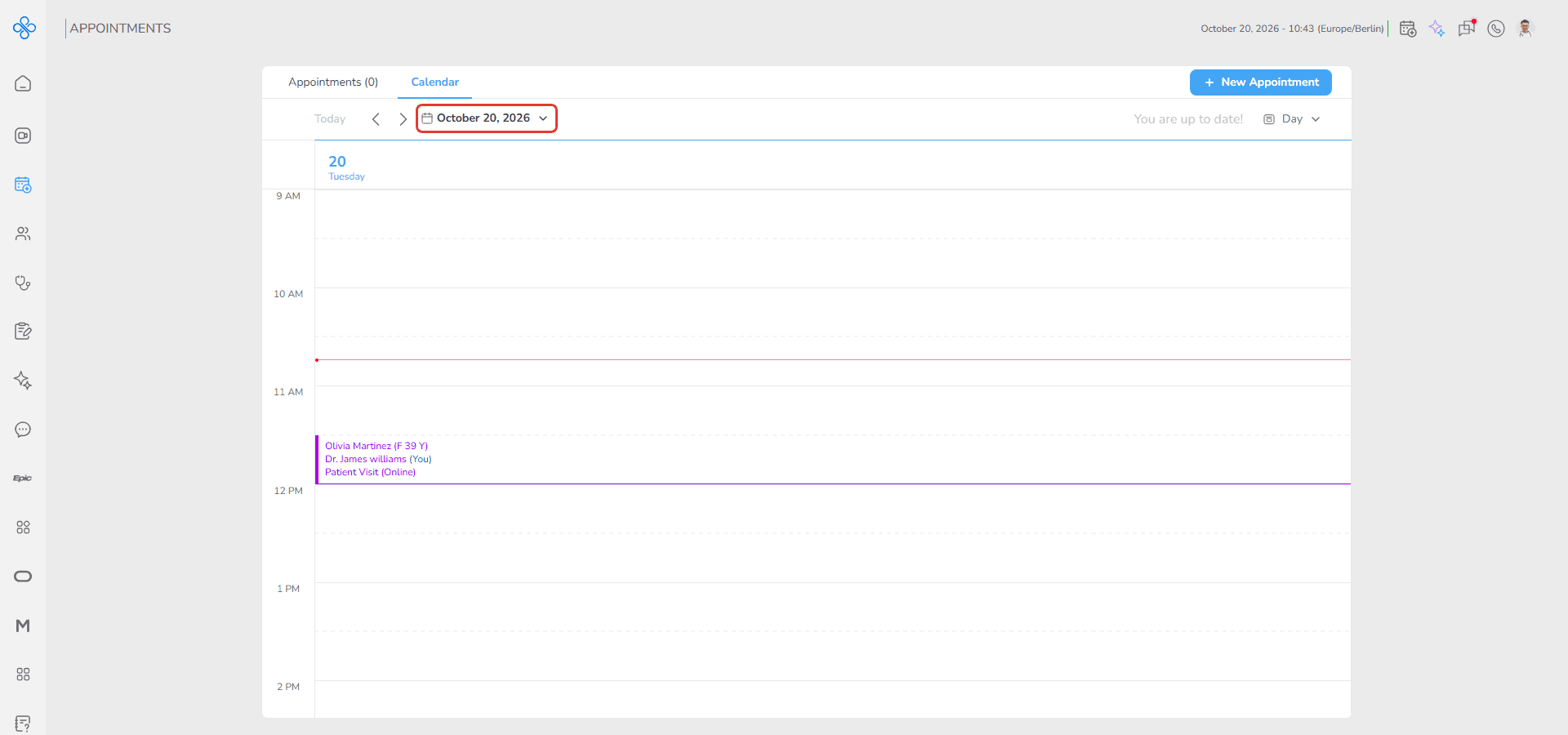
1. Click the date picker at the top left of the calendar
2. Select a date
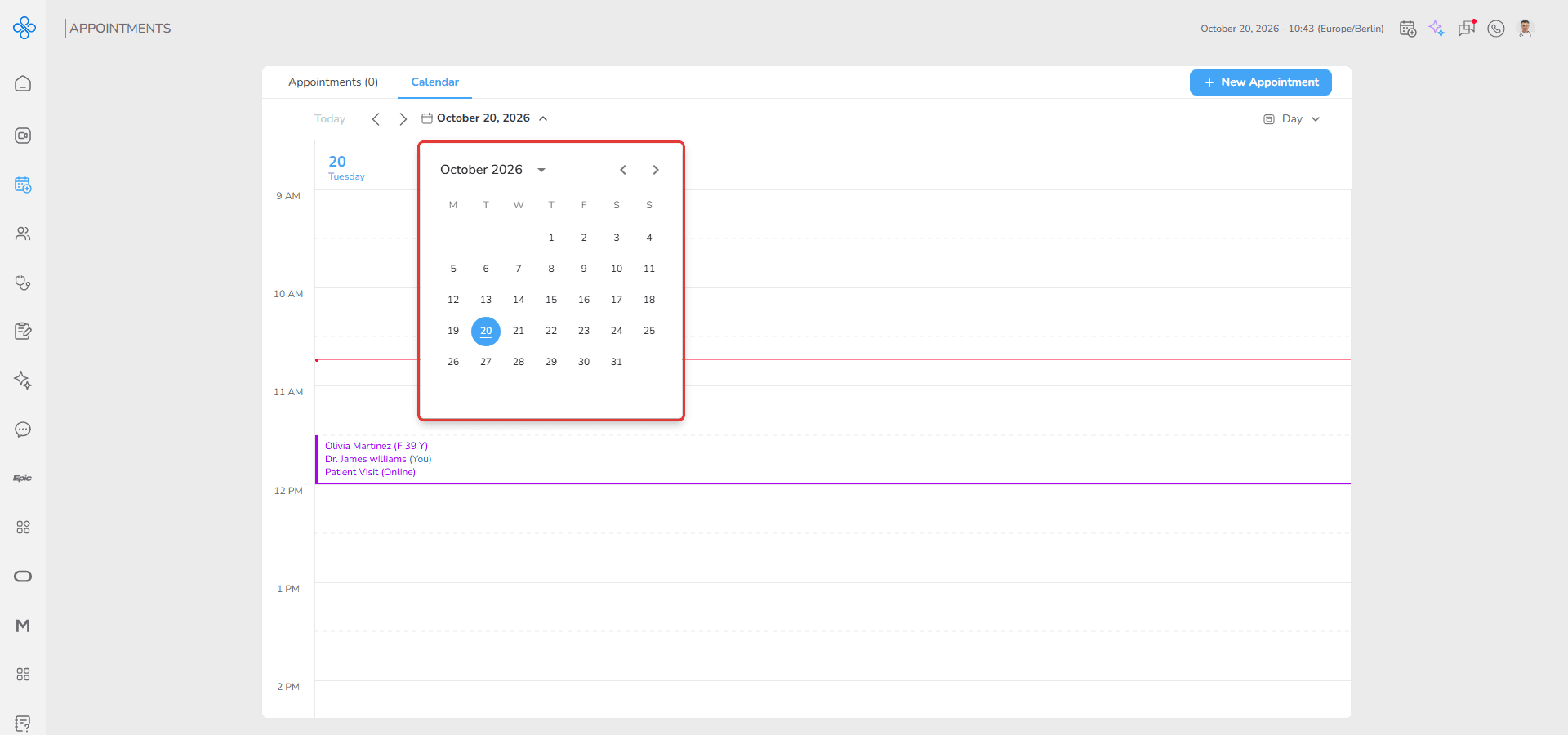
The calendar refreshes and displays the appointments for that day.
How to move between days
1. Use the left arrow to move to the previous day
2. Use the right arrow to move to the next day
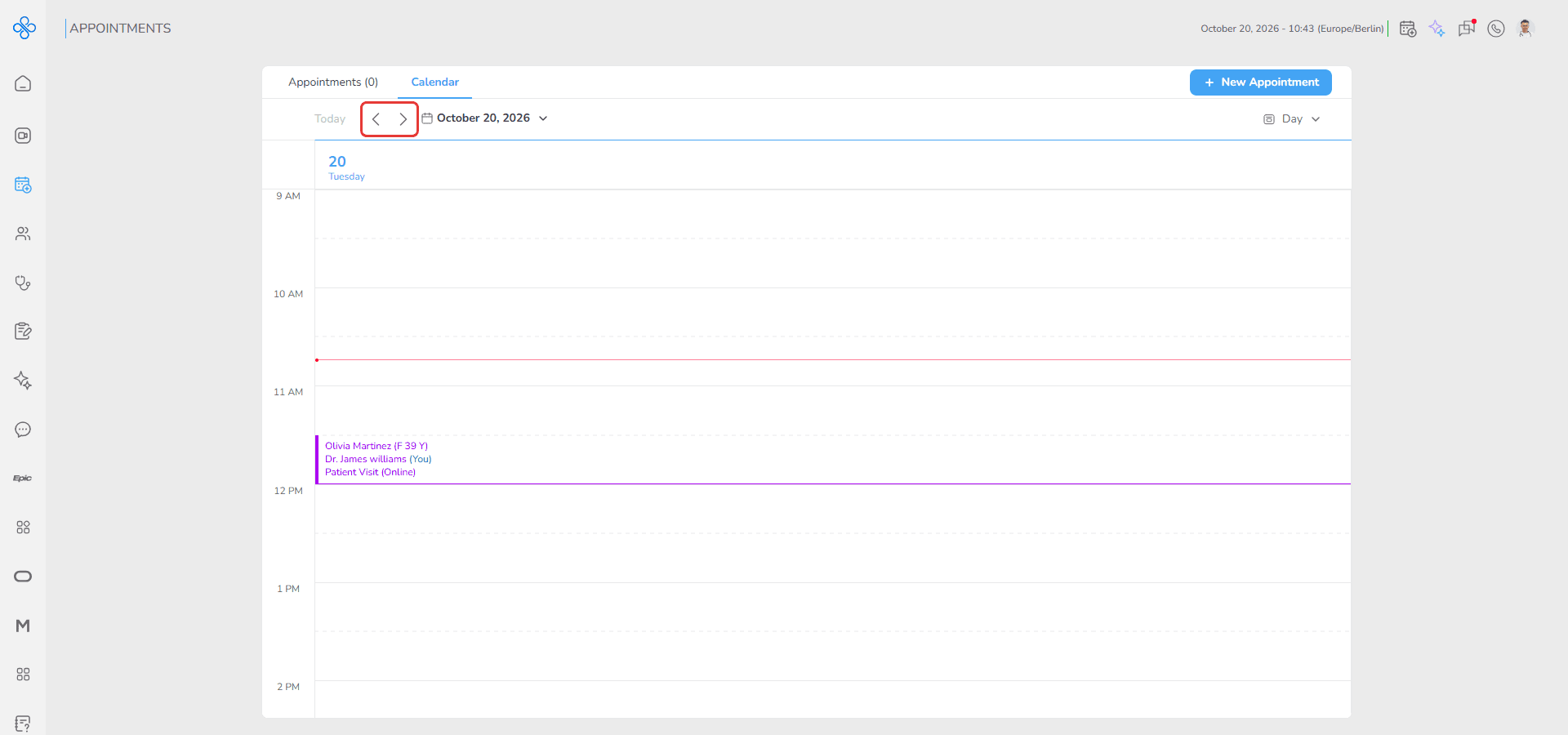
The calendar updates automatically after each selection.
How to return to today
1. Click the Today button beside the navigation arrows
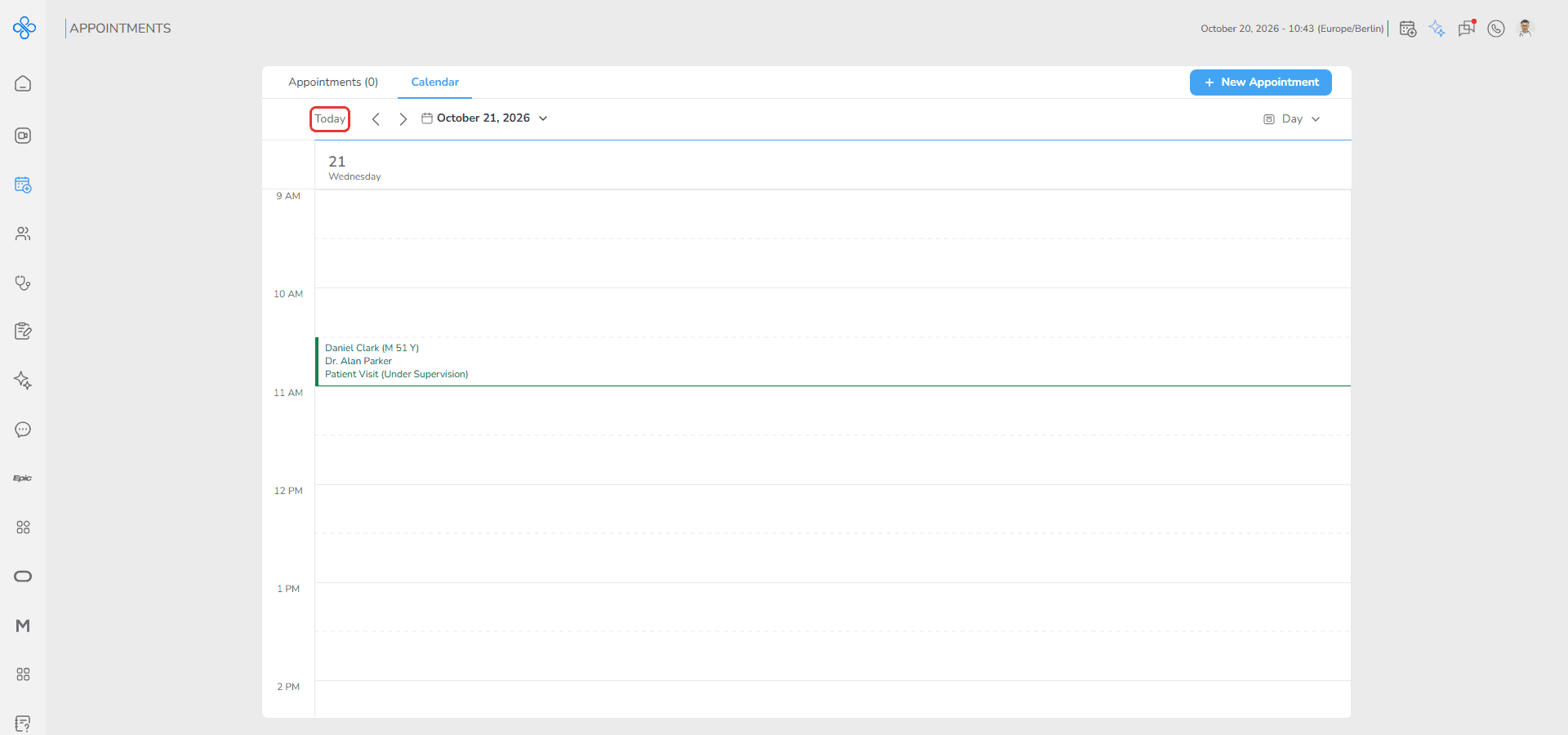
The calendar returns to the current day. While today is shown, the Today button is inactive.
How to review an appointment
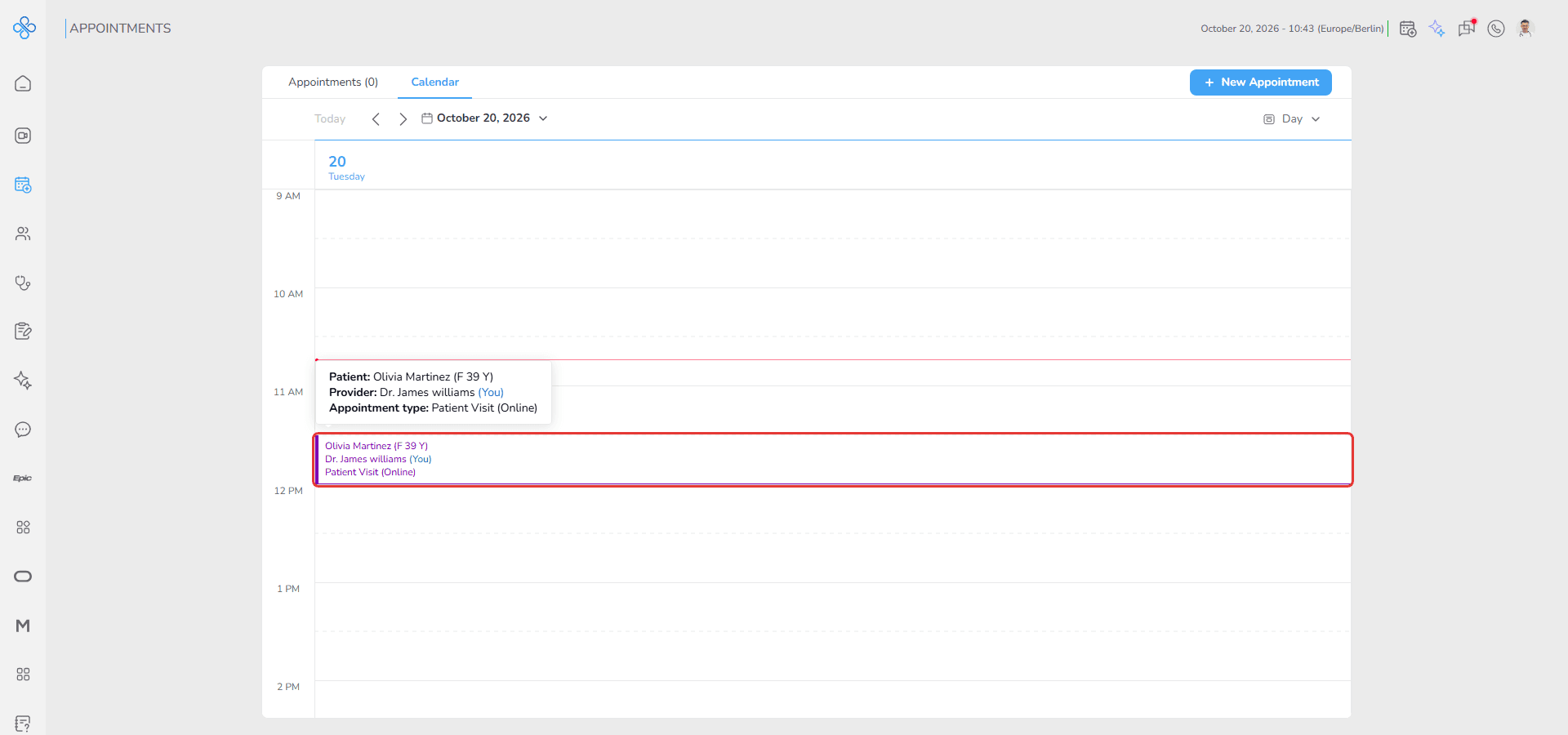
Each appointment card shows three lines:
- the patient (or "-" when the appointment has no patient)
- the provider ("(You)" for your own appointments)
- the appointment type
Hover over a card to see the same details in a small box.
How to create an appointment from the calendar
1. Double-click an empty time slot in the calendar
2. The Make an Appointment window opens
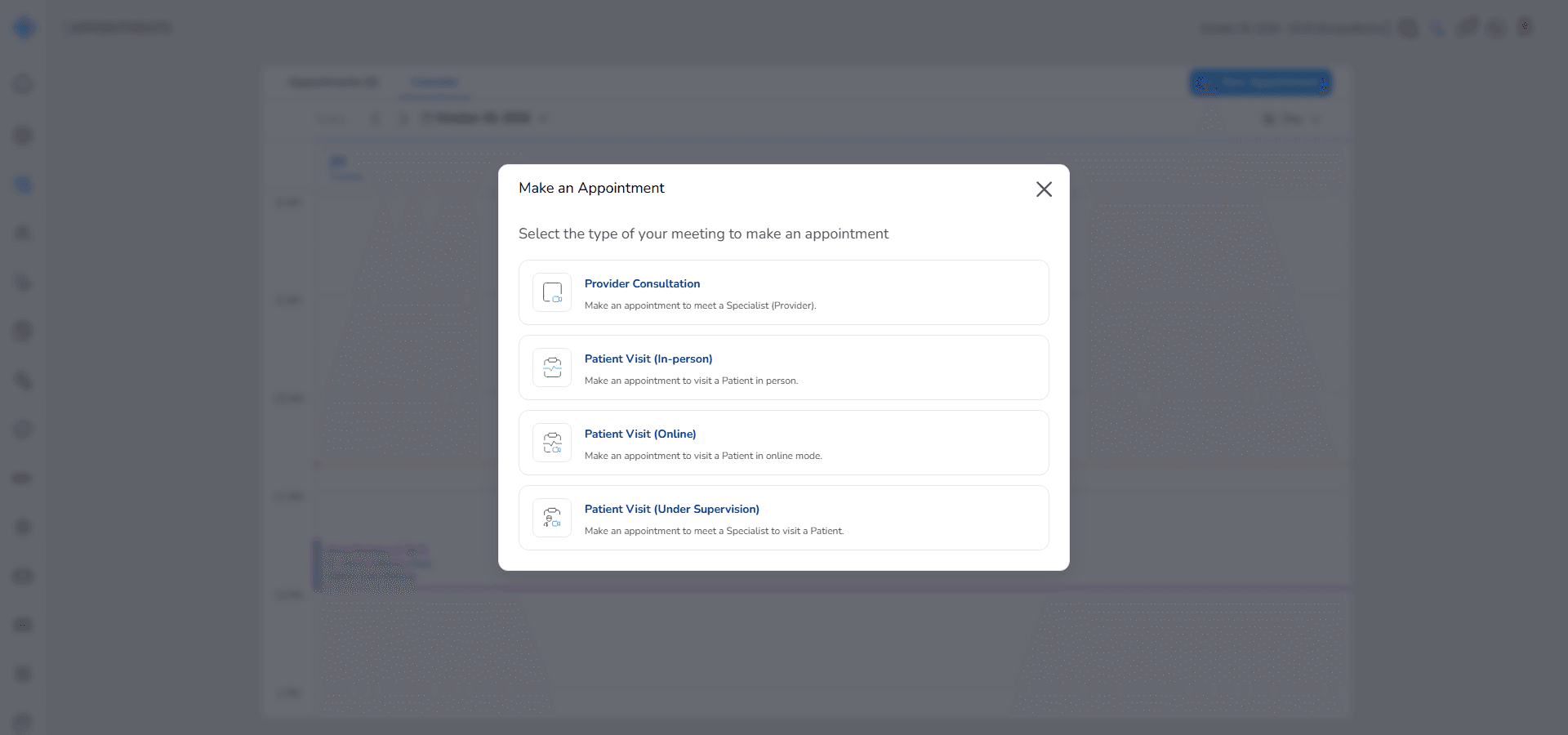
3. Select the appointment type and complete the appointment details
For more information, refer to the Appointment System user guide.
How to create an appointment using the New Appointment button
1. Click + New Appointment at the top right of the page
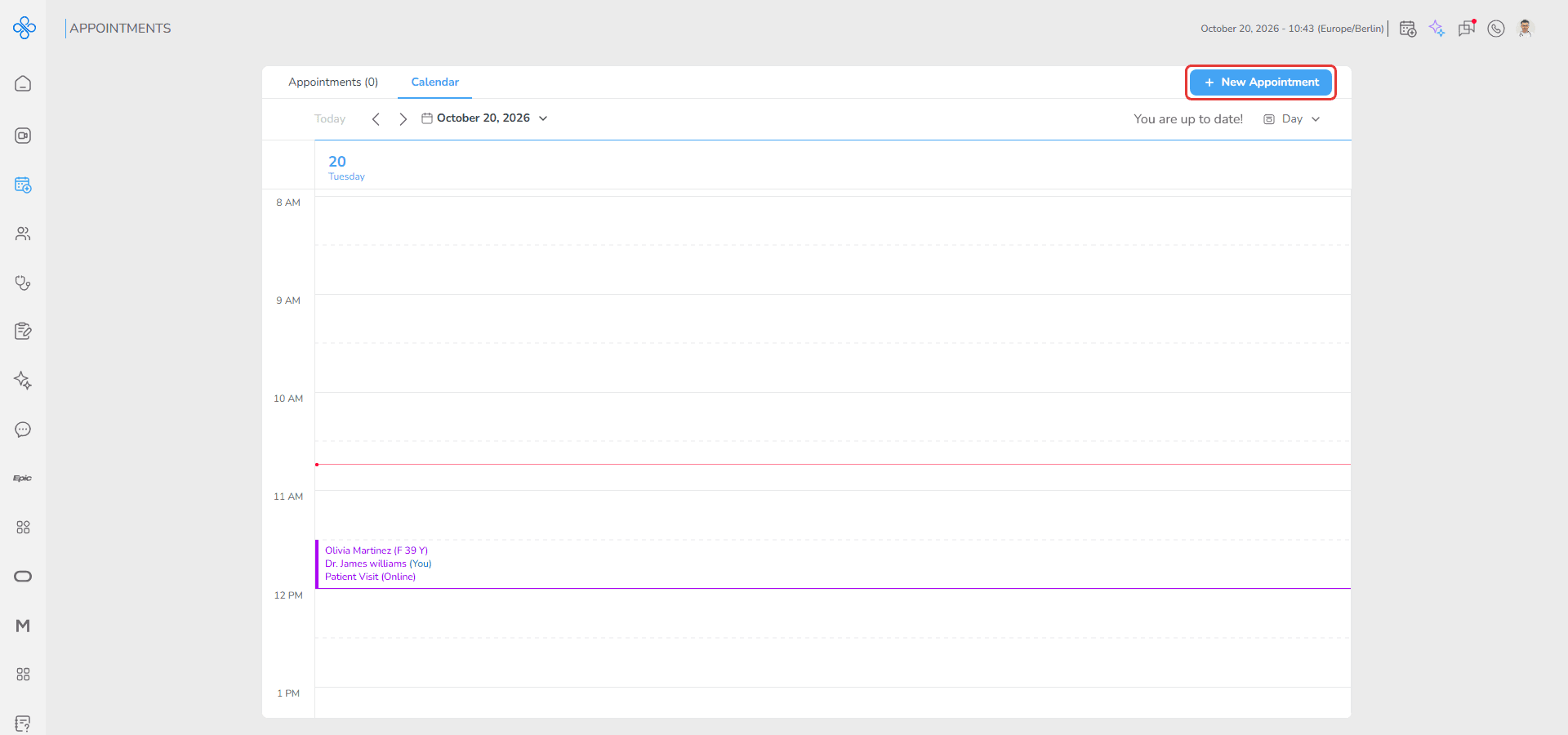
2. The same Make an Appointment window opens. Select the appointment type and complete the details
The button is available in all calendar modes.
How to join an appointment
Provider Consultation and Patient Visit (Under Supervision) appointments can be joined from the calendar during their appointment time.
1. When the appointment time starts, a Join button appears on the appointment card
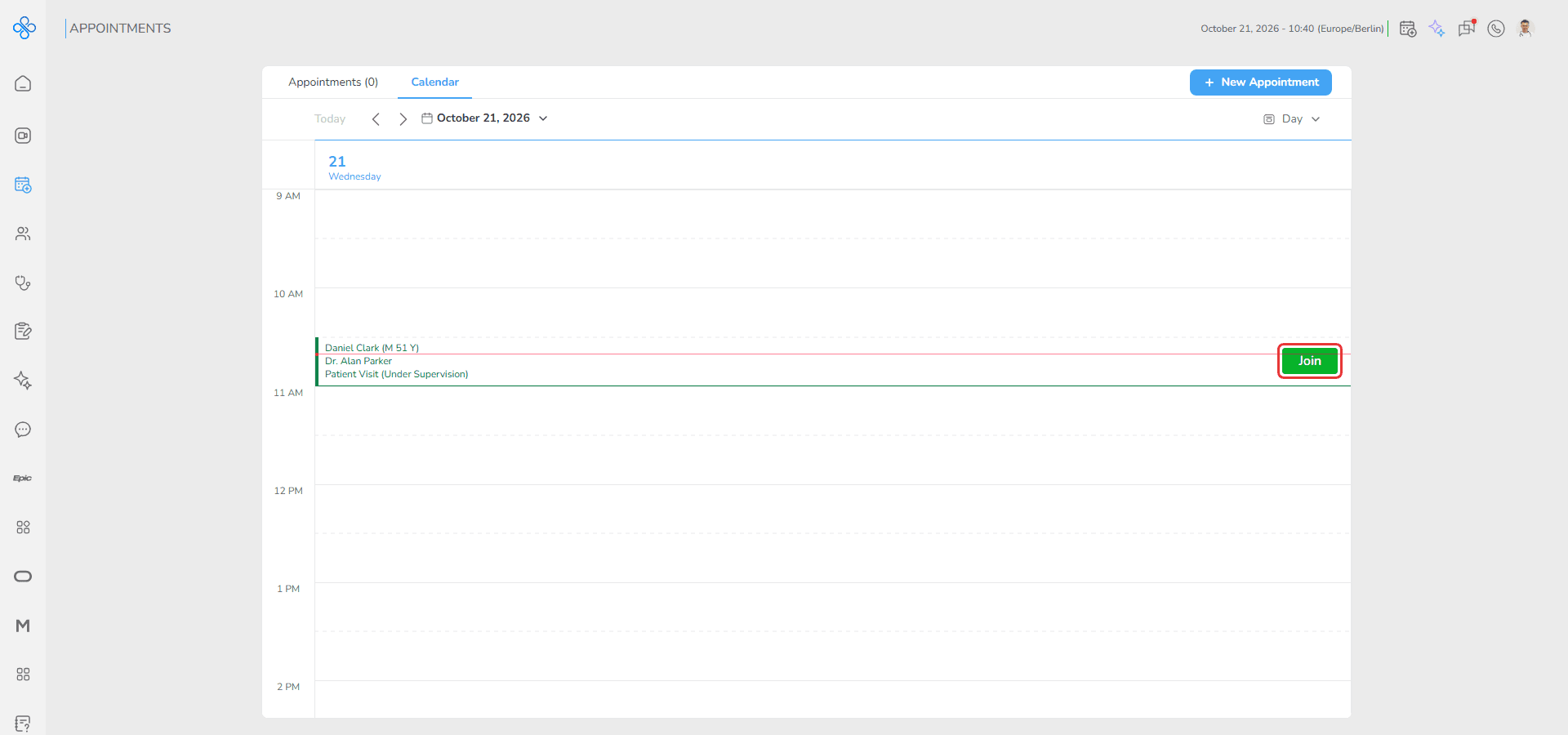
2. Click Join
3. In the Choose Call Type window, select Video Call or Audio Call and click Continue
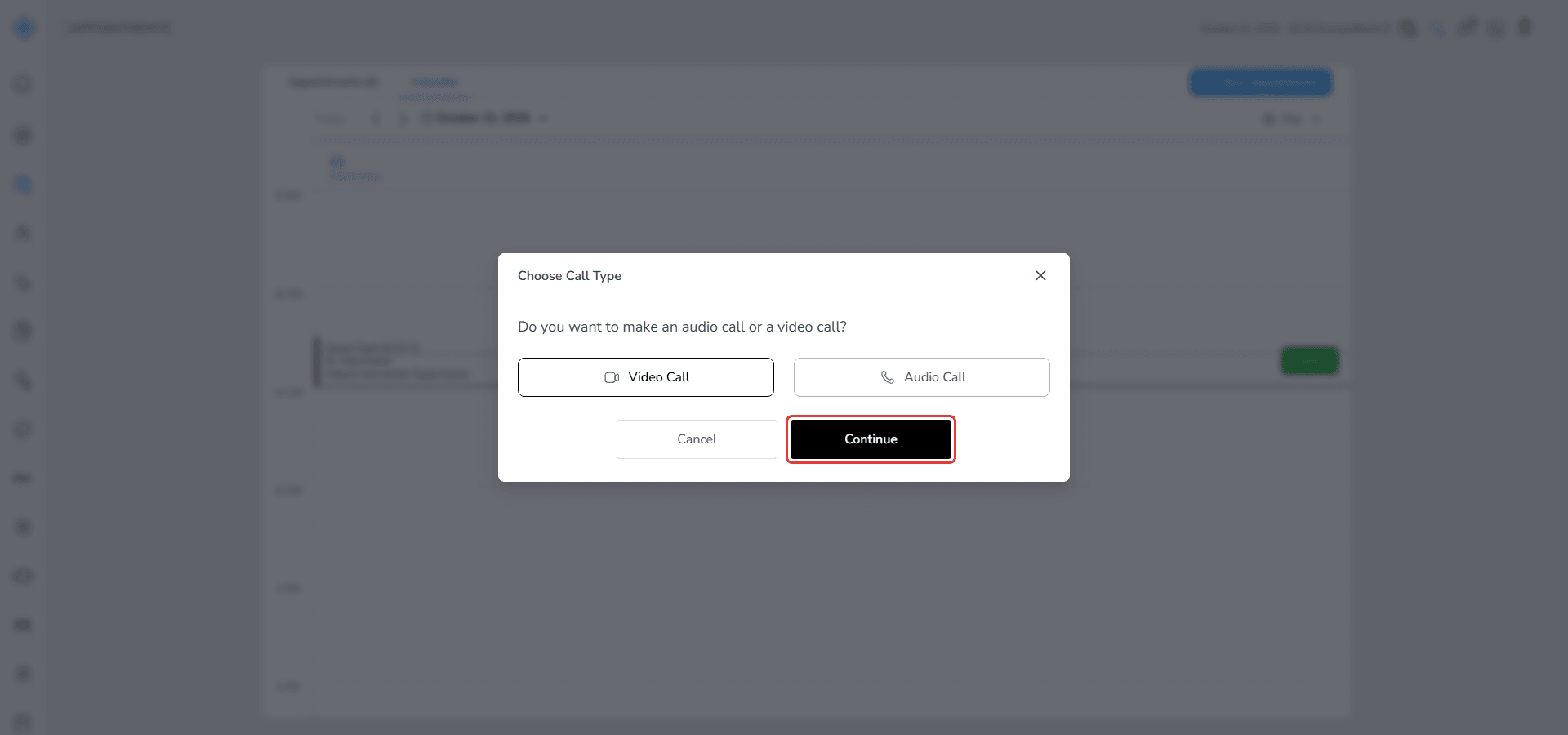
4. You are redirected to the call preview page, where you can check your camera and microphone before joining
For more information, refer to the Call user guide (coming soon).
Fields (Field Descriptions)
| Field | Description | Behavior |
|---|---|---|
| Date Picker | Selects the calendar date | Loads appointments for the selected day |
| Left Arrow | Moves to the previous day | Updates the calendar timeline |
| Right Arrow | Moves to the next day | Updates the calendar timeline |
| Today | Returns to the current day | Displays today's appointments |
| + New Appointment | Opens the appointment creation window | Allows manual appointment creation |
| Time Slot | An empty time in the calendar | Double-clicking opens the Make an Appointment window |
| Appointment Card | Displays appointment details | Shows patient, provider and appointment type; hover for details |
| Join | Starts an active appointment meeting | Opens the call type choice, then the call preview page |
Behavior & Expected Outcome
- The calendar displays appointments as time blocks.
- The red line updates automatically based on the current time.
- Double-clicking an empty time slot opens the Make an Appointment window.
- Join appears only on Provider Consultation and Patient Visit (Under Supervision) appointments, during their time.
- The calendar refreshes after changing the selected date.
Common Errors + Fixes
| Issue | Cause | Fix |
|---|---|---|
| Calendar does not display appointments | No appointments exist for that day | Select another date or create an appointment |
| Join button is not visible | The appointment time has not started yet, or the type has no call | Wait until the appointment becomes active |
| Appointment window does not open | A single click was used, or the page is still loading | Double-click the empty slot after the calendar has loaded |
| Wrong appointment time is selected | Incorrect time slot was clicked | Close the window and select the correct slot |