Agendas
Overview
The Agendas view displays appointments as a scrollable list instead of a calendar.
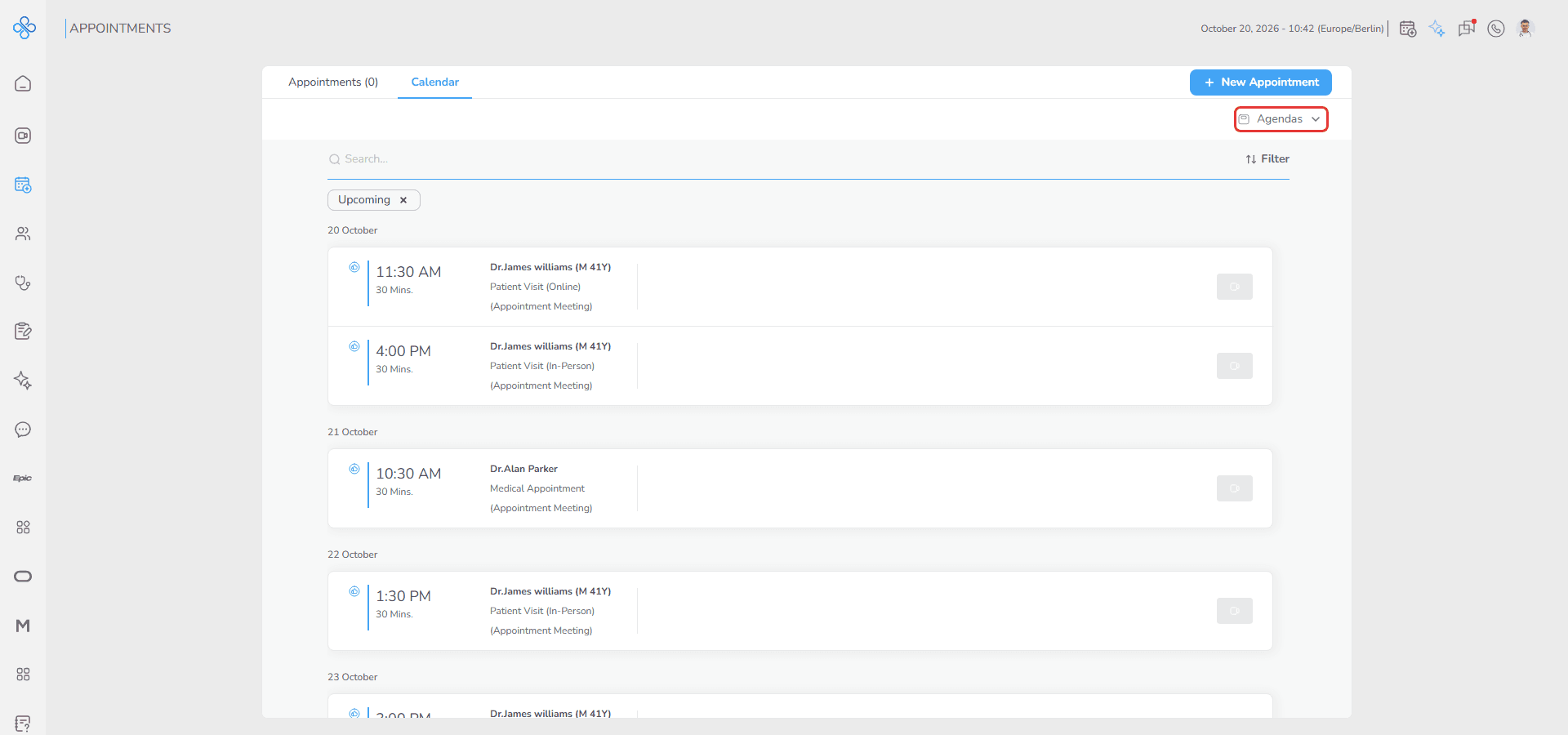
This mode helps you search, filter and review appointments quickly. The list is grouped by date, and each item shows the time, duration, provider, appointment type and note.
Instant Calls with a participant are also displayed in this list.
Access
1. Open the Calendar page
2. Click the view dropdown at the top right and select Agendas
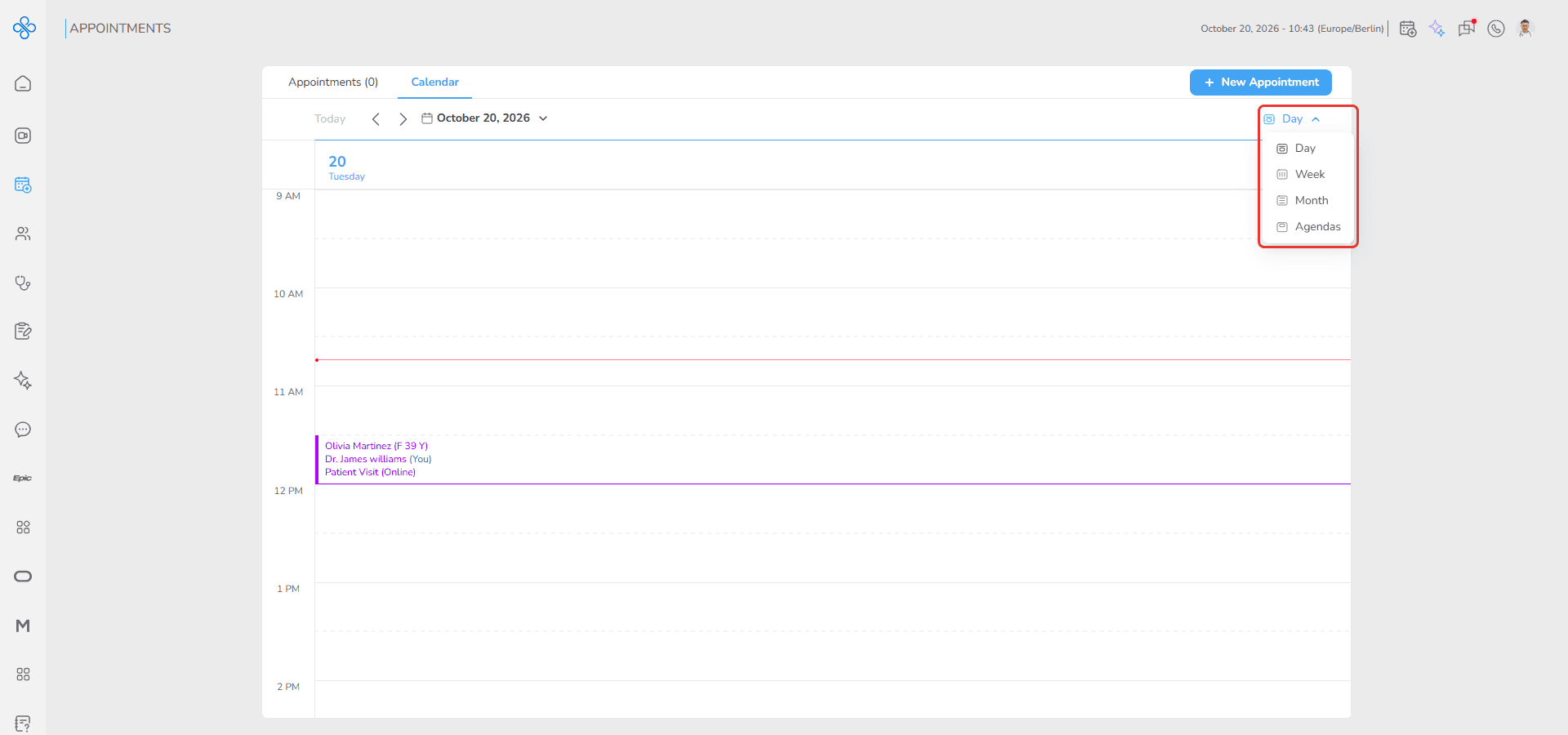
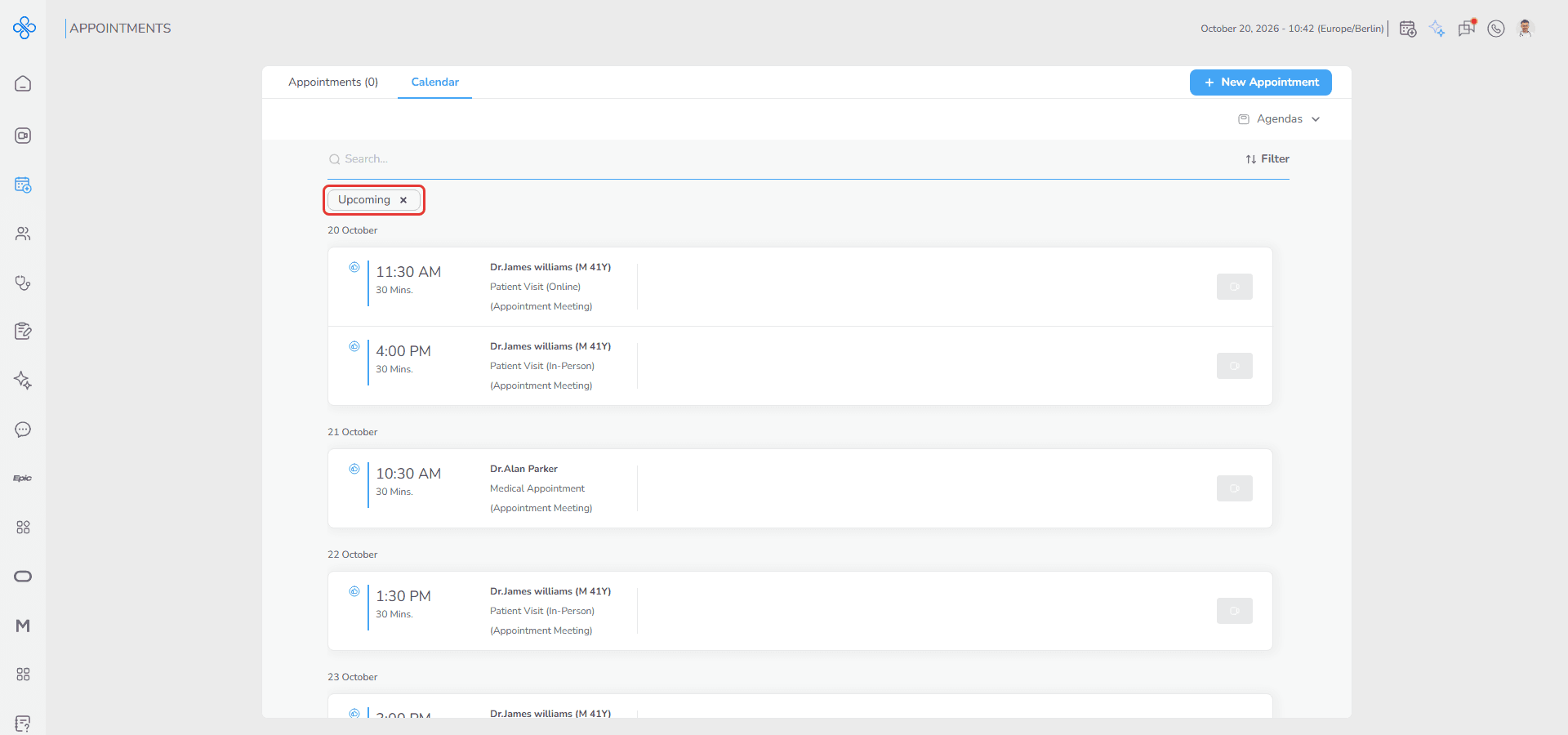
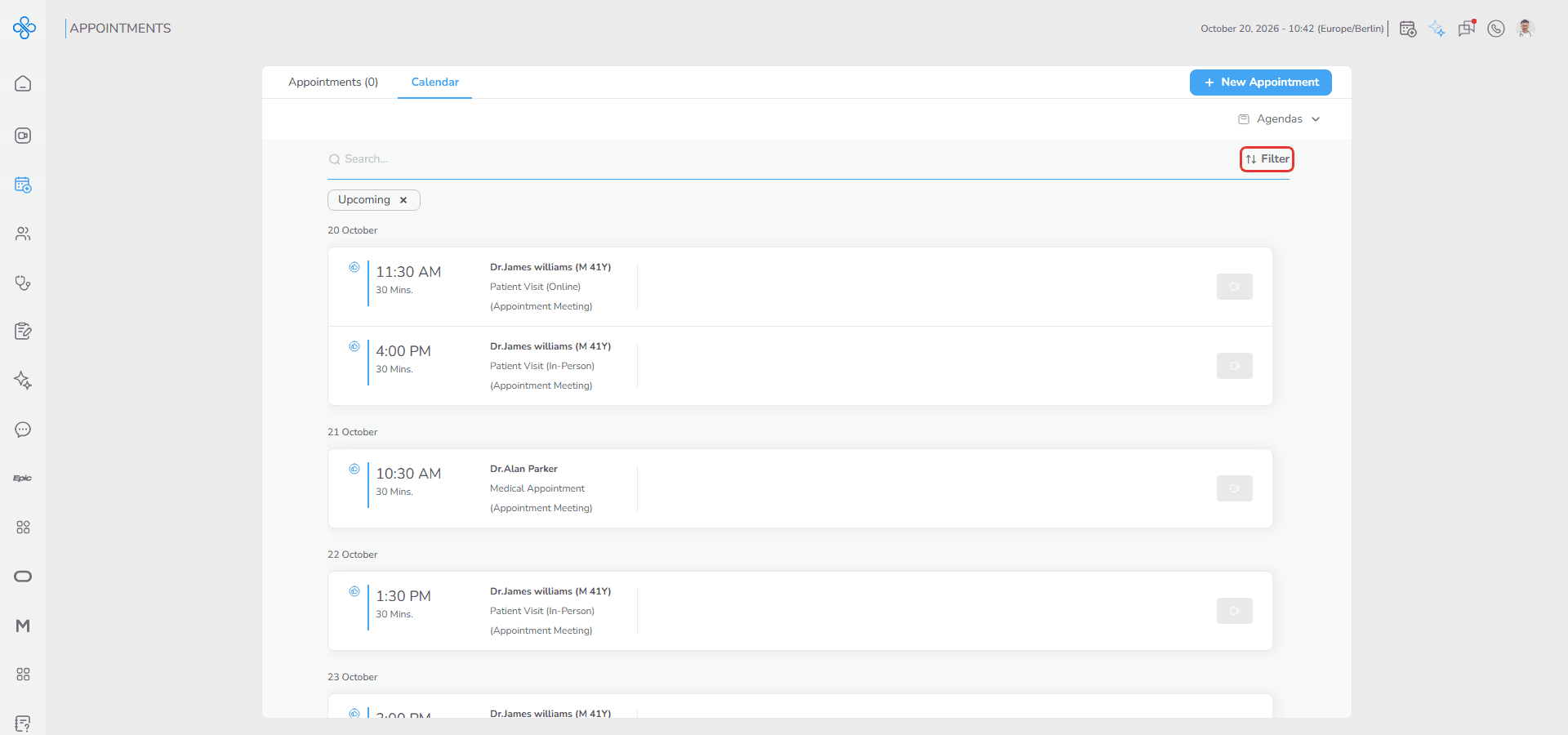
The appointment list appears on screen. By default it shows only upcoming appointments, marked by the Upcoming chip above the list.
Steps
How to search appointments
1. Use the search bar at the top of the list
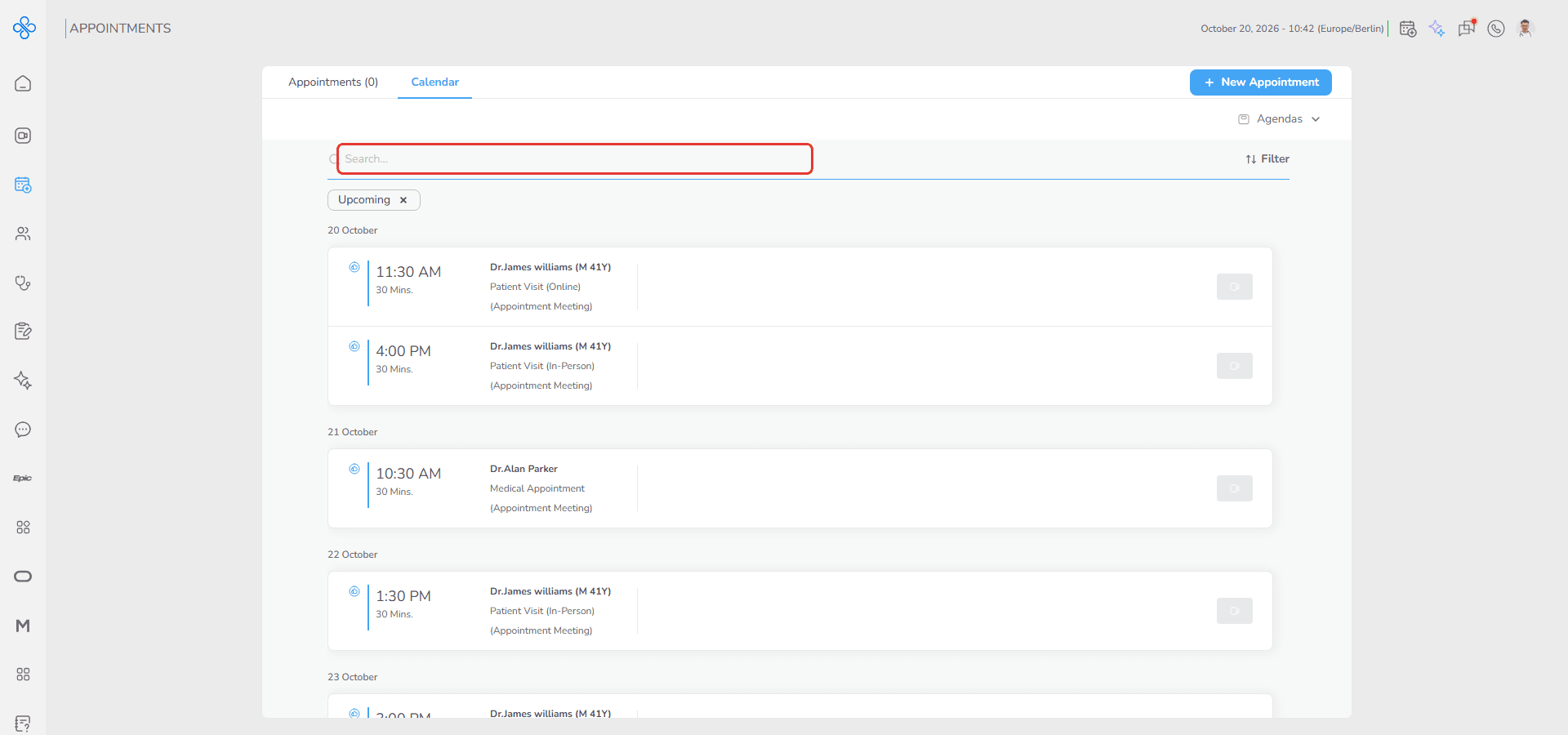
2. Type the text you are looking for
The list updates based on the search text.
How to filter appointments
1. Click Filter beside the search bar
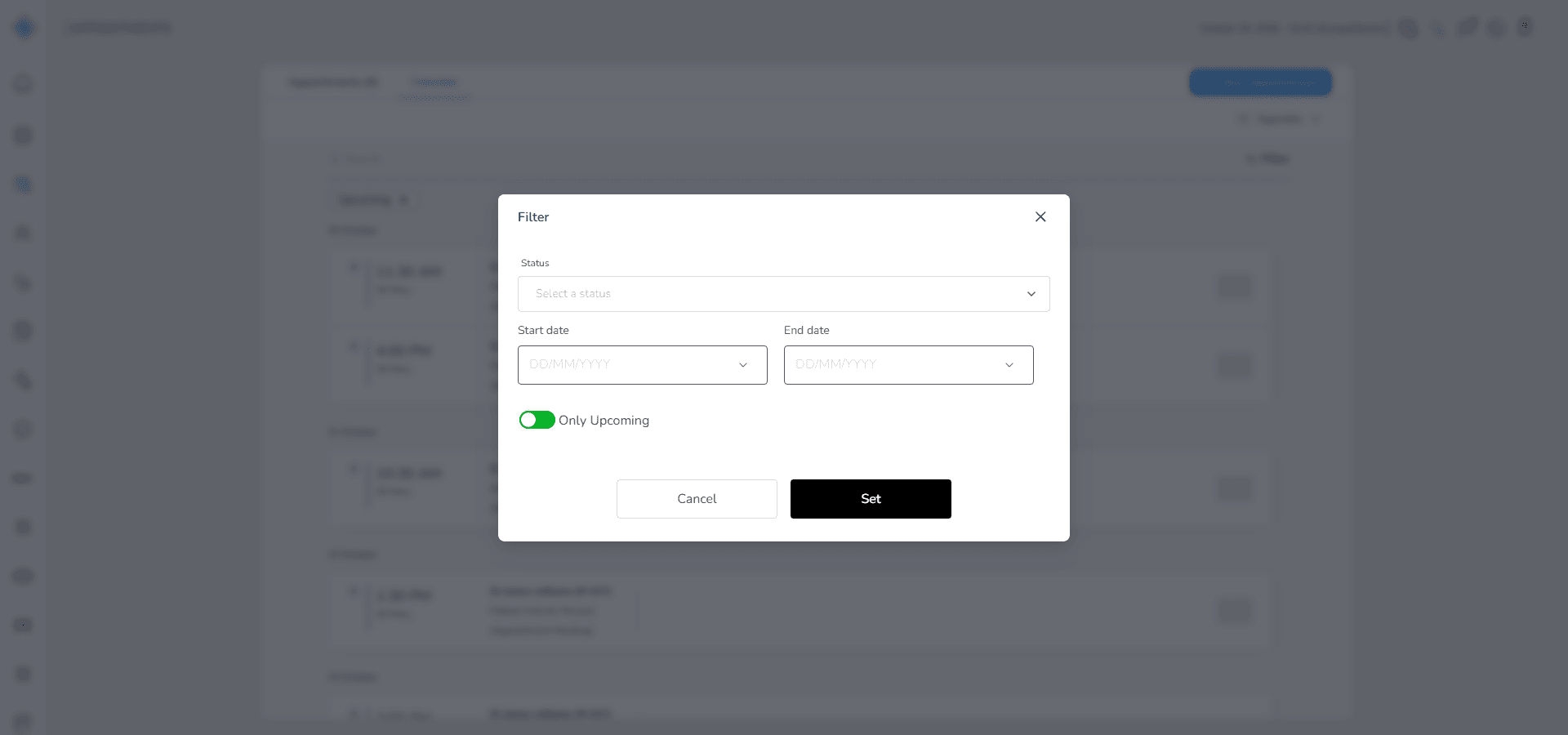
2. The Filter window opens
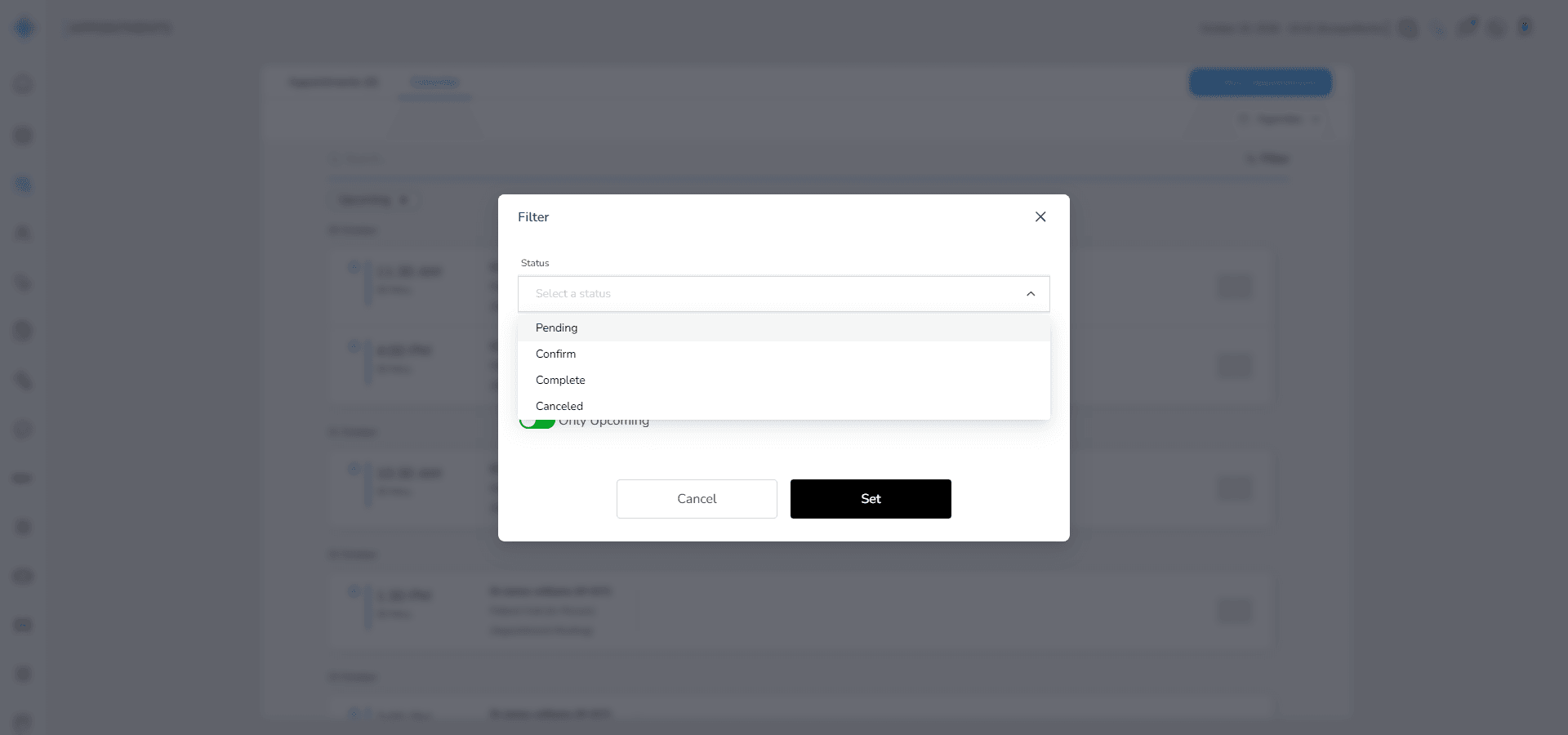
3. Select an appointment status: Pending, Confirm, Complete or Canceled
4. To choose a Start date and End date, first turn off Only Upcoming
5. Click Set
The list refreshes and displays the matching appointments. The selected filters appear as chips above the list; click the × on a chip to remove that filter.
How to review older appointments
1. Close the Upcoming chip (click its ×). The list then opens around today
2. Scroll upward inside the agenda list
Older appointments load automatically when you reach the top.
Fields (Field Descriptions)
| Field | Description | Behavior |
|---|---|---|
| Search Bar | Searches appointments | Filters results as you type |
| Filter Button | Opens the Filter window | Allows advanced filtering |
| Status | Filters by appointment status (one at a time) | Displays matching appointments |
| Start Date | Defines the beginning of the date range | Available when Only Upcoming is off |
| End Date | Defines the end of the date range | Available when Only Upcoming is off |
| Only Upcoming | Displays future appointments only | Hides past appointments |
| Filter Chips | Show the active filters | Click × to remove a filter |
| Agenda List | Displays appointments in list format | Loads older items while scrolling up |
Behavior & Expected Outcome
- The list opens with the upcoming appointments, grouped by date.
- Older appointments load while scrolling upward, after the Upcoming chip is closed.
- Instant Calls with a participant appear together with regular appointments.
- Filters remain active until changed or cleared.
Common Errors + Fixes
| Issue | Cause | Fix |
|---|---|---|
| Search returns no results | Incorrect search text | Check spelling and search again |
| Filter results are empty | No appointments match the selected filters | Change or remove filters |
| Start and End date cannot be selected | Only Upcoming is on | Turn off Only Upcoming |
| Older appointments do not load | The Upcoming chip is still active | Close the Upcoming chip and scroll up |
| Incorrect appointments appear | Old filters are still active | Clear filters and apply again |