Visit Types
Overview
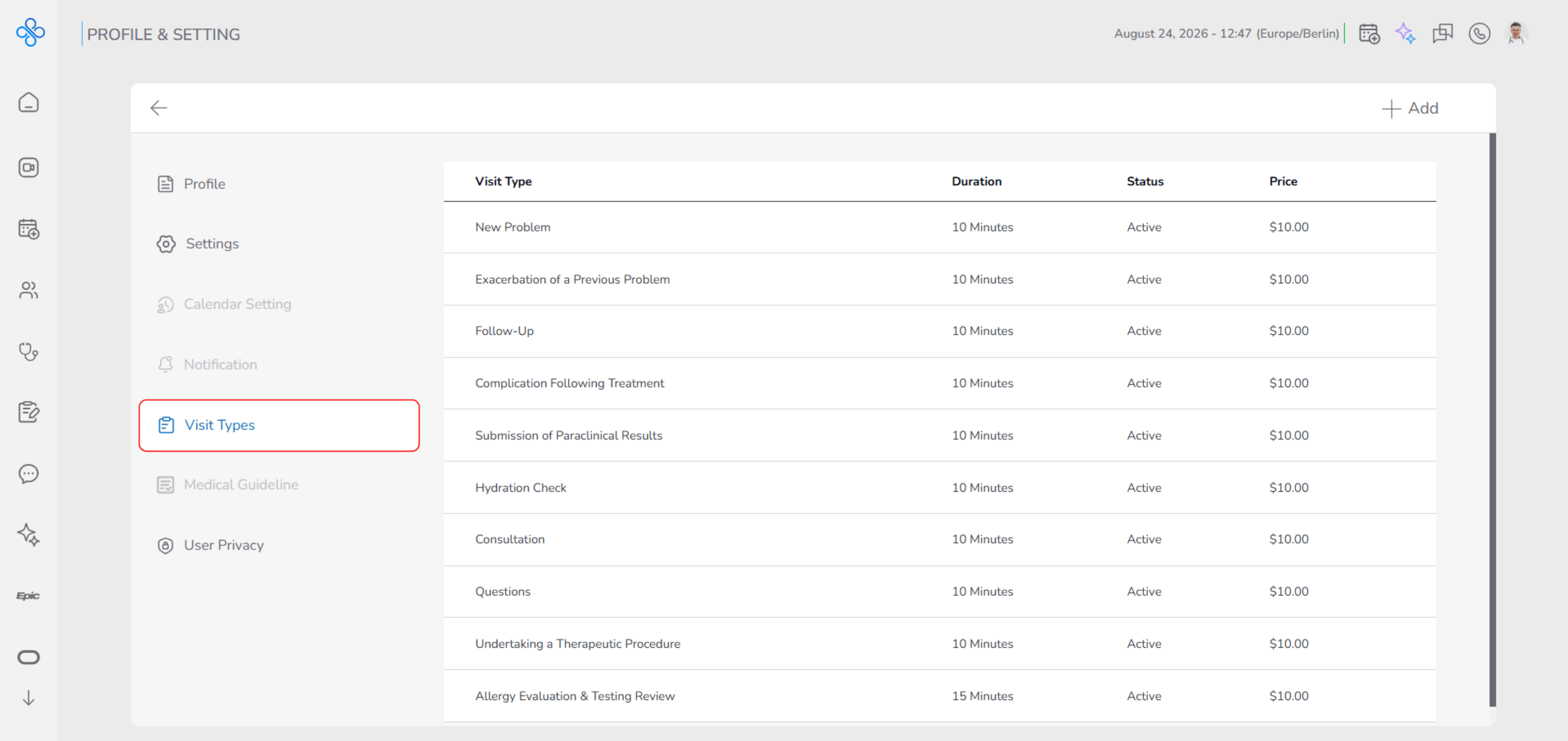
The Visit Types section helps you define what services you offer and how each visit works when appointments are booked. Think of Visit Types as ready-made visit templates. Each visit type tells the system:
- What the visit is called
- How long it takes
- How much it costs
- Whether it is currently available for booking These visit types are used when creating appointments, so setting them up correctly ensures that patients and consultants see the right options, correct durations, and accurate prices. When you first open this section, you will see a list of default visit types already created for you.
Note:
To get started, the first and most important step is making a visit type.
Once visit types are created, you can review, edit, deactivate, or manage them from the Visit Types list.
This section gives you full control over how your services appear during appointment scheduling.
Steps
- Make your first visit type
When setting up your account, start by creating a visit type that represents one of your services.
How to make your first visit type
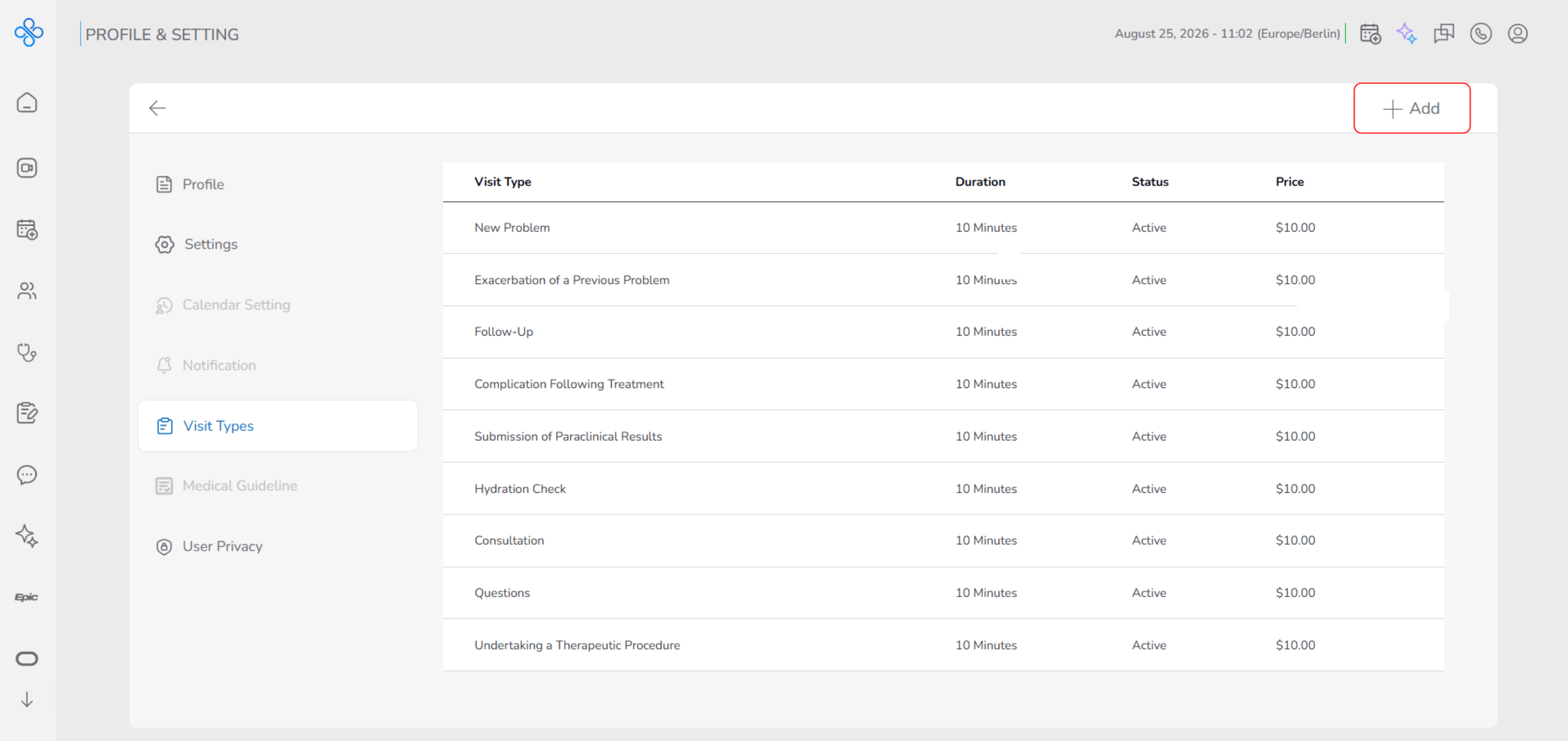
- Click the + Add button at the top of the page
- The Add Visit Type modal opens
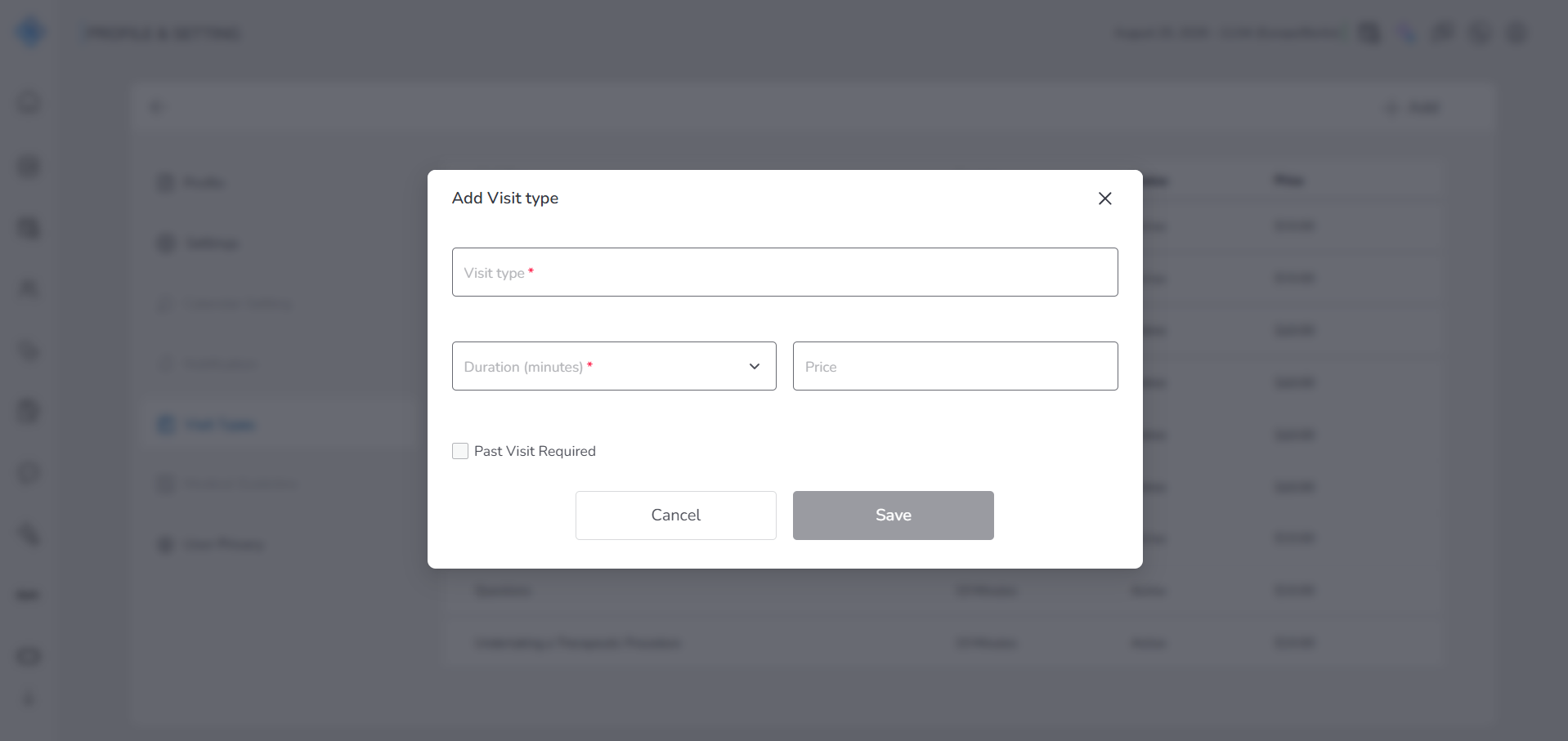
- In the modal:
- Enter a Visit Type name (for example: New Problem or Follow-Up)
- Select the Duration of the visit
- Enter the Price
- (Optional) Enable Past Visit Required if this visit should only be booked after a previous visit
- Click Save
- ✅ Your visit type is now created and ready to be used when making appointments.
- View and understand the visit types list
After creating visit types, they appear in the Visit Types list.
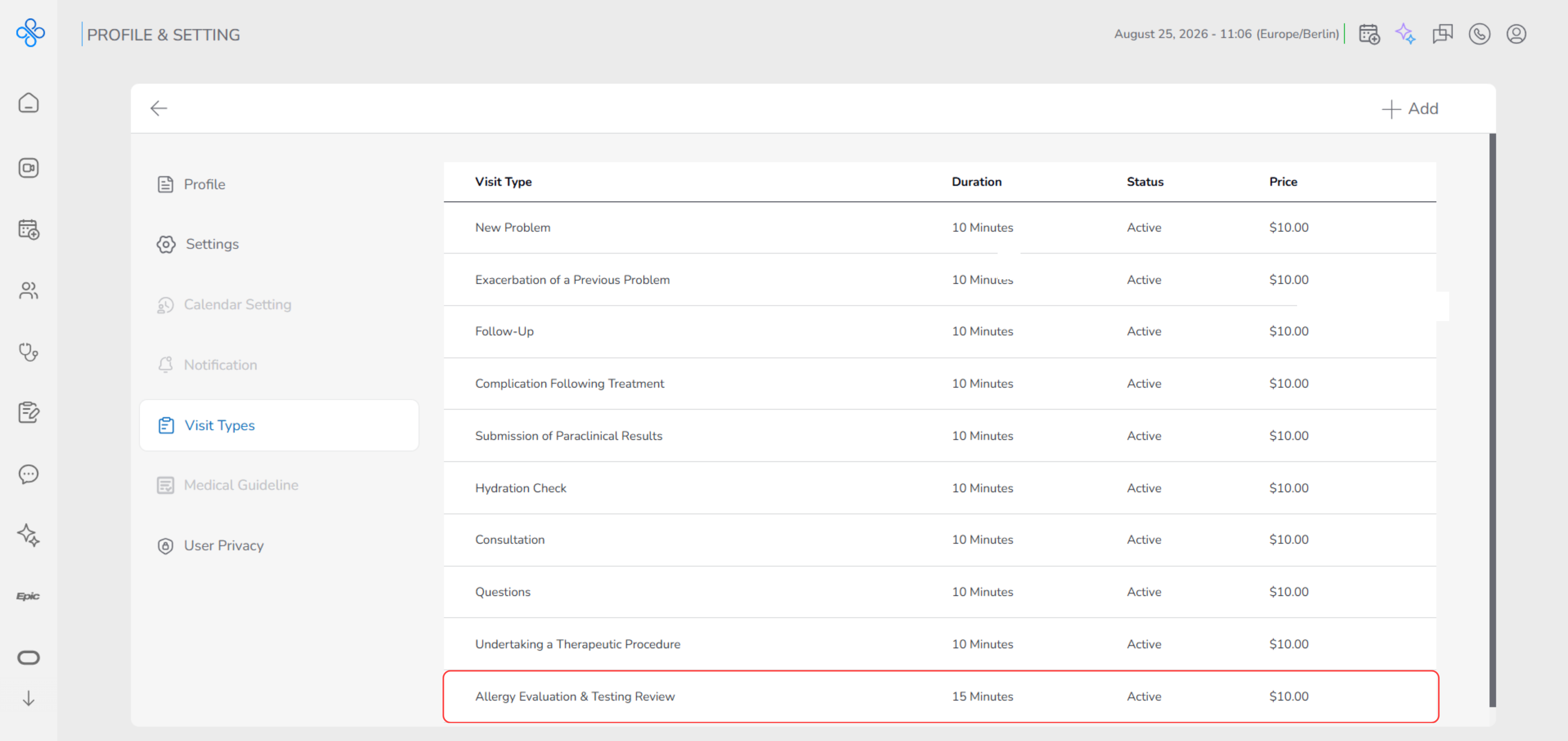
Each row shows:
- Visit Type – the service name shown during booking
- Duration – how long the visit lasts
- Status – whether the visit is Active or Deactivated
- Price – the cost of the visit
This list helps you quickly understand:
- What services you currently offer
- Which visit types are available for booking
- How long and how expensive each visit is
- Manage and update visit types
As your services change, you may want to update your visit types.
From the list:
- Hover over a visit type
- Open the More Actions (⋯) menu
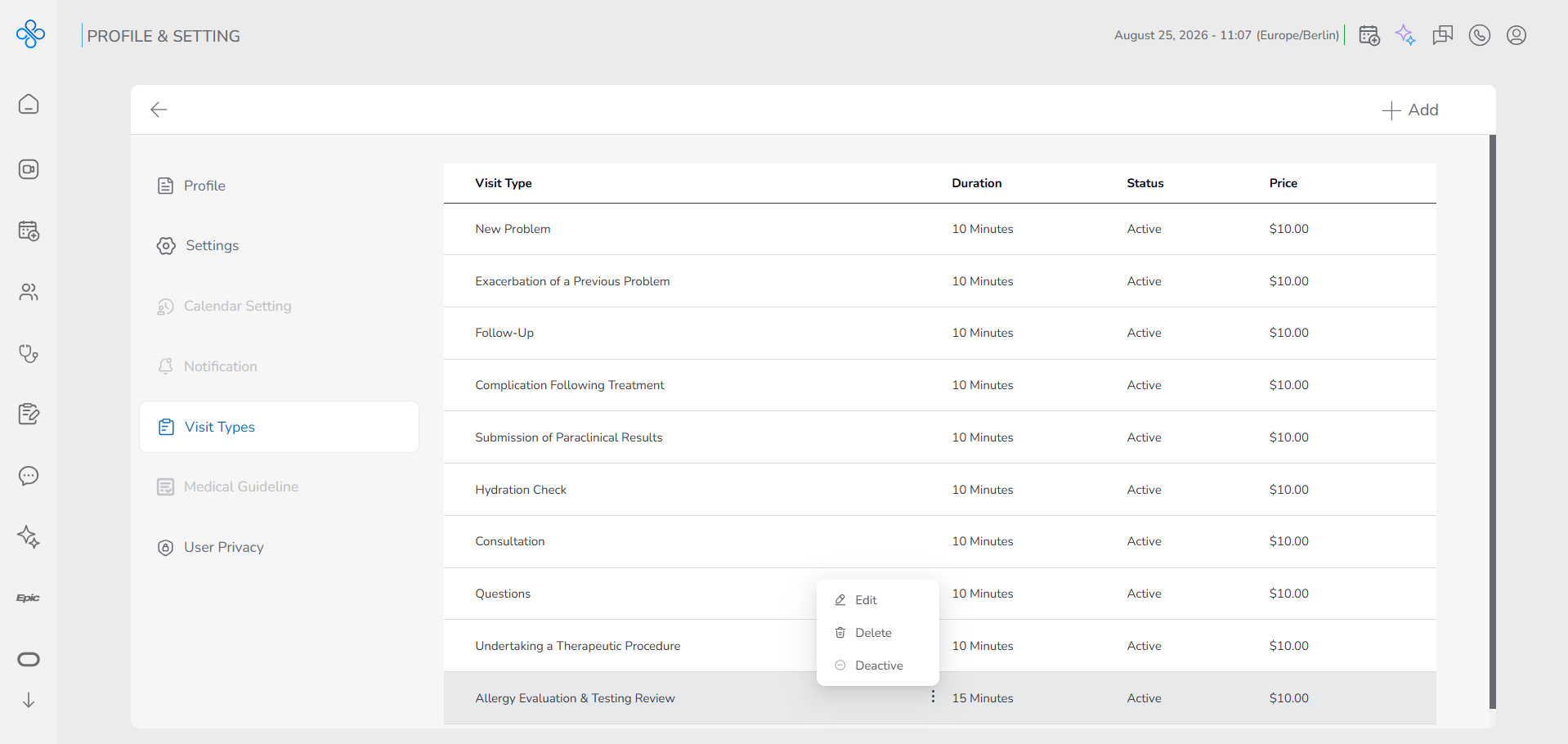
You can:
- Edit a visit type to change its name, duration, or price
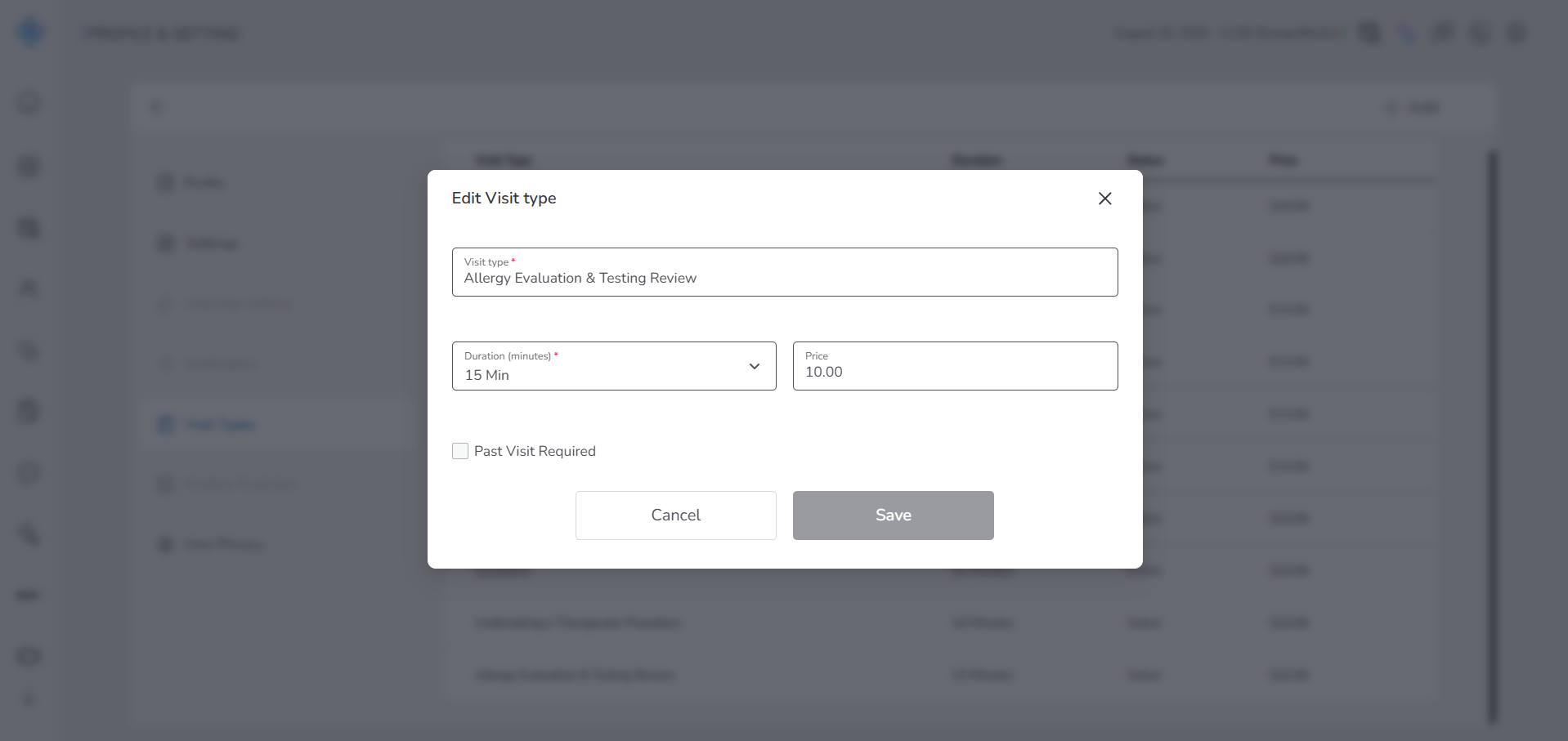
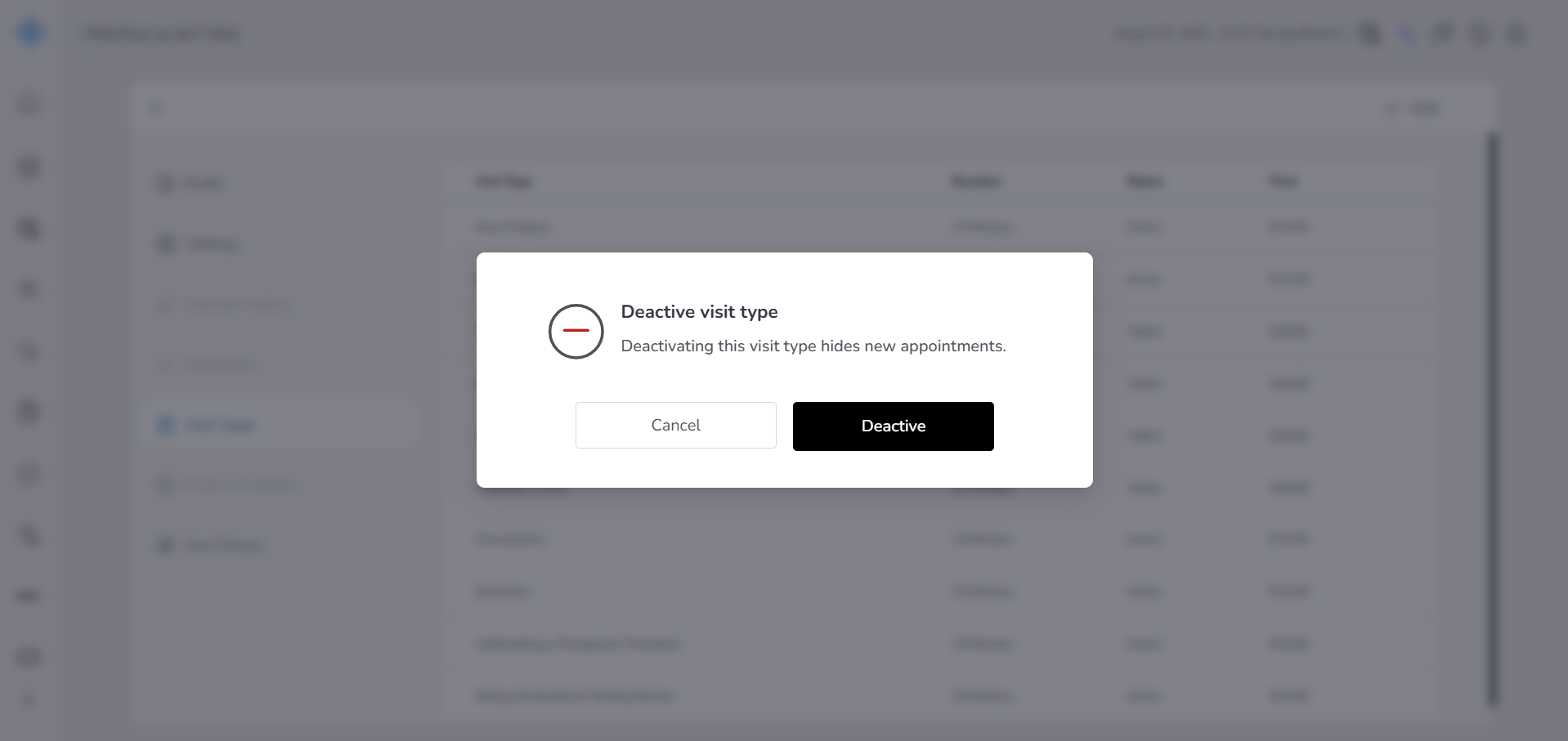
- Deactivate a visit type to temporarily hide it from booking
- Activate a previously deactivated visit type
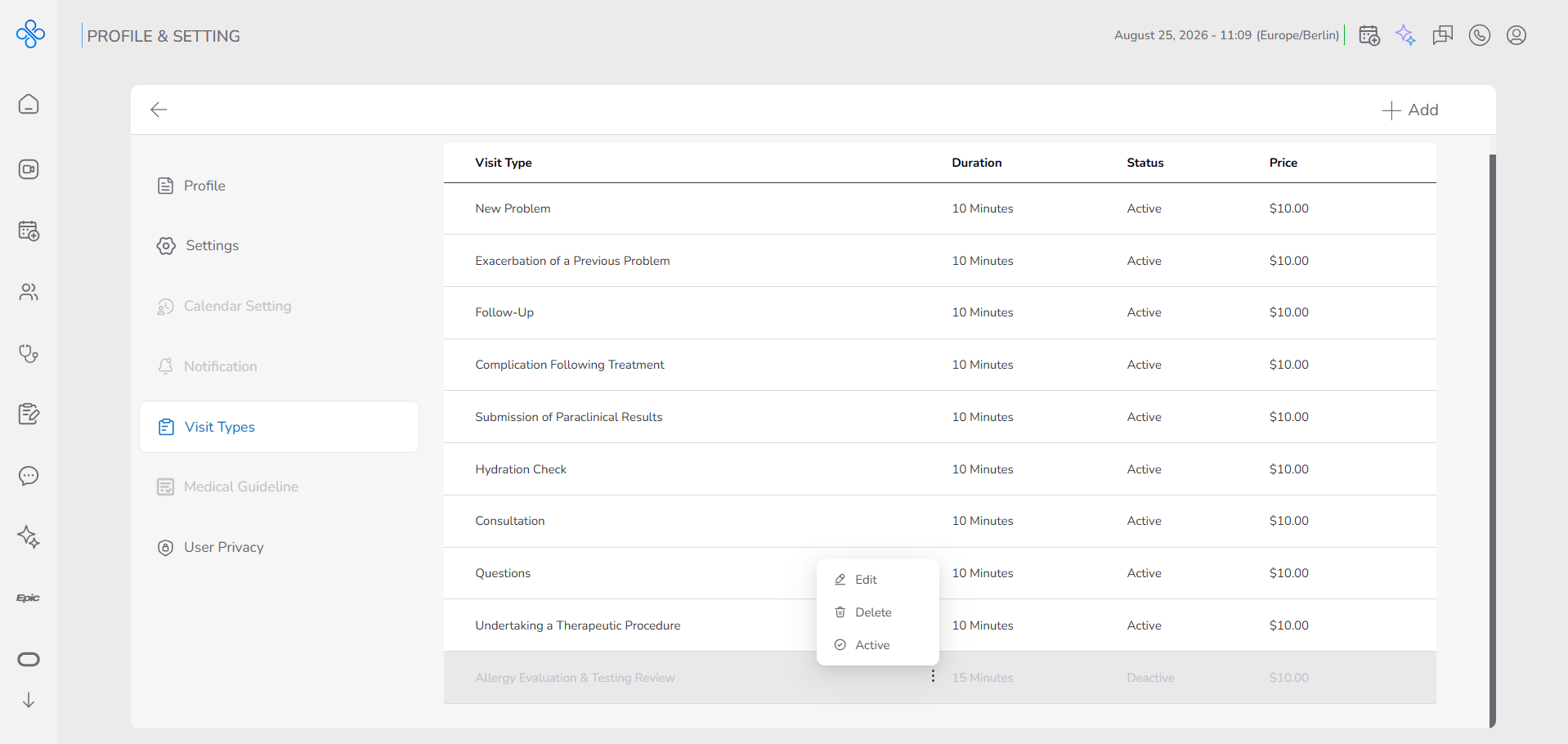
Deactivated visit types stay in your list but cannot be booked.
Fields (Field Descriptions)
| Field | Description |
|---|---|
| Visit Type * | Title of the visit (e.g., Follow-Up, New Problem)(Required). |
| Duration (minutes) * | Length of the visit(Required). |
| Price | Cost of the visit in USD |
| Past Visit Required | Flag to require a related past visit |
| Status | Indicates availability for booking |
Behavior & Expected Outcome
- Add Visit Type: Creates a new visit type; it immediately appears in the table.
- Edit Visit Type: Updates details without affecting historical reservations.
- Delete Visit Type: Permanently removes the type (requires confirmation).
- Deactivate Visit Type: Hides the type from booking options but keeps it stored; can be reactivated.
- No Limits: Providers can create unlimited visit types.
Common Errors + Fixes
| Issue | Cause | Fix<br><br> |
|---|---|---|
| Visit type name is required | Visit Type field left blank | Enter a name |
| Duration is required | Duration not selected | Choose a duration from dropdown |
| Invalid price format<br> | Price entered in wrong format<br> | Enter a valid number (e.g., 10 or 10.00)<br> |
| Duplicate visit type name | Name already exists | Enter a unique visit type name<br> |