User Privacy
Overview
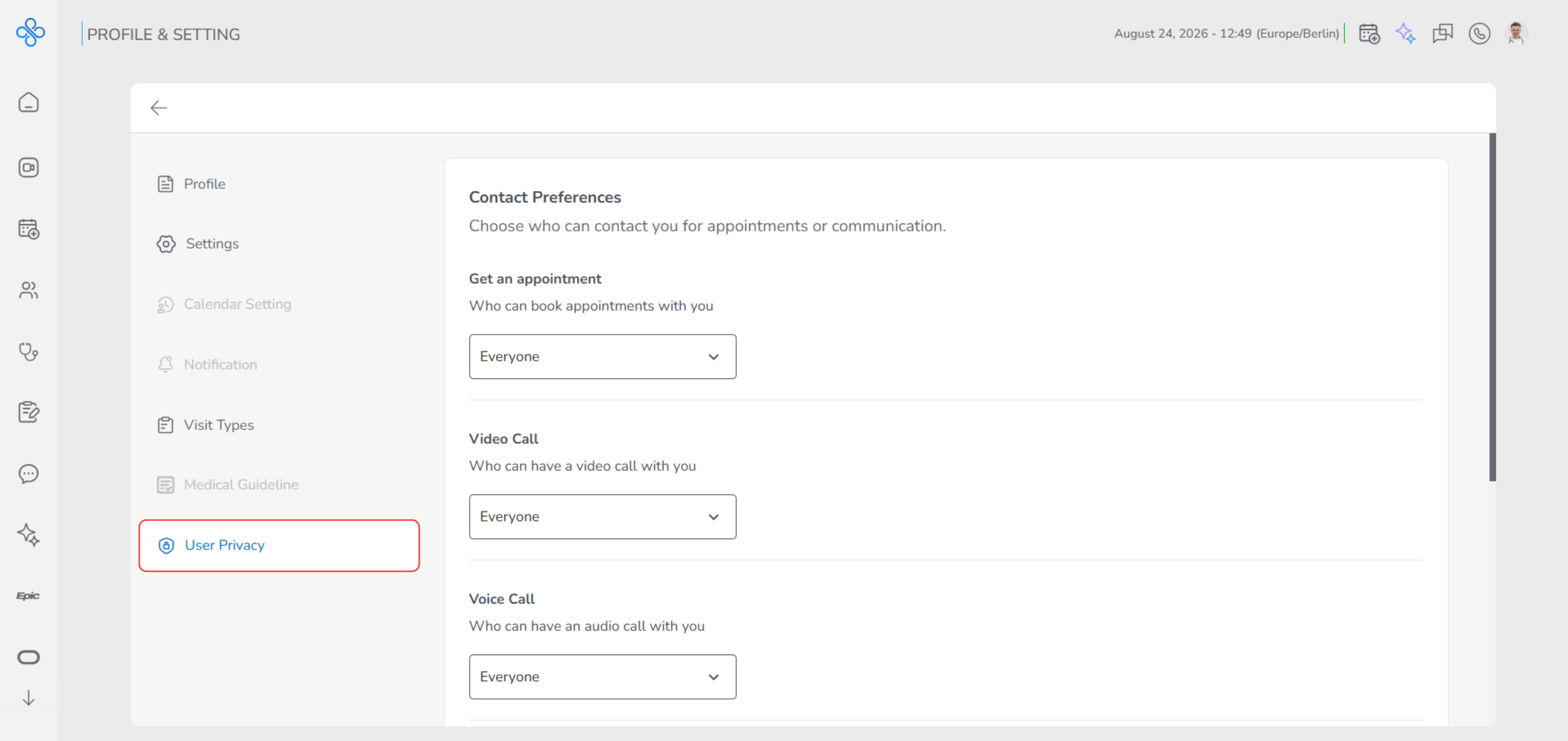
The User Privacy section allows you to control who can interact with you on the platform and how visible your profile is to others. In this section, you can decide:
- Who can book appointments with you
- Who can start video or audio calls with you
- Who can see your profile information
Additionally, this is the only place where you can request account deletion. The deletion process is intentional and multi-step to prevent accidental loss of your account and gives you a 15-day recovery period before permanent deletion. This section helps you stay in control of your privacy, communication, and account ownership at all times.
Steps
- Manage Contact Preferences
This part allows you to decide who is allowed to contact you and communicate with you on the platform.
By adjusting these settings, you can control appointments, video calls, and audio calls based on your comfort and availability.
who is allowed to book appointments
- Locate Get an appointment.
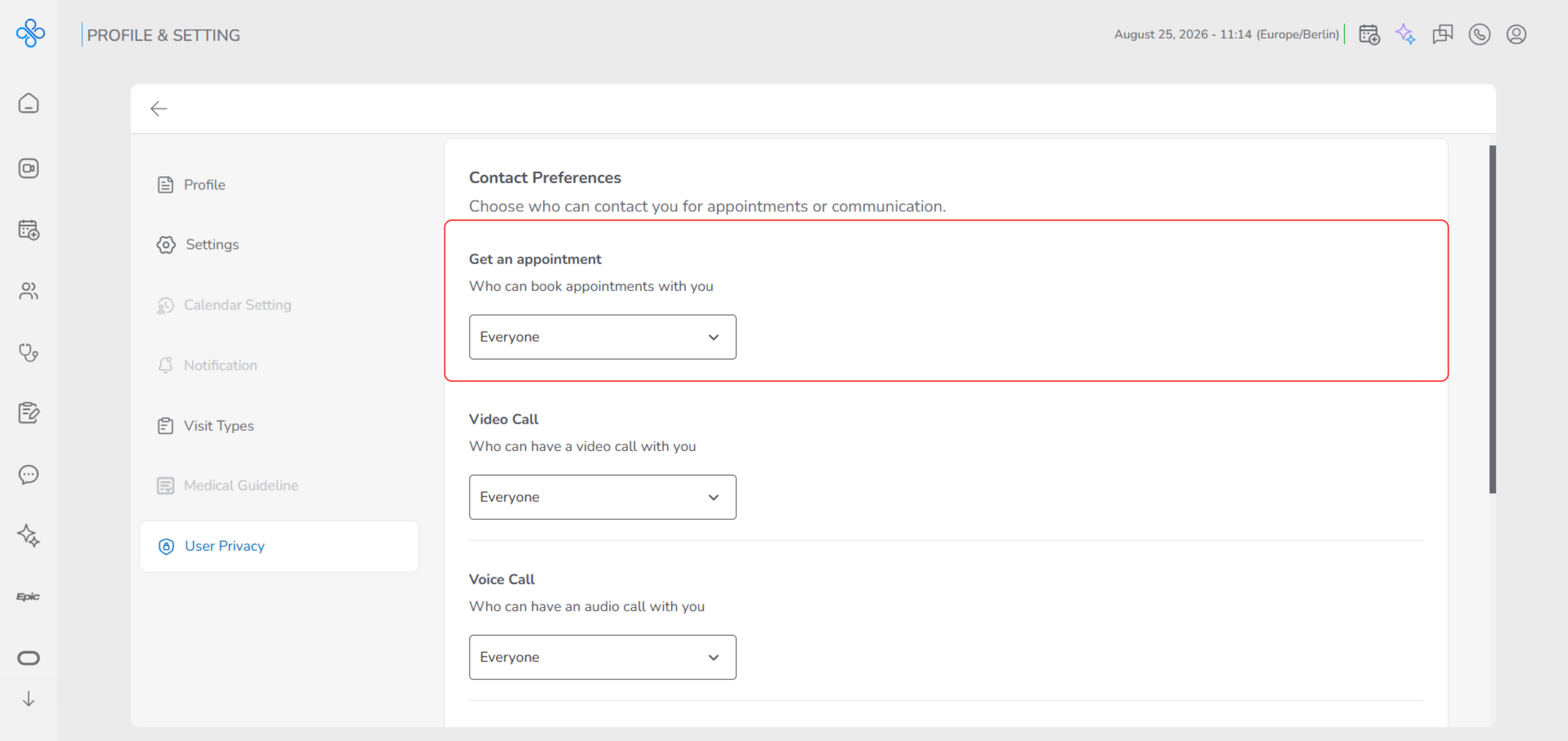
- Open the dropdown.
- Choose who is allowed to book appointments with you:
- Everyone
- Patients
- Providers
- Nobody
who can start a video call
- Locate Video Call.
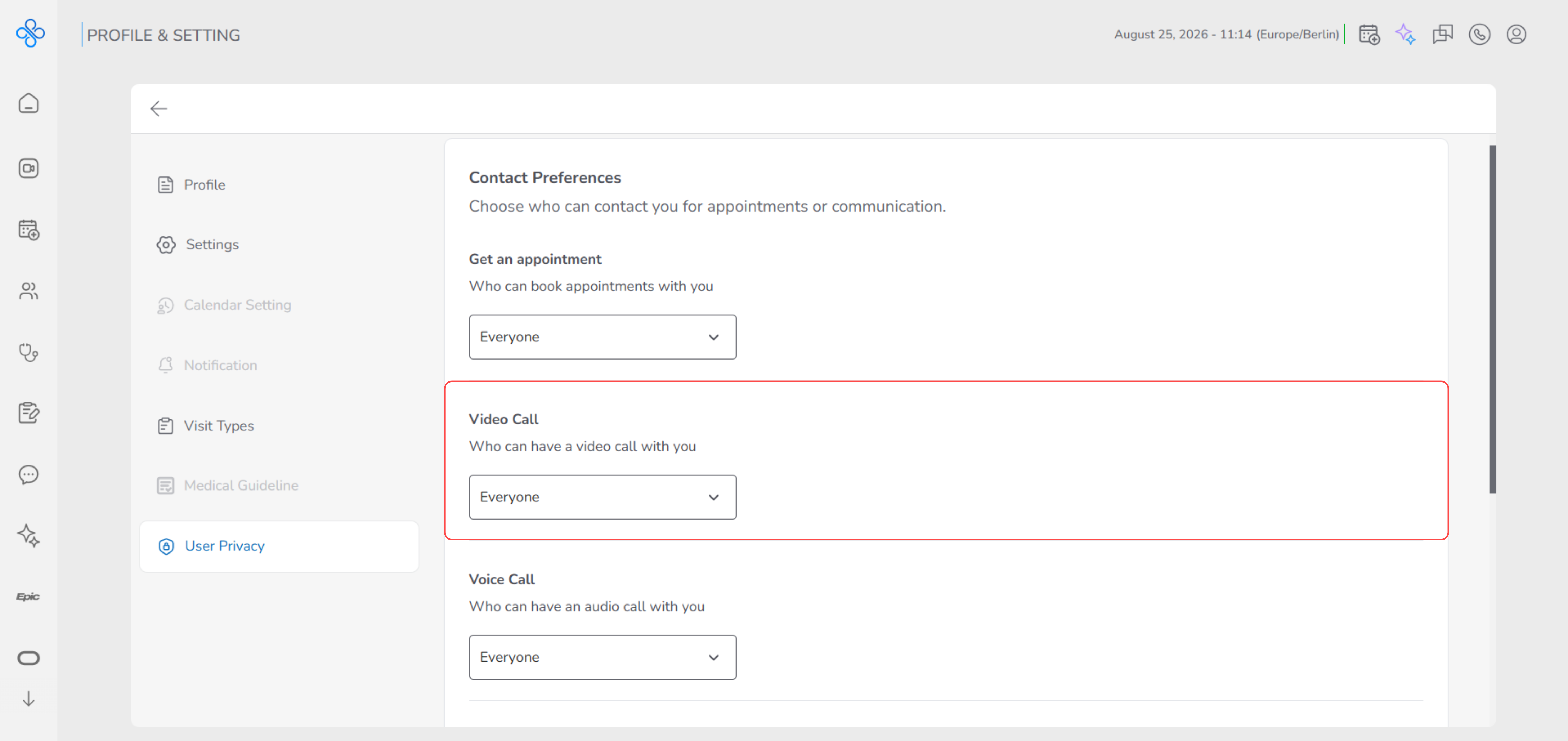
- Open the dropdown.
- Select who can start a video call with you:
- Everyone
- Patients
- Providers
- Nobody
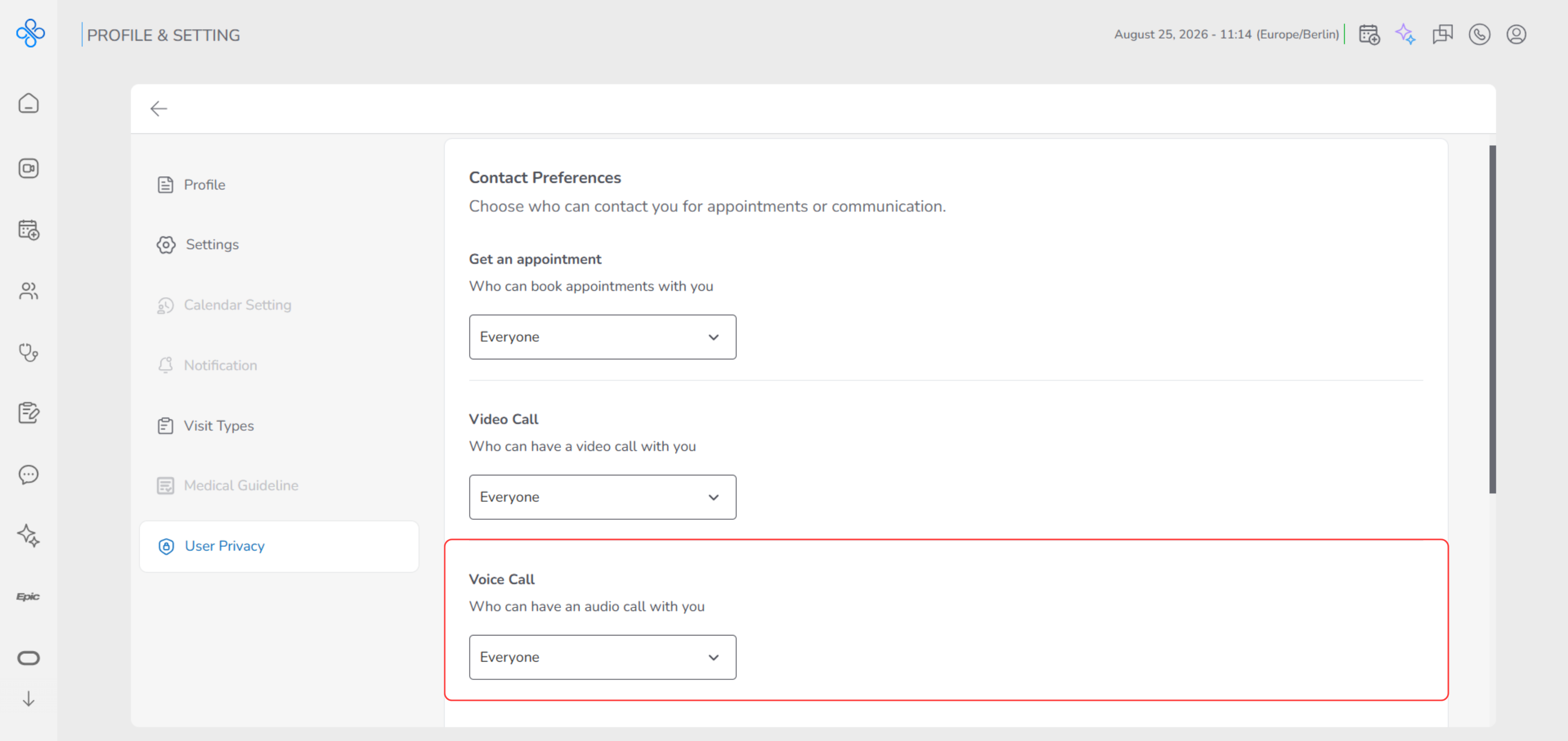
who can start an audio call
- Locate Audio Call.
-
Open the dropdown.
-
Select who can start an audio call with you:
- Everyone
- Patients
- Providers
- Nobody
-
Control Profile Visibility
This section determines who can see your profile information on the platform.
You can limit your visibility if you want more privacy or make your profile more accessible to others.
You can control who sees your profile by adjusting this setting.
- Locate the Profile visibility setting.
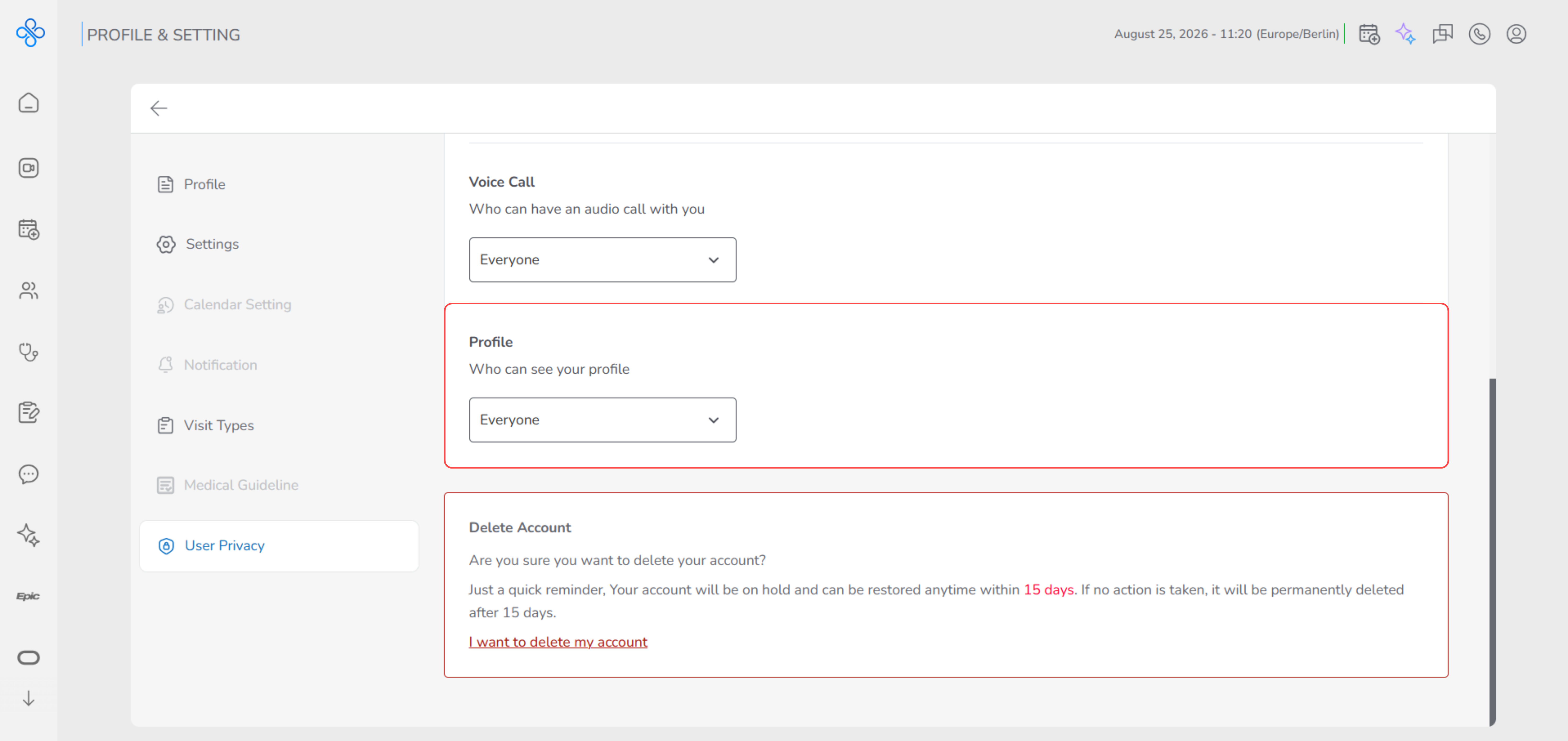
- Open the dropdown.
- Choose who can see your profile:
- Everyone
- Patients
- Providers
- Nobody / Public (based on availability)
Changes are applied automatically after selection.
- Delete Your Account
This section allows you to request permanent account deletion.
To prevent accidental deletion, the process is done in multiple steps and includes a 15-day hold period, during which you can still restore your account.
Start Deletion
-
1. Scroll down to the **Delete Account** section.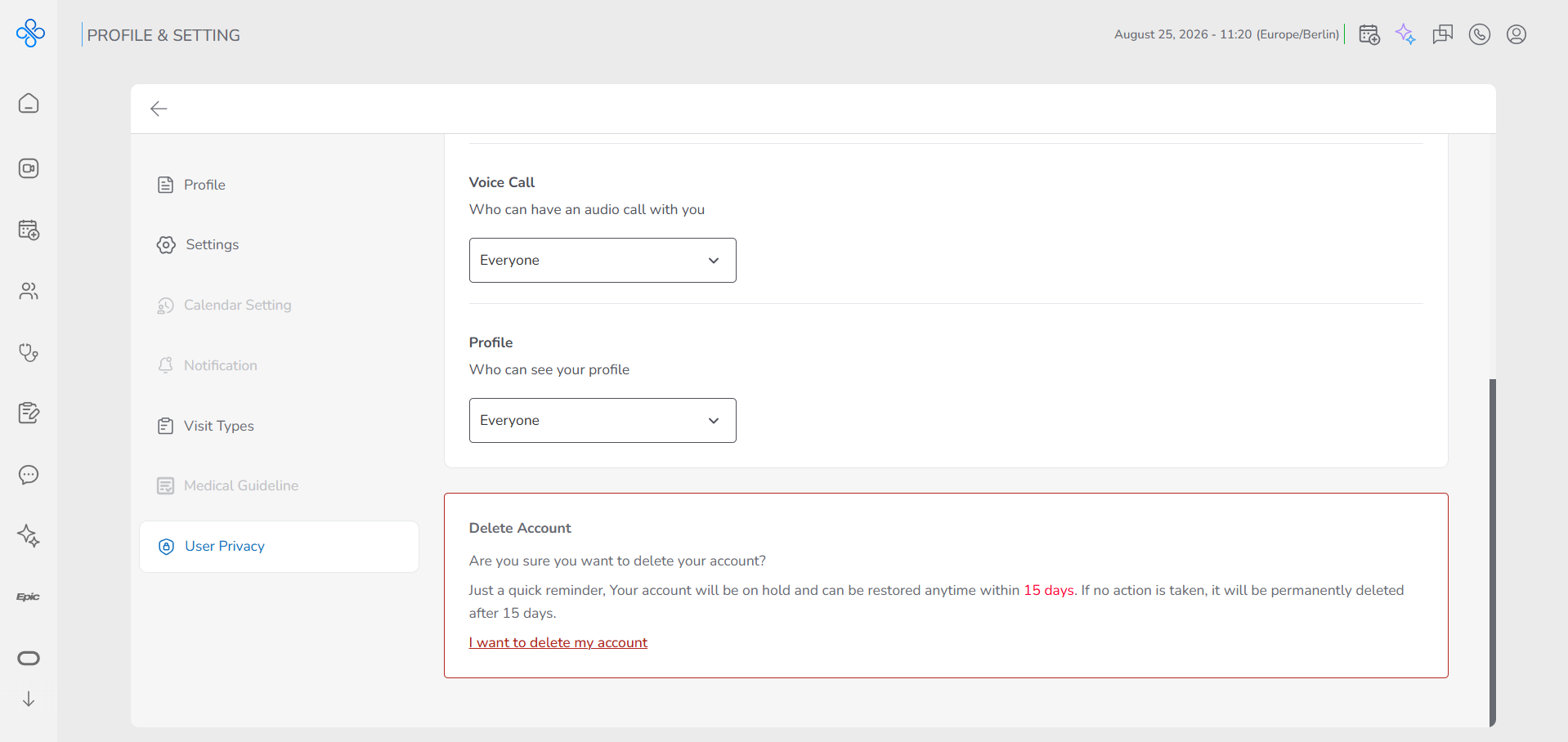 2. Read the warning message about the 15-day hold.
3. Click I want to delete my account.
2. Read the warning message about the 15-day hold.
3. Click I want to delete my account.
Delete Account – Confirmation Modal
-
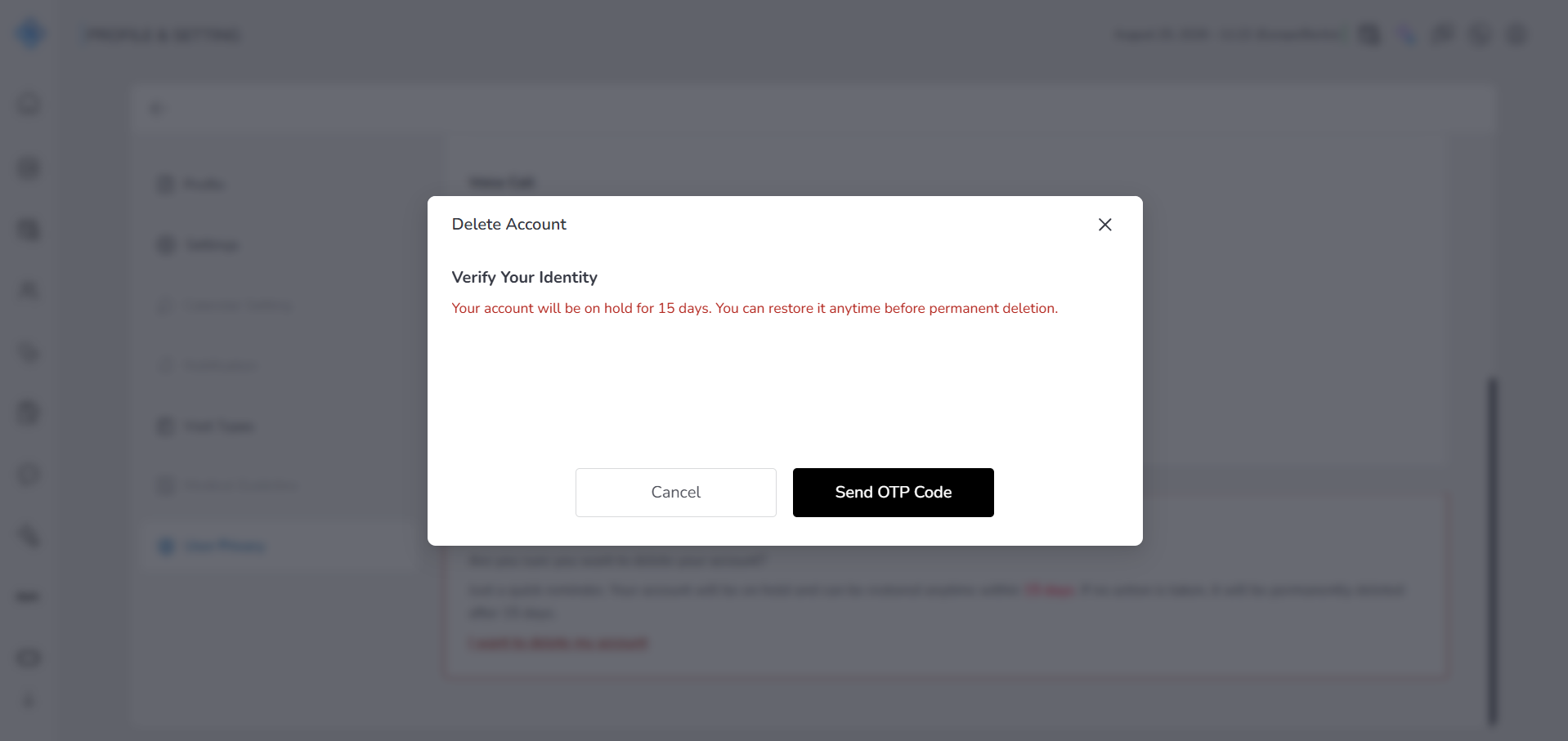
1. A modal titled **Delete Account** opens.
 *   Review the message: **Verify Your Identity**Your account will be on hold for 15 days. You can restore it anytime before permanent deletion.
-
1. Choose one of the following:
 *   **Cancel** → No action is taken.
 *   **Send OTP Code** → An OTP code is sent to your registered email address, and the flow proceeds to the next step.
Delete Account – Security Verification
-
1. A modal titled **Security Verification** opens.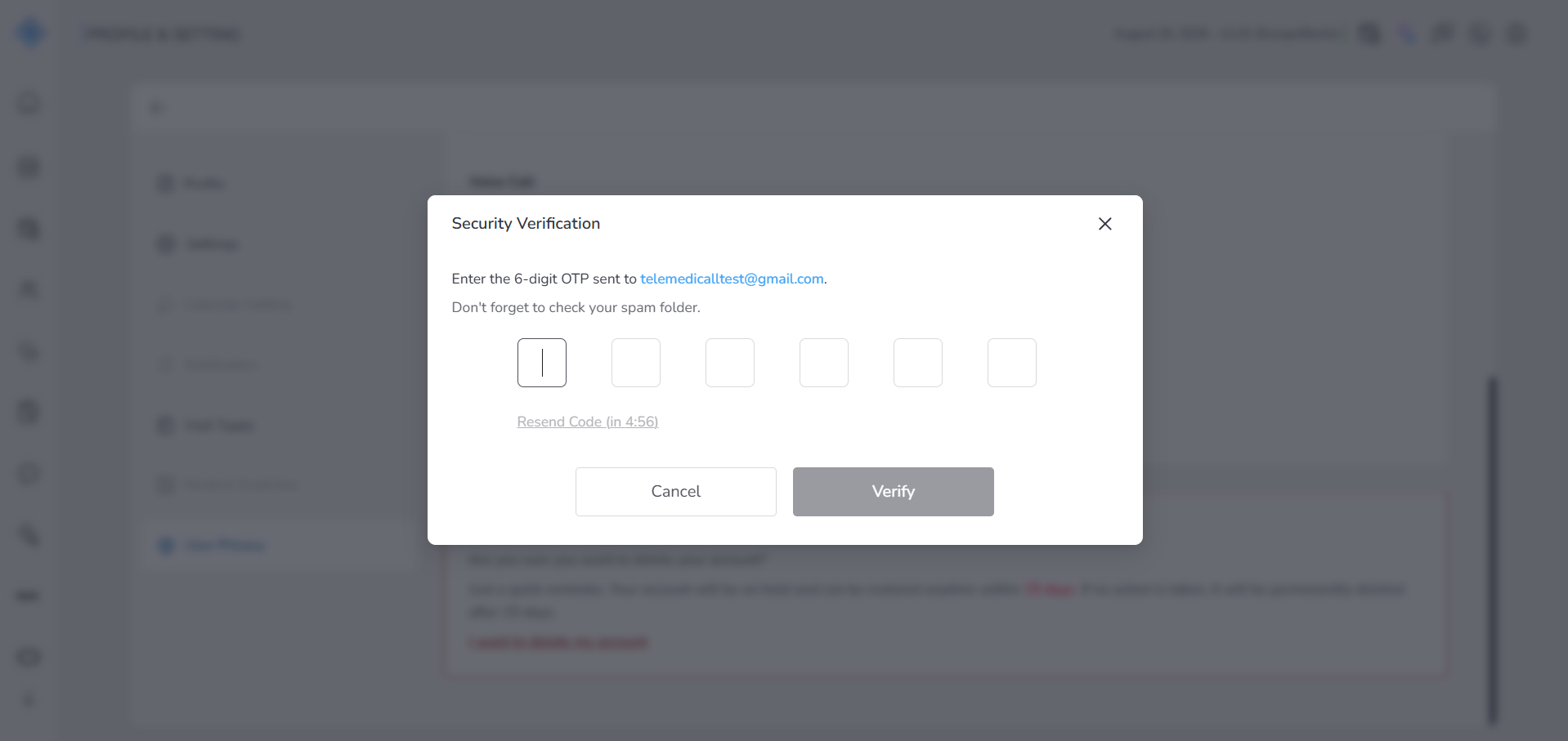 2. Review the message: Enter the 6-digit OTP sent to [user's email address]. Don't forget to check your spam folder.
3. The user enters the 6-digit OTP code received by email into the six input fields.
2. Review the message: Enter the 6-digit OTP sent to [user's email address]. Don't forget to check your spam folder.
3. The user enters the 6-digit OTP code received by email into the six input fields.
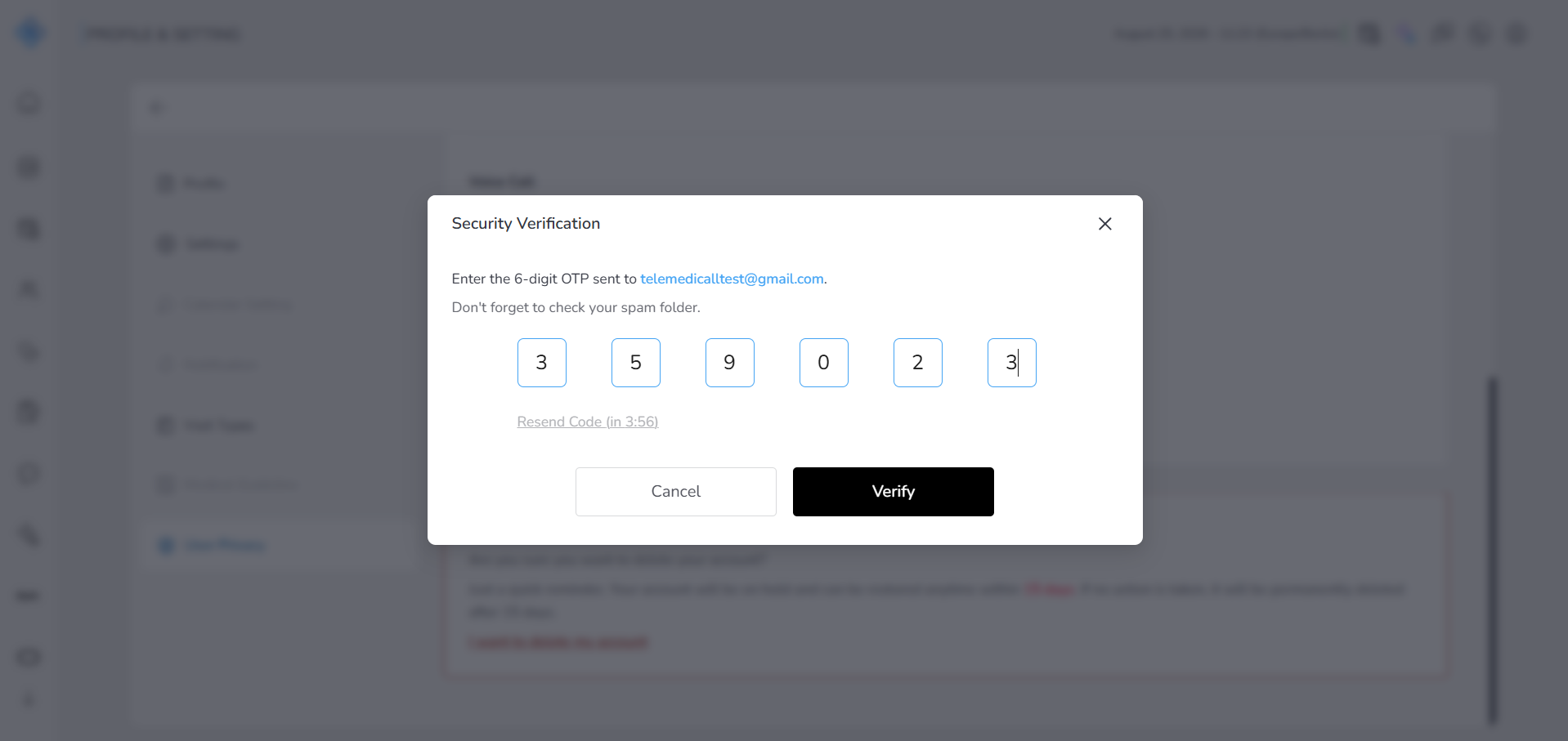 4. The Resend Code link is available with a countdown timer showing when the code can be resent.
5. Choose one of the following:
* Cancel → No action is taken; the account deletion process is stopped.
* Verify → The OTP code is verified, and the account deletion process continues.
4. The Resend Code link is available with a countdown timer showing when the code can be resent.
5. Choose one of the following:
* Cancel → No action is taken; the account deletion process is stopped.
* Verify → The OTP code is verified, and the account deletion process continues.
Reason for Deletion Modal
- A modal titled Reason for Deletion opens.
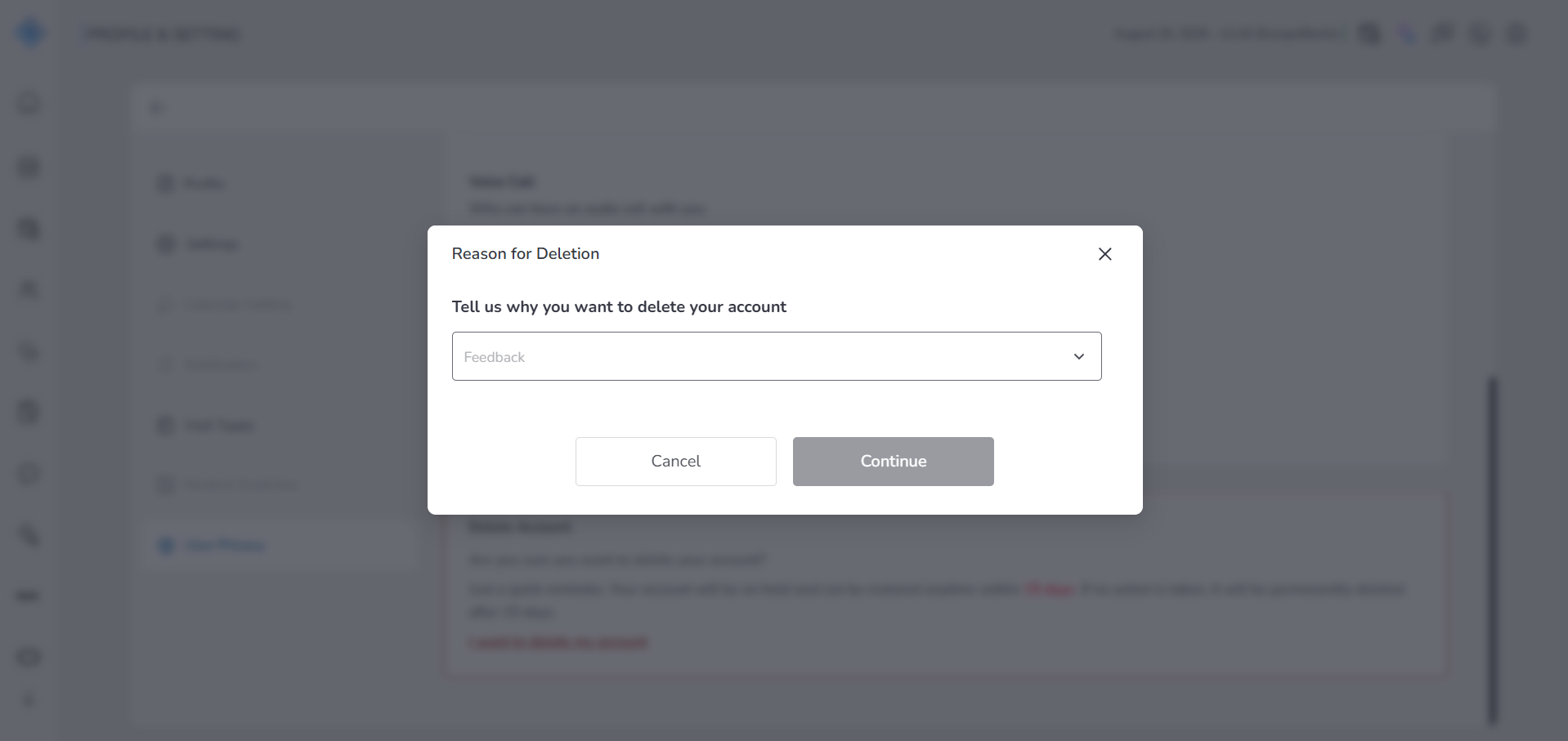
- Read the message:
- Tell us why you want to delete your account.
- Open the feedback dropdown.
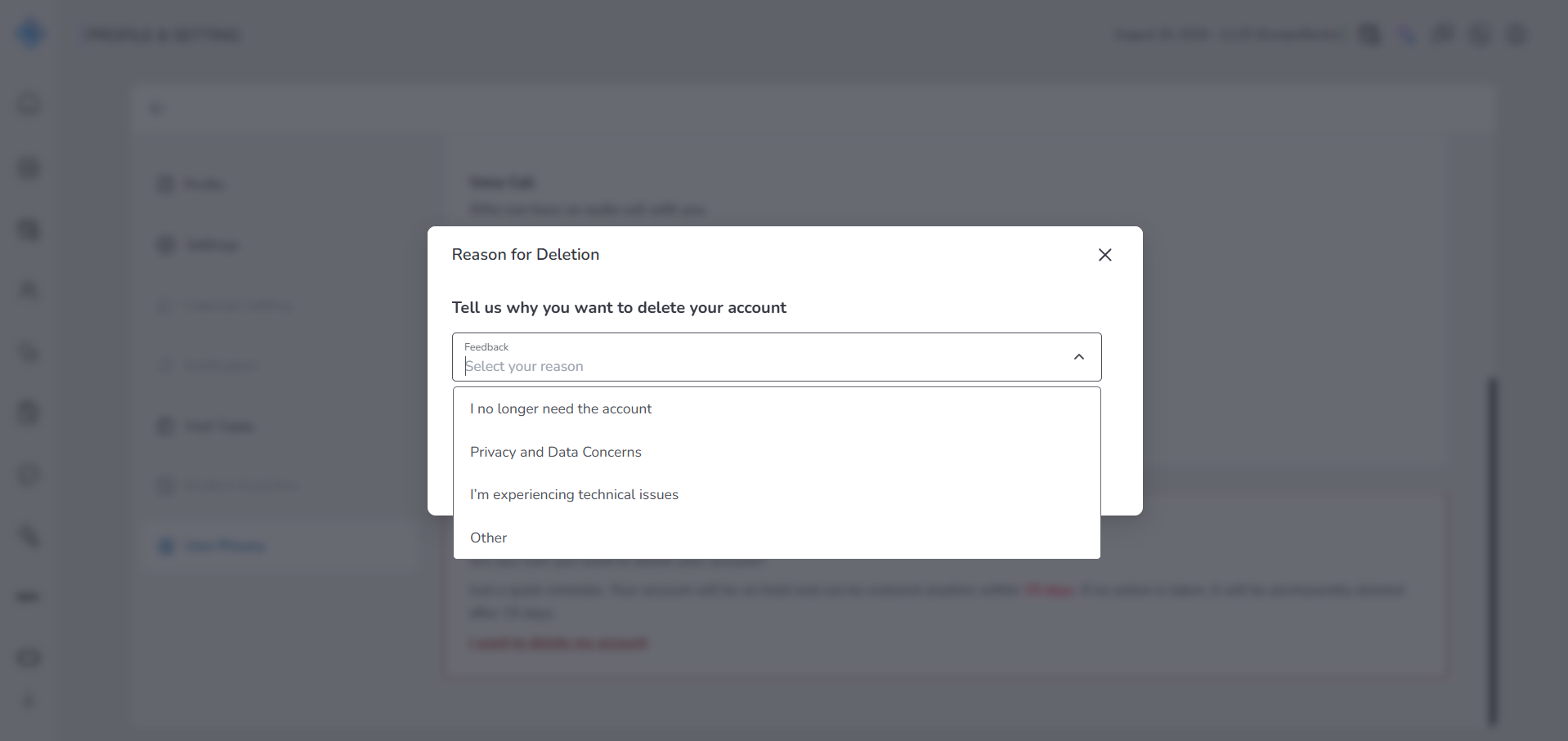
- Select one of the predefined reasons (required).
- Choose:
- Cancel → Stops the deletion process.
- Continue → Proceeds to the final confirmation.
Account Hold Confirmation Modal
- A modal titled Your account is now on hold opens.
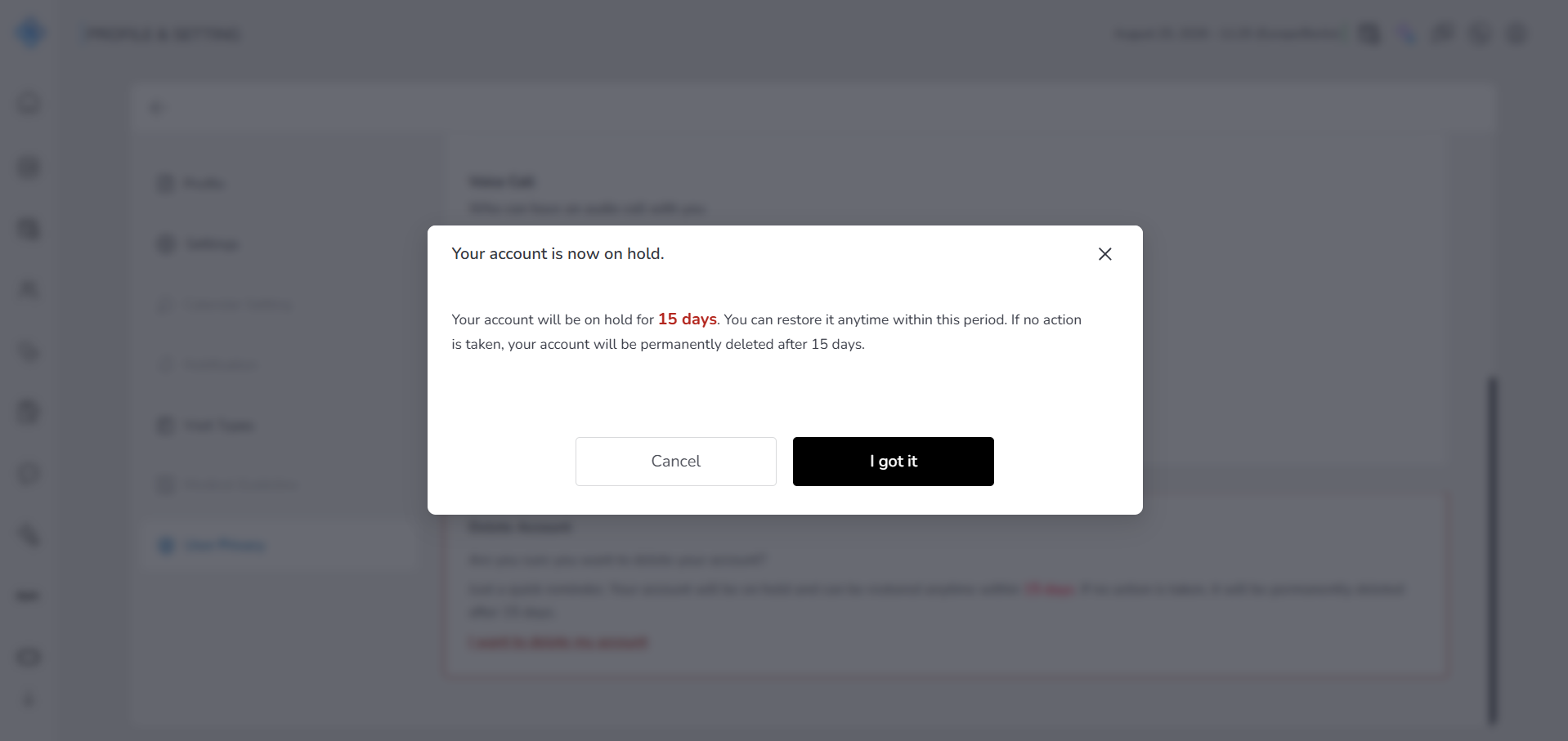
- Review the information:
- Your account will be on hold for 15 days
- You can restore it anytime during this period
- After 15 days, the account will be permanently deleted
- Click:
- Cancel → No changes are applied.
- Got it → Your account is placed on hold.
Fields (Field Descriptions)
Contact Preferences & Profile Visibility
| Field | Description | Type | Required |
|---|---|---|---|
| Get an appointment | Determines who is allowed to book appointments with you on the platform. | Dropdown | Yes |
| Video Call | Controls who can start a video call with you. | Dropdown | Yes |
| Audio Call | Controls who can start an audio call with you. | Dropdown | Yes |
| Profile Visibility | Defines who can see your profile information. | Dropdown | Yes |
Available options for all dropdowns:
- Everyone
- Patients
- Providers
- Nobody / Public (depending on field availability)
Delete Account
| Field | Description | Type | Required |
|---|---|---|---|
| I want to delete my account | Starts the account deletion process and opens the first confirmation modal. | Action Link | Yes |
| Reason for Deletion | Required feedback selection explaining why you want to delete your account. | Dropdown | Yes |
Modals & Messages
| Modal Name | Field / Message | Description |
|---|---|---|
| Delete Account | Informational Text | Explains that the account will be placed on hold for 15 days before permanent deletion. |
| Reason for Deletion | Feedback Dropdown | Collects required feedback before continuing the deletion process. |
| Your account is now on hold | Confirmation Message | Confirms that the account is placed on a 15-day hold and explains recovery options. |
System States
| State | Description |
|---|---|
| Active | Account is fully active and accessible. |
| On Hold (15 Days) | Account is temporarily disabled but can be restored anytime within 15 days. |
| Your account is now on hold | Account is fully removed after the 15-day hold period ends. |
Behavior & Expected Outcome
- All privacy settings are saved automatically after selection.
- Access rules apply immediately.
- Account deletion is not immediate.
- After confirming deletion:
- Your account enters a 15-day hold period
- You can restore your account at any time during this period
- If no action is taken, your account is permanently deleted after 15 days
Common Errors + Fixes
| Issue | Cause | Fix |
|---|---|---|
| Current password is required | Left blank during password change | Enter current password |
| New password is required | Left blank during password change | Enter new password |
| Password is incorrect<br> | Wrong password entered in verification | Re-enter the correct account password<br> |
| Reason required | No option selected for deletion reason | Choose one of the available feedback option |